A blank screen at 4K 120 Hz can come from the selected input, source settings, cable link, an adapter or receiver in the chain, or a display mode unsupported by one component. The words “HDMI 2.1” on a product do not establish that every port and feature works together. Check which devices and specific inputs support the requested resolution, refresh rate, HDR and color format. Start with a lower-bandwidth signal as a diagnostic comparison, not as proof that a particular cable is defective.
Caution: testing does not require opening the monitor or laptop. Turn the display off before changing a cable if needed; do not force a plug or work on internal components.
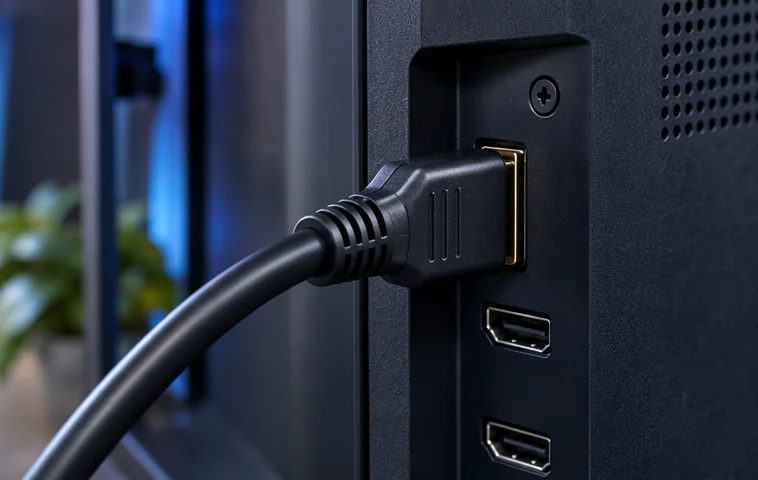
Restore a visible picture before chasing 120 Hz
Use the display’s own input/source menu to select the port physically connected to the computer or console. Check that the HDMI cable is fully seated at both ends and avoid a wall plate, soundbar, receiver, KVM or dock for the first comparison. If a desktop GPU has its own HDMI output, connect to that output rather than a motherboard connector unless the system supports integrated graphics output.
Restart the source and display after selecting the correct input. If there is still no picture, lower the source to a conservative resolution and refresh rate using a second display or the operating system’s safe display controls, then reconnect. This can restore a handshake when the source is sending a mode the screen cannot display. A working 60 Hz image narrows the problem to the higher-rate configuration or the signal path, but does not identify which component is at fault.
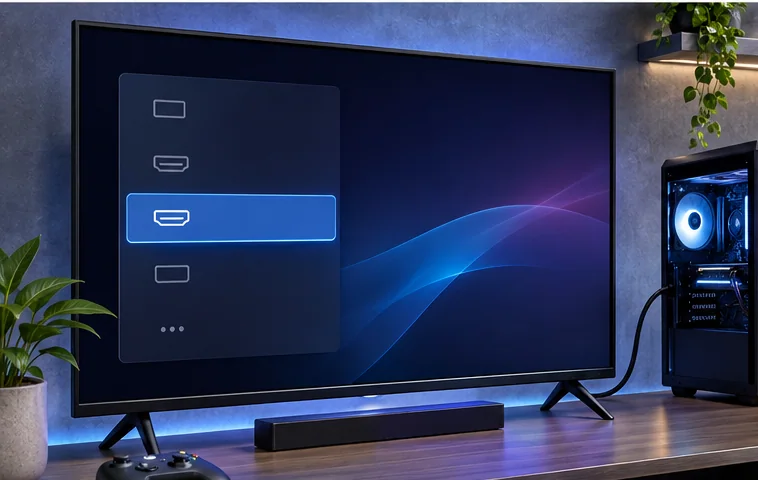
Check every link in the chain
First confirm the HDMI input, cable, and supported modes; the steps below focus on a black picture at high resolution or refresh rate.
Verify the exact port capabilities
Look up the manual for the source, display and any receiver or adapter. Confirm the particular port—not just the product family—accepts 3840 × 2160 at 120 Hz with the desired HDR, chroma and bit depth. A television may reserve its highest bandwidth for selected HDMI inputs or require an “enhanced” input mode. A receiver or capture device may limit the signal even when the TV and graphics card support it separately. Enable only settings documented for that model.
For PC, verify Windows Advanced display shows the target monitor and mode, and that the graphics control panel is not forcing an unsupported combination. For a console, use its video output information screen if available. Do not assume that HDMI 2.1 guarantees uncompressed 4K120 across all source settings; chroma subsampling, bit depth, HDR and display stream compression affect bandwidth and device support.
Test the cable as one variable
- Power down where the manufacturer recommends it, then remove intermediate devices and connect the source directly to the display.
- Use a short, known-good cable to test the same port and mode. Change only the cable; keep resolution, refresh, HDR and input fixed.
- If the short cable works, repeat with the original length and route. Long runs, wall plates, extenders and active cables introduce additional requirements and possible compatibility issues.
- For a 4K120 link, look for a genuine Ultra High Speed HDMI Cable certification label and verify it with the official HDMI Cable Certification app where available. A printed “8K” or “HDMI 2.1” claim without verifiable certification is not the same evidence.
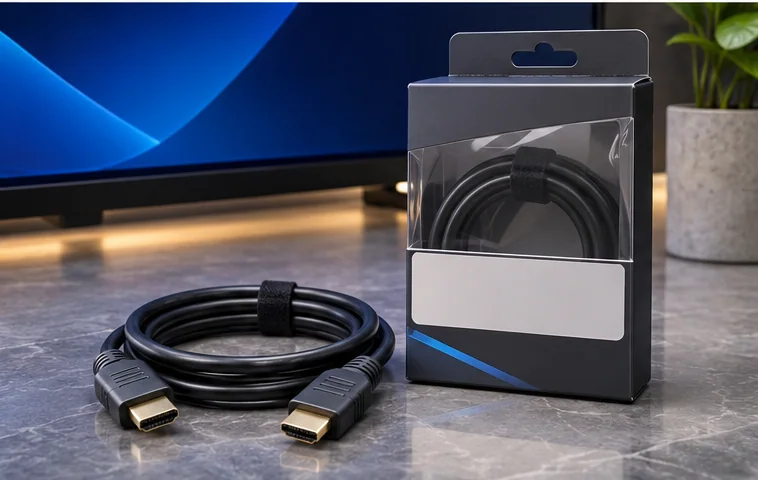
Certification confirms a cable has passed the program’s requirements; it does not make an incompatible source, receiver or display input support 4K120. If direct connection works but the receiver path does not, check the receiver’s per-input bandwidth and video format settings or update its firmware according to the maker. Avoid replacing several components at once because the cause then remains unknown.
Use a stable fallback mode, then re-enable features one by one
If 4K120 is black but a lower mode works, keep the stable image while testing. Re-enable 120 Hz first with HDR off; then test HDR and color settings individually. Check the display’s input mode and source output format each time. Some combinations are available only on particular inputs. If the screen goes blank, wait for an automatic revert or use the operating system’s recovery path rather than repeatedly switching modes blindly.
Inspect connectors for damage, loose fit, debris or a strained cable. Do not bend the cable sharply at the plug. If a cable or port is hot, visibly damaged, or smells burnt, disconnect power if safe and stop. HDMI is low voltage at the exposed connector, but damaged equipment should not be kept in service.
| Result | Likely area | Next check |
|---|---|---|
| No image at any mode | Input selection, source output, connection or device fault | Direct connect and confirm the selected source |
| Lower mode works, 4K120 does not | Port capability or full-bandwidth link | Verify each manual; test certified short cable |
| Direct cable works, receiver path fails | Intermediate device setting or bandwidth limit | Check its exact input/output format support |
| Only HDR or a color setting causes blackout | Mode combination exceeds a component’s support | Enable settings one at a time for that input |
Keep a small test log rather than relying on memory: source model and firmware, display model, physical input number, cable length, receiver or adapter path, resolution, refresh rate, HDR state and color format. Label the inputs so the working and failing path are clear. If the source offers a temporary automatic mode, use it only to restore a picture and then confirm the actual signal reported by the display. A cable’s package claim does not establish the capabilities of the complete chain; port documentation for each device remains essential.
If the problem is not limited to a 4K/120 Hz mode and the monitor says “No Signal,” also follow the general guide to an HDMI monitor detected but showing no signal.
Sources
- HDMI LA: Ultra High Speed HDMI Cable certification
- HDMI LA: cable types and capabilities
- Microsoft Support: external display troubleshooting
- Microsoft Support: Windows refresh rate settings
- HDMI LA: current HDMI specification overview
Sources consulted 6 November 2026. Port features vary by model; the generated illustrations do not depict a real test.
Be the first to leave a comment.