“No Signal” means the monitor is on but is not receiving a usable video signal on the selected input. If Windows detects the display, also check the projection mode and output settings. Start with a direct HDMI connection before changing the graphics driver.
Contents
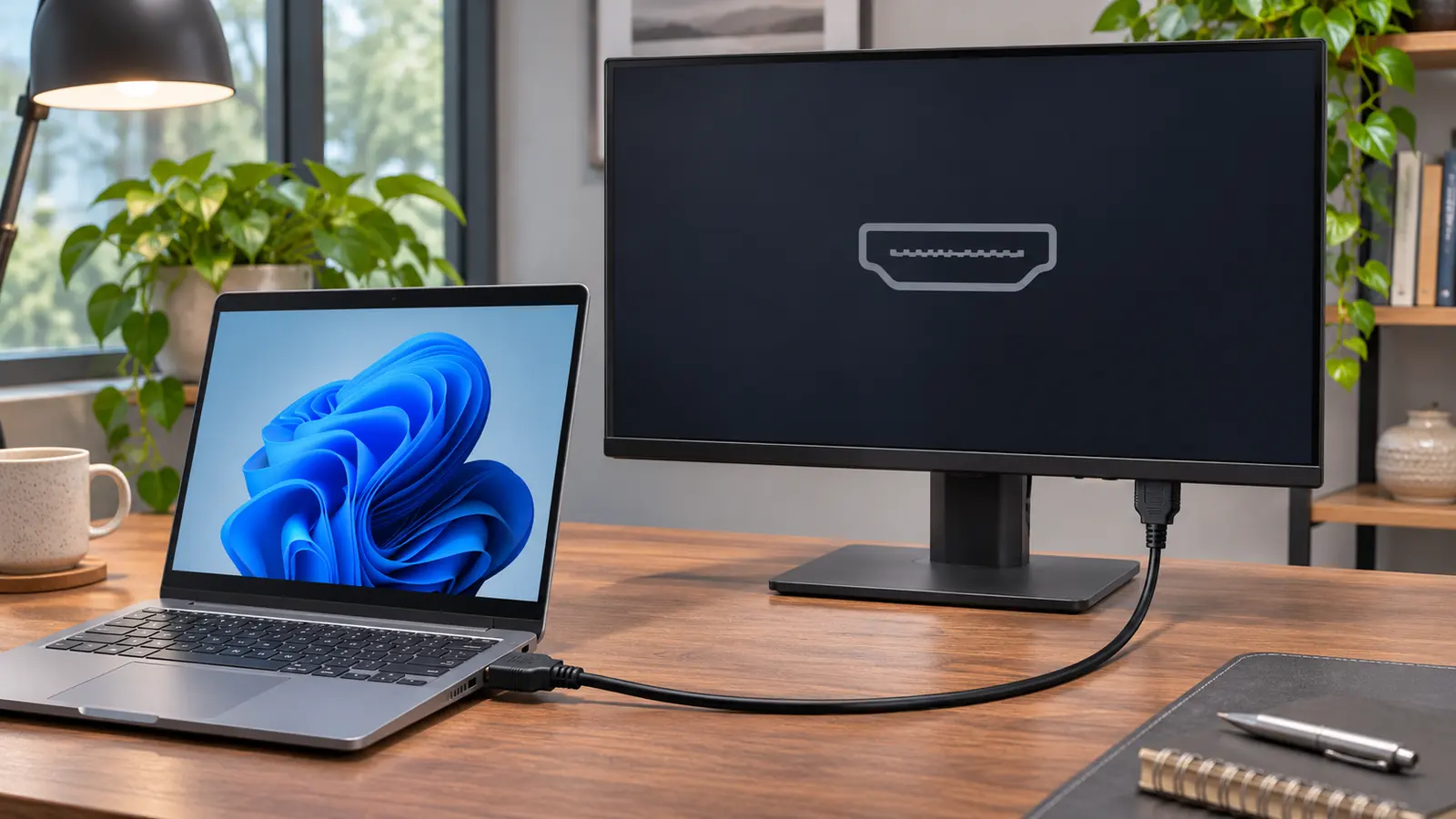
Check the monitor and its HDMI input
Confirm the monitor is on and its on-screen menu opens. Use the monitor buttons to explicitly select the input matching the socket in use, such as HDMI 1 or HDMI 2. Auto-select may stay on an older input. If the screen shows its menu and “No Signal,” it works well enough to display its own menu; that does not confirm that video is reaching it through the cable.
If connecting to a TV, also confirm that the correct HDMI port is selected and the TV is not in standby. Some displays switch inputs based on the port or device. Keep the monitor powered during testing and avoid changing factory picture settings; they usually do not restore the video link.
Test the cable and ports without an adapter
Turn the display off if you need to inspect connectors. Check that the HDMI cable is fully seated at both ends and has no bent pins, cracked housing, or severe pinch. Unplug and reconnect it by holding the plug, not pulling the wire. If the laptop and monitor have multiple HDMI ports, try another. If the path uses an adapter, splitter, switch, or dock, remove it for the first test and connect laptop directly to the monitor.
Next test a known-working HDMI cable. Keep the same source, monitor, and port during this comparison. If another cable restores the picture, replace the suspect cable. If the issue remains, connect the laptop to a known-working TV or monitor. You can also test the display and cable with another video source. These swaps help show whether the issue follows the display, cable, or computer output.
Do not insert a tool into the port or force a plug that does not line up. Also check the laptop manual: some physical connectors look like HDMI but serve another purpose, and some computers do not provide HDMI output on every port. Some special HDMI cables are directional, but a standard HDMI cable between two HDMI ports does not need a separate driver.
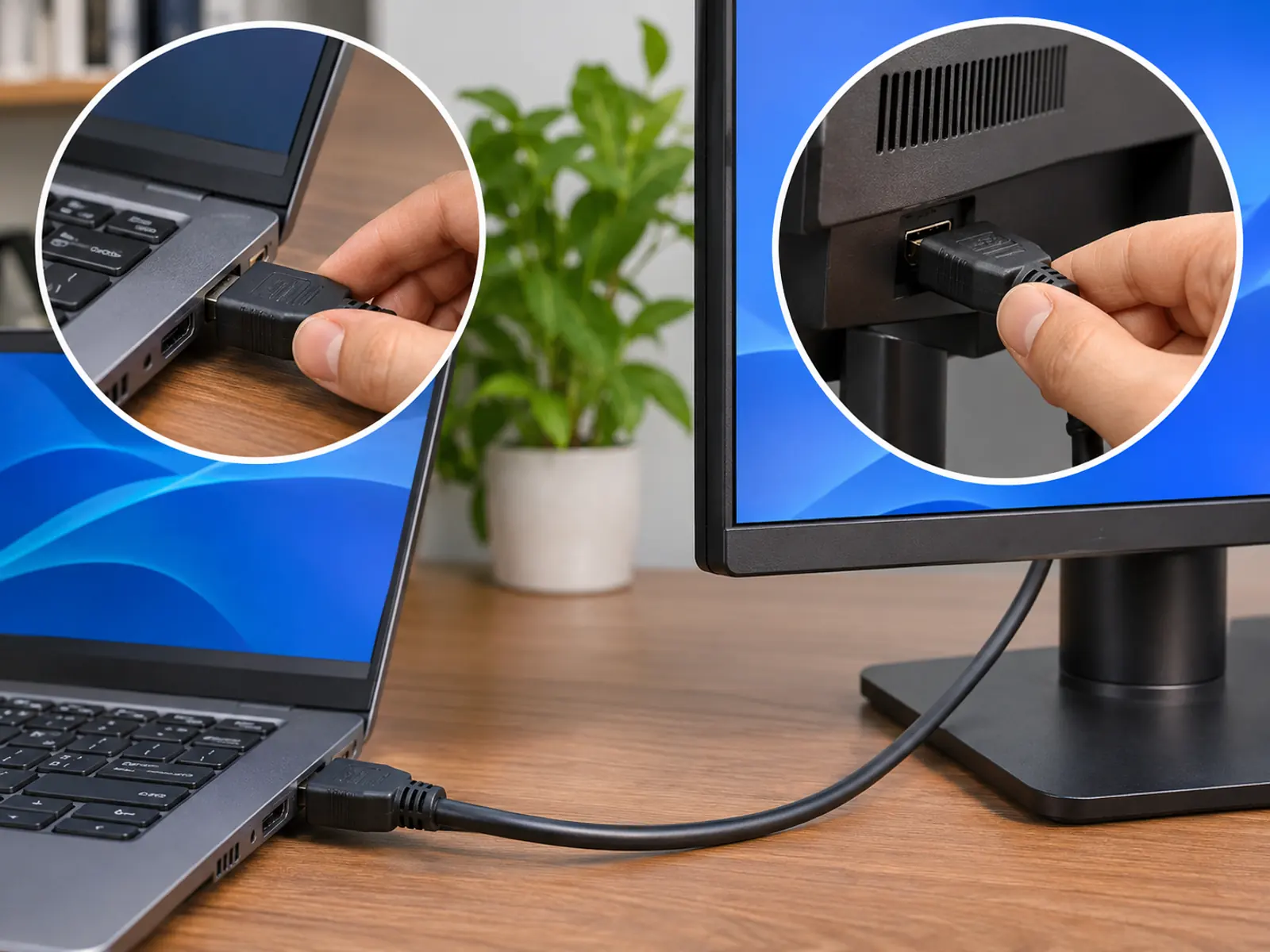
Choose Windows projection mode
On the laptop, press Windows + P and select Duplicate or Extend. PC screen only can leave the external monitor blank even if the cable is connected properly. Wait a few seconds after choosing a mode. In Extend mode, move the pointer to the edge of the main screen to check whether the desktop continues outside the visible area.
If the projection panel does not appear, repeat the shortcut and use arrow keys to choose a mode, then press Enter. Make this change only if you can still see the laptop screen. If that screen is also blank, restart and follow Microsoft’s blank-screen guidance instead of entering shortcuts blindly.
Then open Settings > System > Display. Select Detect if the second display is not shown. If Windows detects it but the monitor still says “No Signal,” the physical link or output mode may still be incompatible; detection alone does not guarantee a picture. Use the monitor’s OSD controls to confirm the active input.
Confirm detection and choose a compatible mode
When the display appears in Windows settings, select its numbered tile to adjust that display only. Under Scale & layout, first choose the resolution marked Recommended. If it is too high for the cable, adapter, or display, temporarily choose a lower resolution supported by the monitor. Do not try custom modes from a forum.
Under Advanced display, select a common refresh rate supported by both the monitor and connection. A high refresh rate or 4K resolution can exceed the limits of an older cable, adapter, port, or monitor. If reducing the refresh rate restores the picture, check official specifications for every link before raising it again. If the issue occurs only at 4K 120 Hz or with an HDMI 2.1 link, see the guide to HDMI 4K/120 Hz black screens.
After each selection, wait for the Windows confirmation prompt. If the picture disappears again, wait for the previous mode to return when the selection is not confirmed. Avoid changing resolution, refresh rate, and HDR at once; one change at a time shows which setting matters.
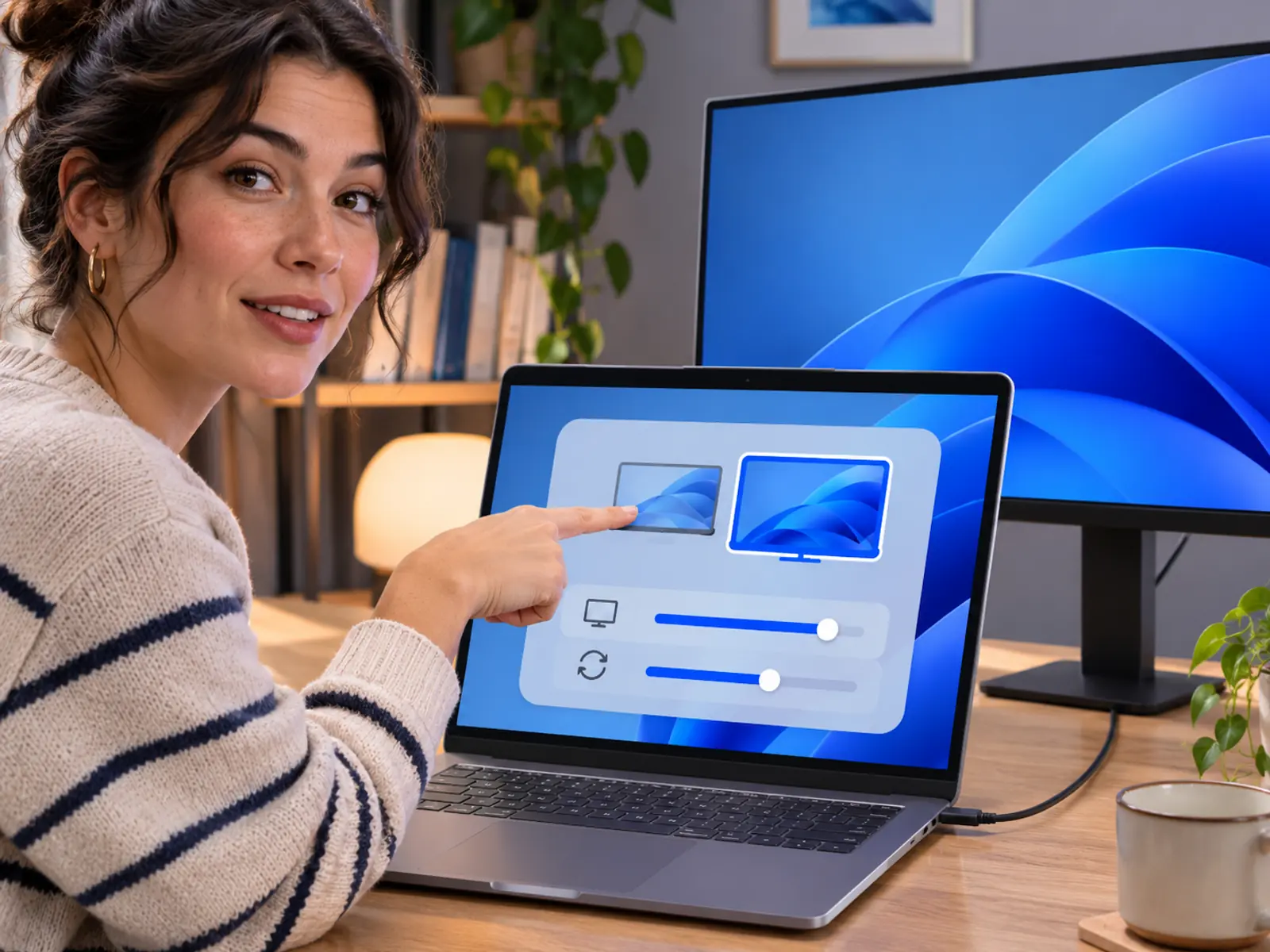
Reset or troubleshoot the graphics driver
If cable, input, and projection mode are correct, press Windows + Ctrl + Shift + B once. Windows attempts to reset the graphics driver; a beep or brief flicker may occur. If nothing changes, restart the computer from Start with the monitor connected. This does not repair a broken port but can clear a temporary video-output stall.
If the issue began immediately after a display-driver update, open Device Manager, expand Display adapters, open the adapter properties, and select the Driver tab. If Roll Back Driver is available, follow the prompts and restart. The option may not be available. Otherwise get a driver only through Windows Update or the computer/GPU maker’s support page for the exact model.
Avoid uninstalling all adapters or downloading an unofficial “driver updater.” A laptop with integrated and discrete graphics may need both adapters. If Windows does not show any external display after these steps, give support the model, driver version, when the issue began, and the results of cable and display swaps.
Isolate the monitor, cable, and HDMI output
Use a simple table to keep diagnosis repeatable. Changing one connection at a time helps identify whether the fault follows an item instead of guessing from the message.
| Test | Useful result | Next step |
|---|---|---|
| Another HDMI input on the monitor | Picture on only one input | Use or have the failing input checked |
| Another known-working HDMI cable | Picture returns | Replace the suspect cable |
| Monitor connected to another source | No picture from several sources | Check monitor manual or support |
| Laptop connected to another display | No external display works | Ask laptop maker to check HDMI output and driver |
If the picture works directly but not through a USB-C dock, the issue may involve video capability on the port or dock; that is a different path from direct HDMI. The guide to a USB-C dock not detecting a display explains how to check DP Alt Mode and dock compatibility.
If one combination displays a picture and then loses signal after a few minutes, repeat the test with the same cable and resolution, then check whether the monitor switches inputs automatically. Note whether the signal drops during one app or while idle; this helps distinguish a mode-negotiation issue from an intermittent cable or port connection.
Check: keep a known-working cable, input, source, and display mode connected for several minutes and confirm the signal stays on.
If it still does not work: stop swapping parts and ask the maker of the item that the fault follows to diagnose the hardware.
Frequently asked questions
These answers clarify the difference between software detection and receiving an HDMI signal.
Why does Windows detect the monitor but it says “No Signal”?
Windows may identify a display even when the selected video mode is not accepted by the connection. Check the selected input, direct cable, Windows mode, then a supported resolution and refresh rate.
Do I need an HDMI driver?
A standard HDMI cable does not need a separate driver. The PC’s graphics driver can affect its output; use Windows Update or model-specific manufacturer support.
Windows + P does not change anything. What should I do?
First check the monitor input and cable. If the laptop screen works, open Settings > System > Display and select Detect; then restart with the external monitor connected.
It only happens at 4K/120 Hz. Is the diagnosis different?
Start with input and cable checks, then temporarily choose a lower mode. For issues specific to HDMI 2.1 and 120 Hz, see the linked guide in the compatible modes section.
Does a USB-C-to-HDMI cable follow the same steps?
Windows display selection still helps, but the USB-C port must support the needed video output and the adapter must be compatible. See the USB-C/dock guide if the two HDMI sockets are not connected directly.
Related articles
Next step
Record the working combination: laptop, monitor input, cable, resolution, and refresh rate. This tells support whether the signal is failing at the cable, display, or graphics output.
Sources
- Microsoft Support, Troubleshoot external monitor connections in Windows — accessed 8 November 2026.
- Microsoft Support, Change your screen resolution and layout in Windows — accessed 8 November 2026.
- Microsoft Support, Change the refresh rate on your monitor in Windows — accessed 8 November 2026.
- Dell Support, HDMI Ports on Dell Devices: Complete guide — accessed 8 November 2026.
Be the first to leave a comment.