Quick Fix — Try This First
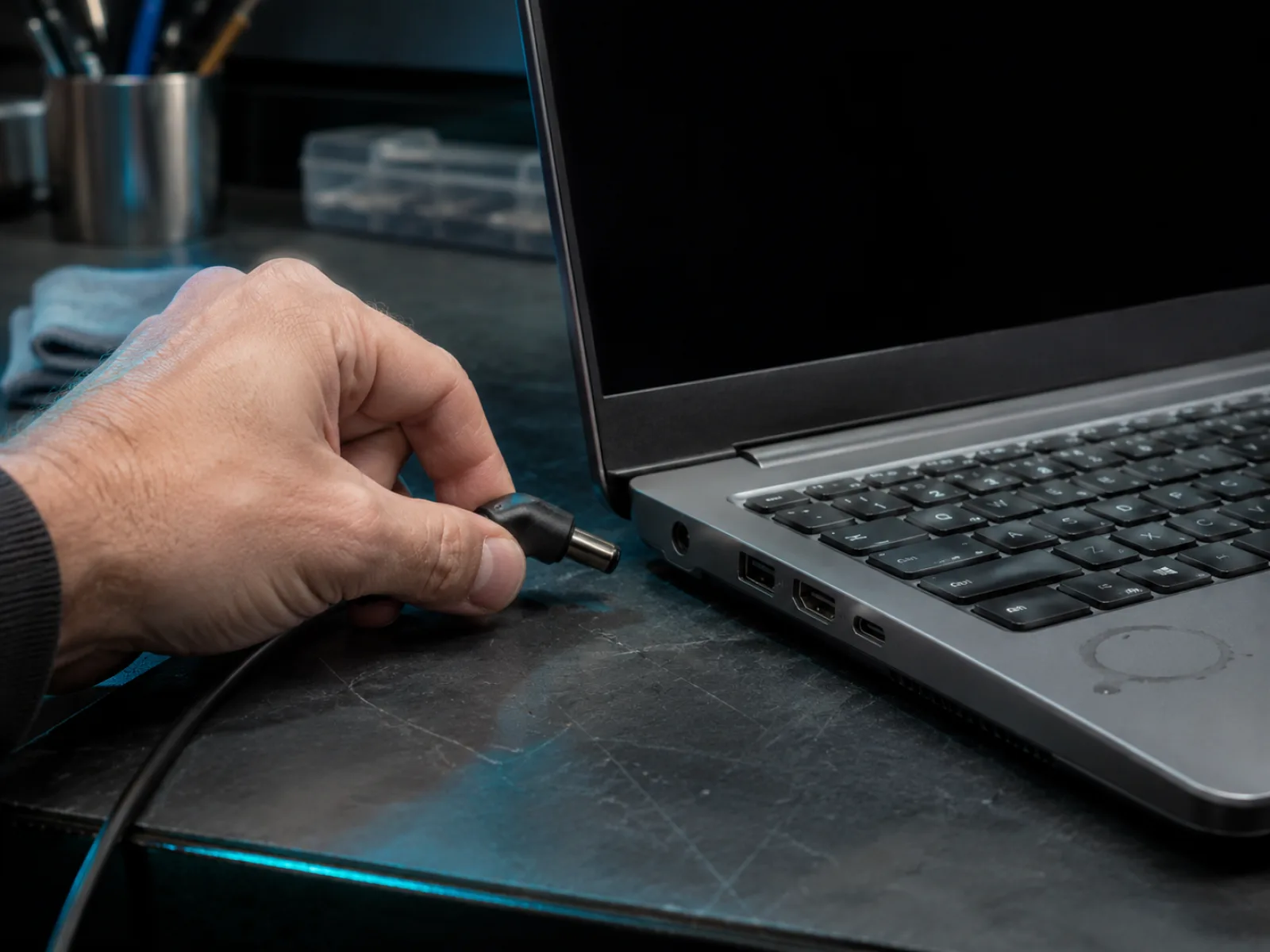
- Power the laptop off immediately and unplug its charger. Do not turn it back on to check.
- Disconnect accessories. Blot only visible liquid; do not shake or heat the computer.
- For a sugary, salty, or substantial spill, arrange professional inspection promptly.
- If the files are irreplaceable, stop handling the machine and request a recovery assessment before repair.
Laptop liquid damage data recovery depends on the liquid, how quickly power was removed, the model, and storage condition. No home drying period proves that the inside is clean or safe. The priority is to prevent additional damage and preserve a chance to read the drive. This guide gives cautious steps; it cannot promise that files can be recovered.
Symptoms and urgent decisions
| Symptom | Likely cause | Next action |
|---|---|---|
| The laptop is still on | Moisture may be near powered circuits | Shut it down; do not leave it running to copy files. |
| Keyboard, touchpad, or display behaves strangely | Liquid may have reached internal connections | Remove power and arrange an inspection. |
| Odor, smoke, heat, or swollen battery | Possible electrical or battery failure | Step away; do not handle the battery. Call emergency services for smoke or fire. |
| Laptop will not start and files matter | Power, board, or storage may be affected | Do not try another start; request a data-focused assessment. |
| Laptop starts then stops | Intermittent fault or corrosion | Stop testing and record what happened. |
Careful steps to protect the data
1. Remove power
Hold the power button only long enough to shut the laptop down, then unplug the charger from the outlet and computer. Remove accessories and the dock. If it does not respond, do not repeat power attempts or try another charger.
Check: lights and fans are off and no power cable remains connected. If shutdown fails: move the laptop away from liquid and seek help; do not open it while powered.
2. Avoid spreading the liquid
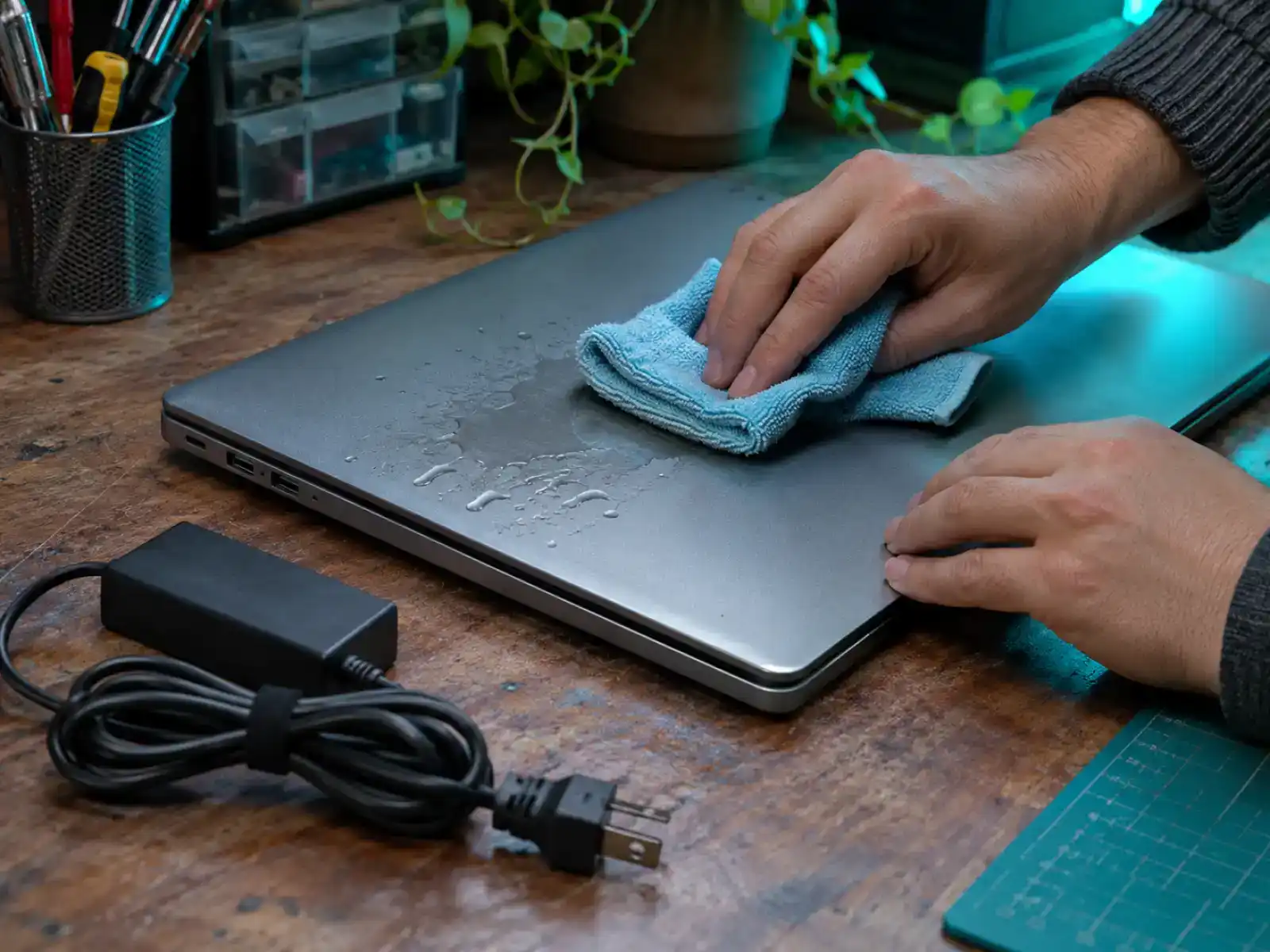
Gently blot reachable surfaces with an absorbent cloth. Do not shake the laptop, flip it abruptly, use a hair dryer or heater, put it in rice, or blow compressed air into it. These actions do not remove residue under components, and heat can damage materials. Do not press keys to test the keyboard.
Check: visible liquid is blotted without heat or disassembly. If an area cannot be reached: stop and take the device to a repair shop.
3. Remove a battery only when the maker says users may
Most current laptops have an internal battery. Do not open the case to disconnect it unless the model manual explicitly describes the task as user-accessible and you can do it with the computer unplugged. Do not press, puncture, or handle a swollen, hot, damaged, or unusual-smelling battery.
Check: no internal part has been forced. If the manual does not confirm access: leave the laptop closed and call a qualified technician.
4. Choose repair or recovery before restoring power
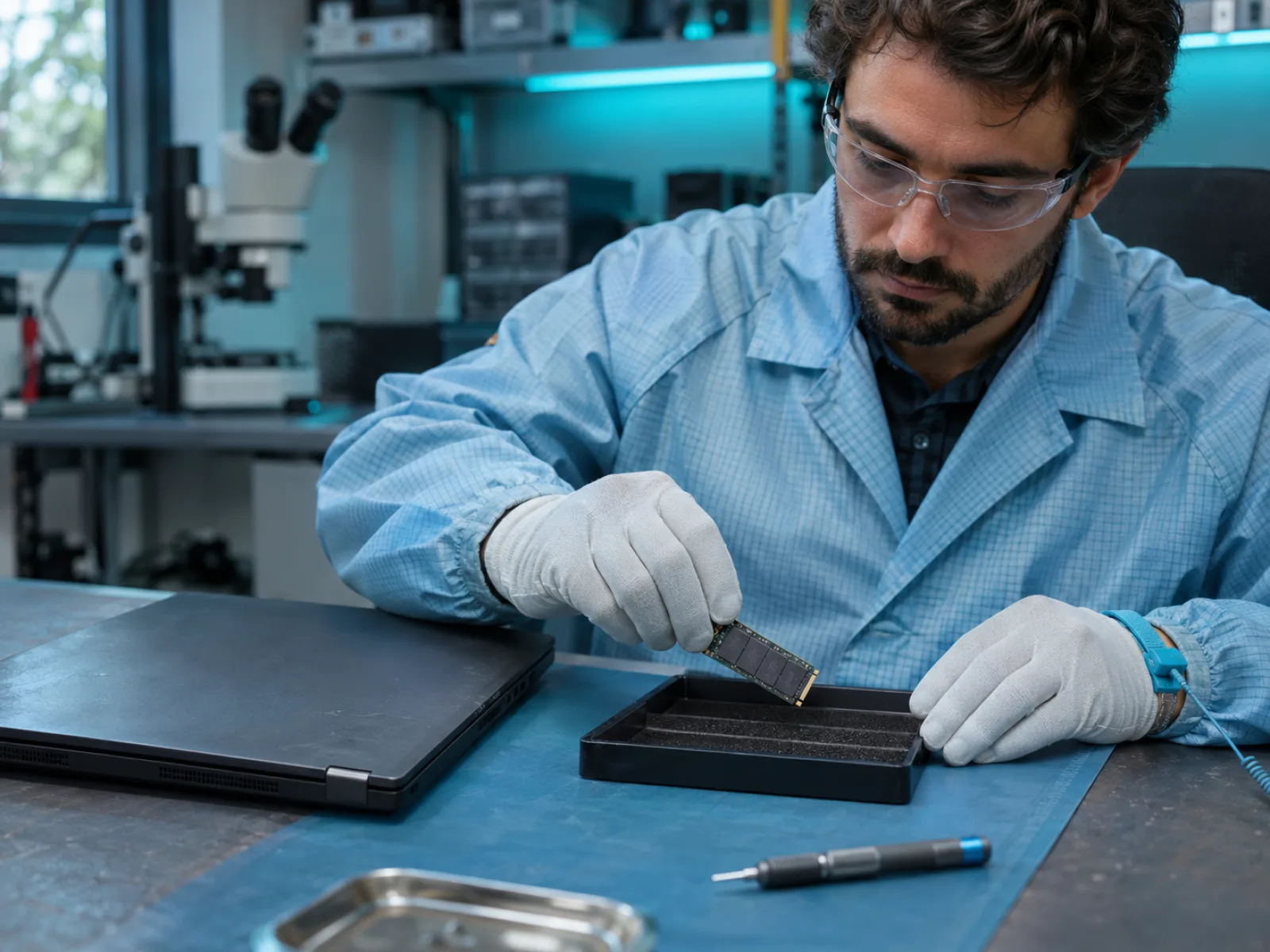
Tell the shop what liquid spilled, roughly when, whether the laptop was plugged in, and what attempts followed. Ask whether the quote includes cleaning, a storage check, and data copying. Motherboard repair and file recovery are different goals, so state which comes first. Ask for a written scope, diagnostic fee, return policy for the original storage, and a note about any work that writes to it. A recovery estimate should follow inspection of the specific device and encryption setup, not a guaranteed percentage before the shop sees it.
Depending on the model, storage may be removable, soldered, encrypted, or dependent on a working board to unlock the data. A removable SSD is not always readable in a USB enclosure. Do not authorize a reset, system reinstall, or board replacement until you understand the effect on files and encryption.
5. Copy files only after a stable read
If a professional confirms that the storage can be read reliably, copy priority files to another healthy device and open several copied files. Never save recovered data onto the source drive. If the drive makes noise, heats up, disconnects, or returns errors, stop repeated copying and ask a specialist. This step is no reason to power on a wet laptop at home.
Common mistakes
- Turning the laptop back on “just to check” can energize a wet board. Keep it powered off and unplugged.
- Rice, a heater, or a hair dryer does not remove residue inside the computer; added heat can create further component or battery risk.
- Removing an internal battery or opening a chassis without a user-approved procedure can create an electrical hazard and worsen the damage.
Troubleshooting if it still fails
A laptop that remains off after a spill may have a damaged power circuit or system board; a brief start followed by shutdown can also indicate a short or protective shutdown. If storage is no longer detected, the drive or its connection may be affected independently of the laptop repair.
- If the files matter, stop repeated power attempts and request a data-recovery assessment.
- If the files are backed up, have the machine inspected and cleaned before restoring power.
- If storage is removable, reconnect it only after it is confirmed dry and safe; stop if it clicks, heats up, or disconnects.
Before handing the computer over, note what liquid was spilled, approximately when it happened, whether the charger was connected, and what changed after power was removed. Share the laptop model and explain which files matter. Ask the repair provider to confirm whether the storage can be disconnected or imaged before board replacement, operating-system reinstallation, or other work that could overwrite data. Keep the charger and any removed parts with the device, and request the original storage back if it is replaced.
When to stop and call a technician
Stop immediately for smoke, burning odor, localized heat, a deformed battery, liquid inside vents, or repeated boot attempts. Contact a data-recovery specialist if the files are worth more than the diagnostic cost, storage is soldered or encrypted, or the drive is unstable. If a battery smokes or burns, do not carry it: move people away and contact local emergency services.
Frequently asked questions
How long should I wait before turning it on?
No number of hours proves that residue is gone or the inside is dry. After liquid enters the case, do not rely on air drying; arrange an inspection before applying power.
Should I copy files before shutting down?
No, not while the laptop is wet. Leaving it powered can worsen a short. Remove power first, then arrange a controlled copy after assessment.
Can rice or a hair dryer save the drive?
No. Rice does not remove internal residue, and a hair dryer adds heat. Blot only accessible exterior surfaces.
Can a shop recover data if the laptop will not start?
Sometimes. It depends on storage, encryption, board condition, and available credentials. An inspection of the specific model and drive is needed to estimate feasibility.
Related articles and next step
See our guide to an external hard drive that is not detected, NVMe SSD recovery options, and USB diagnosis before formatting. Next step: request a written quote that states whether the priority is repair or data copying.
Sources
- Dell Support — response to liquid exposure and repair precautions (accessed November 11, 2026).
These recommendations rely on manufacturer documents; ElectronixLab has not tested this procedure.
Last updated: November 11, 2026
Be the first to leave a comment.