Quick Fix — Try This First
- Check the exact service manual for material and thickness at each contact.
- Before opening, check airflow, accessible dust, fan noise and power mode.
- If service is authorized, disconnect power and follow the battery and heatsink procedure.
- Keep each pad in its documented location; never guess its thickness.
Check: use manufacturer diagnostics after service. If uncertain, stop and use qualified service.
Short answer: match the interface to the gap
Thermal paste and thermal pads both help transfer heat between parts and a cooler, but they solve different contact problems. Paste is meant for close, relatively flat surfaces with a thin interface. A pad is a compressible sheet used where the device design needs a thicker gap filler or a specific material. Neither is a universal upgrade. In a laptop, the exact model’s service manual and parts list decide what belongs on each surface.
The useful question is where each interface belongs in this exact laptop. A processor, memory package and power component may sit at different heights, so substitution can leave a gap or change cooler pressure.
How the two materials differ
| Interface | Designed contact | Typical role in a laptop | What can go wrong when substituted |
|---|---|---|---|
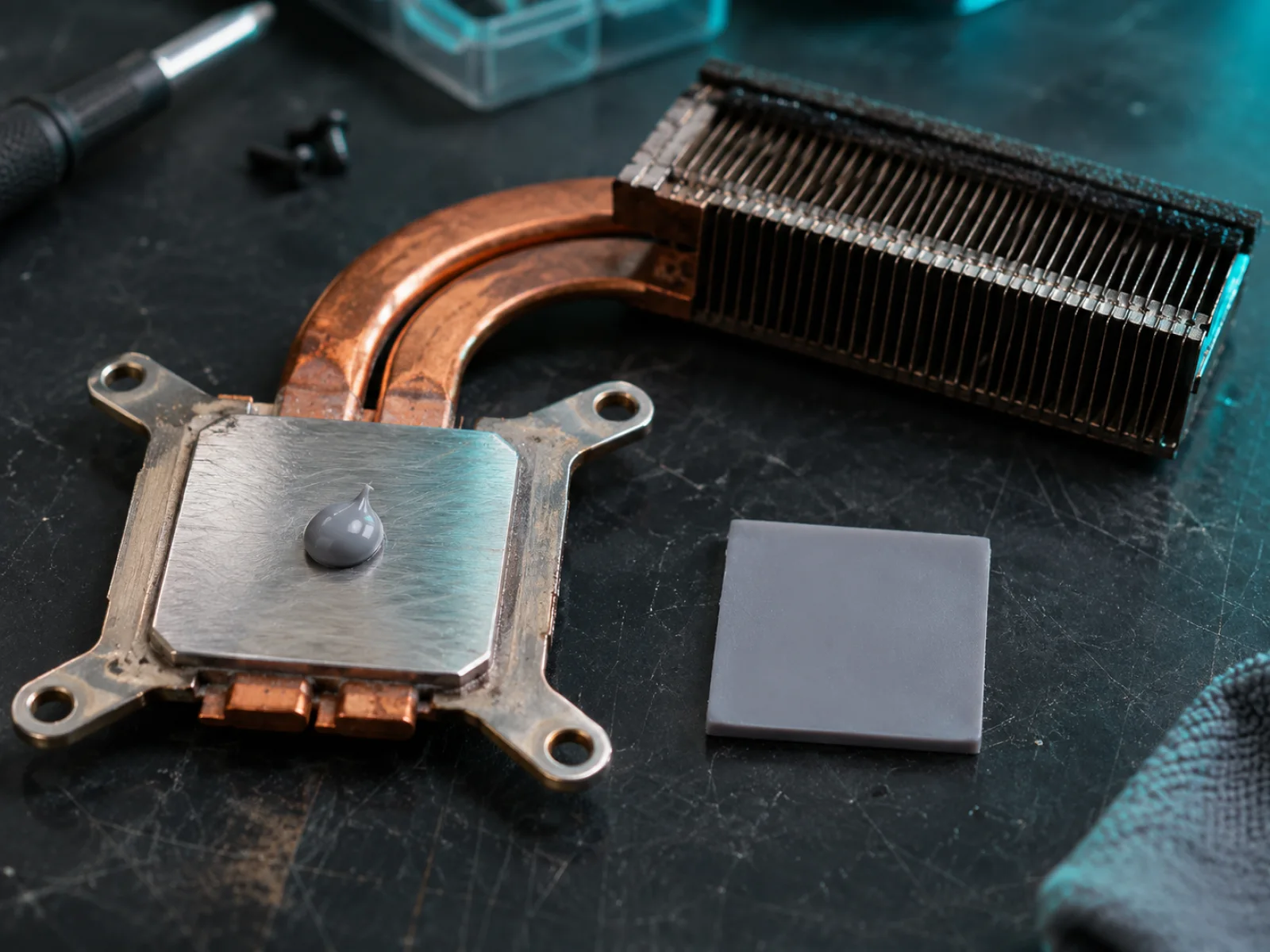
| Thermal compound or paste | A very thin layer between close, flat mating surfaces. | Often used at a processor-to-heatsink contact when the model’s service procedure specifies it. | A thick blob, wrong material, or incorrect application can impair contact or contaminate nearby parts. |
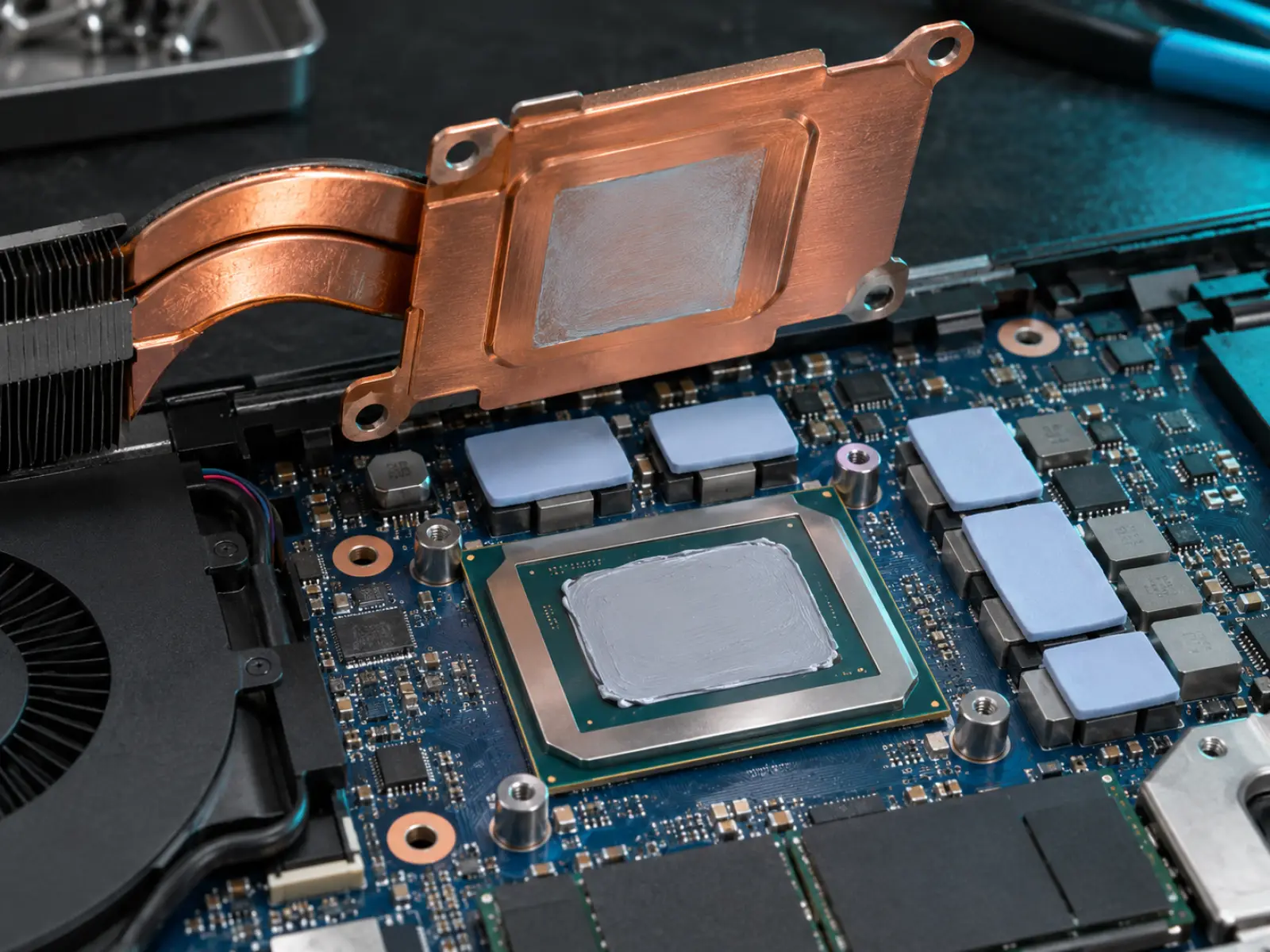
| Thermal pad | A compressible sheet that fills a designed gap between surfaces at different heights. | May be specified over memory, power components, or another package beside a heat spreader. | Wrong thickness can leave a gap or lift the cooler away from another contact surface. |
| Thermal putty or phase-change material | A model-specific interface that changes shape or state under its intended conditions. | Used in some assemblies in place of a conventional pad or paste. | Replacing it with a familiar paste or pad may change the intended contact and pressure. |
These are design roles, not a parts map for every laptop. A device may use several interface materials in one cooling assembly, and the material can look different after service. Do not identify it only by color or appearance. Use the model-specific parts diagram or service manual.
Where each belongs
Paste belongs where the specified surfaces meet closely
A thermal compound fills microscopic surface imperfections between a heat-producing package and its cooler. The goal is a thin interface, not a thick cushion. Manufacturers provide application instructions because package shape, mounting hardware, compound properties, and contact area differ. Do not apply paste to every chip that looks warm, and do not assume the GPU uses the same material as the CPU.
Some compounds are electrically conductive or capacitive; others are not. Check the exact compound’s manufacturer data sheet and keep it away from exposed contacts unless the instructions say otherwise. The electrical behavior of a product cannot be inferred from its color or from the word “paste.”
Pads belong where the design calls for a compressible gap filler
Thermal pad thickness is laptop-specific. A pad must be thick enough to meet its intended surface after the cooler is fastened, while still allowing the cooler to seat as designed. A thicker pad is not automatically better: it can press the cooler away from a CPU or GPU contact. A thinner pad may not touch its target at all.
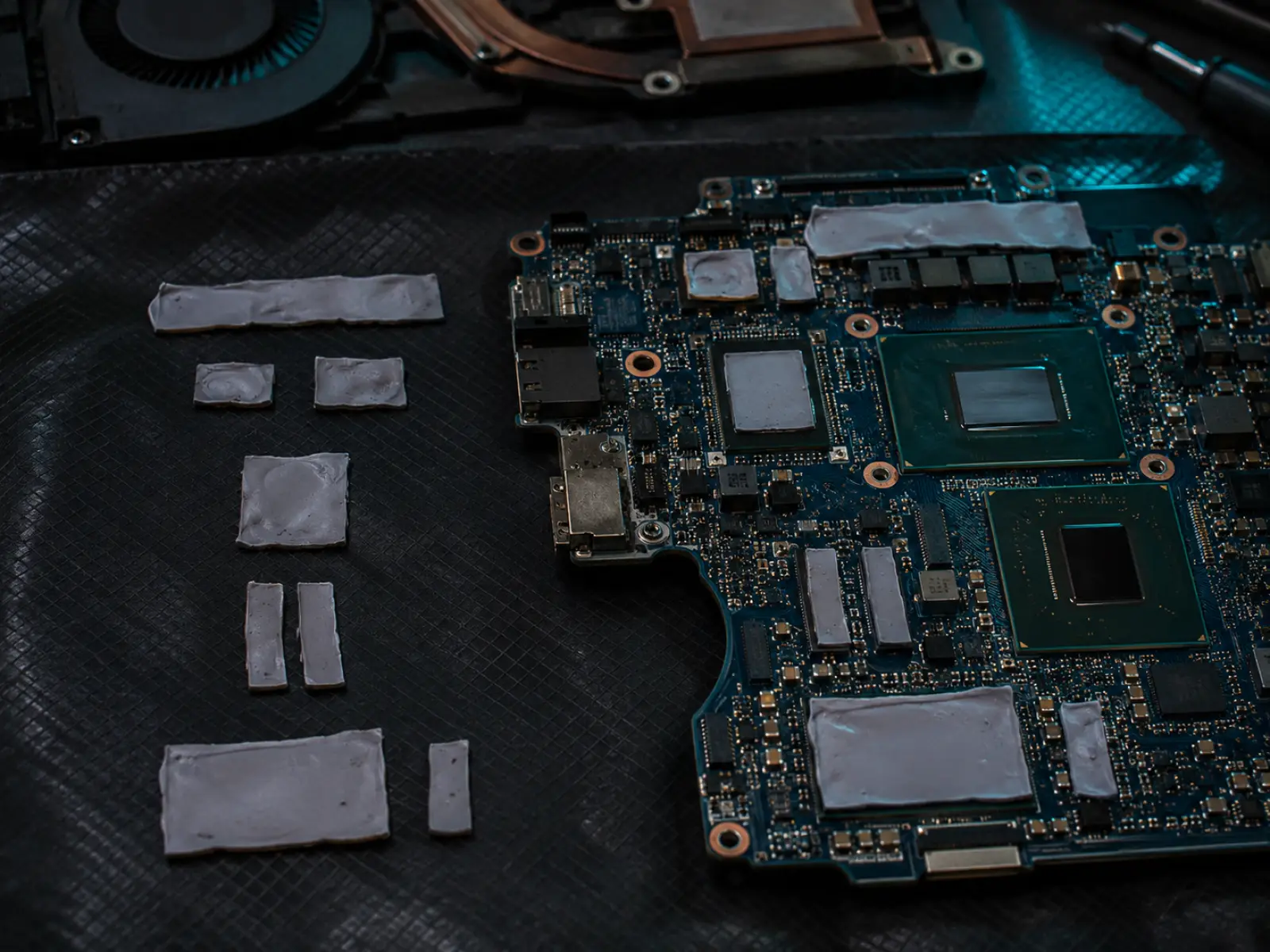
Do not stack pads to reach a guessed thickness. Do not reuse a torn, folded, contaminated, or displaced pad if the service procedure requires replacement. Do not cut a generic sheet based on a photo of another laptop. The material, dimensions, compression, and locations must match the manufacturer’s instructions or an exact replacement part.
Identify the intended material before opening the laptop
- Find the laptop’s exact model and machine type from its label or system information. Similar product names can use different cooling assemblies.
- Open the manufacturer’s support page for that exact model and locate the service manual, disassembly guide, and parts list.
- Check the cooling-module illustration and the removal or replacement instructions for each contact point. Note any part number or material specified.
- Compare the manual with the installed assembly only if you can safely follow the model-specific service procedure. If the manual warns against user removal, keep the laptop closed.
- Use the named replacement material and application method. If the manual does not specify the required pad thickness or material, ask the manufacturer or an authorized repairer rather than estimating.
Manufacturer manuals are written for specific devices. One model’s pad thickness, screw order, torque, or paste pattern is not a general rule. A teardown video may help locate a component, but it does not replace the official instructions for your exact configuration.
Internal thermal pads are not laptop cooling pads
A laptop cooling pad is an external stand, usually with fans, that supports a computer and moves room air near its vents. An internal thermal pad is a material inside the computer that fills a designed gap in its heat-transfer path. The names sound similar, but the parts are unrelated. An external stand cannot correct a missing internal pad or a poorly seated heatsink.
Safety and service boundaries
Before any model-approved service, shut the laptop down, disconnect its charger and peripherals, and follow the manufacturer’s battery-disconnection procedure. Do not work with the computer connected to power. A swollen or punctured battery is a stop condition: do not press, bend, heat, or remove it by force. Arrange qualified service.
Some products contain components that can retain charge after shutdown. Follow the exact service manual and do not probe live electronics. If the laptop is under warranty, sealed, or requires soldering or battery removal beyond your experience, stop before opening it. A damaged fan, bent heat pipe, missing screw, or distorted cooler can also cause poor contact that a new paste or pad will not fix.
Common mistakes
- Choosing paste because it is marketed with a higher conductivity number. That specification alone does not show whether it can fill the device’s gap or suit its surfaces.
- Replacing every visible interface with one material. A cooling module may need both paste and pads, or a different material named by the maker.
- Guessing pad thickness from a nearby component or another laptop model.
- Stacking pads, spreading excess compound, or tightening the cooler unevenly.
- Assuming a laptop cooling stand replaces internal service or fixes a blocked fan.
- Opening a laptop before checking the exact service procedure and battery instructions.
A practical decision rule
If the official service document names a compound for a close processor contact, use the specified type and method. If it lists a pad for a raised component or gap, use the exact material and thickness. If it names putty, a phase-change sheet, or a pre-applied interface, do not replace it with generic paste just because the material looks unfamiliar. If you cannot identify the model or part, do not guess; ask the manufacturer or a repairer with access to the correct service information.
For cooling symptoms, first compare fan noise, airflow, workload, and manufacturer diagnostics before removing the heatsink. Related guides cover software checks for a laptop overheating after an update, a laptop fan that keeps running at idle, and CPU temperature spikes at idle.
Quick reference: paste, pads and thickness
| Interface / product thickness | Intended contact | Conductivity context | Substitution risk |
|---|---|---|---|
| Paste: no sheet thickness | Thin bond line between close, flat surfaces specified for compound | ARCTIC cites a broad 1–4 W/mK range for non-conductive paste; values are not directly comparable between brands | Excess paste, contamination, or leaving a designed gap unfilled |
| Pads: products exist in 0.5, 1.0, 1.5 and 2.0 mm | Designed gaps between components and cooler | ARCTIC cites a broad typical 1–7 W/mK range; material, compression and bond-line thickness matter | Wrong thickness changes pressure and may lift another cooler contact |
These are retail examples, not standard laptop specifications. Manufacturers sell pads in these thicknesses, but the exact thickness and location must come from the service manual or parts specification for the laptop’s model and configuration. Do not choose by appearance or a higher advertised W/mK figure.
Liquid metal in laptops
Liquid metal can transfer heat effectively in a very thin interface; some manufacturers use it on selected CPU or GPU models. It conducts electricity and can migrate if mishandled, shorting nearby components. A factory barrier does not make it a general-purpose upgrade. If documentation identifies liquid metal, treat it as model-specific specialist service; do not scrape or replace it like ordinary paste. Use manufacturer service when the exact procedure is undocumented.
Signs that may justify repasting — and checks first
Thermal throttling under ordinary use, persistently high idle temperatures, or fan noise after background work settles can justify diagnosis, but do not prove paste failure. First check blocked vents and accessible dust, confirm the fan does not scrape, close unusually demanding processes, and compare the same workload on a hard surface in the normal power mode. Temperature depends on room, model, workload and firmware; use manufacturer diagnostics, not a universal cutoff.
Open the laptop only if its exact service manual covers the work. Disconnect power, follow the battery procedure, keep every pad with its original location and follow the documented screw sequence. A pad that is too thick may reduce CPU/GPU contact. Examples: Dell D15260 heat-sink procedure, Lenovo ThinkPad X9-15 Gen 1 manual, and HP OMEN 17-w service guide.
Neutral product-category examples
Examples include non-electrically conductive ARCTIC MX-6 paste and silicone-based ARCTIC TP-4 pads. These illustrate product categories, not a compatibility claim or endorsement; match the laptop service specification first.
Frequently asked questions
Can I replace a laptop thermal pad with paste?
Only if the manufacturer specifies compound at that exact contact. Paste is not a universal gap filler.
How do I know the correct pad thickness?
Use the service manual or part specification for the exact model and configuration. Do not infer it from another laptop or an old compressed pad.
Can a thicker pad improve cooling?
No. It may change cooler pressure and lift a processor contact. Use the specified material and thickness.
When should I repaste a laptop?
First check dust, fan, workload and power mode. Throttling, warm idle or noise are diagnostic clues, not proof of paste failure.
Can I use liquid metal like ordinary paste?
No. It is electrically conductive and only used in certain model-specific designs; follow manufacturer service guidance.
Next step
If you are comparing temperatures documented in different units, use ElectronixLab’s temperature converter. It converts units; it does not diagnose a heatsink or determine which interface material your laptop needs.
Sources
- ARCTIC: conductivity and bond-line thickness, consulted November 13, 2026.
- Thermal Grizzly: Minus Pad thicknesses, including 2.0 mm, consulted November 13, 2026.
- Dell D15260 service manual: heat sink, consulted November 13, 2026.
- Lenovo ThinkPad X9-15 Gen 1 maintenance manual, consulted November 13, 2026.
- HP OMEN 17-w service guide, consulted November 13, 2026.
- ASUS ROG: liquid metal guidance, consulted November 13, 2026.
Last updated: November 13, 2026.
Be the first to leave a comment.