An update may briefly trigger installation, indexing, or sync work, so the fan can speed up. If heat continues at idle, performance drops, or the PC shuts down, note the symptoms and look for active software before uninstalling anything.
Contents
Check for signs that require shutting down
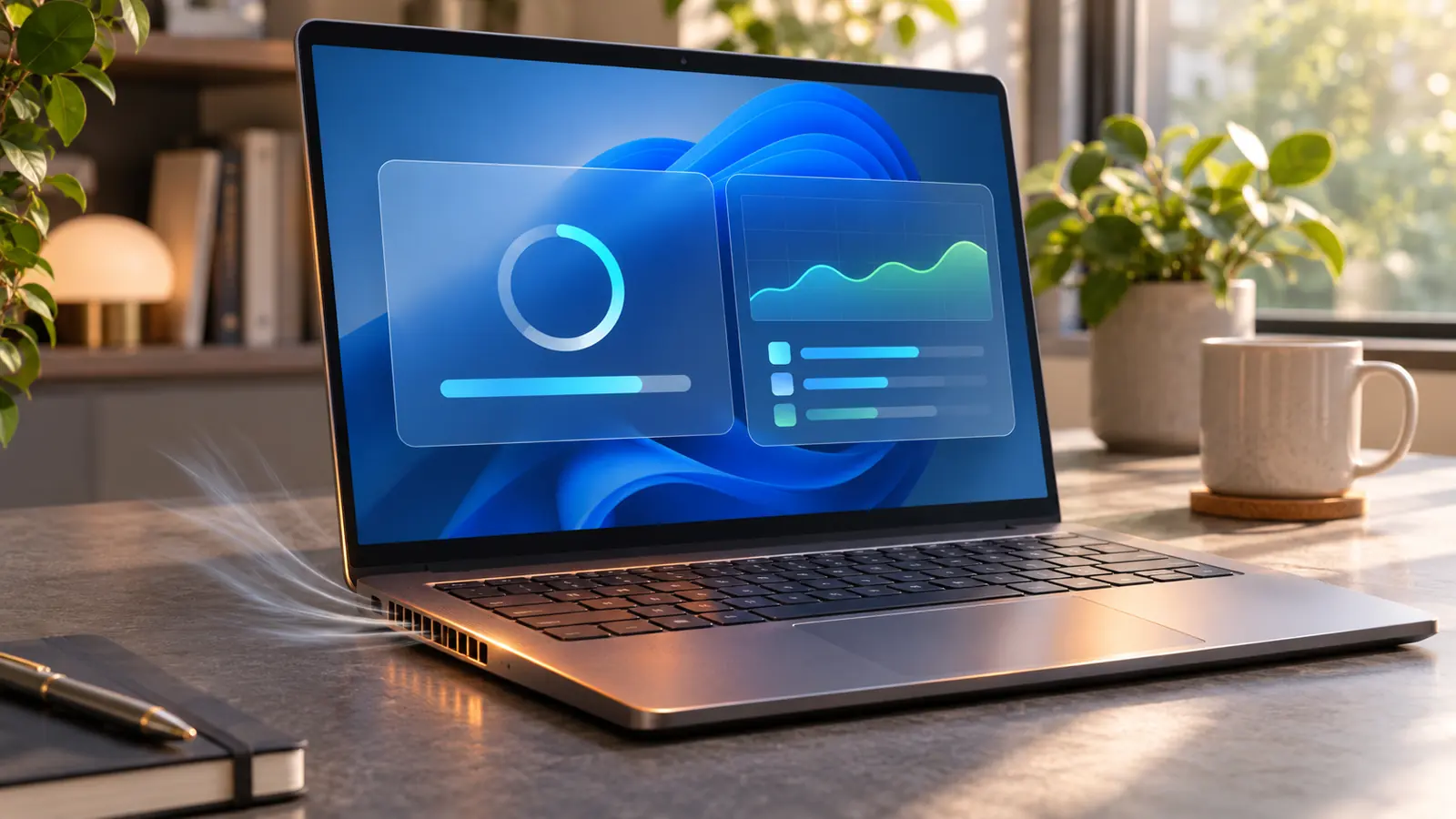
If the case is unusually hot to touch, there is an odor, the laptop deforms, the battery swells, or the system shuts itself off, power it down, unplug the adapter if safe, and contact the manufacturer. Stop software experiments and do not open a battery. An audible fan after a heavy task is not the same as a thermal warning or repeated shutdown.
For a moderate increase that began just after a restart, place the computer on a hard, flat surface with its air intakes clear. Avoid a bed, blanket, cushion, or surface that blocks vents. Use the adapter recommended by the maker. If heat or fan noise concerns you, pause gaming, video rendering, and long builds while observing; do not dismantle the PC or put ice or liquid on it.
Separate temporary maintenance from persistent heat
An update may be followed by finalization, a security scan, indexing, and file synchronization. The processor and drive can be busy even when no window is open. Dell, for example, notes that a heavy workload such as an update can make fans run faster. That does not prove every post-update heat issue is normal: observe actual activity and duration without assuming a specific temperature.
Restart from Start if Windows requested it, connect the computer to AC power when the maker recommends, and let visible tasks finish. Wait until sign-in and the desktop are ready, then observe for several minutes on a clear surface without launching your usual apps. Note the time, fan behavior, slowdowns, and whether heat falls after work completes. A repeated idle pattern is more useful than one touch-based impression.
If the issue disappears after update work and does not return, continue normal use and watch the next startup. If the fan stays at full speed while the desktop is idle, the case becomes very hot, performance drops, or thermal shutdowns repeat, continue diagnosis and contact the manufacturer sooner. There is no universal wait time: a large update on a modest computer can take longer than a small patch.
Find the app or task loading the PC
Press Ctrl + Shift + Esc to open Task Manager. In Processes, sort by CPU, then also look at Disk and Memory. Figures are momentary. Note processes that stay near the top across several checks and their publishers. A load that declines over time may be a task finishing; a known process that stays high could be a stuck app or ongoing work.
Do not end a Windows task, installation service, antivirus process, or driver just because its name is unfamiliar. If a recognized browser, video meeting, sync, or game app is responsible, save work and close it through its own interface. Check whether CPU use and noise fall. If the process returns at every startup, look for an update from the app or publisher. Do not install a third-party program to force temperatures or fan speed.
In Startup apps, review known tools that launch at sign-in. Disable at most one unnecessary third-party app at a time, restart, and compare. This list estimates startup impact; it does not directly measure temperature or sustained use. Keep security, backup, and unknown system components enabled.
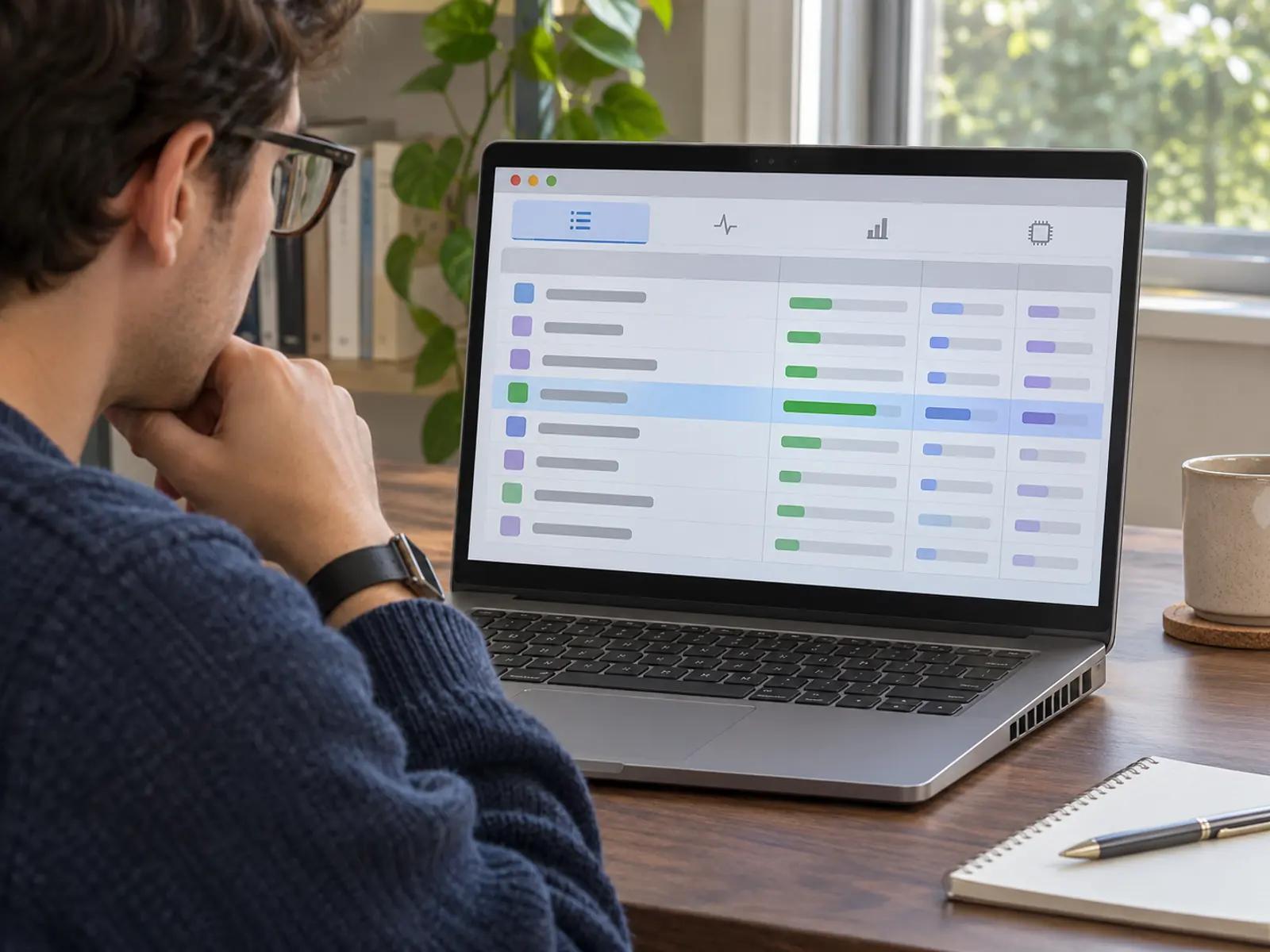
To monitor memory, see the guide to high RAM use after Windows 11 startup. If CPU activity is also persistently high, see the guide to CPU at 100% with no apps open. These indicators do not measure temperature directly, but can identify work loading the system.
Check: compare the top process and fan noise before and after normally closing a known app. Note whether the change repeats.
If it didn’t work: reopen the app if needed and check update status and drivers that match the symptom.
Confirm update status
Open Settings > Windows Update and check whether an install or restart is still pending. In Update history, note the name and date of the latest patch. Record when heat began and whether it occurs after every sign-in or only with a specific app. History helps establish a timeline; it does not by itself prove an update caused the problem.
If Windows shows an error or requested restart, follow its prompts and Microsoft’s instructions. Do not remove power during installation. If updates keep failing, use Windows Update troubleshooting rather than downloading a package from an unofficial site. When a newer update is offered after restarting, review Microsoft’s or the PC maker’s notes that apply to your device.
A driver update may help when the issue appeared alongside a specific device not behaving correctly, such as a fan, graphics processor, or power management. Start with Windows Update and the maker’s official support page for the exact model. Do not bulk-update drivers or flash BIOS as the first response to heat; such changes need a clearly identified reason and stable power.
Check a driver only if it matches the symptom
A timing link after an update may hide another change: a recently installed app, new USB device, changed power profile, or updated manufacturer utility. Compare their times with the first symptoms. In Task Manager look for a process; in Device Manager, avoid changes if no device has an error.
For a branded laptop, use the model number or official support page and select the operating system shown by the maker. Review driver release notes and installation instructions. If you update a driver matching the affected component, change one item and restart. Avoid generic driver sites and tools that promise to optimize every temperature. If the maker says an update requires AC power or a previous version, follow those instructions.
If the device also heats at idle and the fan does not slow down, the guide to a laptop fan always running at idle covers workload and airflow checks. A thermal profile may also change noise and performance; use only the utility intended for your model and options documented by its manufacturer.
When to consider removing an update
Do not uninstall a patch just because a fan sped up once. Consider this step only if symptoms are serious and persistent, began immediately after an identifiable patch, update work has finished, and Microsoft Support or the manufacturer confirms removal is appropriate. Removing a security update can expose the device, and Windows may offer it again; ask for a plan to receive a corrected version.
Microsoft documents uninstalling an update through Settings > Windows Update > Update history > Uninstall updates when the option is available. Some cases require the recovery environment. Before any operation, back up important files, save recovery keys you use, and make sure you can access your account. Follow Microsoft’s guide for your exact Windows version. After testing, check for updates and reinstall needed patches as soon as the issue is resolved.
Check: if support recommends removal, note the exact patch, time, and symptoms before and after; do not remove multiple updates at once.
If it didn’t work: do not keep rolling updates back; reinstall updates as advised and ask the manufacturer to diagnose hardware or software.
Escalate the diagnosis
Contact the PC maker if the laptop shuts down, slows noticeably because of heat, shows warnings, stays hot at idle after work finishes, or its fan remains very fast. Give the exact model, Windows version, update identifier and date, top active process, any error code, and steps already tried. A photo of Update history may help; hide account names, serial numbers, and other identifiers before sharing publicly.
Manufacturer diagnostics can check fans, processor, and hardware. If they report an error, give support the complete code. Do not remove the heat sink, replace thermal paste, or open the laptop to address a post-update issue, especially under warranty. A technician can distinguish software load, driver behavior, and cooling failure.
Frequently asked questions
These brief answers cover common questions about a laptop heating up after Windows Update.
Is a fast fan after an update normal?
It can speed up during updates or maintenance. Check active work and whether it settles afterward. Persistent heat at idle or repeated shutdowns needs diagnosis.
Should I uninstall the update immediately?
No. Check update history, confirm work has finished, and establish a repeatable link. Removal can remove a security fix; ask for advice and follow Microsoft’s guide for your version.
Can a driver cause more heat?
A driver or power profile may be involved when a related device problem appeared after its installation. Use official support for the exact model and avoid bulk driver updates.
How can I recognize overheating?
Fan noise alone is not enough. Thermal warnings, repeated slowdowns, automatic shutdown, odor, or a swollen battery are serious signs; shut down if there is an odor, swelling, or unusual heat and contact the maker.
Related articles
- Diagnose a laptop fan always running at idle
- Find CPU at 100% with no apps open
- Understand high RAM use after startup
Next step
Record the process, start time, and patch shown in Update history. These details help support diagnose the cause and avoid untargeted driver changes.
Sources
- Dell Support, How to Stop Computer and Laptop Overheating and Shut Down Issues — accessed 8 November 2026.
- Microsoft Support, How to uninstall a Windows Update — accessed 8 November 2026.
- Microsoft Support, Recovery options in Windows — accessed 8 November 2026.
- Microsoft Support, Tips to improve PC performance in Windows — accessed 8 November 2026.
- Microsoft Support, How to perform a clean boot in Windows — accessed 8 November 2026.
Be the first to leave a comment.