A shorter runtime after an update does not prove that the update damaged the battery. Compare similar sessions first, check Settings > System > Power & battery, then change one power-consuming cause at a time.
Contents
Confirm that runtime has changed
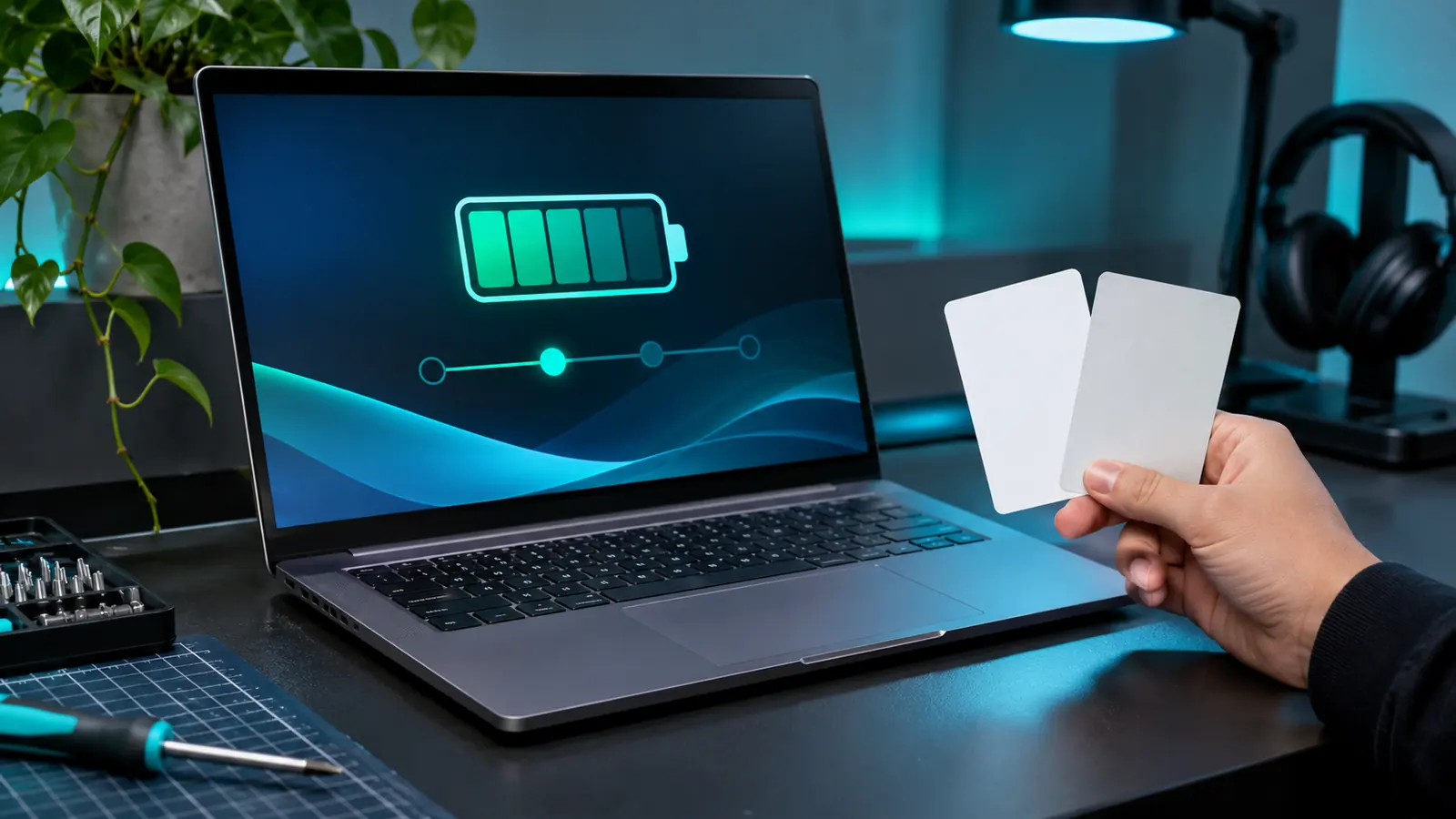
A laptop that loses charge faster just after an update is worth checking, but timing alone does not identify the cause. A video call, different brightness, Wi-Fi, a high refresh rate, or an app left open can explain the gap. Windows or an app may also finish background work after installation; check what is using power instead of expecting runtime to return after a fixed number of hours.
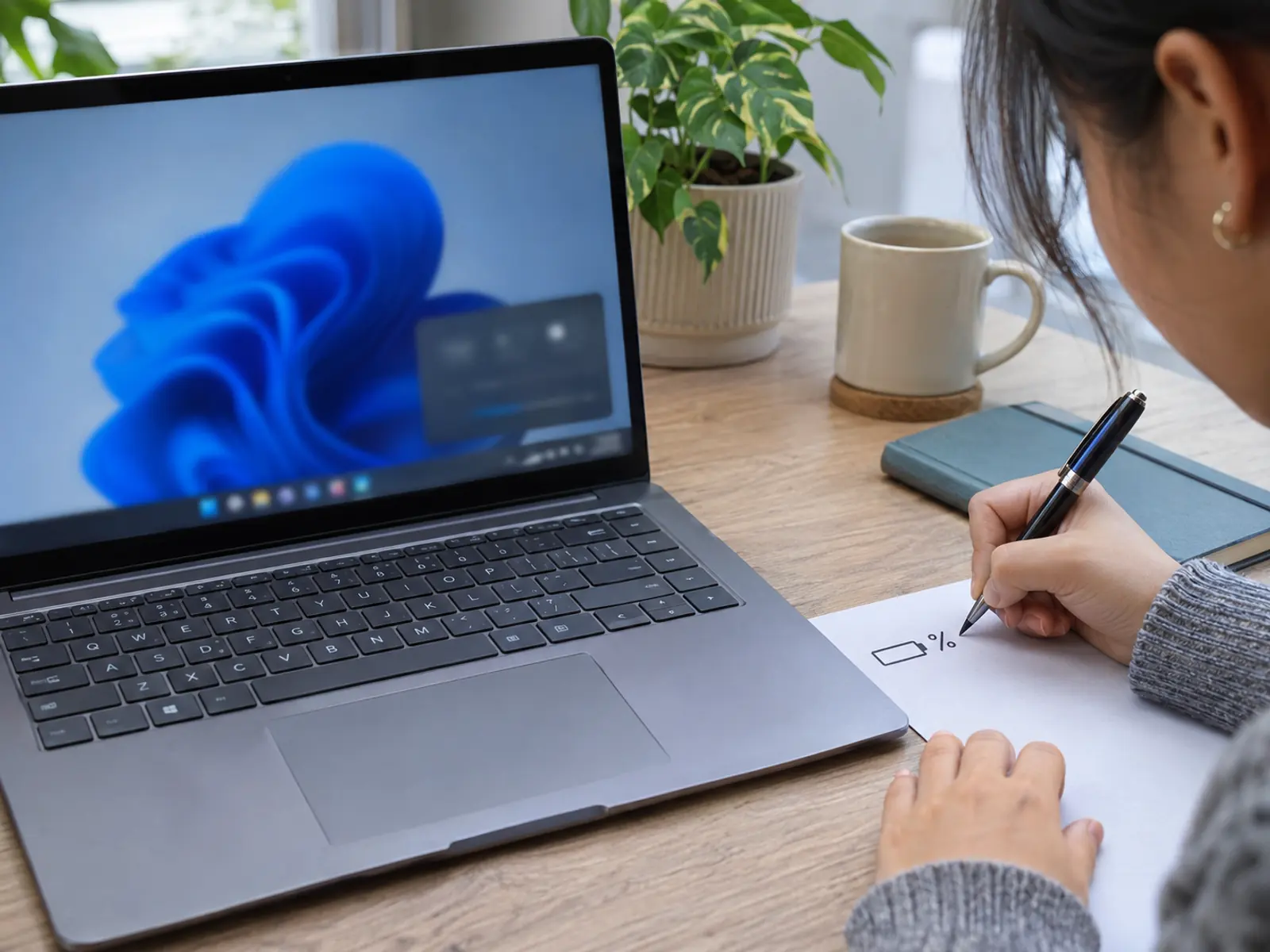
Compare two periods that are as similar as possible: same workload, brightness, peripherals, network, and power mode. Record the starting and ending charge, duration, whether the PC was plugged in, and which apps were used. One day may not be enough. The percentage can also fall at different rates near the ends of its range; compare similar spans rather than 100% to 20% one day and 60% to 40% the next.
| Observation | What it may suggest | Useful check |
|---|---|---|
| Shorter runtime during the same work | An app, setting, or workload change | Compare battery use by app |
| Charge falls while the PC seems idle | Background work, sleep, or a device that does not sleep correctly | Check active use and sleep separately |
| Sudden shutdown or a jumping percentage | An estimate issue or possible battery fault | Generate a report and run the maker’s diagnostic |
| Runtime has declined across all tasks over time | Possible loss of battery capacity | Compare design and estimated full-charge capacity |
Compare apps and settings
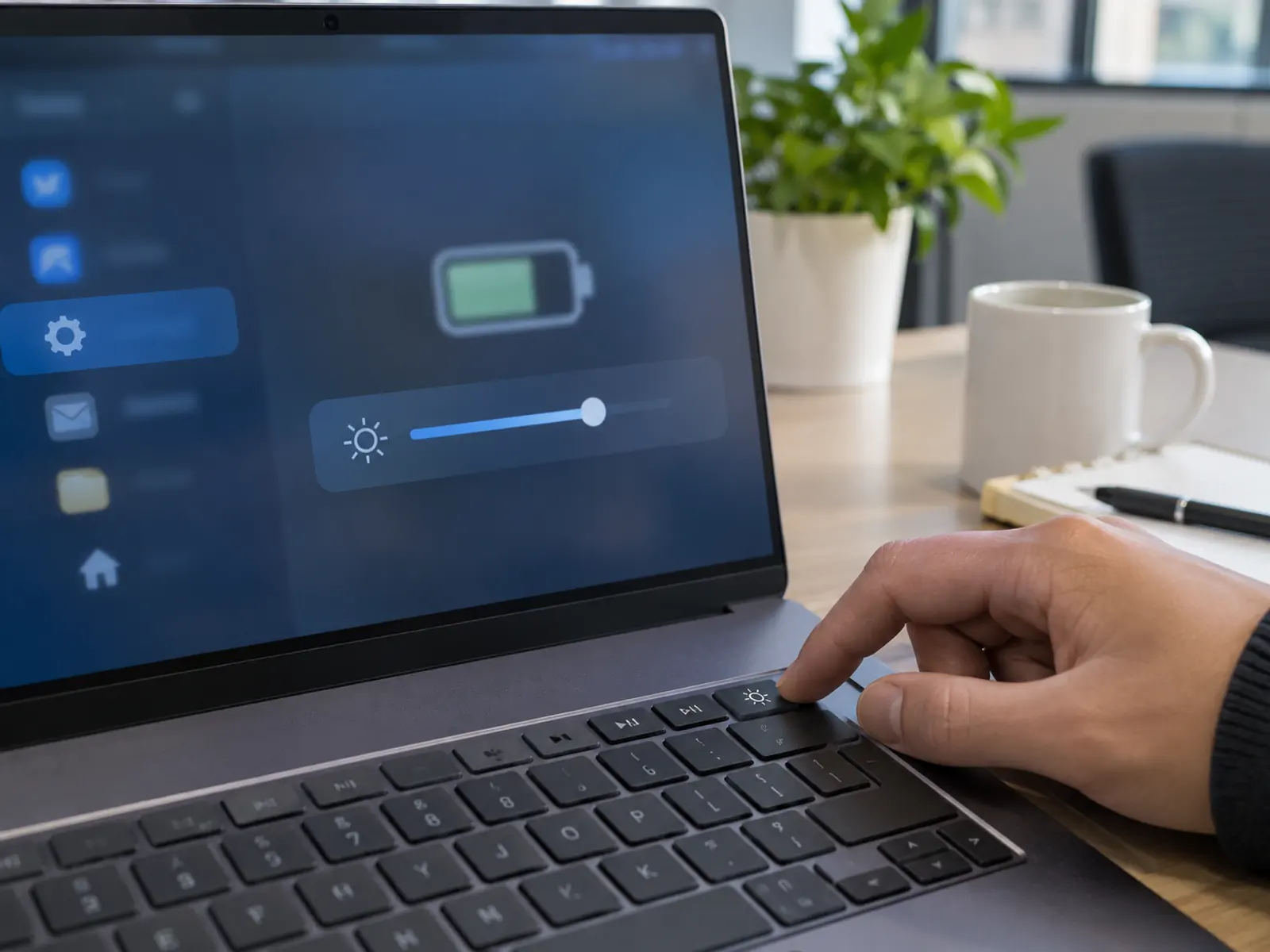
Open Settings > System > Power & battery > Battery usage. Review the apps using the most battery during the displayed period, then select an app for the available details. History is an estimate and its time window can change; do not compare two views with different durations. An app at the top is not automatically faulty: it may simply have been used more.
For a supported app, open its menu and choose Manage background activity. Use a more efficient option if it does not need constant notifications and syncing. Some traditional desktop apps do not show this control; manage their refresh behaviour in the app itself. Do not disable Windows services, security, or drivers globally to save a few battery points.
Next, check the power mode. On the same page, choose a more efficient mode when available. The option depends on the hardware and maker. Turn on Energy saver if it suits your work, lower screen brightness, and set a reasonable screen-off timeout. These changes can reduce performance or delay notifications; change them one at a time and observe the effect.
Check: after a comparable session, a targeted app or setting uses less power and runtime improves.
If it didn’t work: restore the changed setting, then inspect the next section; avoid stacking changes whose effects cannot be separated.
Check whether setup or an app is still finishing work
Open Settings > Windows Update and see whether a restart is required or installation still shows as in progress. Also check Microsoft Store and recently updated apps. Plug in the PC to finish work when asked, save your files, and restart from the Start menu. A full restart may clear temporary activity; it does not guarantee runtime will return to its previous level.
After restarting, leave the PC idle for a few minutes, then open Task Manager with Ctrl + Shift + Esc. In Processes, temporarily sort by CPU and by power usage if those columns are available. Watch for activity that continues. A brief startup or sync spike is different from repeated high activity during a light task. Note the process name and publisher before looking for a specific fix.
Do not force-stop a system process or delete a file because its name is unfamiliar. If a third-party program remains near the top while unused, update it from its publisher, check its sync tasks, and compare again. For a Windows task in progress, let it finish and check again during normal use; Microsoft does not specify one universal time after which power use should return to normal.
Check: installation is complete, the restart has happened, and unusual activity has stopped or has an identifiable owner.
If it didn’t work: if power use stays high, note the process name and activity time without posting private information; continue with battery and sleep diagnostics.
Separate high power use from an aging battery
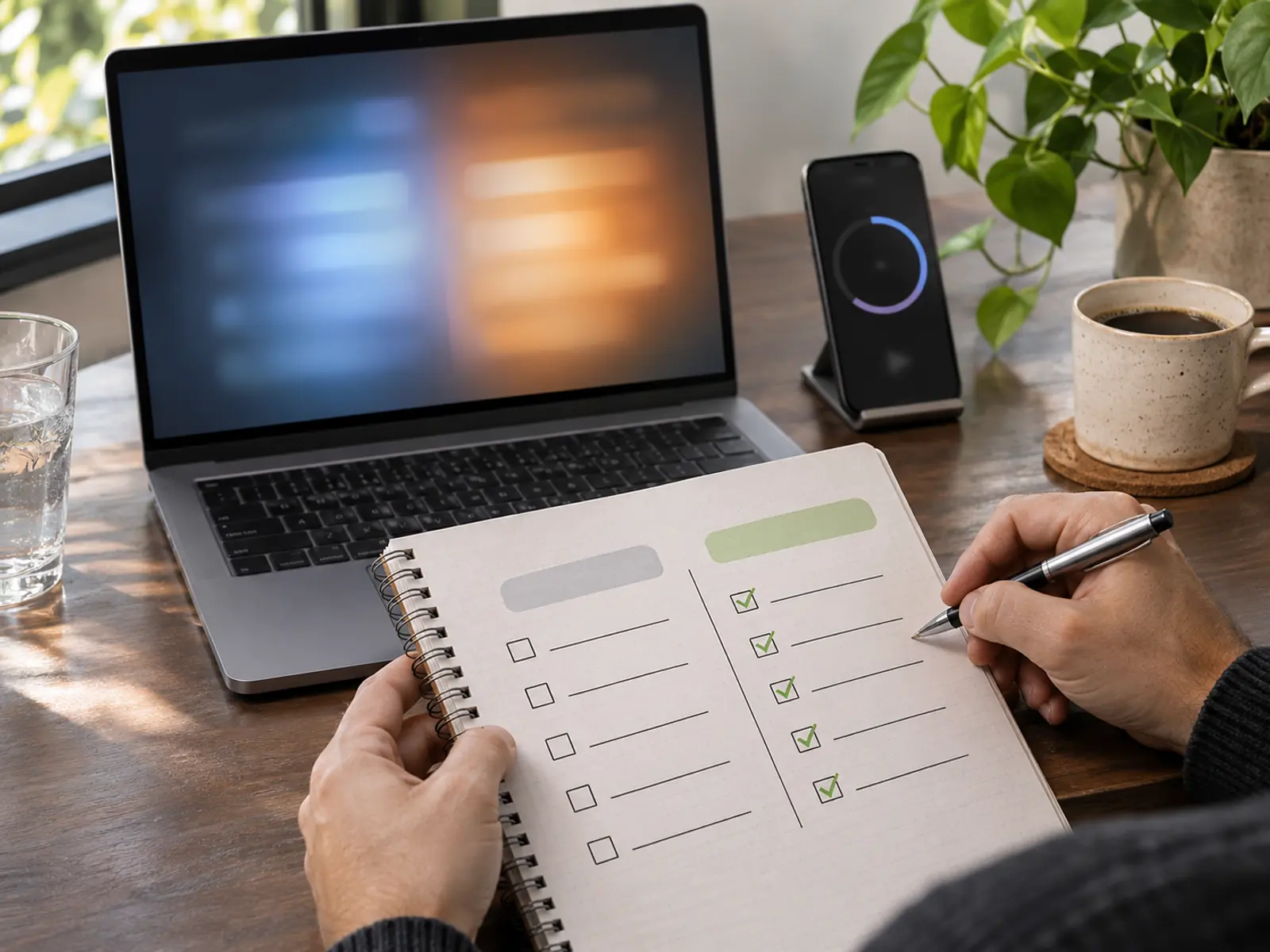
An aging battery stores less energy, while a power-hungry app uses the remaining energy faster. Both issues can exist together. Generate a local report with Windows:
powercfg /batteryreport /output "%USERPROFILE%\Desktop\battery-report.html"Compare Design Capacity (reported nominal capacity) with Full Charge Capacity (the current estimated maximum). The report is neither a real-runtime measurement nor a certified verdict. Its value can be missing, revised, or differ by firmware. The full-charge-to-design ratio is indicative; do not apply a universal replacement threshold. Also run the manufacturer’s test. Our guide to reading the Windows battery report explains the fields and caveats in detail.
Check: the values come from the same battery and use matching units; the result agrees with symptoms and the manufacturer’s diagnostic.
If it didn’t work: if fields are missing or inconsistent, do not calculate a percentage; use the maker’s official tool and note its exact message.
Does the battery drain during sleep?
Sleep drain differs from power use during an active session. Check screen and sleep timeouts, lid-close action, and attached USB or Bluetooth devices. Some models use Modern Standby, whose behaviour depends on the hardware and firmware. To avoid losing charge in a bag or overnight, save your work and choose Hibernate or Shut down when those options suit your needs.
To inspect supported sleep states, run powercfg /a. On compatible PCs, Windows Sleep Study can be created with powercfg /sleepstudy from an administrator terminal. Commands and report sections depend on the model. The report may contain activity information; keep it private. If the tools are unavailable, do not download a random utility: check sleep options and your manufacturer’s official documentation.
Temporarily disconnect nonessential accessories, close the lid, and record the charge level and time. Compare the loss over a known period with the same scenario after a restart. One measurement cannot distinguish a wake feature, network activity, or a fault. If the computer stays warm in a bag or does not really sleep, shut it down before carrying it.
Check: the mode is confirmed, accessories are removed, and the comparison spans the same duration.
If it didn’t work: if the PC remains active or warms while closed, stop carrying it that way and ask the manufacturer to check it; do not randomly disable sleep settings.
When to escalate
If the manufacturer offers a driver or firmware update specifically for your model, read its notes and instructions first. Plug in the laptop, back up files, and do not interrupt a firmware update. Do not install a driver from another model, use a third-party updater, or downgrade Windows to test a theory. If the problem began just after an update and continues, review its history in Settings > Windows Update > Update history and contact the manufacturer or Microsoft with the exact Windows version, PC model, and reproducible observations.
Stop using and charging the computer if the case is swollen, the touchpad or keyboard is lifting, an unusual smell appears, or the battery becomes abnormally hot. Shut it down if you can do so without pressing on the swollen area, disconnect the adapter, and contact a qualified repairer. Do not puncture or remove an internal battery.
For a separate symptom, see the guide to a laptop battery not detected or a laptop plugged in but not charging. Those cover different problems from fast drain after an update.
Frequently asked questions
These answers summarize the limits of diagnosis before you change Windows or the battery.
Can a Windows update damage the battery?
A runtime drop observed after the update does not prove physical damage. Compare activity and settings, then check capacity with the manufacturer’s diagnostic if symptoms persist.
How long should I wait after an update?
There is no universal time for every PC. Check for pending installation or restart, finish visible tasks, restart, and compare a similar session.
Should I uninstall the latest update?
Not based on shorter runtime alone. First record the version, activity, and settings. Contact support if a reproducible issue appeared and follow a procedure officially intended for that version.
Why doesn’t Task Manager show power usage?
Available columns and measurements vary by Windows version and hardware. Also use Battery usage and compare equivalent sessions; per-app estimates are not direct electrical measurements.
Can the battery report prove that the update caused the drain?
No. It reports estimated capacity and usage but does not prove the cause of a change. Compare it with app activity, settings, sleep, and the maker’s diagnostic.
If overnight battery loss continues after update work finishes, compare Sleep and Hibernate. See the guide to laptop battery draining overnight in Sleep for lid-action checks and SleepStudy.
Related articles
Next step
If battery capacity may contribute to the shorter runtime, start with the Windows battery report guide and confirm its estimates with the manufacturer.
Sources
- Microsoft Support, Battery saving tips for Windows — consulted 8 November 2026.
- Microsoft Support, Power settings in Windows 11 — consulted 8 November 2026.
- Microsoft Support, Manage background activity for apps in Windows — consulted 8 November 2026.
- Microsoft Learn, Powercfg command-line options — consulted 8 November 2026.
Be the first to leave a comment.