The report provides estimated capacity and recent activity, not a repair verdict. Generate it with powercfg /batteryreport, compare capacity values, and confirm unusual results with the computer maker’s diagnostic.
Contents
Symptoms and report limits
Your laptop runs for less time, the charge percentage falls quickly, or the available capacity looks lower than expected. These signs can come from normal capacity loss with age and charge cycles, high software power use, a different power mode, or an imprecise battery estimate. One symptom alone cannot distinguish those causes.
Windows’ built-in report brings together battery identification, recent use, usage history, and capacity details when the firmware provides them. Microsoft describes it as a way to get technical information about battery usage and estimated capacity. It does not directly measure runtime under your conditions, test each cell under load, or replace the manufacturer’s diagnostics.
| Symptom | Likely cause | Next action |
|---|---|---|
| Runtime falls but capacity values look stable | Workload or more power-hungry settings | Compare recent use and apps in Battery settings |
| Estimated full-charge capacity is below design capacity | Normal aging or a revised estimate | Track the trend and check with the maker’s tool |
| Values are missing, zero, or inconsistent | Controller, firmware, or driver is not exposing data | Restart, then run the manufacturer’s official diagnostic |
| Charging stops before 100% | A charge limit may be enabled to preserve the battery | Check the model-specific charge settings |
Create and read the report
Work from report generation to interpretation. The report is a local file that you can open without uploading it.
1. Create the HTML file
Save your documents and close sensitive windows before sharing a report: it may contain usage times and app names. Microsoft documents using an administrator Command Prompt. Open Start, search for Command Prompt, and choose Run as administrator if needed. The report is generated on the PC; the command does not change power settings.
This command asks Windows to save a report in the folder shown:
powercfg /batteryreport /output "%USERPROFILE%\Desktop\battery-report.html"Check: the terminal confirms that the file was created and it appears on the Desktop. Open it in a local browser.
If it didn’t work: run the command again in Windows Terminal or Command Prompt. If Windows reports an invalid parameter, consult Microsoft’s powercfg documentation and check that there is a space before /batteryreport. Do not install a third-party utility to work around the message.
2. Check the Installed batteries section
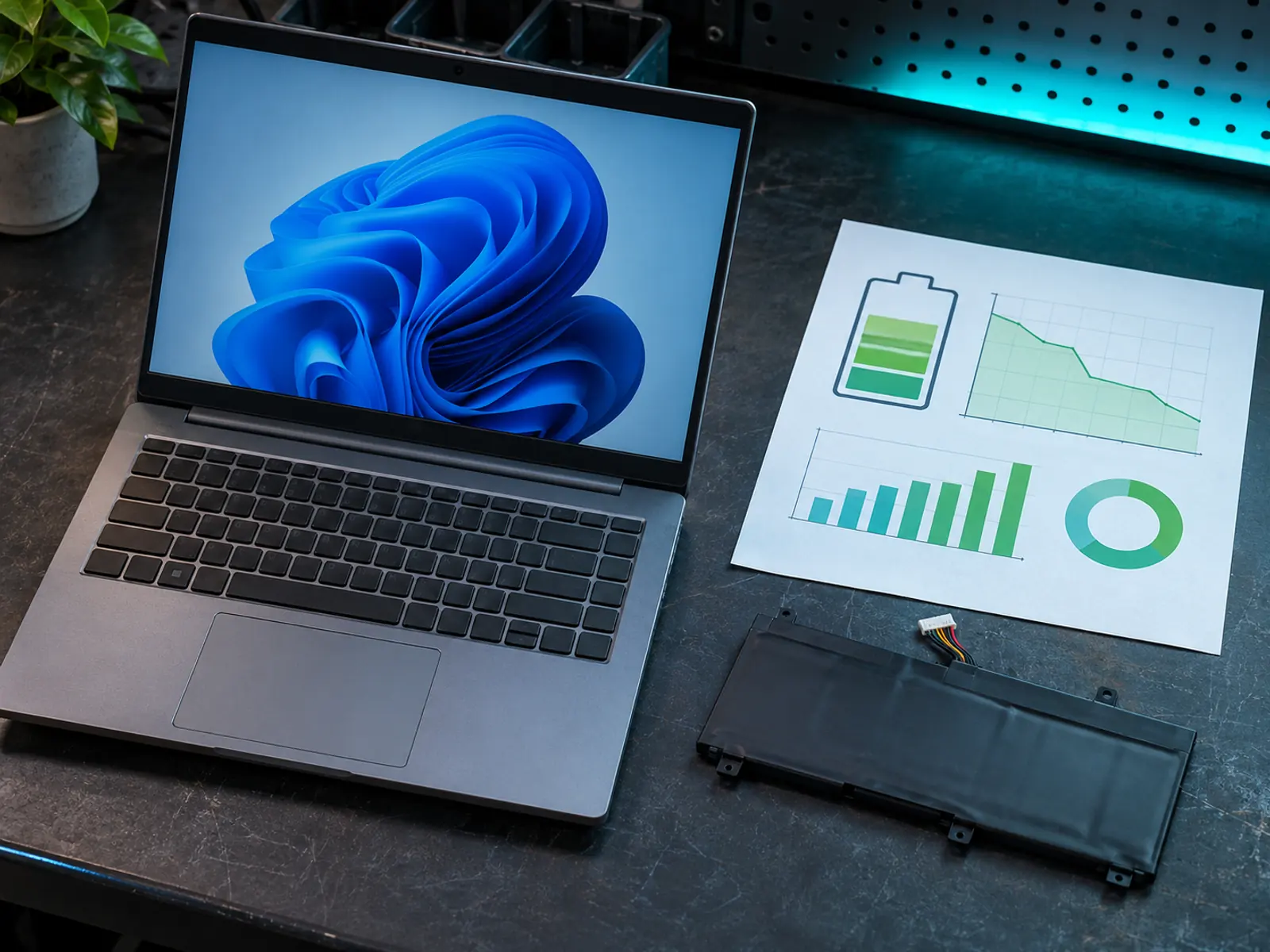
Find “Installed batteries.” A compatible computer may show the battery’s reported name, manufacturer, and capacity figures. Some systems can list multiple batteries; do not combine values from different entries. Note the report date and units, often mWh, and check that the listed battery belongs to this computer.
If capacity values are absent, the report may still have succeeded: the firmware or battery may not expose those fields to Windows. The report does not necessarily identify the condition of every cell. Do not open the laptop just to find an internal label.
Check: the identifier and units match the battery entry shown.
If it didn’t work: if the battery or its capacities are missing, use the maker’s diagnostic instead of calculating a ratio.
Interpret design and full-charge capacity
Design Capacity is the reported nominal capacity. Full Charge Capacity is the estimated maximum capacity currently available when the battery is considered full. The second value can decline over time, but it is not a perfect health gauge. Estimates depend on information supplied by the controller, charge state, and the manufacturer’s calibration methods.
To summarize the gap, you can calculate “full-charge capacity ÷ design capacity × 100.” Treat the result as an indicative comparison, not an official health percentage or universal replacement rule. Values can change between reports, exceed design capacity, or be revised after an estimate update. Do not apply a threshold found in a forum to a different brand or model.
The units must match. If one value is in mWh and the other in Wh, convert first: 1 Wh equals 1,000 mWh. If design capacity is missing, the percentage cannot be calculated correctly. If full-charge capacity is higher than design capacity, that does not prove the battery is “better than new”; the estimate may be rounded or revised.
Check: both capacities use the same unit and come from the same battery entry.
If it didn’t work: do not calculate the ratio; record the displayed values and confirm them with the official diagnostic.
3. Read recent use before concluding that the battery is worn
“Recent usage” and “Battery usage” put charge changes into a timeline. Look for periods when the computer was on battery, changes in power source, and intervals that coincide with rapid drain. These records describe observed use; they do not prove an app is faulty. An installation task, game, video call, bright display, or connected peripheral can increase consumption without a sudden change in battery capacity.
In Windows 11, also check Settings > System > Power & battery > Battery usage. Compare similar periods: the same kind of task, display, network, and power mode. Do not compare several hours of sleep with an active session under load. App percentages are estimated shares, not individual electrical measurements.
Check: the comparison period has similar use and the charge drop repeats.
If it didn’t work: if the report does not show app usage, compare settings and ask the manufacturer how to diagnose this model.
4. Compare history without overreading it
History can reveal a trend, but it cannot date a failure precisely. A sustained change in full-charge capacity over several reports is more useful than one reading, although measurement conditions can vary. Keep dated reports in a private folder if you want to compare later; hide your Windows account name and usage details before sending one to someone.
Do not deliberately drain the battery to zero to “recalibrate” the report. Do not repeat full cycles unless the manufacturer recommends them for your model. Microsoft advises avoiding frequent deep discharges and high temperatures; read its guidance and the maker’s recommendations, especially if the laptop supports smart charging limits.
Check: the trend compares several reports generated under similar conditions.
If it didn’t work: if the trend is unstable, do not replace the battery based on this indicator alone; use the maker’s test.
Confirm an unusual result
Restart the PC and generate the report once more. Check that the units, date, and battery identification make sense.
Check: the required sections and values are present and readable.
If it didn’t work: go to the manufacturer’s official diagnostic; do not treat a blank line as zero capacity.
Run the maker’s battery check in its app or official diagnostics environment. Names and paths vary by model; find the instructions on the manufacturer’s support site using the exact computer model.
Check: the test gives a clear status or recommendation for this battery.
If it didn’t work: record the exact message and contact the manufacturer. Do not follow a BIOS procedure for another product family.
If runtime alone is the problem, compare usage and power mode next. For a missing battery, charging limit, or hot adapter, see the related articles below.
Check: the symptom matches the guide you choose.
If it didn’t work: note the exact model, Windows version, and diagnostic results before asking for help.
When to arrange repair
Stop using and charging the computer if its case bulges, the touchpad or keyboard lifts, a chemical smell appears, or the battery becomes abnormally hot. Shut it down if safe, unplug the adapter without pressing on the swollen area, and move it away from flammable materials. Do not puncture, squeeze, or remove an integrated battery yourself. Contact the manufacturer or a qualified repairer. A software estimate does not make a swollen battery safe.
For reduced runtime without physical warning signs, request an assessment if the manufacturer’s diagnostic recommends replacement, the laptop shuts down unexpectedly, or readings remain inconsistent across reports. Share dated reports and the product identifier through a private channel; a report may reveal usage habits.
Frequently asked questions
These answers explain what report fields can — and cannot — establish.
Does the Windows battery report give an official health percentage?
No. It shows estimates and history. The ratio of full-charge to design capacity is indicative; the manufacturer’s diagnostic is the reference for its model.
Why is full-charge capacity higher than design capacity?
The controller may revise or round its estimate. A higher value does not establish the actual condition of the cells. Compare reports and confirm with the maker’s official tool.
Why is Installed batteries blank?
Windows may not be receiving those details from the battery or firmware. Restart, then run the manufacturer’s diagnostic. A missing field alone does not show that the battery has failed.
Do I have to run the command as administrator?
Microsoft documents opening Command Prompt as an administrator to generate the report. If access is denied, try an elevated terminal on an authorized account.
Does the report explain why my laptop drains quickly?
It can show activity periods and estimated usage, but it does not prove the cause. Compare the data with workload, settings, and open apps.
Is one report enough to decide to replace a battery?
No. Check the trend, run the maker’s test, and consider physical symptoms. If the battery is swollen, stop using it without waiting for another report.
Related articles
- Windows 11 battery drain after an update
- Laptop battery not detected
- Laptop plugged in but not charging
- A hot laptop charger
Next step
To compare available energy with a known load, use our battery runtime calculator. It estimates runtime from the values you enter; it does not measure your laptop’s battery health or actual runtime.
Sources
- Microsoft Support, Caring for your battery in Windows — consulted November 8, 2026.
- Microsoft Learn, Powercfg command-line options — consulted November 8, 2026.
- Dell Support, How to Generate a Battery Report Using the POWERCFG Command — consulted November 8, 2026.
- HP Support, Testing and calibrating the battery (Windows) — consulted November 8, 2026.
Be the first to leave a comment.