A laptop power adapter can feel warm during normal use because it converts wall power and supplies the computer while charging. “Warm” alone does not establish a defect, and there is no single safe surface-temperature number that applies to every adapter model. The practical question is whether the adapter has clear airflow, is the correct rated unit, and shows any damage or unusual behavior. Do not open the brick or test its mains side.
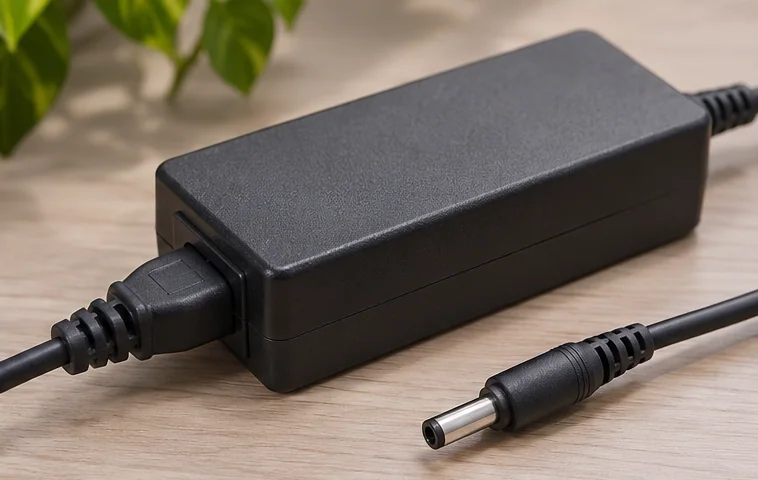
First decide whether it is warm or unsafe
Unplug the adapter from the wall if you notice smoke, sparks, crackling, a burning or chemical smell, melted plastic, exposed conductors, liquid, a cracked case, or a connector that is discolored or loose. Stop using it and do not touch damaged wiring. If safe, disconnect power at the wall rather than pulling a damaged cord. Keep it away from fabric and arrange manufacturer support or a qualified replacement. Do not tape over exposed insulation, continue charging “just once,” or open the power brick.
If there are no warning signs, observe it in normal use without blocking vents. Some warmth can increase during high battery charging, gaming, rendering or other heavy work. An adapter buried under bedding, papers or a bag cannot release heat normally. Move it to a hard, dry, open surface and keep the laptop’s own vents clear. Do not cover, wrap or actively cool it with ice or liquid.
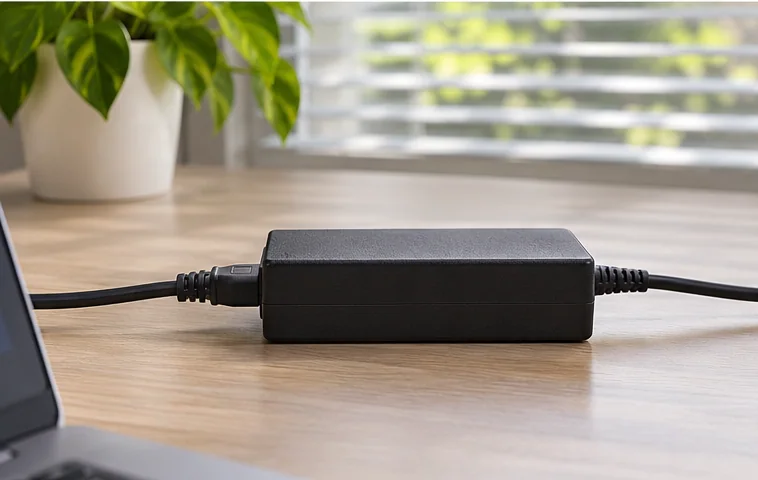
Confirm the adapter is suitable for the laptop
Match model, connector and power requirements
Use the laptop maker’s specification for the exact model and the adapter’s label. Confirm connector type, voltage and supported wattage or USB Power Delivery profile. A visually similar barrel plug can have a different electrical specification or identification pin. A USB-C connector does not guarantee that a charger and cable can provide the power level the laptop requests. An undersized or incompatible adapter may charge slowly, fail to charge during heavy use, trigger a warning, or run near its limit.
Do not choose an adapter based only on the largest wattage printed on it. Check the manufacturer’s compatibility guidance; a supported adapter with a higher rated maximum generally supplies only what the device requests, but the laptop’s negotiated profile and cable still matter. Avoid counterfeit or unverified adapters. If BIOS or a maker utility reports an unknown adapter, insufficient wattage or charging fault, record the exact message and check the model-specific support page.
With USB-C Power Delivery, the source and laptop negotiate a supported power contract. The cable also has limits. If the charger becomes hot only with one cable, or charging cuts in and out when it is touched, stop that combination and inspect both ends. Do not use damaged, frayed or unusually thin cables as a substitute test.
Compare workload and placement
- Let the adapter cool unplugged in a clear area, then connect it directly to a wall outlet if the manufacturer recommends that setup.
- Use the laptop at idle for a short observation, then compare with the task that usually makes the adapter warmer. Keep the adapter in the same open location.
- Check whether charging status changes, the adapter LED turns off or flickers, the laptop reports low power, or the connector becomes loose. Note the timing rather than repeatedly reconnecting it.
- If available, compare only with a known-good adapter explicitly approved for the exact model. Never borrow a charger based solely on a plug that fits.
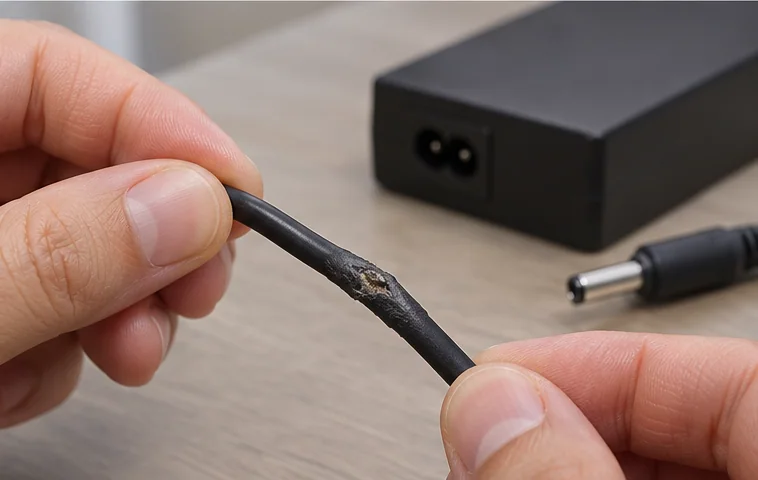
A warm adapter that remains stable in a ventilated area is different from one that grows hotter, shuts off, smells, crackles or causes the laptop to lose power. Touch is subjective and hands vary; do not use a hand-temperature estimate to declare a charger safe. Compare only against the maker’s guidance and warning signs.
Do not confuse adapter heat with laptop heat
The power brick and laptop chassis have separate thermal causes. A blocked laptop vent or heavy processor load can make the computer warm while the adapter remains normal. Conversely, a damaged cable or failing adapter can produce heat and unstable charging without the laptop overheating. Note which part is hot: the brick, cable, plug, laptop charging port or laptop body. If the plug or cable is much hotter than the brick, or the port changes color, stop using the setup and have it inspected.
| Observation | Meaning to consider | Action |
|---|---|---|
| Mild, stable warmth during charging | May be ordinary conversion loss and load | Keep it ventilated and use the specified unit |
| Hotter during demanding use; stable output | Higher power demand or restricted airflow | Clear the area and check model wattage guidance |
| LED cuts out, charging stops or plug is loose | Connection, cable, adapter or port fault | Stop repeated reconnecting; inspect and seek service |
| Smoke, smell, sparks, melted or exposed parts | Potential electrical hazard | Disconnect at wall if safe; stop use and replace/service |
When to stop immediately
Do not continue testing if the case is cracked, the cable insulation is damaged, a connector is burned, the adapter emits smoke or noise, or charging becomes intermittent. Do not measure an adapter’s mains input with a multimeter, disassemble it, or substitute a charger with unknown voltage. If the approved adapter is consistently unusually hot or the laptop reports a power error, use the maker’s diagnostic and warranty process. Keep the adapter model, laptop model, power rating and exact warning message for support.
Sources
- Dell Support: identify AC adapter damage
- Dell: AC adapter heat and power guidance
- Microsoft Support: power supply and cord care
- Microsoft Support: charging slowly while plugged in
- Microsoft Support: adapter requirements by Surface model
Sources consulted 6 November 2026. No universal surface-temperature threshold applies here; consult the maker for the exact model. No physical charger was tested.
Be the first to leave a comment.