An external SSD that disappears during a large copy can have a cable, port, power, enclosure, drive or host problem. A speed drop alone is not the same as a disconnect: thermal management can reduce transfer rate while the device remains mounted. First record whether Windows plays a removal sound, the drive vanishes from File Explorer, the copy fails, or only the transfer slows. Do not repeatedly unplug a drive while writes may be in progress.
Protect files before troubleshooting
If the drive still mounts, copy irreplaceable files to another destination before testing. Work with a small noncritical sample rather than repeating a long write workload. When a copy fails, stop and note the time, file operation and any Windows notification. Do not run formatting, initialization, “repair,” or benchmark utilities on a drive containing the only copy of important data. If it begins clicking (for a hybrid drive), reports I/O errors, or repeatedly disappears, stop load testing and prioritize recovery.
Close files and apps that use the SSD. Use Windows Safely Remove Hardware before disconnecting it whenever possible. A surprise disconnect during a write can leave incomplete files or filesystem damage; ejection cannot fix a physical connection, but it reduces avoidable data risk.
Change the simplest link first
Test a direct connection with one known-good cable
- Copy a small noncritical file and record whether the drive stays mounted.
- Connect directly to the computer, bypassing the hub; change only the cable if needed.
- Repeat through a second port or host, changing one link at a time.
- Stop if errors repeat or irreplaceable data is at risk.
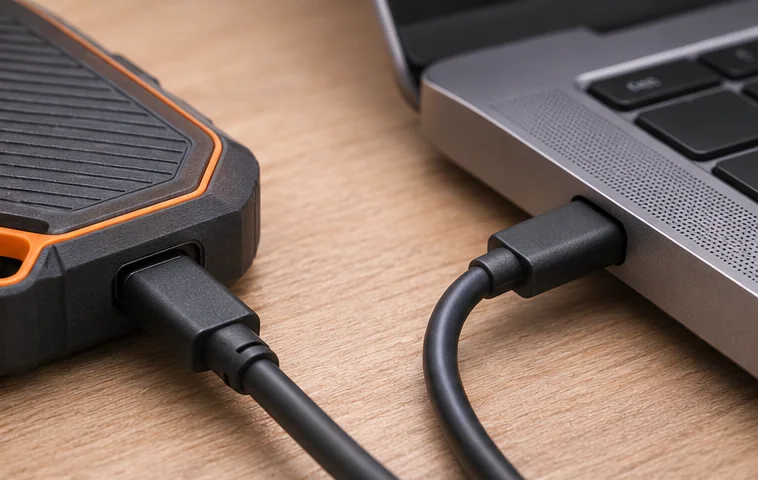
Connect the SSD directly to a port on the computer, temporarily bypassing a hub, monitor, dock and extension cable. Use the original cable or a short, known-good cable rated for the drive’s data mode. A charge-only cable, damaged plug or loose connector can pass light use and fail when movement or sustained activity exposes the fault. Seat both ends fully and keep the SSD still during the copy.
Try another port on the same computer, then a different computer if available. Keep the same SSD and cable while changing the port; then keep the host and port while changing only the cable. This sequence makes results interpretable. If it disconnects on one port but not another, suspect the host port or its connection. If it follows one cable, replace that cable. If it follows the SSD across hosts and cables, investigate its enclosure or drive.
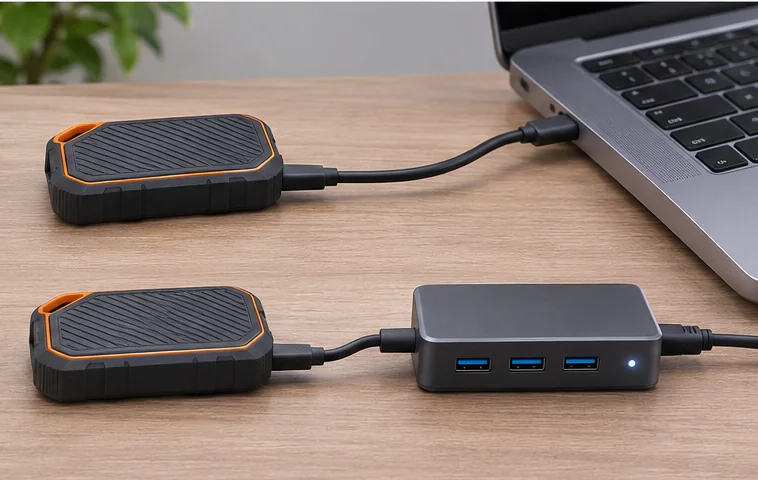
Some portable SSDs require more power than a low-power port or unpowered hub provides. A powered hub can be a comparison, but first test directly to the PC. Do not add a random charger to a data device unless its maker specifies that method. Check for USB power warnings and test with other bus-powered devices disconnected. The USB-C connector shape alone does not guarantee a port’s data speed or power budget.
Separate heat-related slowdown from a true drop-off
During long writes, an SSD can become warm and reduce its speed to manage temperature. A slower but still accessible drive suggests a different symptom from a USB removal or a drive that disappears. Place it on a clear, hard surface with room around it; do not cover it or place it on fabric. Let it cool naturally before a short, noncritical comparison. Do not put it in a refrigerator or freezer. A hot enclosure is not by itself proof of failure, and the acceptable operating range depends on the exact model.
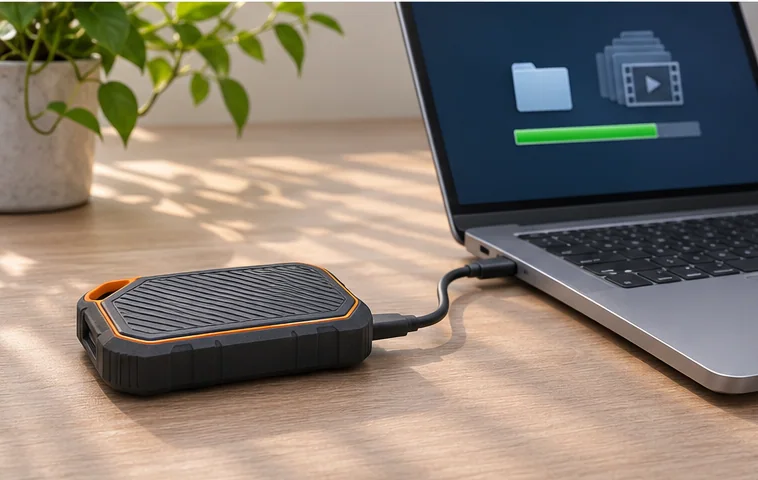
If disconnects occur only after a repeatable period of heavy activity, compare the same modest test with the SSD cooler and directly connected. Note whether the device remains mounted when speed drops. If it vanishes even when cool, focus on connection, power, enclosure or drive rather than assuming thermal throttling.
Check Windows without destructive changes
After reconnecting safely, check Disk Management and Device Manager to see whether the drive is present as storage, has a warning icon, or repeatedly disappears. Record the time of an event; Windows Event Viewer can help correlate a disk or USB reset, but an event is a clue, not a diagnosis. Save the model, USB connection path, exact error text, file size and whether the failure happened on another computer.
Windows USB power management can suspend idle devices, but do not disable every power-saving feature as a first step. Microsoft describes selective suspend as a normal power-management mechanism. If the drive disconnects after idle and wakes poorly, test a targeted, reversible setting only when the device or computer manufacturer supports it, then restore the original setting if it makes no difference. For a failure during active writes, prioritize cable, port, power and the SSD’s own diagnostics.
| What happens | First comparison | What it tells you |
|---|---|---|
| Transfer slows but drive stays mounted | Allow cooling; repeat a small read or copy | Could be thermal management or workload, not a link reset |
| Removal tone and drive disappears | Direct port, then change cable alone | Tests power and physical data path |
| Fails through a hub only | Connect to PC directly | Hub power or topology may be involved |
| Fails across hosts and known-good cables | Stop repeated stress; check maker diagnostics | Enclosure or SSD service is more likely |
When to stop
Stop testing if the device becomes extremely hot, smells burnt, has a damaged connector, reports repeated I/O errors, or contains data that cannot be replaced. A disconnect that follows the drive across multiple computers and cables warrants manufacturer service or a data-recovery specialist. Avoid opening a sealed portable SSD: the enclosure, thermal design and warranty are model-specific. Keep the original cable and logs with the support request.
Sources
- Microsoft Support: safely remove external storage
- Microsoft Learn: USB selective suspend
- Samsung: portable SSD product and cable information
- Samsung: portable SSD troubleshooting
- Samsung: portable SSD installation guide
Sources consulted 6 November 2026. Published specifications vary by model; this guide reports no benchmark or physical test.
Be the first to leave a comment.