A phone that will not charge does not automatically need a new battery. The outlet, cable, adapter, compacted lint in the connector, temperature protection or charging settings can produce the same symptom. Change one variable at a time.
Checks before opening the phone
- Use a known-good wall outlet.
- Test another undamaged compatible cable and adapter.
- Remove a case that may block full plug insertion.
- Charge for 30 minutes, then perform the manufacturer’s forced restart.
- Let a hot or cold phone return to room temperature.
Match the symptom to the likely cause
| Symptom | Likely cause | First check |
|---|---|---|
| No response | Adapter, cable, port or deeply discharged battery | Use a known-good charger for 30 minutes |
| Charges only at an angle | Debris or worn connector | Inspect the port under a bright light |
| Slow charging | Low-power adapter, damaged cable or heat | Compare charger rating and temperature |
| Stops at 80% | Thermal or software charging limit | Check battery settings |
Inspect the charging port safely
Power the phone off and unplug every cable. Do not use liquid, metal tools or strong compressed air. Stop if pins are bent, blackened or corroded. A loose connector requires professional inspection.
Separate a battery fault from a port fault
If wireless charging works while wired charging does not, the port or its circuit is suspect. If both fail, check software, temperature and battery condition. Swelling, immediate shutdown after unplugging or extremely short runtime makes the battery a priority.
When to stop
Do not charge a swollen, wet, burnt or unusually hot phone. Back up data as soon as it starts and seek repair when the connector moves or several known-good accessories fail.
Sources
Understand the smartphone charging chain
Charging depends on five elements: wall outlet, power adapter, cable, phone connector, and battery. With USB-C, the phone and charger may also negotiate voltage and power. Slow charging can therefore come from a limited cable, an adapter that lacks the required fast-charge protocol, excessive temperature, or software protection rather than a failed battery.
Try another outlet first, then a certified charger-and-cable pair proven on a second device. Leave a deeply discharged phone connected for thirty minutes. Check whether the charging icon appears, whether the percentage actually rises, and whether the plug must be held at an angle. Operation in only one position usually points toward cable wear or connector damage.
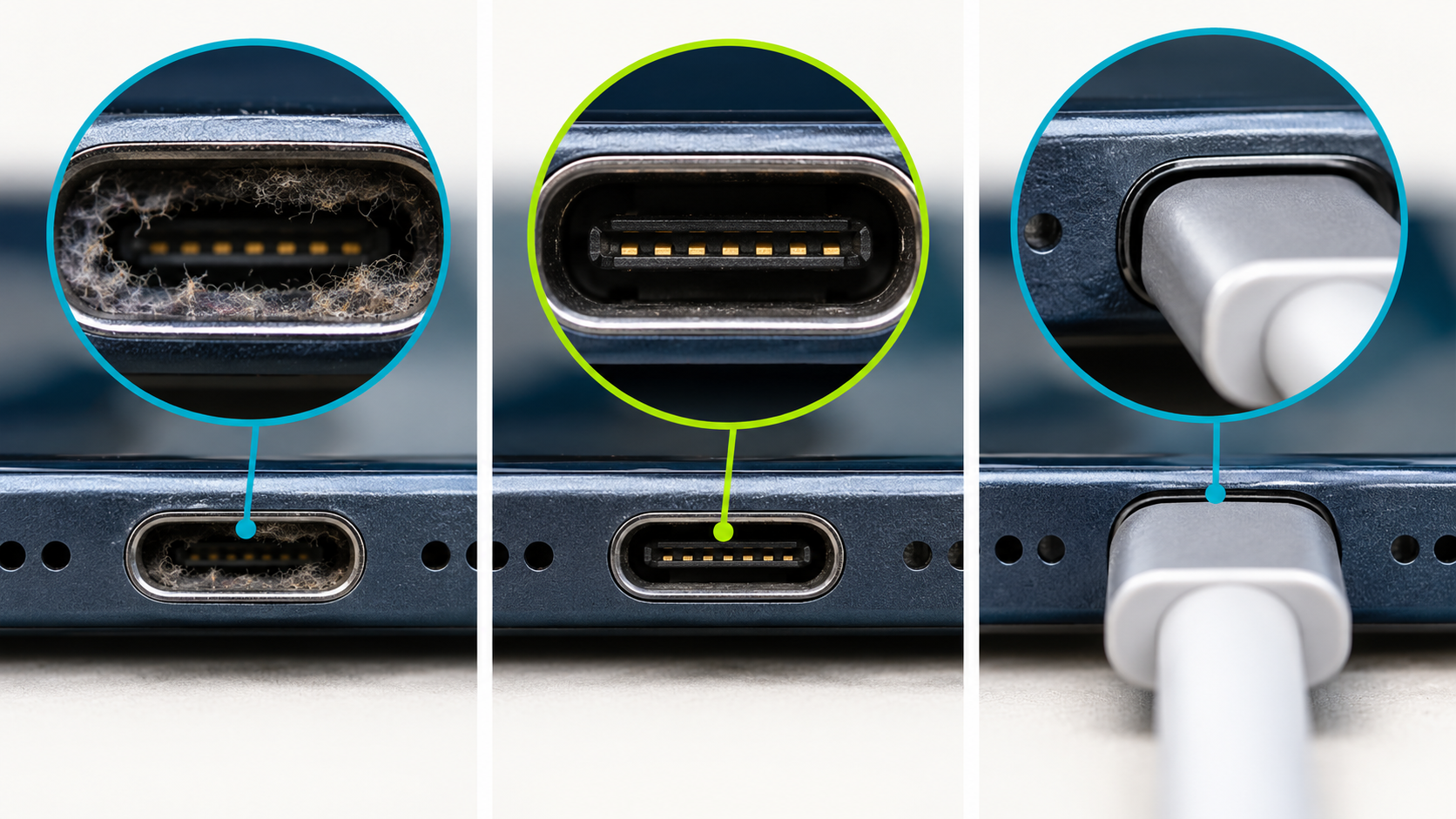
Clean the port without causing damage
Turn the phone off and illuminate the port from the side. Pocket lint can form a compact plug that prevents full insertion. Do not use metal tools, pour liquid into the connector, or apply high-pressure air. A soft, dry brush is enough for loose surface dust. Stop if pins look bent, blackened, or green: home cleaning cannot repair corrosion or a torn contact.
Wireless charging, moisture, and temperature
If wireless charging works while USB does not, the battery and part of the power electronics are probably operating; focus on the cable, USB port, and its circuit. After a moisture warning, disconnect everything and let the phone dry naturally in a ventilated place. Rice adds dust and is not a reliable drying method. Remove a thick case if the phone is hot because thermal management may slow or suspend charging.
When to suspect the battery
Very short runtime, sudden shutdown at 20 or 30 percent, a jumping percentage, or physical swelling points more strongly toward the battery. Check the system battery-health page when available. A swollen cell requires immediate shutdown and professional handling. After repair, verify a full charge, stable connector fit, normal temperature, and realistic runtime through a normal cycle.
Frequently asked questions
Why does the icon show charging while the percentage stays fixed?
The adapter may supply less power than the active phone consumes. Close demanding apps, let it cool, and test a compatible power set.
Does a new cable guarantee fast charging?
No. Both cable and adapter must support the phone’s required power and protocol.
Should a loose port be replaced immediately?
Compare several cables first. If every plug has the same play or requires an angle, request connector inspection.
Can an update repair charging?
It can correct power-management software, but not a broken pin, corrosion, or swollen battery.
Useful sources: Apple charging guidance and Apple cleaning guidance. You can also use the Ohm’s law calculator and browse all ElectronixLab tools.
A reliable diagnosis without random part swapping
Good troubleshooting follows one rule: change only one variable at a time. Record the exact symptom, test time, accessory used, and outcome. Start with free, reversible checks, then move toward actions that require disassembly. This prevents false conclusions. If you change the cable, power source, network, and settings together, you will never know which action actually fixed the fault.
Before every test, observe the clues: indicator light, sound, vibration, heat, error message, unusual smell, or intermittent behavior. A completely dead device points to different causes than one that starts and then stops. Photograph connectors and settings before making changes. A partial improvement is useful evidence, so write it down and share it with a repair technician if professional service becomes necessary.
Prepare a controlled test
- Use a power source and accessories already verified on another device.
- Remove unnecessary adapters, extension leads, and automations.
- Let the device return to room temperature before drawing conclusions.
- Perform one action, wait for the specified time, and record the result.
- Back up important data or settings before any factory reset.
Safety is more important than obtaining a result. Stop immediately if you see a swollen battery, melted cable, liquid, burn marks, or smell a strong chemical odor. Never work on an open mains power supply and never bypass a fuse. Internal measurements belong to trained people with suitable equipment. This guide helps identify a family of causes; it does not justify a hazardous repair.
Interpret the evidence and make a decision
Classify the outcome into three levels. If the fault disappears with a known-good accessory, replace only that accessory. If behavior changes but remains unstable, repeat the test under identical conditions to rule out coincidence. If external checks make no difference, an internal defect becomes more likely. Ask for a written estimate that separates diagnosis, parts, labor, and repair warranty.
Compare total repair cost with the device’s realistic value, while considering stored data, accessories you already own, and environmental impact. A worthwhile repair addresses the root cause instead of hiding the symptom. Ask the technician to identify the failed part and test the product under load before returning it. For intermittent faults, your notes and a short video often provide more value than a vague description.
Prevent the problem from returning
Keep connectors clean and dry, avoid mechanical strain on cables, allow air to circulate around power supplies, and install stable manufacturer updates. A short monthly inspection can reveal looseness, corrosion, or overheating before complete failure. Keep the invoice and exact model reference because both make compatible-part searches and warranty claims much easier.
Be the first to leave a comment.