Sleep keeps a session ready for a quick return, but behavior depends on the sleep type your laptop supports. A large overnight drop can also mean the computer stayed active. Check the sleep state and compare a repeatable test before changing advanced settings.
Contents
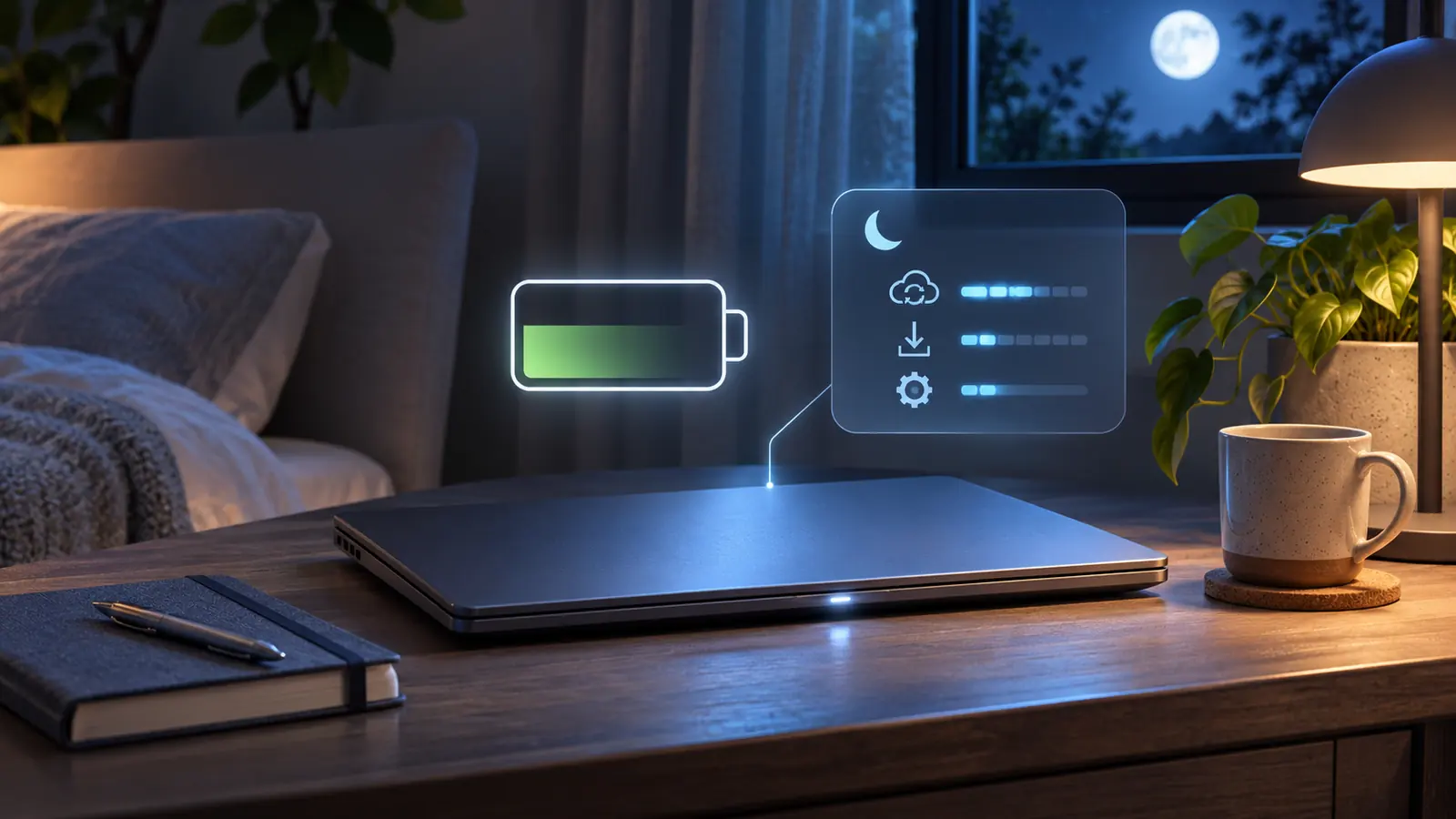
Measure a real, repeatable drop
Note the battery level, unplug the charger, and put the laptop to sleep in your usual way. In the morning, record the level before opening apps. Repeat another night with the same duration, similar starting charge, and same accessories. Use varies by model, battery age, temperature, network, and supported features; one comparison cannot establish a universal normal percentage for every laptop.
Also check whether the laptop stayed cool and quiet, whether an indicator changed as expected, and whether Windows wakes immediately when you open the lid. A warm computer in a bag or one with its fan running during “sleep” may have stayed active. If the PC runs out of battery, record the starting level and avoid repeating long tests until empty; repeated complete discharge is not useful for diagnosis.
Before changing anything, remove nonessential accessories for one test, such as a USB receiver or external drive, and note whether the result changes. Do not disconnect something essential, and change one factor per comparison. If Windows Update just installed something, finish it and restart first; the guide to Windows 11 battery draining fast after an update covers a broader use-time scenario.
Understand Sleep, Modern Standby, and Hibernate
Sleep keeps your session in low-power memory so you can return quickly. Depending on the platform, a PC may use traditional S3 sleep or Modern Standby (S0 Low Power Idle). Some newer systems can stay connected to the network and do limited work with the screen off; actual activity and power use depend on the model, drivers, and settings. That is why “sleep” does not mean exactly the same state on every laptop.
In Terminal or Command Prompt, enter powercfg /a to see sleep states Windows says are available. The command does not enable or disable a mode. If Modern Standby is listed, SleepStudy may help inspect sessions. If Hibernate is available, it saves the session to storage and uses less power, but resuming may take longer. It is often a better fit for a long absence or carrying a laptop.
To choose Hibernate if available, save your work and select Start > Power > Hibernate. If the option does not appear, the model or its configuration may not provide it. Do not force-enable it through the registry. Microsoft also explains how to show the option under power-button settings when supported.
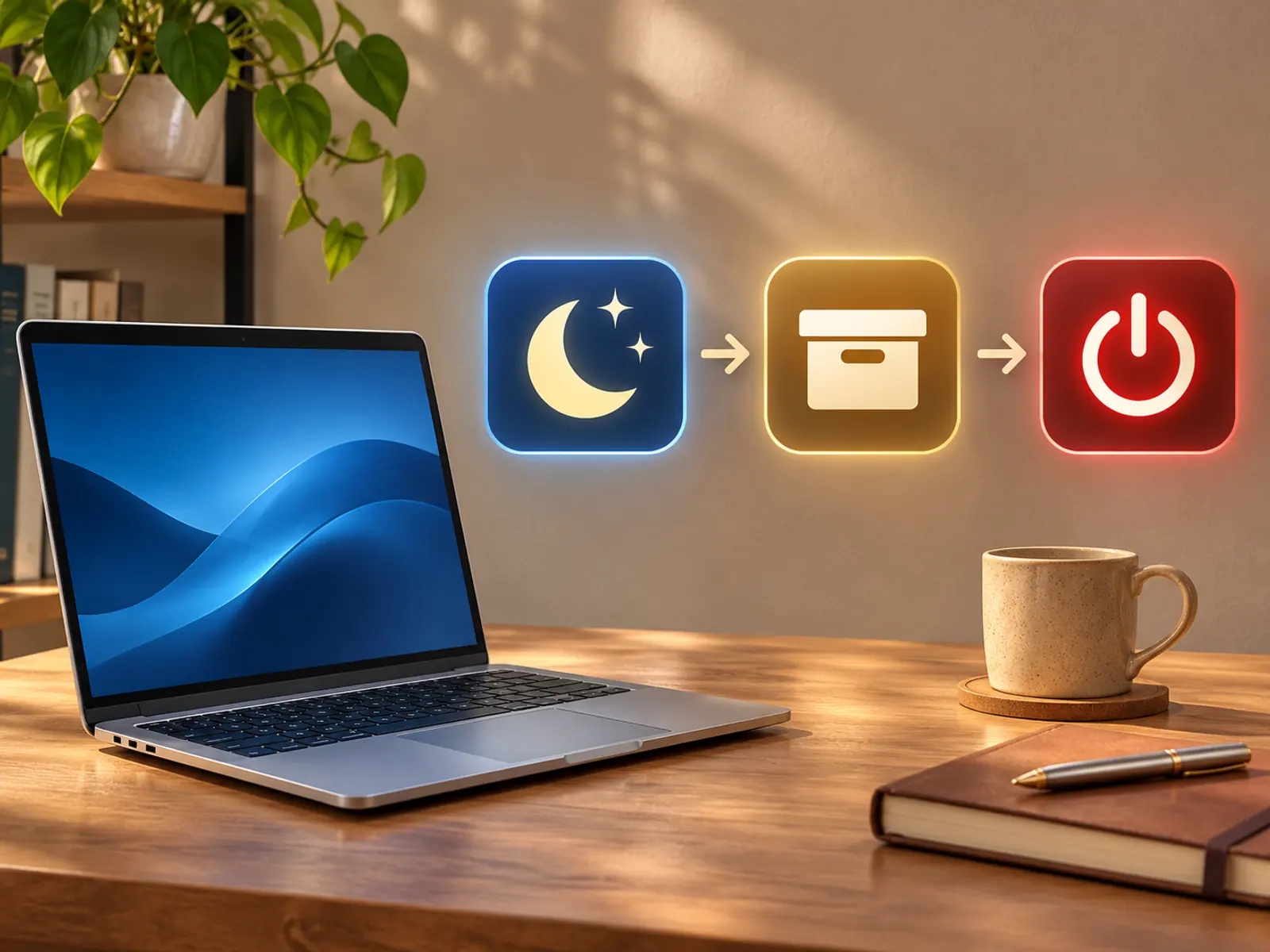
Check lid and power-button actions
Closing the lid does not put every PC to sleep. Check Control Panel > Hardware and Sound > Power Options > Choose what closing the lid does. Review the On battery and Plugged in columns separately. Confirm the action is Sleep or, for a longer absence, Hibernate if available. Choosing Do nothing can leave the computer running with the lid closed, which may cause heat and battery drain.
If you use an external monitor or dock, also check what happens when the external screen is the only visible display. Do not put a closed laptop on fabric or leave it powered in a bag. First test using Start > Power > Sleep rather than assuming the lid applied the expected action.
Under Settings > System > Power & battery, review screen and sleep timeouts on battery. Turning off the display is not always the same as entering Sleep. For a comparison, use the explicit Windows command and see whether battery level changes differently. Restore the setting you prefer after testing.
Check: compare one night using the same action from the Power menu and verify the battery level on wake.
If it didn’t work: check the available sleep state and use a battery report or SleepStudy if supported.
Read SleepStudy if supported
Microsoft documents SleepStudy for devices that support Modern Standby. Open Terminal as administrator and run:
powercfg /sleepstudy /output "%USERPROFILE%\Desktop\sleepstudy.html"
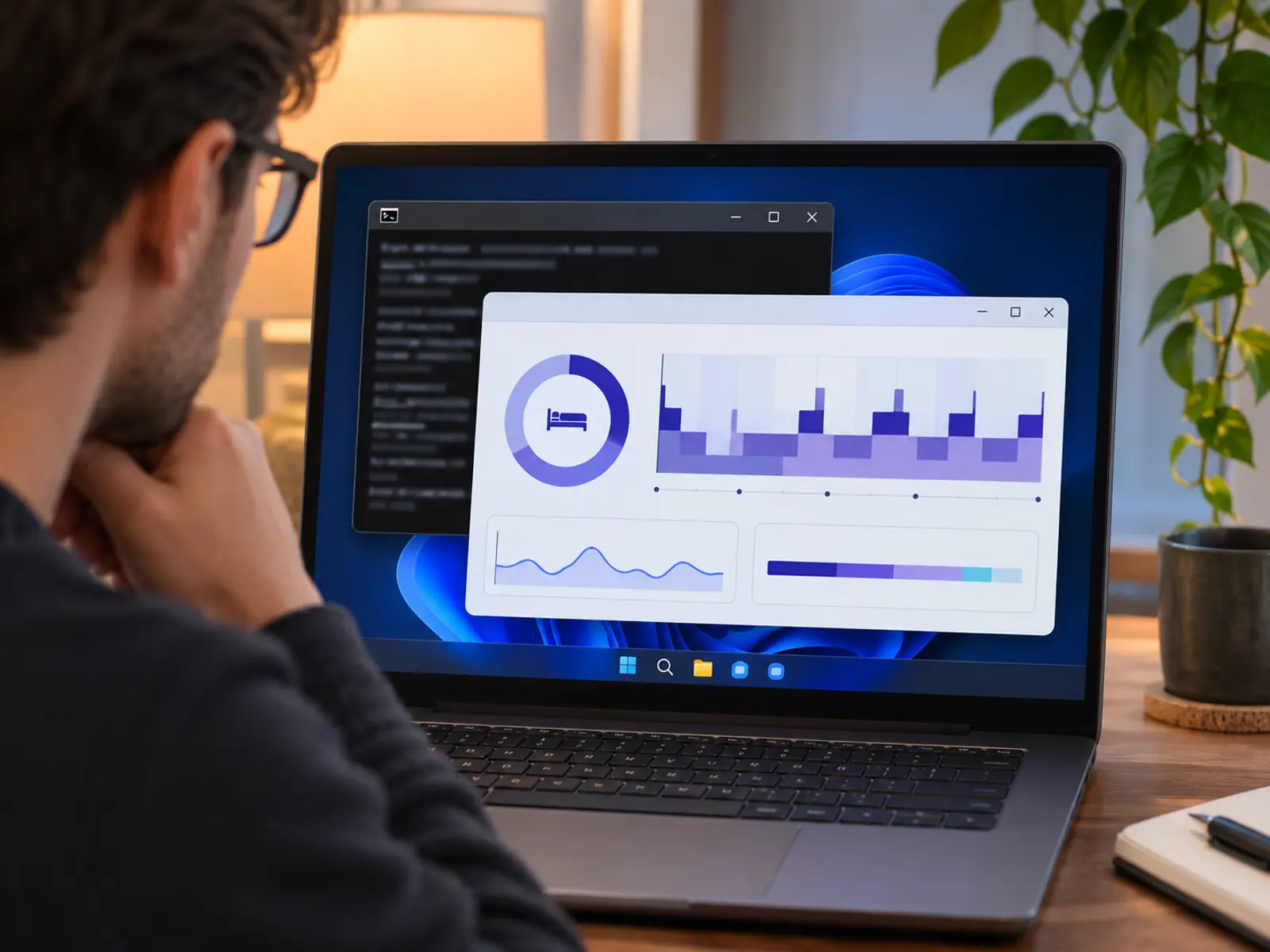
The HTML report covers recent sessions by default (typically the last three days). Open it locally and compare the affected night. Review sessions, time spent active, screen-off/sleep periods, energy change, and any components or apps reported. An empty report or unsupported command may simply mean this PC does not use the required mode; it does not by itself indicate a fault.
A component reported as active is a clue to investigate, not proof it is defective. Note its name, compare nights, and ask the manufacturer if a driver stays active in every session. Do not end a system process or disable a device based only on the report. It can contain device names and activity details; keep it local or hide identifying information before sharing it with support.
If Windows woke during the period, you can view the last wake source with powercfg /lastwake and list active wake timers with powercfg /waketimers. These commands provide clues, not necessarily the cause of drain while the PC remained in low power. Record the output and ask the manufacturer to interpret it before disabling a device or scheduled task.
Reduce sleep activity without disabling security
Under Settings > System > Power & battery > Battery usage, identify apps using background power. For a known, nonessential app, open its background activity options and choose the recommended or an appropriate restricted mode. Not every app shows these controls. Do not disable Microsoft Defender, updates, system services, or drivers to try to reduce overnight drain.
If reports or tests point to a USB or Bluetooth device, remove it for one test night or turn off its connection in Windows settings if you do not need it. Compare a night with and without that factor. If the issue started after a driver change, install a version from the manufacturer only for the exact model and a matching symptom; avoid third-party bulk driver tools.
For an absence of several hours, choose Hibernate or fully shut down the PC if your work is saved. Shutdown closes your session; make sure files are saved. If the laptop wakes itself again or never reaches low power, contact its manufacturer with the state reported by powercfg /a, the test duration, and SleepStudy if available.
Separate sleep drain from battery capacity
Overnight percentage loss measures use over a period, while battery wear is about capacity available after many cycles. If the battery also drains quickly during normal use, has very short runtime, shuts down unexpectedly, or varies sharply from day to day, create a report with powercfg /batteryreport and compare design capacity, full-charge capacity, and history. The guide to the Windows battery report and usable capacity explains those values.
A battery report does not diagnose hardware failure by itself, and capacity changes with age, temperature, and cycles. Use the manufacturer’s diagnostics if Windows reports an error, the battery swells, or the laptop shuts down unexpectedly. A swollen battery requires stopping use and contacting service; do not press it or open it.
Frequently asked questions
These answers distinguish sleep states and possible causes of an overnight drop.
How much battery loss is normal overnight?
There is no universal threshold for every model. Sleep type, network connection, drivers, battery, and test duration affect the result. Compare repeated tests and, where available, SleepStudy.
Is Modern Standby causing the drain?
Modern Standby lets some devices do limited work with the screen off; it does not by itself indicate a fault. Use SleepStudy to see how your model behaved.
Does Hibernate use less power?
Yes, it is designed to use less power than Sleep, but it resumes more slowly. It is not available on every device.
Should I turn off Wi-Fi overnight?
Try it temporarily only if you do not need a connection during sleep. Compare one night with and one without network access, then restore your preference after diagnosis.
What if SleepStudy is unavailable?
Check the states shown by powercfg /a. SleepStudy is intended for Modern Standby; review lid and sleep settings, then contact the PC maker if the issue continues.
Related articles
Next step
Record battery levels before and after two comparable nights, the state shown by powercfg /a, and SleepStudy sessions if supported. These details help the manufacturer identify the relevant mode or component.
Sources
- Microsoft Learn, Modern standby SleepStudy — accessed 8 November 2026.
- Microsoft Learn, Powercfg command-line options — accessed 8 November 2026.
- Microsoft Support, Shut down, sleep, or hibernate your PC — accessed 8 November 2026.
- Microsoft Support, Battery saving tips for Windows — accessed 8 November 2026.
- Microsoft Learn, Modern Standby states — accessed 8 November 2026.
Be the first to leave a comment.