When a laptop says “plugged in, not charging,” the message does not automatically mean the battery is defective. The manufacturer may be holding the charge at a configured limit to reduce time spent near full charge, or the adapter may power the computer without supplying the model’s expected charging capacity. A cable, port, temperature condition, battery fault or firmware setting can also interrupt charging. Use the sequence below to separate these cases before buying a battery or charger.
Start by recording the current percentage, the exact Windows status, whether the laptop runs from the adapter, and whether the same status appears after a few minutes of light use. There is no single percentage that proves a fault: charge limits vary by model and user setting. If the battery or case is swollen, unusually hot, smells odd, or is physically damaged, stop charging, disconnect power if safe, and arrange service. Do not press, puncture or open a battery.
First identify which symptom you have
| What happens | First area to check | Next action |
|---|---|---|
| Charge pauses repeatedly at a similar level, while the laptop runs normally | Battery-care mode or custom charge threshold | Check the maker’s battery utility and model manual before changing anything |
| Battery percentage falls while the adapter is connected | Adapter power, USB-C capability, cable, port and heavy system load | Verify the exact adapter and charging port requirements for the model |
| The adapter is not detected or the laptop only runs on battery | Outlet, adapter, cable, connector or charging port | Try a known-good outlet and inspect the adapter status using the maker’s instructions |
| Windows detects no battery or reports an error | Battery connection, device recognition, firmware or battery health | Run the manufacturer’s built-in battery diagnostic |
| Charging returns after cooling or after closing demanding work | Temperature or power demand | Use the laptop on a hard surface and check for blocked vents |
The table narrows the next check; it does not identify a failed part. Change one condition at a time, then observe whether the same status changes. If the display switches between “charging” and “not charging,” note when it happens, including whether the adapter or cable moves.
Check for a deliberate charge limit
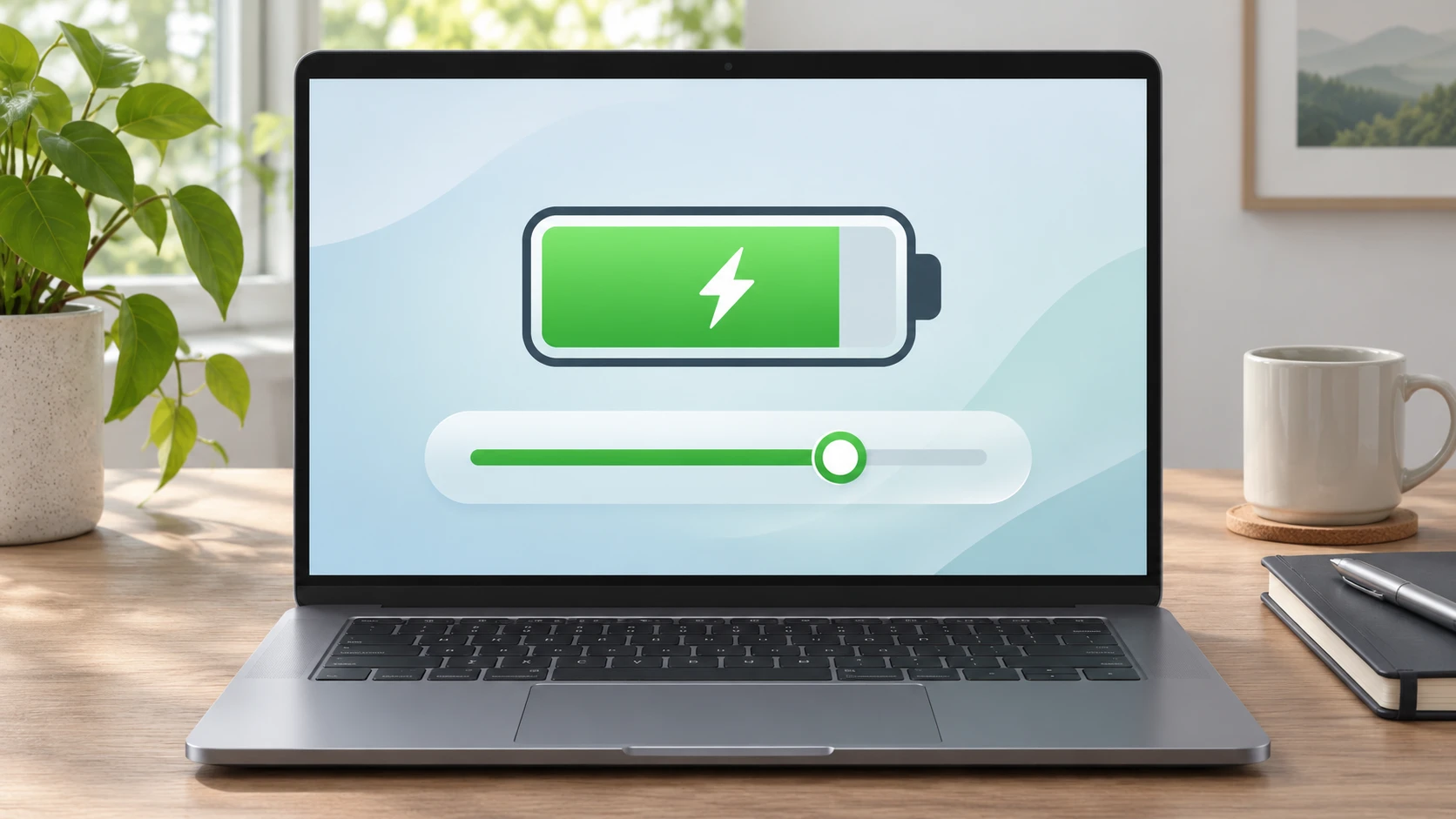
Many laptops include battery-care features that reduce maximum charge or delay charging according to how the computer is used. They may be called conservation mode, battery health management, adaptive charging, primarily AC use or a custom start/stop threshold. A charge limit can make “not charging” normal at that moment; its exact behavior and menu name differ by model and software version.
Dell: inspect the supported battery charge configuration in Dell Power Manager, MyDell or the system’s BIOS, depending on the model. Dell documents that a custom threshold or an AC-use profile can stop charging before full. Some systems also report adapter recognition in BIOS. Do not change a BIOS option based on a menu from a different Dell model.
HP: check whether the model supports Battery Health Manager, Adaptive Battery Optimizer or a battery-care limit. HP documents that these options can manage charging to preserve battery health. A setting intended for a laptop that stays plugged in may intentionally avoid a full charge; use the instructions for the exact product before changing the mode.
Lenovo: check Lenovo Vantage or the model’s battery settings for Conservation Mode or a custom charge threshold. Lenovo notes that a charge may pause near full or at a chosen conservation limit. The displayed range and available controls depend on the ThinkPad, IdeaPad or other model.
If you need a full charge for a trip, temporarily adjust the supported limit using the manufacturer’s instructions, then restore your preferred battery-care mode afterward. Do not assume a paused charge means the battery is aging or that a battery reset is required.
Verify the adapter, cable and charging port
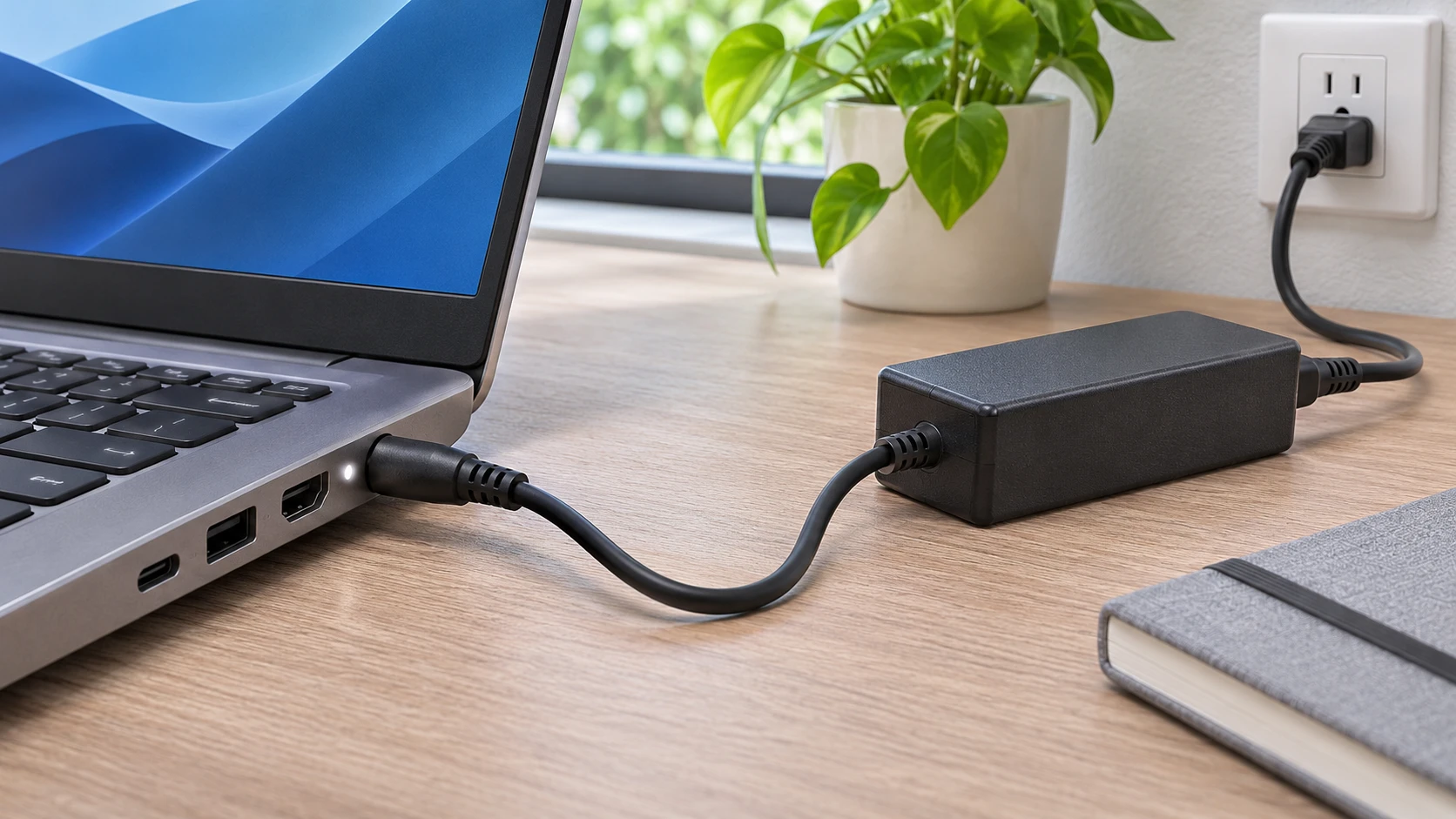
- Plug the adapter directly into a known-working wall outlet and confirm that each detachable cable end is fully seated. Check for cuts, bent pins, scorch marks or a loose connector. Do not use a visibly damaged adapter.
- Confirm the adapter is approved for the exact laptop and meets the power rating in the product manual. An underpowered adapter may run the system yet fail to charge under load. Do not compare chargers only by connector shape.
- If charging over USB-C, verify that the port on the laptop supports charging and that the charger and cable support the power delivery required by that model. Not every USB-C port accepts power, and not every cable or dock supplies enough power.
- Check whether the operating system or manufacturer utility recognizes the adapter. On supported Dell systems, the BIOS may show adapter type or status; other brands provide their own diagnostics. Follow the model-specific instructions.
- With the computer shut down and unplugged, inspect the external port for debris or visible damage without inserting metal tools. If the port is loose or damaged, stop using it and arrange service.
For USB-C-specific voltage and negotiation symptoms, see the separate USB-C laptop charging diagnosis. That guide covers the power-delivery path; this article focuses on the broader decision between a configured charge limit, adapter recognition and battery condition.
Separate a Windows message from a battery problem
After checking the physical power path, restart Windows once and look at the battery status again. Close demanding applications temporarily: a high-performance workload can consume power while an undersized or unrecognized adapter is connected. If charging resumes while the laptop is idle, recheck the adapter rating and the manufacturer’s load guidance instead of assuming the battery is fixed.
Use the built-in diagnostic from the laptop maker to check the adapter and battery where available. If the battery appears as missing, has a warning, or fails the manufacturer’s test, save the exact message and diagnostic result. The related battery-not-detected guide covers recognition symptoms separately. Avoid random registry edits, third-party “battery repair” apps and generic driver-updater utilities. Install firmware or drivers only from Windows Update or the computer maker, and follow its instructions for a stable power source before any BIOS update.
Consider temperature and battery safety
Charging behavior can change when a battery is too warm or too cold. Let a recently hot laptop return to a normal room temperature on a hard, ventilated surface, then recheck the status. Do not put it in a refrigerator or use a heater to force a change. If it repeatedly becomes unusually hot, shuts down or stops charging under light use, run the manufacturer’s diagnostics and contact support.
Swelling, a lifted trackpad or keyboard, a bulging case, smoke, unusual odor or leaking are stop-use signs. Disconnect the charger if you can do so without touching a hot or damaged area, power down if safe, and keep the laptop away from flammable materials while arranging qualified service. Do not squeeze the case shut or continue charging to “test” it.
When the evidence points to service
Service is reasonable when the approved adapter is not recognized after checking a known-good outlet, the charging port is damaged, the maker’s battery diagnostic reports a fault, or the same failure persists across the maker’s documented charge settings. Bring the adapter and note the exact symptoms and model. If the laptop still runs from the adapter but the battery will not charge, mention whether charging limits were enabled and whether the adapter was recognized in BIOS or the maker’s app.
Do not buy a replacement battery solely because Windows says “plugged in, not charging.” A deliberate battery-care threshold, unsupported USB-C port or mismatched adapter can produce the same message. Model-specific diagnostics are the point at which the evidence becomes more useful than the status text alone.
Frequently asked questions
Why does my laptop say plugged in but stop charging before full?
A battery-care setting or custom threshold may pause charging to reduce time at a high state of charge. Check the model’s utility or manual; there is no universal percentage that proves a problem.
Can a charger power the laptop but not charge its battery?
Yes. An adapter may provide enough power for some computer activity but not enough for charging during heavier use, or the laptop may not recognize it. Confirm the model’s required adapter and port specifications.
Should I uninstall the battery driver?
Not as a first step. Start with the adapter, charge-limit settings and manufacturer diagnostic. Follow the PC maker’s documented Windows procedure if it specifically recommends a driver step.
Is the battery defective if the laptop works only when plugged in?
It may be degraded or undetected, but the message does not prove that. Run the maker’s battery test and check whether Windows and BIOS recognize the battery before deciding on repair.
Sources
Consulted 7 November 2026: Dell: troubleshoot AC adapter issues covers adapter recognition, rating and model-specific power checks; HP: Battery Check and charging troubleshooting covers battery and adapter diagnostics; Lenovo: battery stops charging near full explains conservation mode and charge thresholds. Manufacturer menus and supported behavior vary by product; use the manual for the exact model.
Be the first to leave a comment.