A laptop can run from its adapter while Windows reports no battery, show a battery icon without a percentage, or fail to list a battery in firmware diagnostics. These symptoms point to different layers. A charger problem affects incoming power; a battery communication problem affects identification and telemetry; a Windows ACPI problem can hide an otherwise working pack. Start by recording exactly where the battery disappears. Do not assume that a missing taskbar icon proves the cells are dead.
Separate “not detected” from “not charging”
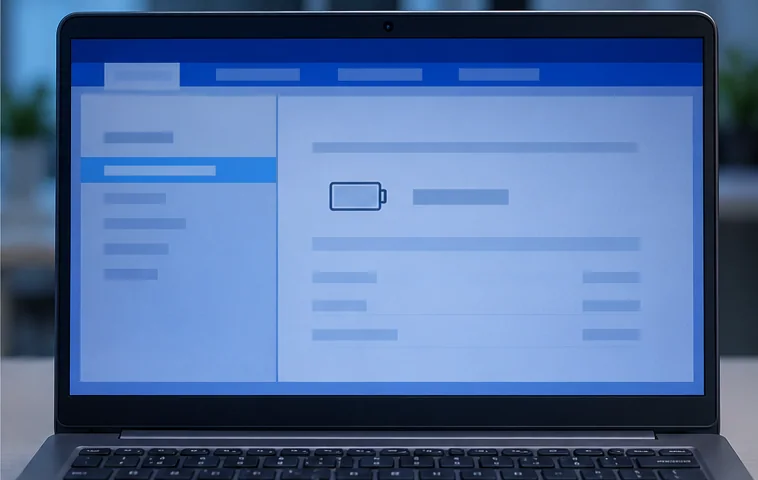
In Windows, open Settings → System → Power & battery and note whether the battery appears, whether a percentage is shown, and whether the status says charging. A battery that appears but remains at one percentage is detected; the fault could concern charging, adapter wattage, temperature, a charge limit, or the battery itself. A battery missing from Settings and Device Manager is a detection problem. If the computer switches off immediately when unplugged, stop treating the issue as a display-only fault: save work and keep the adapter connected.
Restart once, then check the manufacturer’s preboot diagnostics or firmware information page. The key and menu names vary; consult the manual for the exact model. If the battery is absent there too, Windows settings cannot repair the underlying hardware communication. If firmware lists it but Windows does not, software and ACPI enumeration become more plausible. This comparison is useful because it separates an operating-system symptom from a problem that exists before Windows loads.
Check the outside first
- Shut down fully and disconnect the adapter. Inspect the plug, cable and charging port for looseness, fraying, discoloration, liquid or debris. Do not probe a port with metal.
- Use the correct manufacturer-approved adapter and cable. A USB-C connector alone does not guarantee sufficient charging power; system load, cable capability and negotiated power matter.
- Try a known-good wall outlet and, where the laptop maker allows it, a second compatible adapter. Change one item at a time and record whether the charge light or firmware status changes.
- Let a hot laptop cool naturally on a clear, hard surface. Do not chill it or cover it. Temperature controls can temporarily pause charging, but they do not explain persistent battery disappearance once the computer is at room temperature.
Do not continue using a damaged adapter or battery. Stop if the case is bulging, the trackpad or bottom cover has lifted, there is a chemical smell, hissing, unusual heat, or liquid damage. Power down, unplug if safe, keep the device away from combustible material, and arrange professional service. Never press a swollen pack flat or attempt a puncture, cell-level repair, or improvised jump-start.
Use Windows evidence only after firmware checks
Record enumeration and error codes
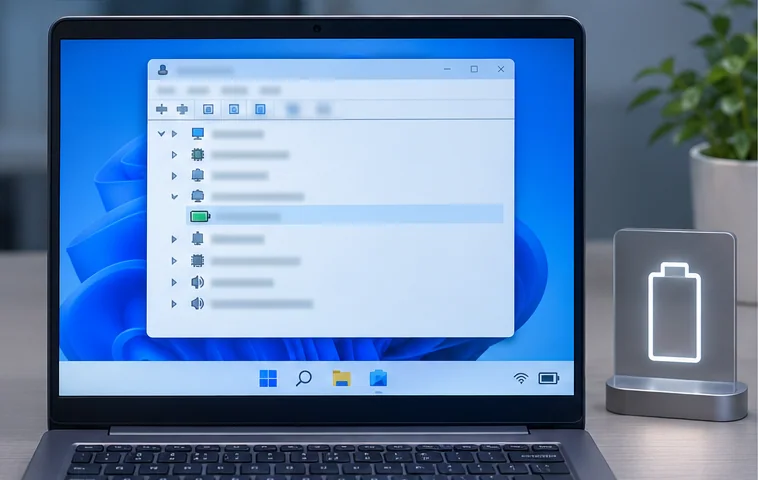
Open Device Manager and expand Batteries. Names commonly include a Microsoft ACPI-Compliant Control Method Battery and a Microsoft AC Adapter, but entries vary by hardware and Windows build. Choose View → Show hidden devices only to check for a faded entry; a hidden item is not proof that the pack is communicating now. Look for a warning icon and record its exact code before changing anything.
Install firmware, chipset and power-management updates only from the laptop maker’s support page for the exact model, using the published order and power requirements. Avoid third-party driver-updater utilities. A firmware update is not a first-line experiment when the system is unstable or the battery is swollen; interruption during an update can make recovery harder. If the problem began immediately after an update, note its date and check the manufacturer’s release notes or support guidance before rolling back drivers.
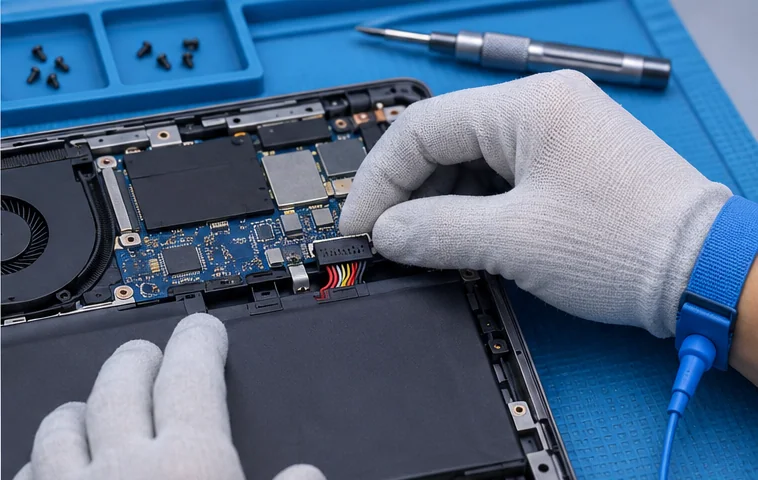
On a removable-battery model, power down and follow the manual before removing or reseating the pack. Many current laptops have internal batteries and should not be opened as a casual software step. If qualified to service the exact model, disconnect AC, follow its service manual and electrostatic-discharge precautions, and never pull on wires. If you are unsure, stop at external checks and use authorized service.
Interpret the battery report carefully
Windows can create a historical report with powercfg /batteryreport in an elevated or ordinary Command Prompt. It can help when Windows detects the pack but capacity, charge history or recent behavior is unclear. It cannot prove that a battery is healthy, test cell impedance, or diagnose a pack missing from firmware. A blank or incomplete report can simply mean Windows has not received usable battery data.
Microsoft describes Windows battery support as an ACPI control-method battery interface: firmware exposes status and capacity information for Windows to read. That is why a battery can be physically present yet absent from Windows when its connection, pack electronics, firmware interface or driver enumeration is disrupted. The report is one observation in that chain, not a verdict.
Choose the next step from the comparison
| Observation | What it suggests | Next step |
|---|---|---|
| Missing in firmware and Windows | Pack, connector, charging circuitry or firmware-level detection | Run model-specific diagnostics; arrange service if still absent |
| Listed in firmware, absent in Windows | Windows ACPI enumeration, system software or a recent update | Record Device Manager codes; install model-specific updates |
| Listed in Windows but not charging | Adapter, port, temperature, charge limit or battery condition | Check rated adapter, charge status and maker diagnostics |
| Battery percentage changes, then laptop shuts off | Possible degraded cells or unreliable capacity reporting | Back up data and request battery health/service assessment |
Do not initialize disks, reset Windows, or change unrelated BIOS storage settings for a battery detection issue. These actions do not reconnect battery telemetry and can introduce unrelated risks. Keep the exact laptop model, BIOS version, Windows version, Device Manager error, adapter model, and whether the pack appears in firmware in your service notes.
When to stop troubleshooting
Seek service if the battery is swollen, the port is damaged, firmware diagnostics report a battery fault, the laptop abruptly loses power, or the pack is still missing after the model-specific external checks. If the laptop is under warranty, do not open it before checking the warranty terms. A supported replacement is safer than a generic pack with uncertain protection electronics. If the battery is removable, recycle it through an approved battery collection route; do not put lithium batteries in household waste.
For a Surface device, use Microsoft’s model-specific instructions; other laptop brands have different firmware and service procedures. Keep a backup while investigating. A battery that is intermittently detected should be treated as unreliable even if it returns after a restart.
Sources and further reading
- Microsoft Learn: Windows battery and charging interface
- Microsoft Learn: installing an ACPI battery driver
- Microsoft Support: Surface battery not detected and charging guidance
- Microsoft Learn: powercfg battery report command
Sources consulted 6 November 2026. Exact menu names and service steps are model-dependent; no physical repair or measurement is claimed here.
Be the first to leave a comment.