Quick answer: a stable stop around 80% is often a charge limit enabled in Windows, BIOS, or the manufacturer’s app. Check the model and setting before replacing the battery. If the battery swells, gets unusually hot, or deforms the case, shut the laptop down and get professional service.
Contents
- Tell a charge limit from a fault
- Find the manufacturer’s setting
- Check Smart Charging and Windows status
- Confirm the charger and connection
- Check battery health
- Choose between runtime and protection
- When to stop and contact support
- Frequently asked questions
Tell a charge limit from a fault
If charging stops consistently around 80%, the laptop works normally on AC power, and the percentage does not fall quickly, first look for a software charge limit. Manufacturers add conservation modes for laptops that stay plugged in. These may cap the maximum charge or temporarily reduce it to avoid keeping the battery at a high level for long periods. The exact value and control depend on the model.
A limit set to 80% is not the same as a battery that can now store only about 80% of its original capacity. The first number is a ceiling selected by the user, manufacturer, or smart feature. The second is an estimate of current full-charge capacity compared with design capacity. A percentage in the taskbar cannot distinguish the two by itself.
Record what happens before changing anything: does charging always stop at the same threshold, does the icon say “plugged in” or “charging,” is the adapter light normal, and did the issue start after an update or app change? On a work-managed device, IT policy may set the threshold. Do not bypass that rule; ask your IT team.
| Observation | Likely cause | Next action |
|---|---|---|
| Stops regularly near 75–80%; laptop is stable on AC | Conservation mode or smart charge limit | Identify the manufacturer and check its official setting |
| Windows reports slow charging or battery loss on AC | Insufficient charger, cable, or power | Check the adapter approved for the model and its connection |
| Percentage fluctuates, sudden shutdown, or low capacity | Worn battery, inaccurate reading, or hardware issue | Use the maker’s diagnostic and capacity information |
| Case bulges, trackpad lifts, odor, or excessive heat | Potentially damaged battery | Shut down, unplug if safe, and contact support |
Find the manufacturer’s setting
Find the exact brand and model number in system information or on the product label. Then search the maker’s official guide or support page for that model. Setting names are not universal: you may see “Smart Charging,” “Conservation Mode,” “Battery Health Manager,” “Charge Threshold,” “Custom Charge,” or “Battery Care.” A similarly named option in instructions for another model does not prove the menu exists on your laptop.
The documented examples show why the exact model matters. Dell lists the XPS 13 DX13260 among platforms covered by its BIOS Smart Charging article: when the relevant mode is active, charging can stop at 80%. HP lists the EliteBook 840 G6 among business notebooks affected by a Battery Health Manager configuration that limits full-charge capacity to 80%. A Lenovo guide for the IdeaPad Slim 3 series describes a conservation mode that holds charge between 75% and 80%. Menus and availability vary by model, generation, and BIOS version; these examples do not apply to every laptop from those brands.
Open only the management app supplied or recommended for your model, or BIOS/UEFI as described in its guide. Look for conservation mode, a custom limit, or smart charging. Read the description before changing it: some modes learn usage patterns, others keep the battery in a range, and some provide a fixed ceiling.

If you want a full charge before travelling, temporarily disable the mode only if the maker allows it and you understand the effect. Restore your usual preference afterward. A one-time full charge does not prove a fault, and no universal threshold fits every use. A cap may suit a laptop that stays plugged in; available runtime may matter more before a long day away from an outlet.
Check: does the app or BIOS explicitly show an active limit, and does the Windows percentage match it?
If it didn’t work: check the manual and support page for your exact model. Do not change BIOS options whose purpose is unclear.
Check Smart Charging and Windows status
Windows may offer Smart Charging on some compatible laptops, but the option is not available on every PC. Microsoft describes a battery icon with a heart when Smart Charging is active, including in the taskbar and power settings. If the icon is absent, that does not prove the battery is faulty; the manufacturer’s utility may control charging or the feature may not be supported.
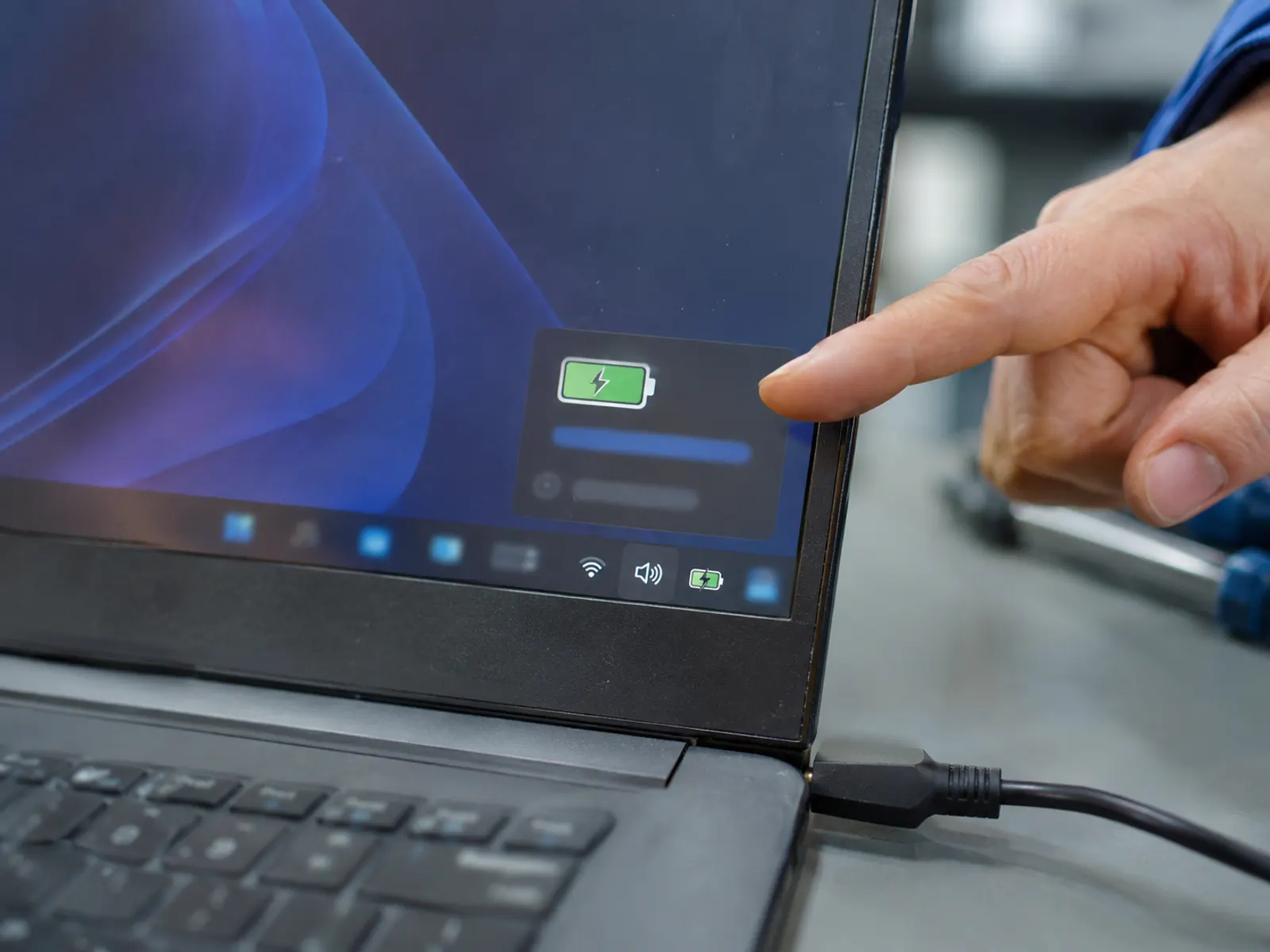
Hover over the battery icon and read the full status. “Plugged in, not charging” can reflect a conservation threshold, but it can also involve an unrecognized adapter, an overheated battery, or another state. “Slow charger” or battery loss while plugged in points more toward charger power, cable, or connection. Record the exact message instead of inferring a cause from the number alone.
Menus and labels vary by Windows version and manufacturer. Under Settings > System > Power & battery, review available information without disabling a limit whose purpose you do not know. On a company or school laptop, settings may be managed by policy. Do not install a third-party “battery repair” app or edit the registry to reveal a setting.
Check: do the icon, status message, and manufacturer setting agree that a limit is active?
If it didn’t work: if Windows reports slow charging, check the adapter before resetting Windows or BIOS.
Confirm the charger and connection
Use the adapter supplied with the laptop or a model explicitly approved for it, with the voltage, power, and connector specified by the manufacturer. A USB-C charger can fit physically while supplying less power than the PC needs; the cable must also support the required level. Windows says an underpowered charger can cause slow charging or battery loss while the PC is in use. A battery that stays exactly at 80% is still more consistent with an active threshold than insufficient power alone.
Visually inspect the cable, plug, and port without twisting them or pushing debris inside. Try another working wall outlet. If you own a second officially compatible adapter, compare behavior with it. Do not test with an adapter whose ratings do not match the laptop’s requirements, and do not use a damaged cable. A receptacle that heats, crackles, or smells burnt is a reason to stop and have the electrical installation checked.
If the laptop accepts charging through multiple USB-C ports, the maker may specify which one supports power input. Avoid testing a dock, USB-C display, and charger together; isolate one approved adapter. On a laptop doing heavy work, available power may only offset usage rather than raise the percentage. Close intensive tasks during a short, safe comparison.
Check: with the recommended charger and a port intended for power input, does Windows report normal charging?
If it didn’t work: record the adapter and cable references and laptop model, then contact the manufacturer. Never open a power adapter.
Check battery health
A charge threshold and battery wear are different issues. Windows Battery Report can compare design capacity with estimated full-charge capacity and show usage history. It does not measure every cell independently and does not replace the maker’s hardware diagnostic. If the report is missing or shows an implausible value, try the official diagnostic described for your model.
To generate the report, open Terminal or Command Prompt under your normal Windows account and run the command below. Windows creates an HTML file and displays its output location; open that file to review capacity and history sections.
powercfg /batteryreportCompare “design capacity” with “full charge capacity,” but do not diagnose a fault from one percentage alone. Estimates vary with age, temperature, calibration, and battery characteristics. For more guidance, see the article on the Windows battery report and wear. If Windows or BIOS does not detect the battery, use the guide to a laptop battery not detected instead.
Check: does the maker’s diagnostic recognize the battery and report normal status, or give a specific failure code?
If it didn’t work: record the model and message, save your work, and send them to support. Do not continue with repeated charge tests.
Choose between runtime and protection
An 80% limit provides less runtime than a full charge, but it does not necessarily mean capacity has been lost. If you often keep the laptop plugged in, the mode may match its intended use. If you are leaving without a charger, the manual may explain how to switch temporarily to normal or rapid charging. Consider restoring conservation mode if you want it after the trip.
Avoid repeated full discharge cycles to “recalibrate” the battery unless the manufacturer explicitly recommends them for the model. Deep discharge is not a universal repair. Do not unplug an internal battery, short its contacts, heat it, or try to measure individual cells. Lithium-ion batteries can cause fire if damaged or mishandled.
A battery that drains during sleep or after an update needs a different diagnosis from an 80% cap. See the guides to a laptop battery draining during sleep and battery drain after a Windows update. If you only need to estimate remaining runtime, the battery runtime calculator estimates from entered values; it cannot measure the laptop’s actual capacity.
When to stop and contact support
Stop using and charging the laptop if the touchpad or keyboard lifts, the case deforms, liquid leaks, a chemical smell appears, or heat becomes unusual. If you can do so without pressing on the battery or forcing a connector, unplug the adapter, shut the device down, and move it away from flammable materials. Do not puncture, compress, or remove a swollen battery. Request qualified service and follow local instructions for damaged battery disposal.
Contact the maker if the limit is off but charging stops at varying levels, the laptop shuts down unexpectedly, an official diagnostic reports an error, or a compatible charger is continually identified as slow. Provide the laptop and adapter model, exact battery icon message, selected charge mode, and any available report. Do not post the full report in a public forum without checking it for personal information.
Frequently asked questions
Is a laptop battery stuck at 80% faulty?
Not necessarily. Several manufacturers document modes that intentionally cap charging. Check the official utility and guide for the exact model.
Why does my laptop stay at 80% while plugged in?
A conservation mode, BIOS setting, Smart Charging, or IT policy may pause charging. An unsuitable charger more often causes slow charging or battery loss, but the Windows status and model are needed to tell.
Can I charge to 100% before travelling?
If your model’s guide allows it, you can temporarily select normal or rapid charging. Re-enable your usual limit afterward if it suits your use.
Does Windows Smart Charging work on every laptop?
No. Microsoft says a heart icon appears on compatible devices when the feature is active. On other PCs, the manufacturer’s app or BIOS controls the threshold.
Does Battery Report confirm exact battery health?
No. It provides capacity estimates and usage history. Also use the maker’s diagnostic and take warning messages or physical deformation seriously.
Should I drain the battery to 0% to fix the display?
No. Do not repeatedly deep-discharge it. Follow a calibration procedure only if the maker recommends one for your model.
Sources
- Microsoft Support, Use Smart charging in Windows — accessed November 8, 2026.
- Microsoft Support, PC is charging slowly or discharging while it’s plugged in — accessed November 8, 2026.
- Microsoft Support, Caring for your battery in Windows — accessed November 8, 2026.
- Dell Support, Smart Charging in BIOS — accessed November 8, 2026.
- HP Support, Battery Health Manager setting change — accessed November 8, 2026.
- Lenovo Support, IdeaPad Slim 3 battery mode guide — accessed November 8, 2026.
- Dell, MyDell User Guide: battery settings — accessed November 8, 2026.
- Microsoft Learn, powercfg command-line options — accessed November 8, 2026.
Be the first to leave a comment.