A high percentage in the Memory column does not by itself prove a fault. Windows keeps reusable data in cache and can release it. Look for low available memory together with slowdowns, then identify the process before changing settings.
Contents
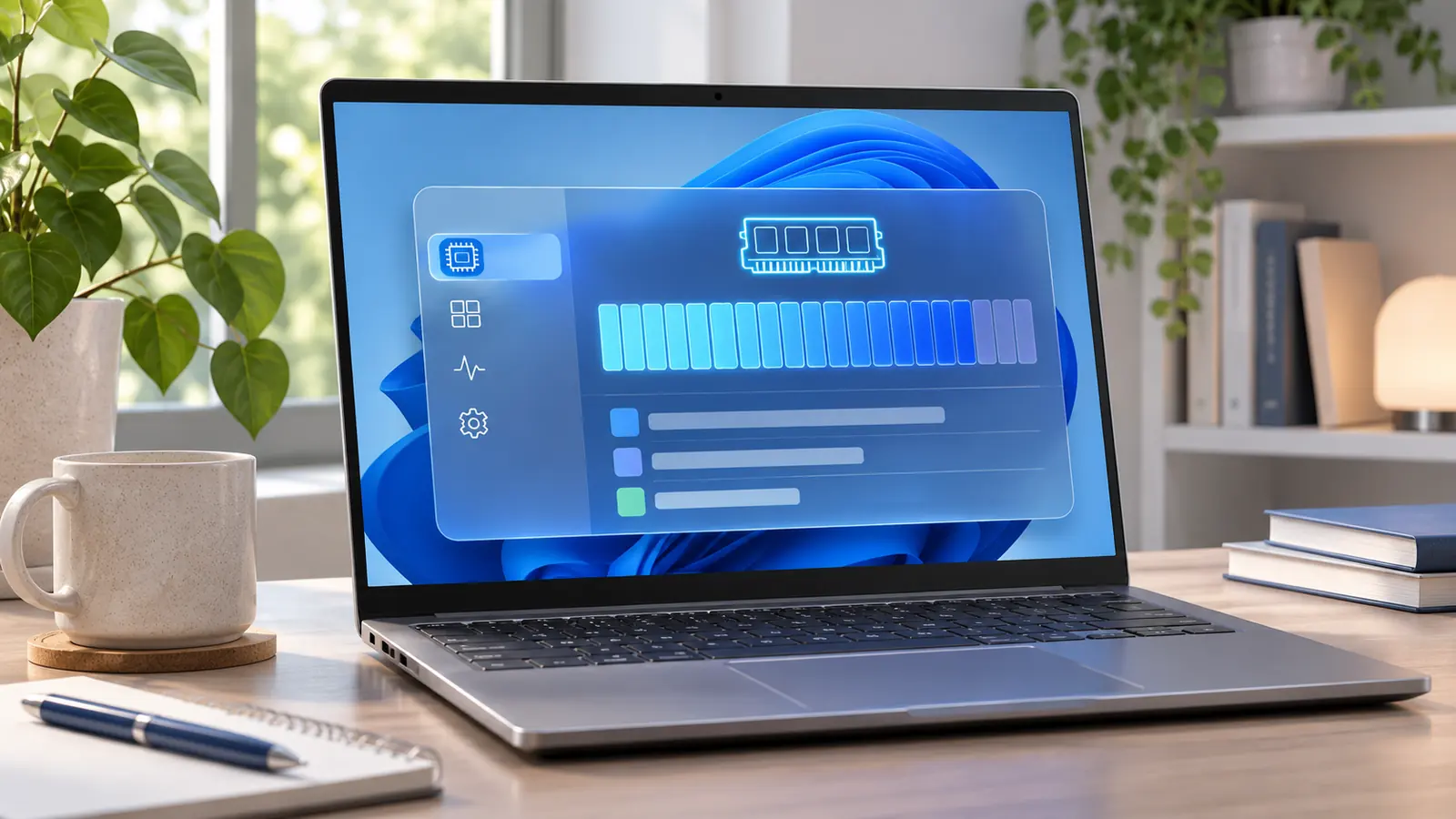
Read the figures without confusing cache with pressure
After sign-in, Windows loads system components, apps configured to start automatically, sync clients, and sometimes updates. Apps may also keep working in the background after their windows close. Higher RAM use just after sign-in can therefore be normal and varies with installed memory and the software you use.
Press Ctrl + Shift + Esc to open Task Manager. Select Performance > Memory. Review total memory, Available, In use (Compressed), Committed, Cached, and Hardware reserved. Labels may vary slightly by Windows version. Available memory includes free memory and standby memory that Windows can reuse, so cached memory is not necessarily lost to apps.
Committed compares virtual memory requested by processes with the available limit backed by RAM and the page file. It is not the same as physical memory currently occupied. If it repeatedly approaches its limit and apps become sluggish, that is more useful to investigate than the overall percentage alone. Note the figures at two or three comparable points rather than drawing a conclusion from one snapshot.
Before troubleshooting, consider what changed: a new program, a browser with many tabs, video-conferencing software, photo sync, or a recent update? Compare the same workload after a restart and full sign-in. Let a visible installation complete instead of interrupting its processes.

Identify apps using RAM
In Processes, click the Memory heading to sort from highest to lowest use. Expand a grouped app if needed. Check the name and publisher, then consider whether it is needed right now: a browser, game, editing tool, virtual machine, video meeting, or sync app can use several gigabytes depending on the work it is doing.
Figures change. A browser at the top is not automatically faulty; it may use more memory because many pages, extensions, or web tools are open. Close a few tabs you no longer need, exit a known task through its own interface, then wait and check whether available memory rises. Keep pages you need and save your work before closing a program.
Do not end a security process, Windows service, or unfamiliar name just because it is large. Look up the app in Start or check its properties in Task Manager. For an unknown system process, ask the PC maker or Microsoft Support rather than deleting a file found online. An unusual use pattern that keeps growing in the same app may indicate a memory leak; note the app name, version, and when the growth starts, then update it through its publisher.
If CPU use is high too, inspect both columns: a process doing continuous work may also keep a large amount of data in memory. The guide to CPU at 100% with no apps open in Windows 11 explains how to distinguish user activity from system activity.
Check: after normally closing an identified app, note whether its row disappears and available memory increases. Reopen it only if needed and compare a similar workload.
If it didn’t work: reopen the app if closing it made no difference; continue with sign-in tasks instead of randomly ending Windows processes.
Observe activity after sign-in
Some tasks need time after startup: Windows Update may finish installing, Microsoft Defender may scan files, OneDrive or another client may sync, and apps may prepare caches. Open Settings > Windows Update to see whether an update or restart is pending. Leave the device plugged in if appropriate and use the restart option Windows provides.
Then compare memory at the same point after a normal sign-in without launching all your apps at once. If use drops after update or sync activity finishes, no further action may be needed. If it stays high, sort by memory again and note which processes remain near the top.
An integrated graphics processor may share system memory. The amount shown as hardware reserved depends on the PC, firmware, and graphics setup. Reserved memory is not a process you can close. Do not randomly increase or reduce shared video memory in BIOS: an unsuitable change may prevent display or alter system behavior. Check the PC maker’s model information if a large amount appears reserved or the visible total does not match installed RAM.

Review startup apps safely
In Task Manager, open Startup apps. This page lists apps configured to start when you sign in. The Startup impact column estimates the app’s effect on startup, mainly on CPU and disk; it does not directly measure how much RAM the app will use later. Do not disable an item only because its impact is high.
Disable only a third-party app you recognize and do not need at sign-in, such as a game launcher you rarely open. This stops automatic launch; it does not uninstall the software. Keep security, backup, touchpad, audio, and peripheral tools enabled if you cannot identify their role. If you depend on a password manager or sync client, consider those functions before changing startup behavior.
Change one item at a time, restart normally, and check memory at the same point after sign-in. If the change does not help or breaks a feature, re-enable the app in the same list. This ties an outcome to one change and avoids disabling several services whose roles are unknown.
Check: the selected app no longer starts automatically and expected features still work; compare memory after a full restart.
If it didn’t work: re-enable the item and look for persistent use by a specific process; do not run a “RAM cleaner.”
Check reserved memory and hardware symptoms
If Windows shows much less usable memory than the installed amount, restart and check Performance > Memory and Hardware reserved. Some RAM may be reserved for devices or graphics. The expected value depends on the model; compare it with the PC maker’s official documentation. If it seems unusually high, or detected memory changes between starts, record the system information and ask the manufacturer before opening the computer.
High usage alone does not indicate a faulty memory module. Repeated crashes, blue screens, memory errors, or unexplained restarts do justify more diagnosis. Save your work and close apps, then launch Windows Memory Diagnostic by searching for mdsched in Start. Choose to restart and check if you are ready: the PC will restart and the check takes time. Look for the result notification after signing in; if it does not appear, Event Viewer can show MemoryDiagnostics-Results. Ask support to interpret an error rather than replacing a part based on one symptom.
If the tool reports errors or symptoms continue, give support the exact model, RAM amount, diagnostic result, and recent changes. Do not open a laptop under warranty or remove a module unless you are certain of the procedure for that model.
Settings to avoid
Avoid tools that promise to “free all RAM” by emptying standby memory. Windows uses cache to speed up access and can reassign it when an app needs memory. Repeatedly clearing the cache can slow loading without solving the cause of genuine memory pressure. Do not install an unfamiliar utility that asks for administrator access to end processes.
Do not set a fixed page-file size using a formula from a random webpage. The page file contributes to the committed memory limit and Windows generally manages it for the current setup. Disabling it or making it much smaller can cause allocation errors or crashes. If you changed this setting, return to system-managed size or ask support for help.
Adding RAM may help if your actual workload often exceeds available memory, but it will not automatically fix an app leak or unnecessary startup program. Check memory type, maximum capacity, and upgrade limits in the manufacturer’s documentation before buying. If high use comes with a fan that runs constantly, also compare CPU activity and the guide to a laptop fan always running at idle; RAM use alone does not prove the cause of heat.
Frequently asked questions
These quick answers cover common questions about RAM use after signing in to Windows 11.
Why does Windows use lots of memory after startup?
Windows, startup apps, security, updates, and sync tools may load work in the background. Check the process and available memory instead of assuming a high percentage is abnormal.
Is cached memory wasted?
Not necessarily. Standby or cached memory keeps data Windows may reuse and reassign. Low available memory combined with persistent slowdowns deserves more attention than a large cache alone.
Should I disable apps with high startup impact?
Not automatically. The indicator describes the effect on sign-in, not the app’s later RAM use. Choose only an app you recognize and do not need at startup, then check the result.
Will a RAM cleaner speed up my PC?
Clearing cache does not necessarily address the cause and can make later access slower. First identify an app whose use keeps growing or that you do not need.
When should I add RAM?
Consider an upgrade if your normal tasks repeatedly leave little available memory and slow the computer, after ruling out one app or recent behavior. Check compatibility with the PC maker.
Related articles
Next step
Record available memory and the name of the top process after a comparable sign-in. Those observations will help the PC maker’s support team if the slowdown continues.
Sources
- Microsoft Learn, Memory Performance Information — accessed 8 November 2026.
- Microsoft Learn, Results for the Memory Footprint Assessment — accessed 8 November 2026.
- Microsoft Support, Configure startup applications in Windows — accessed 8 November 2026.
- Microsoft Support, How to fix Error 0xA: IRQL_not_less_or_equal (Windows Memory Diagnostic) — accessed 8 November 2026.
Be the first to leave a comment.