A running fan does not always mean a fault. On a laptop, first check whether the processor is still working, whether air intakes are clear, and which thermal profile is active; a manufacturer hardware test can then distinguish normal control from a fault.
Contents
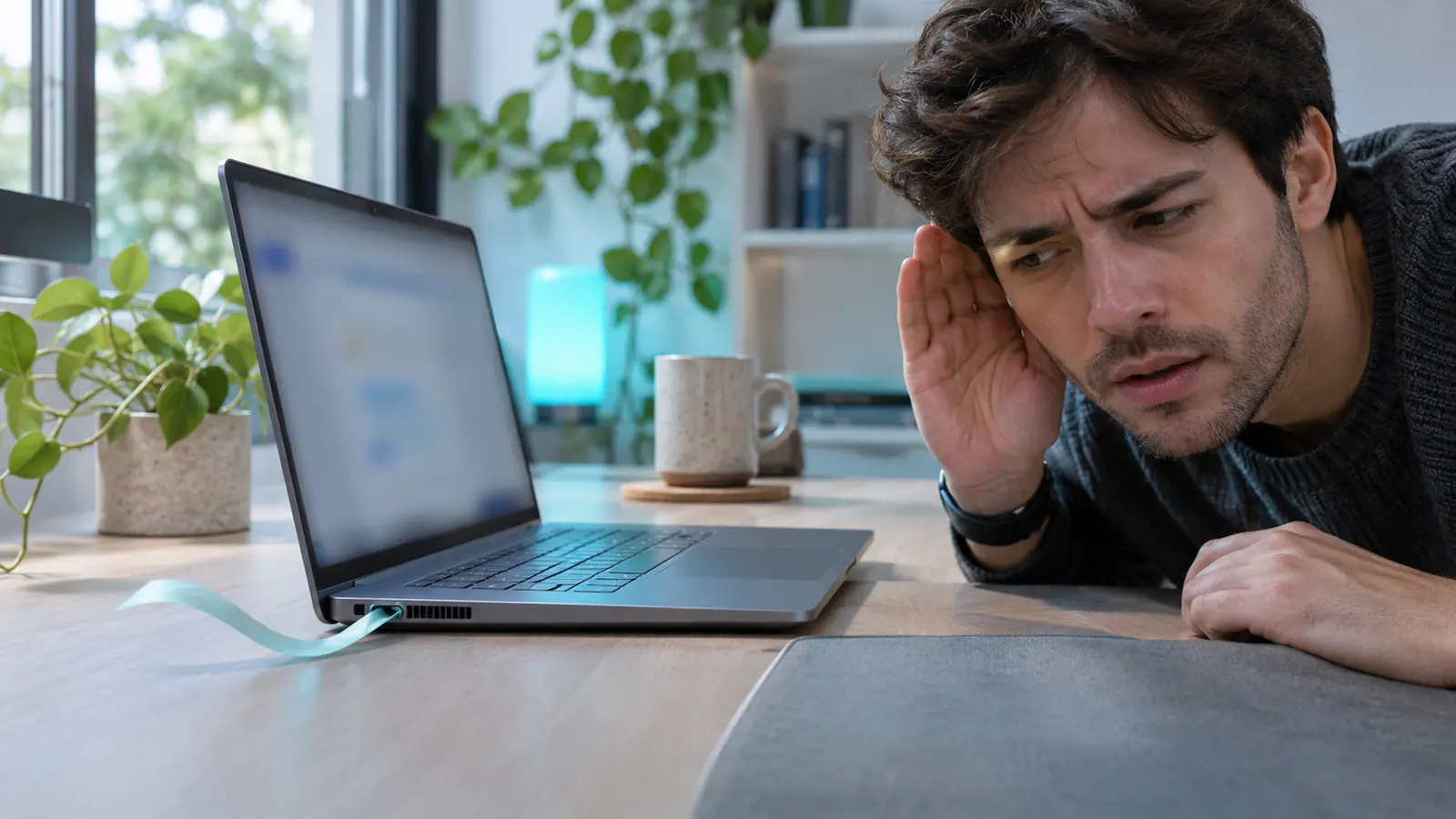
Identify the noise and conditions
A laptop may speed up its fan after startup, during syncing, an update, or a graphics task even when no window is visible. A brief increase followed by a gradual slowdown can be normal. A high-pitched sound, grinding, clicking, or a constantly loud fan while the PC is cool and idle deserves closer attention.
Define “idle” first: plugged in or on battery, screen open or closed, minutes since restart, open apps, and room temperature. Place the laptop on a hard, flat surface. Do not block side exhausts or bottom air intakes. Compare plugged-in and battery behaviour while keeping other conditions similar. Fan count and control curves depend on the model; a quiet profile on one laptop cannot be assumed for another.
| Observation | Cause to check | Next step |
|---|---|---|
| Fan starts after sign-in or startup, then slows | Sync, updates, or temporary workload | Let visible work finish and check CPU activity |
| High speed continues while CPU is busy | App, background task, or system process | Identify the process before changing anything |
| High speed and very hot while idle | Blocked airflow, thermal profile, or cooling issue | Check vents and run the maker’s diagnostic |
| Grinding, rubbing, vibration, or failed test | Possible fan or assembly damage | Stop experiments and request repair |
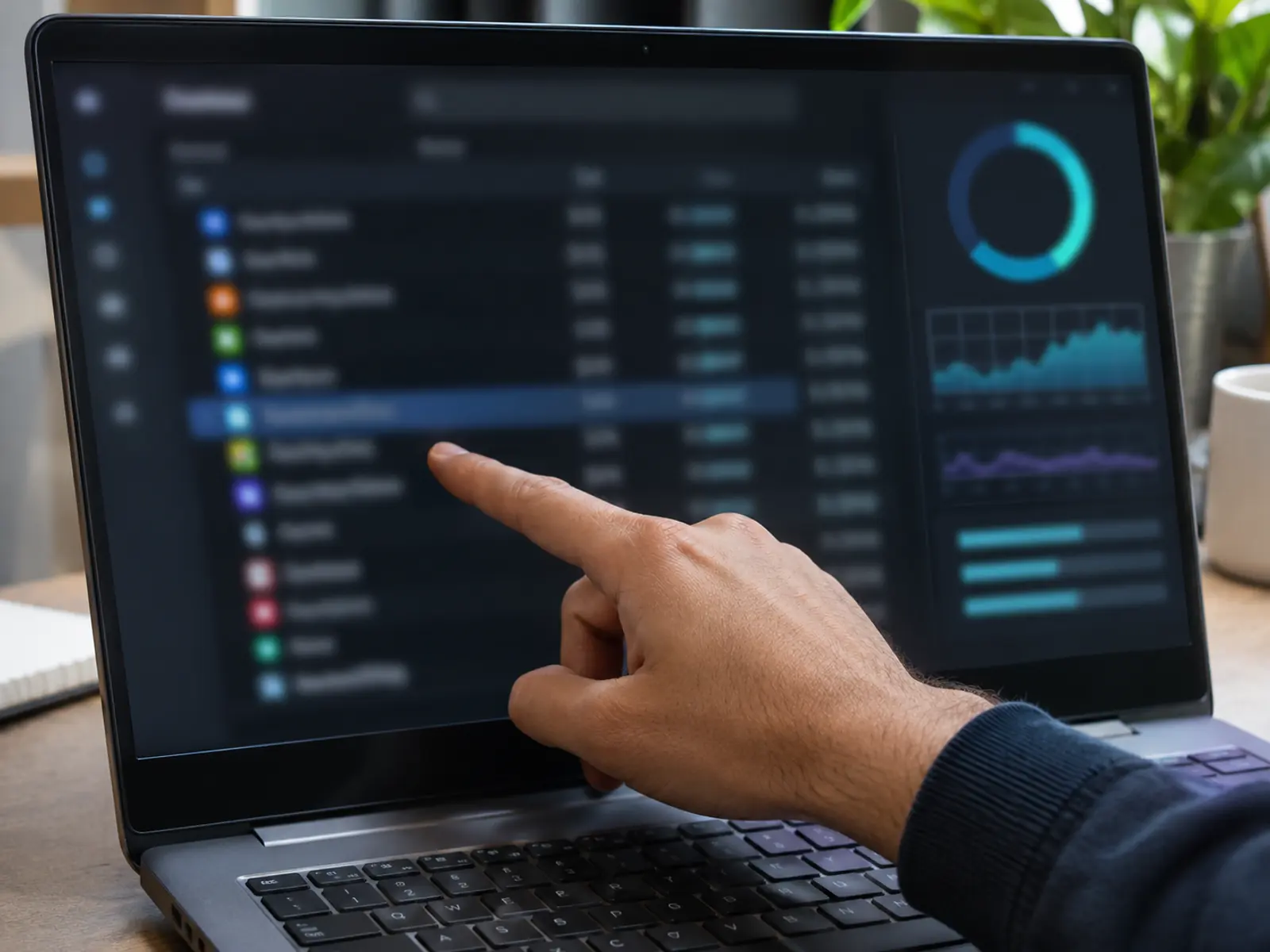
Measure activity at idle
Save your work. Restart once if the laptop just resumed from sleep or installed updates, then wait a few minutes without opening extra apps. Press Ctrl + Shift + Esc to open Task Manager. In Processes, sort by CPU and observe readings several times, not from a single instant. A brief burst does not prove a fault; sustained load that accompanies the noise is more useful.
If a known app dominates, close it normally or pause syncing in its settings. For an app that launches with Windows, review Startup apps and disable only what you do not need at startup. Do not disable antivirus, system services, drivers, thermal-management utilities, or components you do not recognize. If a Windows process stays high, search its exact name in Microsoft Support or contact the manufacturer; do not force-stop it to silence the fan.
Also check the GPU in the Performance tab if your model has one. An app using the graphics processor can generate heat even when CPU use is modest. The power usage column is an estimate; it does not report processor temperature or exact fan speed. Sensors and telemetry software vary by model. Start with Task Manager and the manufacturer’s tool.
Check: during a period with no apps open, CPU and GPU settle to low activity and the fan slows in a consistent way.
If it didn’t work: note the process name and time, check for an update from its publisher, then continue with airflow and the thermal profile.
Check airflow and the thermal profile
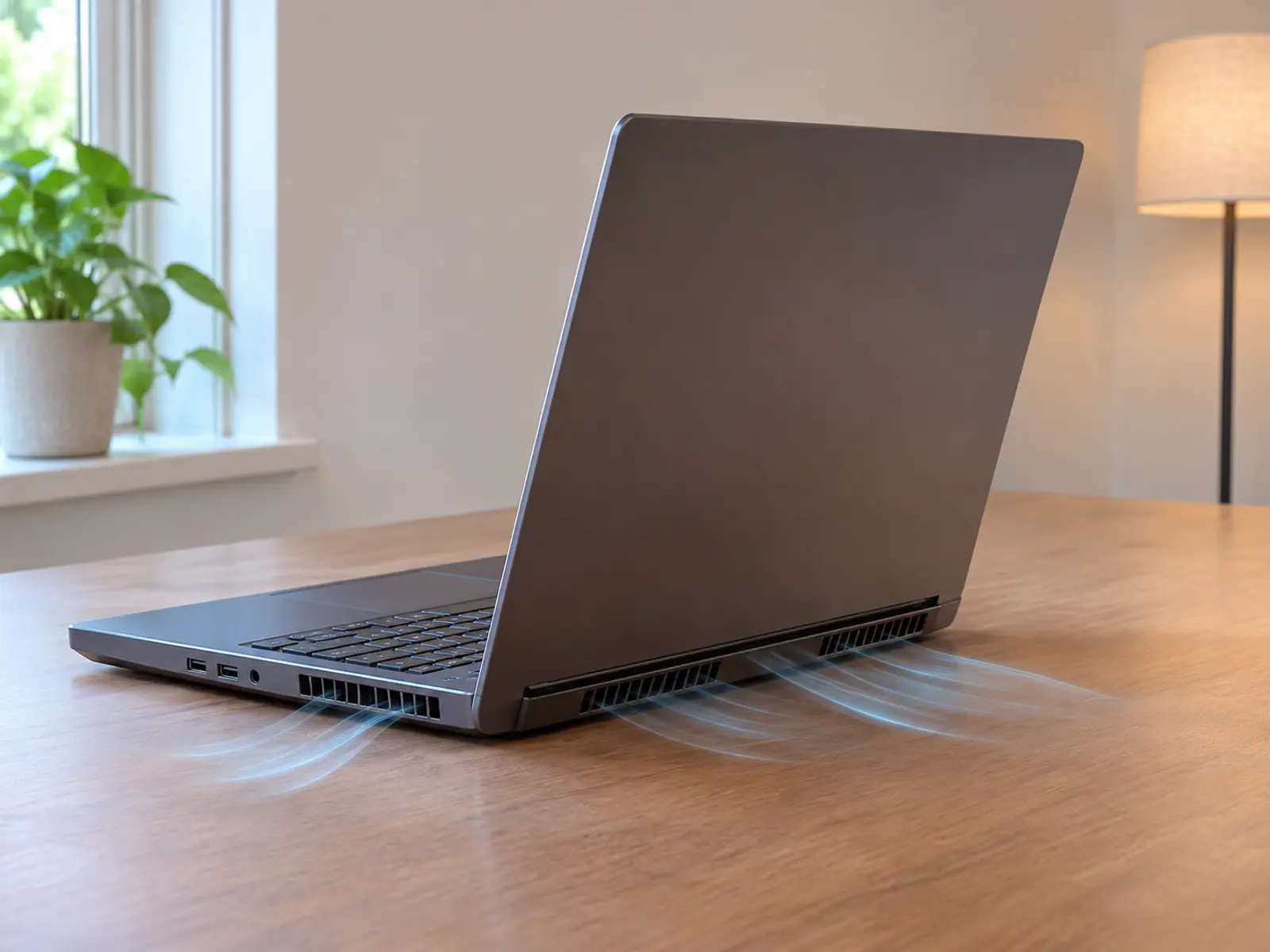
Move the laptop away from fabric, cushions, blankets, and visible dust. Leave open space around air outlets. A stand may help if its design actually keeps the intakes clear; it is not a diagnostic. Clean only accessible outside surfaces according to the manufacturer’s instructions. Do not insert objects into a grille, open the case, or use a powerful vacuum directly on internal components.
Open the manufacturer’s official app or system settings for the exact model and look for a cooling, noise, or performance profile. For a baseline, choose Balanced or Recommended if available. A quiet mode may reduce performance or cooling under load; do not force fans to stop or use a third-party speed controller. If the profile changes settings automatically when plugged in, compare those states separately.
A change after an update or a profile change merits comparison, but does not prove Windows changed the fan curve. Check update history and the manufacturer’s release notes. Install BIOS, firmware, or driver updates only when offered for the exact laptop model, and follow their instructions; interrupting a BIOS flash can make the computer unusable.
Check: vents are clear and the recommended profile keeps noise stable without overheating or abnormal performance loss.
If it didn’t work: restore the previous mode if the new profile causes a problem, then run the maker’s official diagnostic; do not manually edit thermal curves.
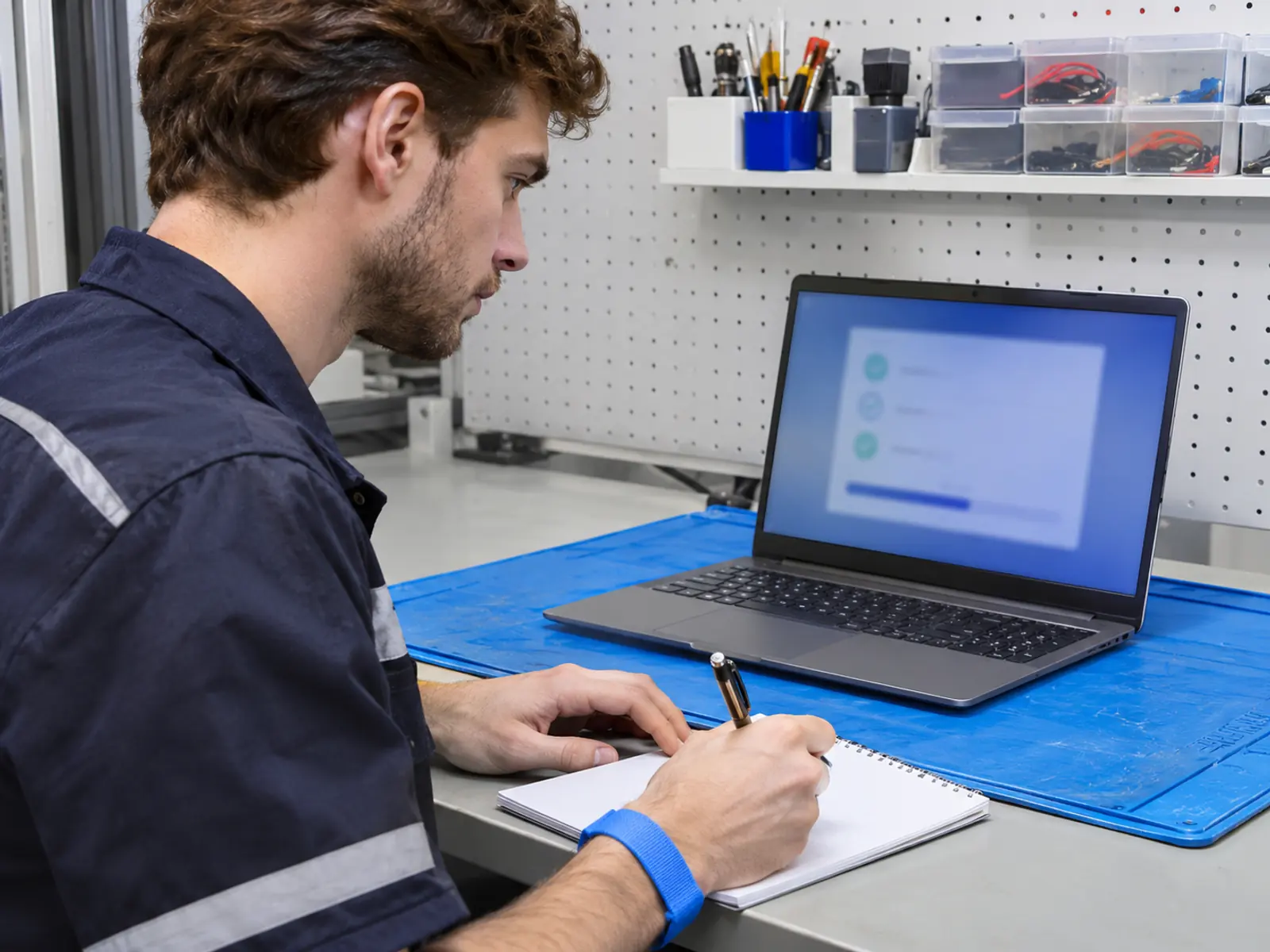
Run the manufacturer’s hardware test
Choose a procedure for the exact model: the official diagnostic app, fan quick test, or built-in startup diagnostic. On some Dell computers, F12 opens Diagnostics and advanced fan tests; on some HP computers, HP PC Hardware Diagnostics includes a Fan Speed Test. Menus differ across devices. Use the support page for the product number and record the complete error code if a test fails.
Listen during the test without covering the vents. A test may deliberately run the fan faster; that noise during the test is not a failure by itself. Do not run a BIOS procedure for another product line, download a third-party fan utility, or change control values. If the diagnostic app is unavailable for your model, ask the manufacturer which method to use.
Check: the fan test completes and gives a clear result; keep its code and exact product model.
If it didn’t work: if the test fails, hangs, or is not available, stop software troubleshooting and contact support with the code.
When to stop troubleshooting
Shut down the laptop and arrange repair if the fan rubs, clicks, or does not spin while the computer becomes very hot; if the PC shuts down from thermal protection; if a burning smell appears; or if the manufacturer’s test fails. Avoid running heavy workloads. Do not open a device under warranty if the maker asks you to return it.
If the fan is audible but temperatures, performance, and diagnostics are normal, the model’s cooling profile may keep it on. Check the manufacturer’s documentation instead of looking for a universal temperature limit. On a Dell model, the Dell G15 thermal-management guide shows why an OEM profile can affect cooling and performance.
If the noise accompanies high CPU activity, read our guide to CPU use at 100% with no visible app. If an update seems to have triggered the change, the guide to overheating after a Windows update helps separate activity, drivers, and thermal profiles.
Frequently asked questions
These answers explain why fan noise should be read together with other symptoms.
Is it normal for the fan to run at idle?
A fan may run slowly to keep a model within its thermal range. Speed depends on design, profile, and temperature. Unusual noise, high heat, or a failed test deserves attention.
Does Task Manager’s CPU column show temperature?
No. It shows estimated logical-processor use, not temperature or fan speed. Use the manufacturer’s tool for hardware diagnostics; do not infer a thermal limit from a single column.
Should I disable the process using the most CPU?
Not before identifying it. Close a known app normally when you are not using it, or check its sync settings. Do not stop a system process or disable security protection.
Can I control fan speed with a third-party app?
Avoid it. Fans and controllers vary by model; an unsupported command can reduce cooling. Use the official app if it provides manufacturer-approved modes.
Why does the fan speed up just after startup?
Services, updates, and startup apps may work in the background. Check whether CPU load continues after tasks finish. A brief episode that settles differs from high fan speed with heat and no visible activity.
On Dell laptops, the available app and thermal profile depend on the model. See the guide to missing Dell thermal management before installing another utility.
Related articles
- Dell G15 thermal profile and fan behaviour
- CPU at 100% with no apps open
- Laptop overheating after a Windows update
Next step
Once you know whether CPU activity or restricted airflow keeps the fan running, use the specific guide above for that category, or contact the maker if its fan test reports an error.
Sources
- Microsoft Support, Tips to improve PC performance in Windows — consulted 8 November 2026.
- Microsoft Support, Configure startup applications in Windows — consulted 8 November 2026.
- Dell Support, How to troubleshoot fan issues — consulted 8 November 2026.
- HP Support, HP Notebook PCs – Fan is noisy and spins constantly — consulted 8 November 2026.
Be the first to leave a comment.