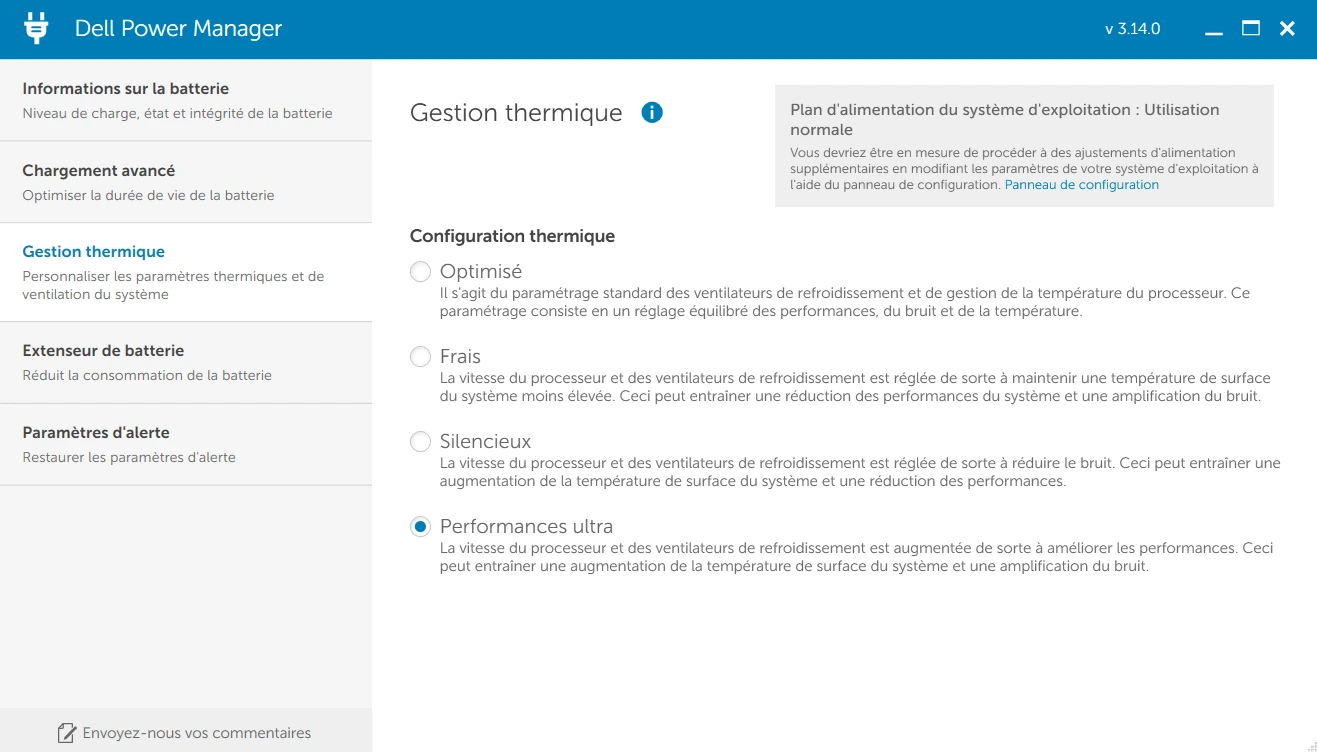
On this Dell G15 with an RTX 4060, the owner reports CPU readings around 85–90°C before, then about 55°C after choosing “Thermal Management → Optimized” in Dell Power Manager. The arithmetic difference is 30–35 degrees. This is a personal experience, not a controlled test or a promise for every G15. The supplied Dell Power Manager 3.14.0 screenshot documents the available profiles, but it shows “Ultra Performance” selected. It therefore proves neither that Optimized was active nor the reported temperatures.
What the observations support
The account gives three details: the computer is described as a Dell G15 with an RTX 4060, the CPU reading was said to be 85–90°C beforehand, and it was about 55°C after selecting Optimized. If the readings were taken in comparable conditions, the arithmetic difference is 30–35 degrees. The owner associates the improvement with the thermal setting. To stay accurate, this article describes an association reported during one person’s use, not proof that the setting alone caused the entire change.
Important details are missing: the full G15 model, exact CPU, BIOS version, workload, monitoring application, test duration, room temperature, power mode, fan speed and GPU readings. None can be inferred from the G15 name or RTX 4060 label. Record them before turning the account into general advice. Two configurations with similar product names can behave differently.
Why 85–90°C alone does not diagnose a fault
A CPU temperature only makes sense with context. A laptop processor can become warmer while a game, compile task or other heavy workload uses it. A brief peak, average and stabilized reading are not interchangeable. Workload, duration, power limits, airflow and room temperature all affect the measurement. A reading of 85–90°C under a demanding workload therefore does not, by itself, establish overheating or hardware failure.
Look for a pattern of symptoms instead: sustained clock-speed or performance loss, repeated slowdowns, unusually loud fans, shutdowns, warnings or readings that remain high after the workload ends. Record how long the symptom lasts and what the computer was doing. If it shuts down, smells burnt, displays a thermal warning or becomes unstable, stop testing and contact Dell Support. Do not open the chassis unless you know how to do so safely.
What the Optimized profile means in the interface
The supplied Thermal Management screen describes Optimized as the standard setting that balances performance, noise and temperature. It also shows Cool, Quiet and Ultra Performance, each with different tradeoffs. This wording is visible in the supplied French interface for Dell Power Manager 3.14.0. It does not prove that every G15 generation, application version or hardware configuration offers the same menu. Options and behavior may vary by model and installed software.
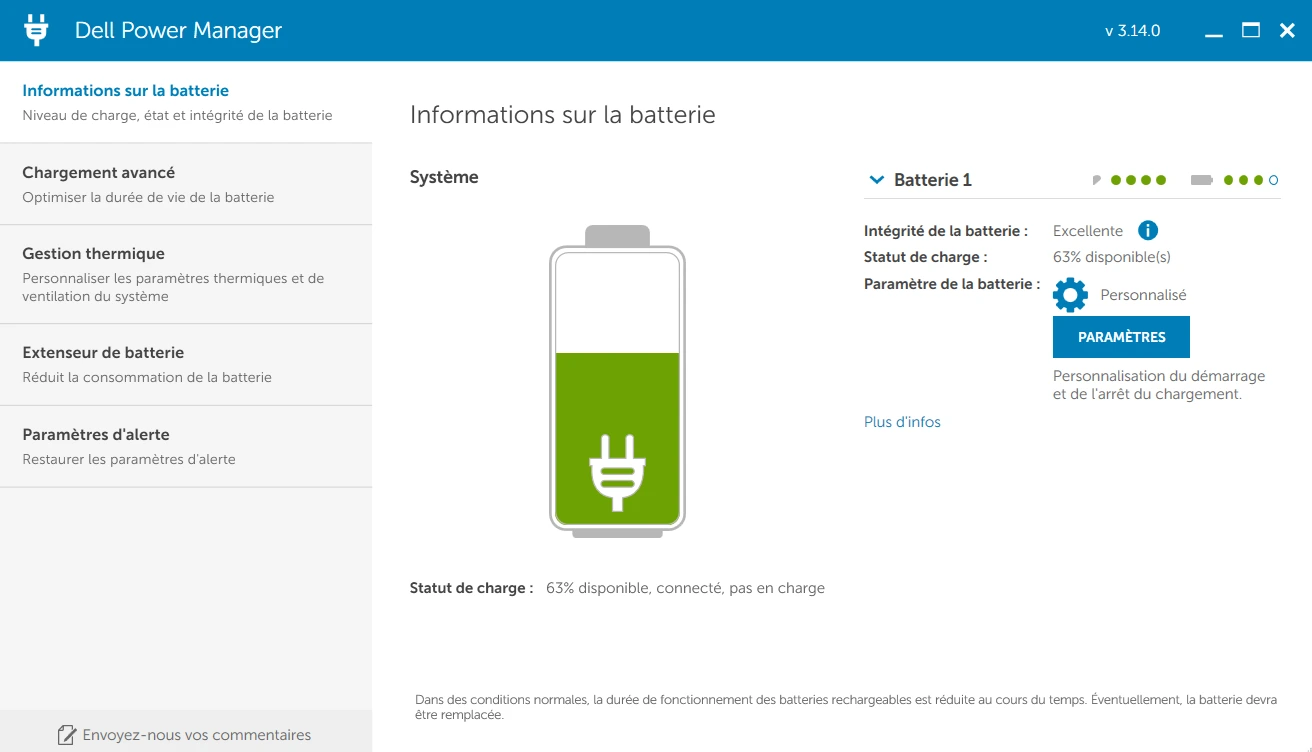
The other screenshot is Dell Power Manager’s Battery Information page, not a CPU temperature reading. Neither image shows a service tag or uniquely identifies the laptop. They document the interface supplied by the owner; they are not independent measurements or Dell validation of the result. Captions should state exactly what is visible and avoid implying that these screenshots prove the thermal comparison.
Check the profile on your own G15
- Identify the exact model in Windows or through Dell Support. Check whether Dell Power Manager is supported for that configuration and Windows version.
- For a comparison involving gaming on AC power, connect the original adapter. Keep the Windows power mode, laptop position and workload the same for both runs.
- Open Dell Power Manager and choose Thermal Management. If Optimized is offered, select it and verify that its radio button is active. An option being visible does not mean it is selected.
- Record when you changed the setting. Restart only if the application or Dell tells you to. After closing and reopening the application, check that another mode has not replaced the selection.
- Take a clear screenshot showing the application name, Thermal Management section and Optimized selected. Hide personal identifiers before sharing it.
If the menu is missing, do not download an application from an unrelated third-party site or force-install a version meant for another model. Check model-specific downloads and documents through official Dell Support. The portal provides product-specific resources, which can differ among G15 configurations. If compatibility is unclear, ask Support before changing the system.
Compare temperatures without distorting the test
To learn whether a profile changes your experience, make the test runs as similar as possible. Use the same game, scene or test, resolution, graphics settings, Windows power mode and duration. Place the laptop in the same location on a firm, unobstructed surface. Close unnecessary background tasks and let the system return to a comparable state before each run. Record room temperature if you can.
Use the same monitoring application for both runs and record the sensor label, idle value, loaded value, duration, clock speeds and, if available, fan and GPU readings. Separate a maximum peak from an average or stabilized value. A screenshot for each reading should show enough context to understand the method without exposing private information. If another setting changes at the same time as the thermal profile, the test cannot isolate the profile’s effect.
| Record | Why it matters |
|---|---|
| Exact model and CPU | G15 variants may not share the same limits or software. |
| Profile, power source and workload | They show whether the two situations are comparable. |
| Tool, duration and reading type | A peak and a stabilized value are not equivalent. |
| Room temperature and position | The room and air intakes can affect cooling. |
Interpret the reported result carefully
A reading near 55°C after a change could also coincide with a different workload, a return to idle, a closed game, a completed update, another power mode or a reading taken at a different time. These possibilities do not mean the owner’s account is false; they explain why the method must be documented before assigning the entire difference to the setting. Repeated runs using the same scenario and sensor would provide stronger evidence.
Optimized may be a useful starting point if your version offers it and you want a balanced profile. The goal is not to reach the lowest number at any cost, but to find stable behavior suited to your use. Consider performance, noise and surface temperature too. A lower CPU reading accompanied by a major clock-speed drop or worse gaming experience is not necessarily an overall improvement. Return to your previous profile if the result is less suitable.
Other safe checks if the issue continues
Check that the air vents are uncovered, the laptop is on a hard surface and visible dust is not blocking the grilles. Limit BIOS and driver updates to versions offered for your exact model on Dell Support; read the instructions and do not interrupt an update. Check for background applications using the CPU heavily, especially after a restart or software installation.
Do not make several changes at once. Do not disable thermal protections, alter unfamiliar BIOS settings, undervolt using a copied recipe or apply a profile found for another G15. These actions can hide the diagnosis or cause instability and hardware risk. If the symptom returns, performance stays reduced or a warning appears, give Support your model, screenshots, application version and test conditions.
Frequently asked questions
Does Optimized guarantee a 30–35°C reduction?
No. That difference is one person’s report under conditions that are not yet documented. The profile does not guarantee the same result on other G15 systems.
Does the supplied screenshot prove Optimized was active?
No. The supplied Thermal Management screenshot shows Ultra Performance selected. Optimized is visible, but its radio button is not active. A new screenshot is needed to document the Optimized state.
Can a CPU reading of 90°C be called overheating?
Not from that number alone. Workload, duration, processor, monitoring tool and symptoms matter. One isolated temperature does not diagnose a fault.
What if the Thermal Management page is missing?
Check the exact model and software listed in its official support area. Do not force-install software that is not intended for the computer.
Sources and limitations
The screenshots reproduced here were supplied by the owner and converted to WebP without changing the interface. The relevant image is Dell Power Manager 3.14.0’s Thermal Management page; it shows Ultra Performance selected. To find software, drivers and documents for your configuration, use the official Dell Support portal and choose the exact model. The 85–90°C and approximately 55°C values are owner-reported, not measurements published by Dell. The exact CPU, method, environment and repeat measurements still need confirmation.
Be the first to leave a comment.