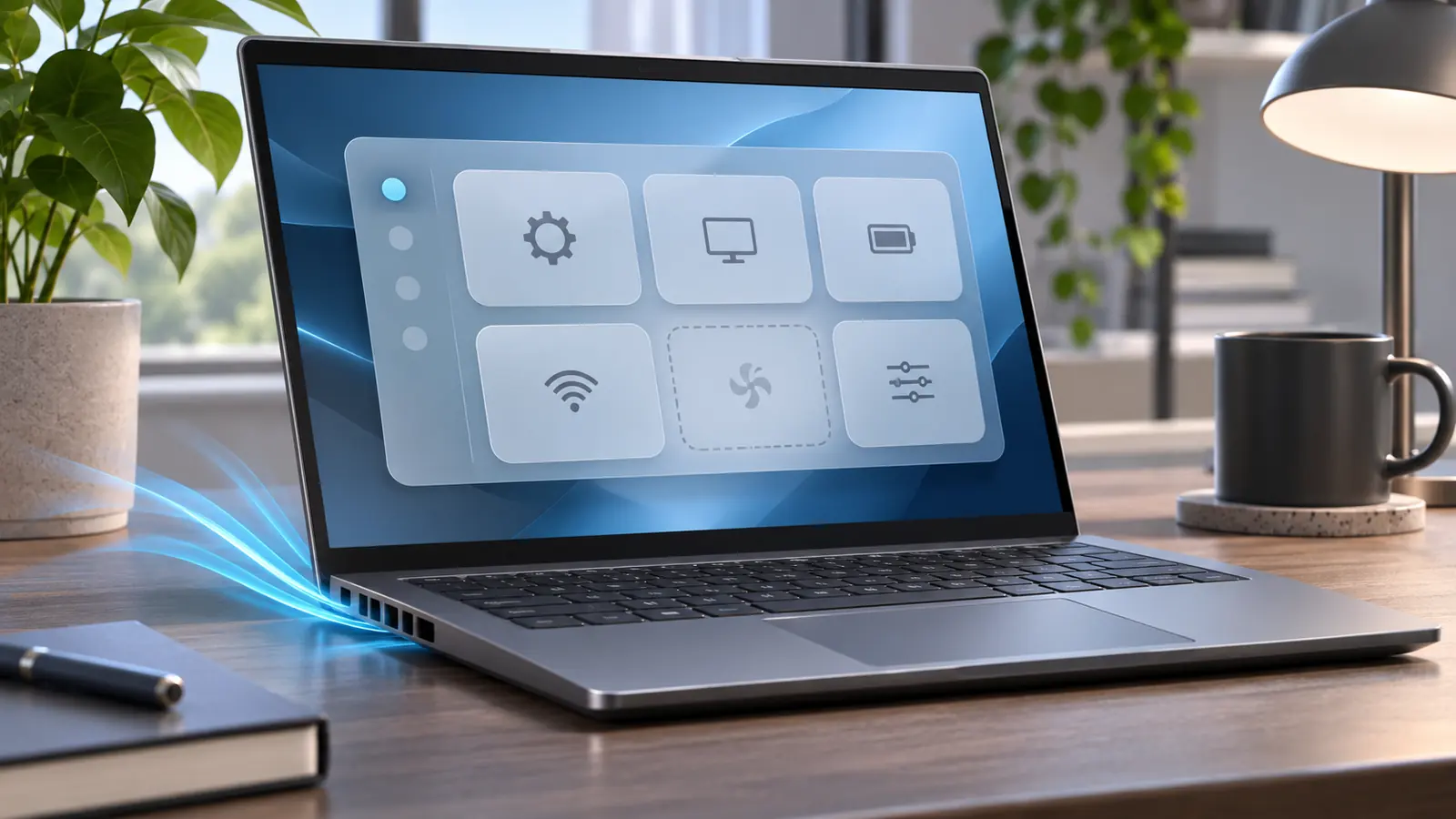
Thermal management is not a universal feature on every Dell laptop. The app that exposes it depends on the model and product line, and a system may not support a thermal profile at all. Before reinstalling software, check the support page for your exact product.
Warning: this guide does not require opening the computer or touching its battery or circuits. Before any physical work beyond these checks, shut down the PC and unplug it from mains power; have a technician handle internal hardware.
BIOS is mentioned only to review model-documented options; do not change firmware settings without Dell instructions for the exact model.
Contents
Identify the exact model
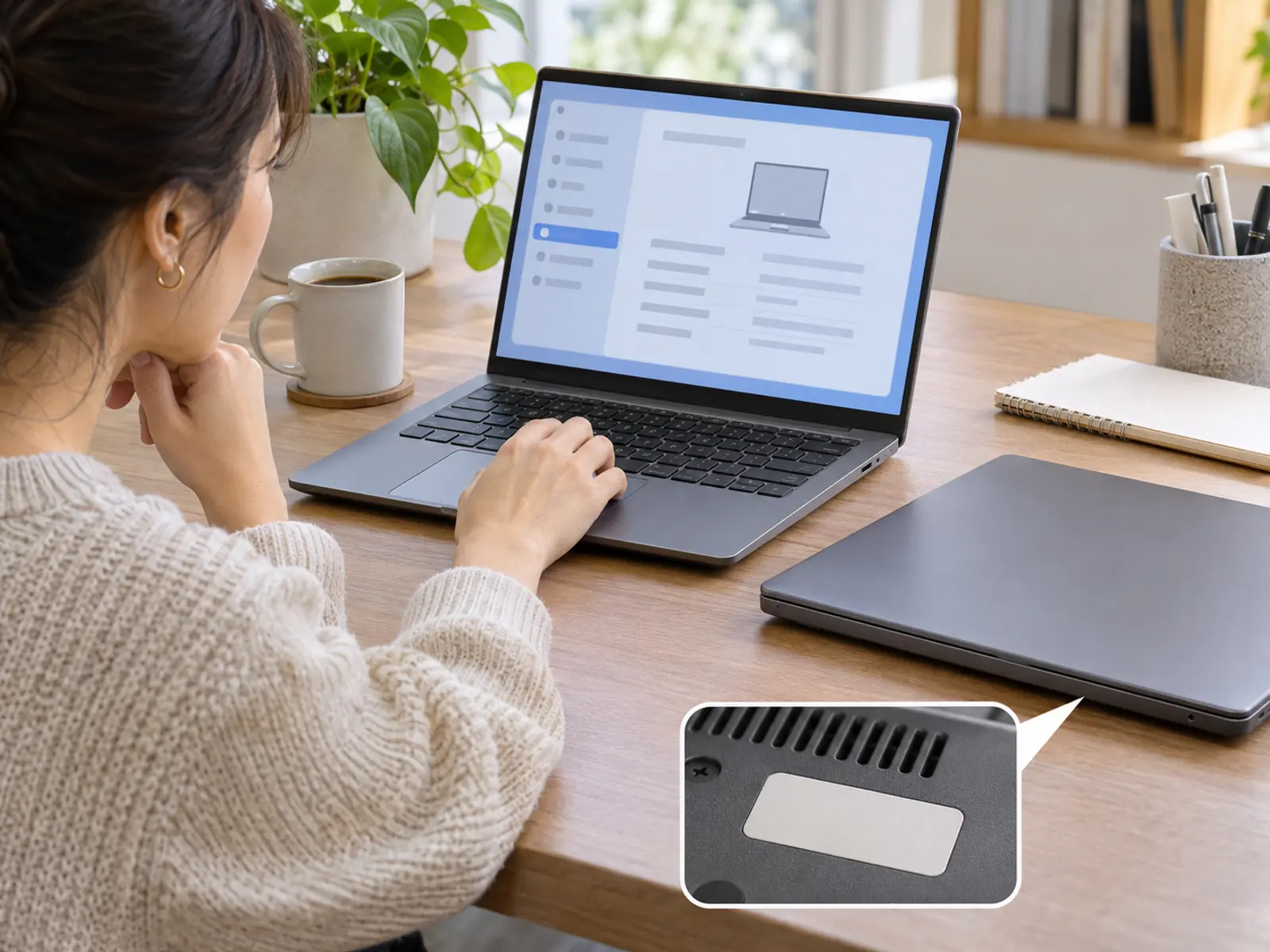
“Dell Inspiron,” “Latitude,” or “G Series” names a family, not a guarantee that every system has the same features. Availability can vary by model, generation, operating system, and firmware. Note the full model name on the label or in Settings > System > About. On Dell Support, you can use the Service Tag if you are comfortable with that information; do not post it on a public forum.
Compare the model with Dell documentation for the same generation. Do not choose a driver based only on a page image or family name. If the computer was refurbished or Windows was reinstalled, its preloaded software may differ from factory setup, but that does not make an unsupported feature available.
Be clear about what you are looking for: a Quiet/Optimized/Cool/Ultra Performance mode, fan control, a Dell power option, or only a Windows power mode. These controls are related but not always in the same place and are not interchangeable. If the real concern is unusual heat, note the symptoms too; a missing profile does not prove a cooling fault.
Choose the Dell application intended for the line
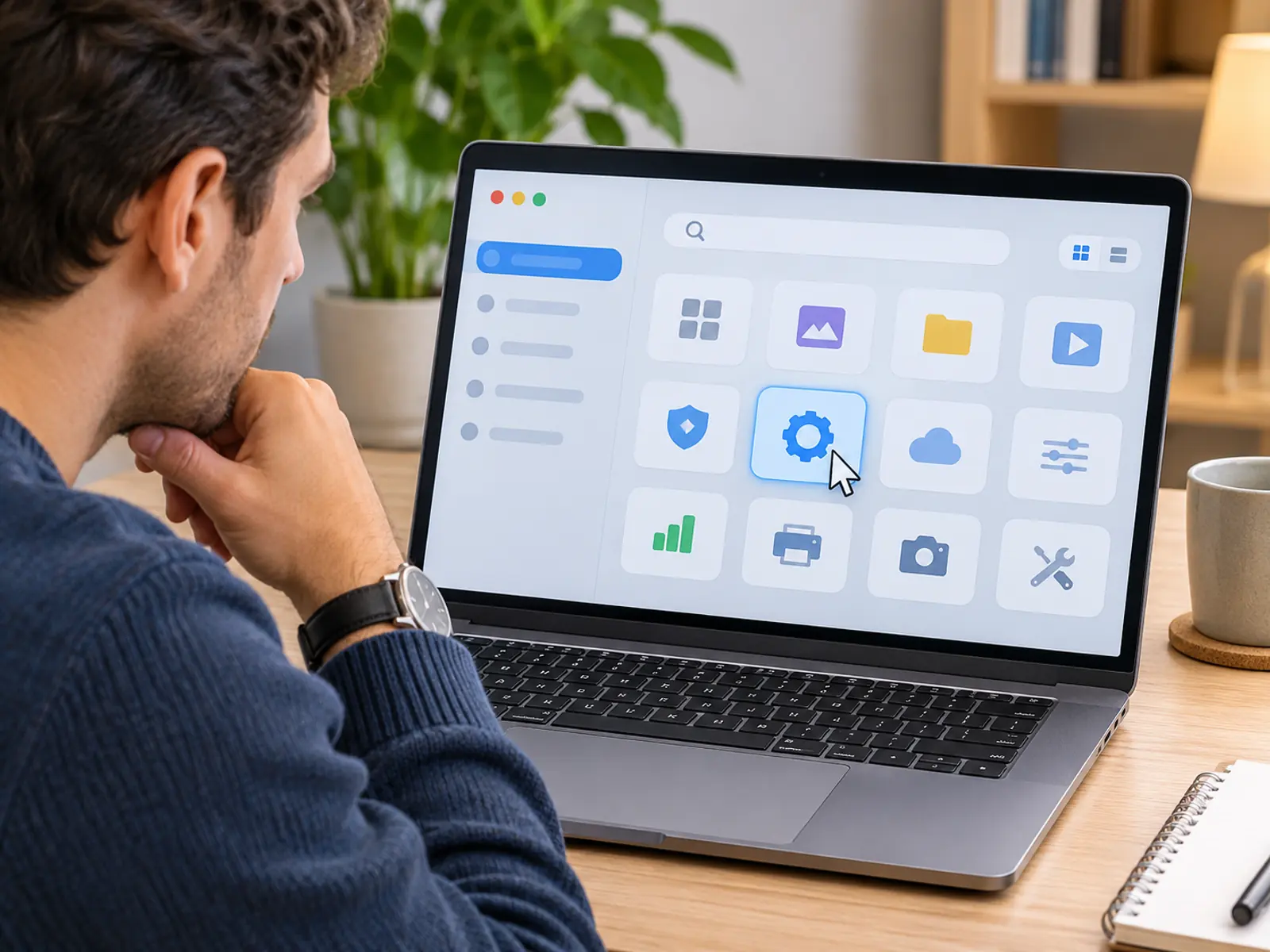
Dell says Dell Power Manager functions have been integrated into newer Dell Optimizer and MyDell applications. Its current page recommends Dell Optimizer for Latitude, Precision, and OptiPlex users, and MyDell for XPS, Inspiron, and Vostro. This helps you choose where to look, but it does not guarantee that a particular sub-model has thermal settings. For G Series, Alienware, or other lines, check the official product page because availability depends on the model.
| Dell product line listed | Starting point on Dell Power Manager page | Confirm for the exact model |
|---|---|---|
| Latitude, Precision, OptiPlex | Dell Optimizer | Thermal feature presence and compatible version |
| XPS, Inspiron, Vostro | MyDell | Whether this generation has the control |
| G Series, Alienware, or another line | Product support page | Model-specific utility or no software profile |
Search Start for MyDell or Dell Optimizer first. If installed, open its Power, Battery, Performance, or Thermal section. Names may vary by version. A setting appears only if the system exposes the corresponding controls. You do not need both apps; use the one recommended for your model.
Dell Power Manager may still appear in older guides or on supported devices. Dell says its functions have moved to MyDell or Dell Optimizer for current product lines. Do not download an old version from a mirror site or a package for another model just to make an option appear.
Check software support for the product
Open Dell Support and enter the exact model or identify your device. Under Drivers & Downloads, choose the Application category to see utilities intended for this product. Read the description and compatible operating systems before downloading. If the app is not listed, check the model manual and Dell notes; it may mean the computer uses another utility or has no configurable thermal profile.
If MyDell or Dell Optimizer is installed but no thermal mode appears, restart once after pending Windows and Dell updates finish. Open the app again, confirm it recognizes the model, and review the available options. Some features need related Dell components or services, but install them only from the device support page or official Microsoft Store when Dell recommends it.
Utilities can be updated. Compare the app version, package description, and restart instructions. On a computer managed by work or school, IT policies may hide or lock options; ask the administrator before reinstalling an app or changing a profile.
Check: the app listed by Dell recognizes the model and shows the features documented for it.
If the option is still missing: do not force-install another app. Check whether the model manual says thermal management is supported.
Look in Windows and BIOS without forcing changes
Windows has a general power mode under Settings > System > Power & battery. It can change the performance/power balance, but it is not necessarily a fan-speed control. Windows and Dell options may synchronize on some computers; if you change a setting, note the original value and check whether a Dell utility replaces or syncs it.
Some Dell laptops also have a Thermal Management menu in BIOS, often under power or performance settings. Dell says the name and location vary, and not all computers have the option. If your model manual says it exists, you can check it using Dell’s BIOS entry instructions, but look at the current value before changing it. Do not alter voltages, CPU limits, fan curves, or advanced settings found in a guide for a different model.
If a BIOS profile is visible but a Windows option does not seem to take effect, compare the model documentation and ask Dell Support which control takes priority. BIOS is firmware; an unsuitable change can affect startup or stability. If you do not know how to restore defaults, leave the profile unchanged. BIOS updates should not be an experiment: use them only if Dell recommends a version for your model and symptom, and follow its power instructions.
Repair or reinstall only supported software
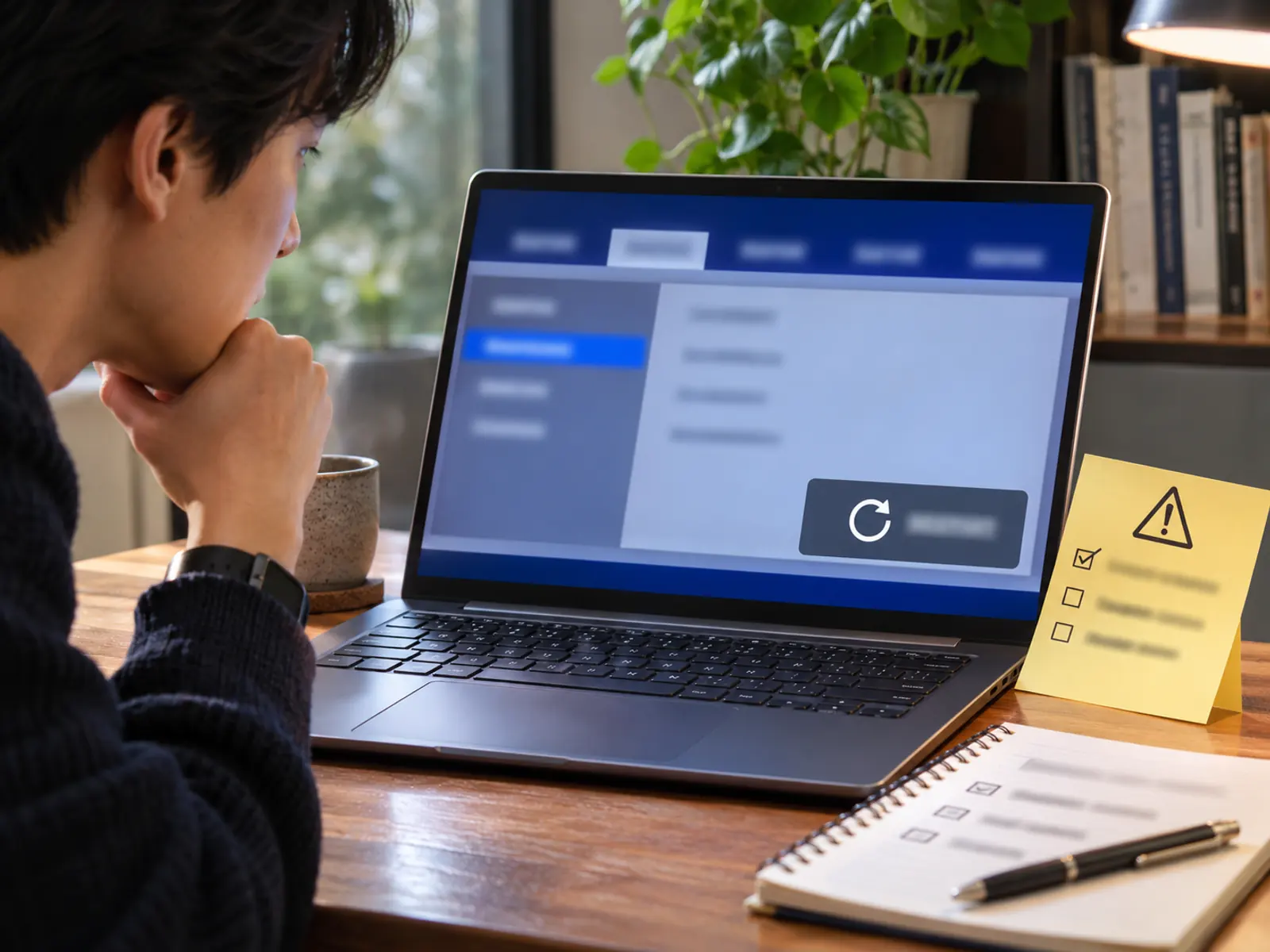
If the recommended app is installed but closes, fails to recognize the system, or shows an error, note its version and message. In Settings > Apps > Installed apps, select the Dell utility and use Modify or Repair only if Windows offers those buttons. Otherwise follow Dell’s troubleshooting steps for that app and model. Before reinstalling, confirm the utility is not already current and connect AC power if Dell asks.
Do not remove Dell services, thermal drivers, or power-management packages in bulk. Untargeted reinstallation can remove keyboard, battery, audio, or fan features without revealing the control you want. If a Windows update preceded the missing option, check history and app version, but do not automatically uninstall the update: timing alone does not prove Windows removed the setting.
When to ask for help
Contact Dell if the product support page says a thermal mode should exist but the compatible app does not offer it, if a Dell service reports an error, if the fan does not start, or if the laptop overheats, slows severely, or shuts down. Provide the exact model and generation, Windows version, app name and version, recent update date, and symptoms. Run Dell diagnostics recommended for the model and give support the error code.
If your goal is to understand a fan running at idle, see the guide to a laptop fan always running. For one specific Dell G15, the article on thermal profile and CPU observations on a Dell G15 is limited to that model and its described conditions.
Frequently asked questions
These answers distinguish a missing app from a feature that the model does not support.
Why is Dell Power Manager no longer listed?
Dell says its functions are integrated into MyDell or Dell Optimizer for some product lines. Check the support page for your model to choose the recommended app.
Does every Dell have thermal settings in BIOS?
No. Dell says the BIOS option is available only on some laptops and its location varies. Check your model manual before entering BIOS or changing a setting.
Can I install Dell Optimizer and MyDell together?
Install the app recommended for your model and product line; do not keep both just to try to reveal a hidden control. The product support page lists compatible software.
Does a Windows mode replace Dell fan control?
Windows power mode can affect the power balance, but it is not necessarily direct fan control. Available manufacturer profiles depend on the model.
Should I update BIOS to make the option appear?
Not without Dell’s recommendation for the exact model and issue. Firmware updates require following official instructions and the power requirements Dell lists.
Related articles
Next step
Write down the full model and the app recommended on its support page. These details often explain whether the setting is elsewhere or is not intended for that device.
Sources
- Dell Support, Dell Power Manager: MyDell and Dell Optimizer applications — accessed 8 November 2026.
- Dell Support, How to Stop Computer and Laptop Overheating and Shut Down Issues — accessed 8 November 2026.
- Dell Power Manager User’s Guide, Thermal Management support availability — accessed 8 November 2026.
Be the first to leave a comment.