Quick Fix — Check This First
- Save your work, restart the PC, then leave it idle for a few minutes without launching a heavy app.
- Watch CPU temperature and activity with the PC or motherboard maker’s monitoring tool; note how long spikes last, not just the maximum.
- During a spike, check which processes are using the CPU in Task Manager and see whether the rise ends when that work stops.
- Compare your observation with the thermal limits for the exact processor model.
Check: a brief rise that matches a task differs from heat that stays high at idle. If it persists: inspect airflow, cooling response, and software load in that order.
CPU temperature spikes at idle do not automatically mean a processor is failing. Background tasks can use the CPU in bursts, and modern processors adjust frequency according to workload and product limits. Separate a brief change from heat that remains high, repeated clock reduction, or a protective shutdown.
How to interpret the observations
| Observation | Next step |
|---|---|
| Brief rise with an active process | Let that task finish, then see whether the reading settles. |
| Heat remains high at low activity | Check vents, fan response, and the exact model limit. |
| Thermal warning or unexpected shutdown | Stop heavy workloads and inspect cooling before resuming. |
Common mistakes
Do not compare readings from tools configured differently, diagnose a fault from one peak, or disable thermal protections. A number only has meaning with its model, sensor, duration, and workload.
Measure a trend, not one number
Close your apps, leave the desktop alone, and observe for several minutes with one reliable monitor. Record idle temperature, peaks, their duration, CPU activity, and fan speed when available. Compare that with an ordinary task, then let the system return to idle. Do not apply one universal “normal” value: Intel says thermal limits depend on the processor and its specification; other processor makers publish their own guidance.
A graph can show whether rises line up with an update, malware scan, indexing, or an open application. Use Task Manager to sort processes by CPU usage briefly. Do not end an unfamiliar system process at random. Identify the app and check whether its work is expected first.
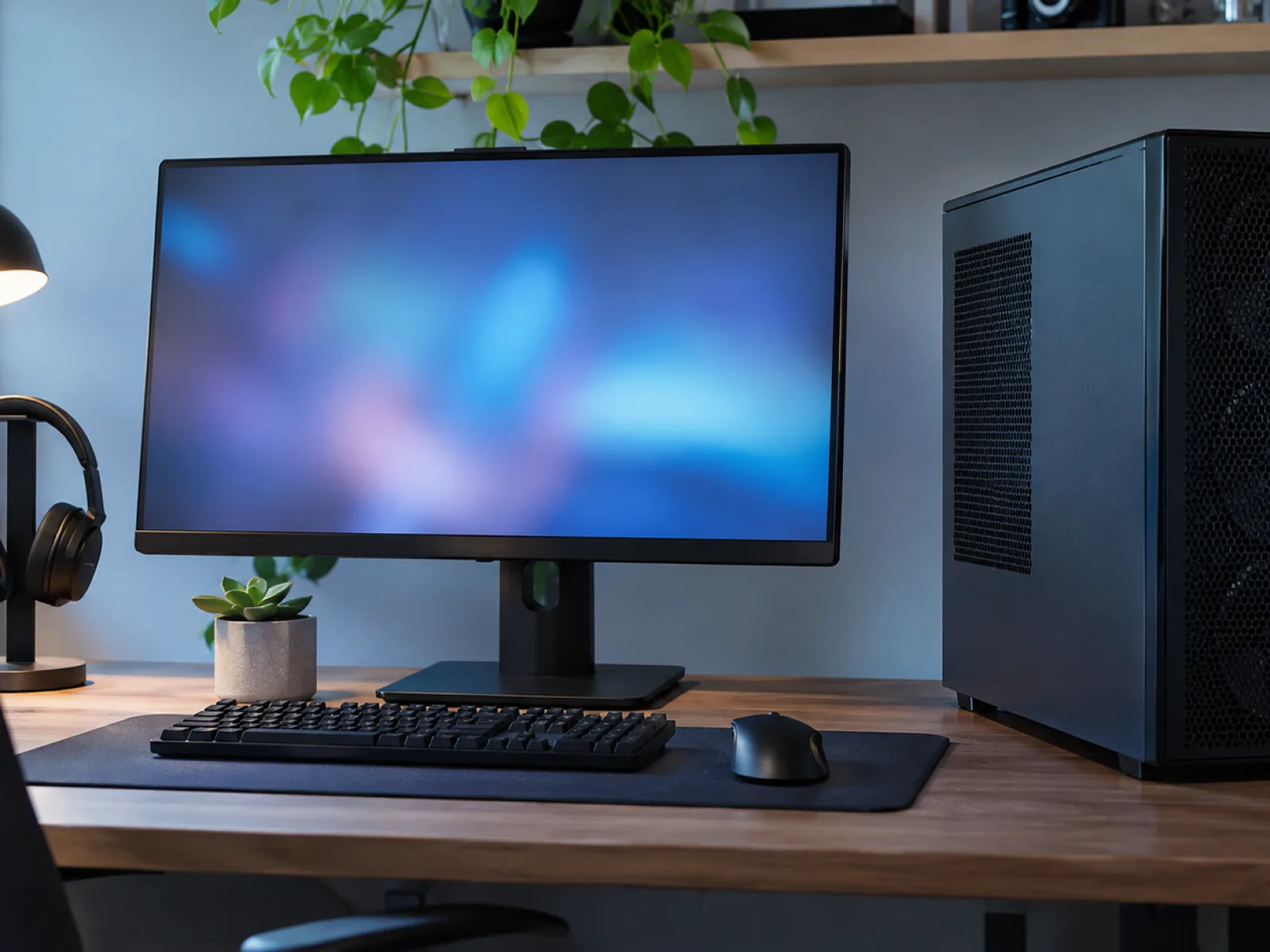
Compare temperature spikes with CPU activity
- Applies to: Windows 11 desktops and laptops. After a restart, let startup work settle, then note active processes in Task Manager > Processes. Check: does a non-system process line up with each spike? If yes: let its task finish or change its startup behavior only if you recognize it. If not: compare with your usual apps closed; do not disable services at random.
- Confirm the monitoring tool is reading the CPU sensor for the right component and that the PC is actually idle. Avoid running several monitoring apps that may keep waking the system. Check: repeated readings show a similar trend. If they disagree: use the PC or motherboard maker’s recommended tool and record the exact model.
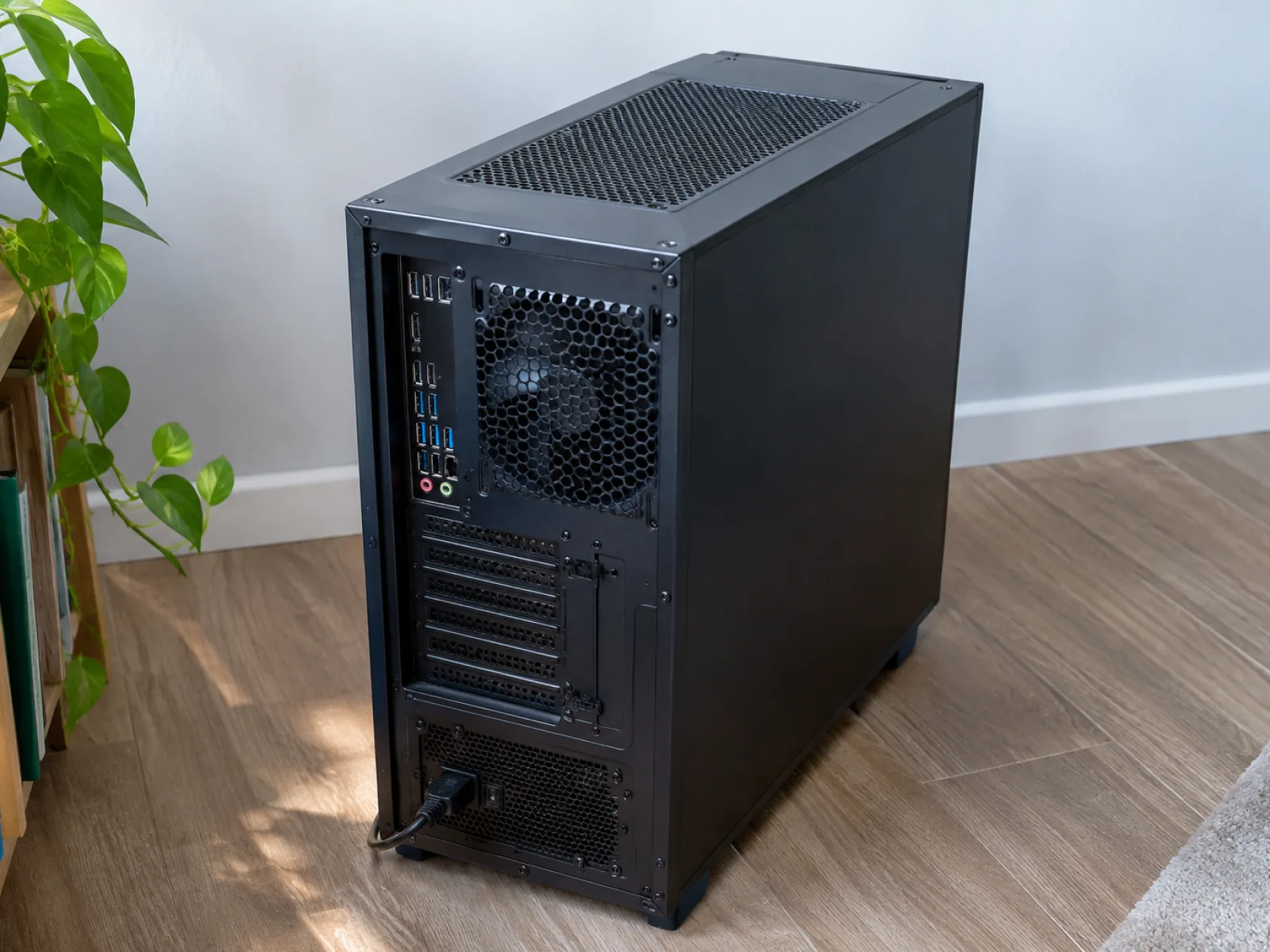
- Check external airflow: vents are clear, exhaust paths are open, and fans respond normally when cooling is needed. Place a laptop on a hard surface. Check: readings settle more predictably with vents unobstructed. If a fan grinds, stops, or makes an unusual noise: stop heavy workloads and have the cooling system inspected.
Check cooling and settings safely
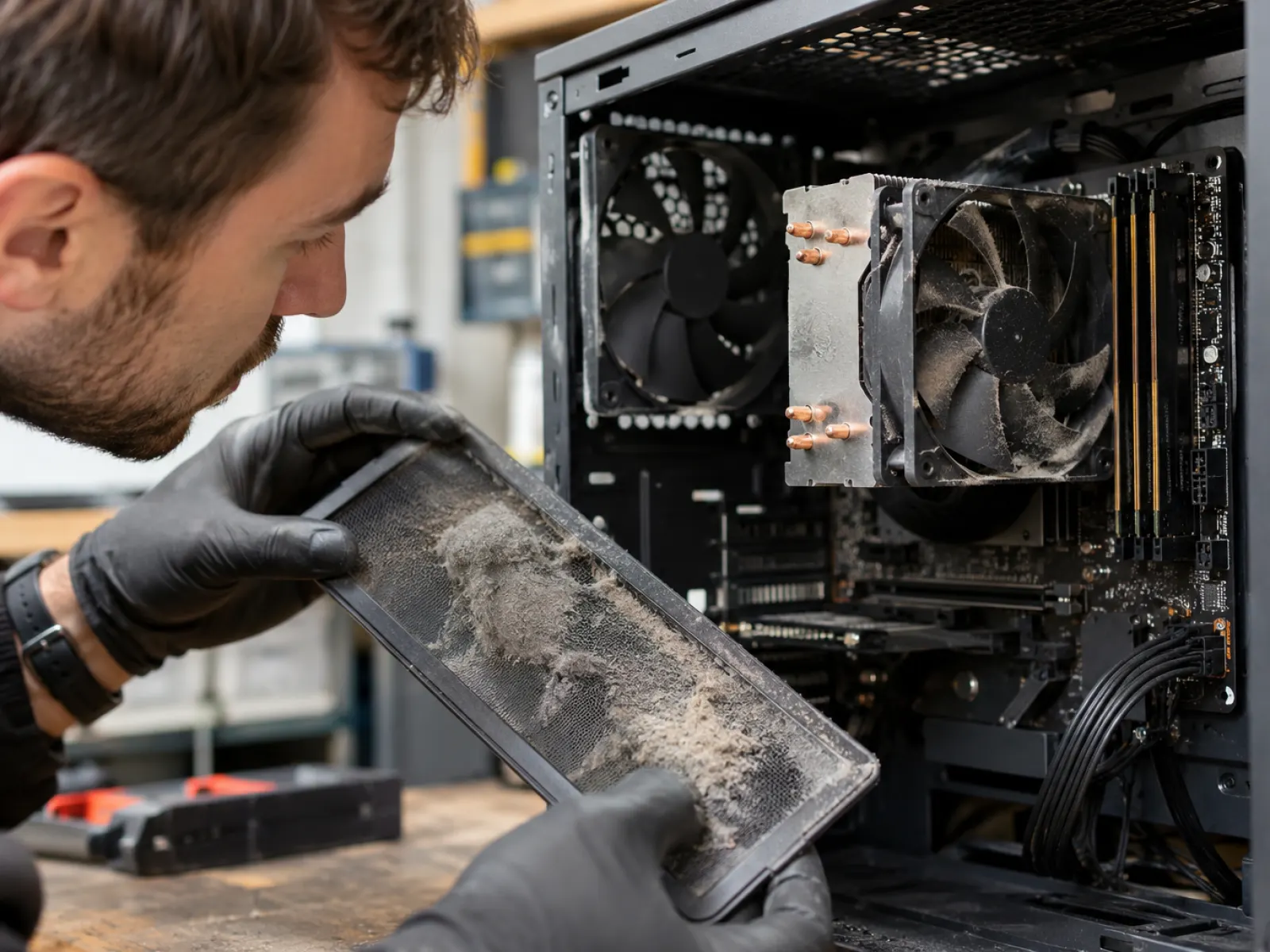
On a desktop, visually check that the cooler fan is connected and the heatsink is not covered in dust. Shut down and unplug the PC before opening its case; never touch energized parts. If a laptop is under warranty, check its service terms before opening it.
If the change began after a BIOS/UEFI adjustment, revert only the documented setting you changed. Do not raise voltage, disable thermal protections, or install firmware that is not for the exact board. CPU behavior and limits depend on the processor and cooling system.
When a temperature rise needs attention
Temperature that stays near the published limit, thermal warnings, repeated clock reduction, a fan that does not run, or unexpected shutdowns deserve prompt attention. Back up your files and avoid heavy work until cooling has been checked. Record the CPU model, PC or motherboard model, BIOS version, monitoring tool, and conditions.
If the CPU remains hot while lightly loaded, check processes, airflow, and fan response first. If those checks do not help, cooler contact, thermal material, or a sensor may need a hardware diagnosis. For a fan that stays on constantly, see our laptop fan at idle guide and laptop charger heat diagnosis.
Frequently Asked Questions
Are CPU temperature spikes at idle always abnormal?
No. A background task or frequency change can cause a brief rise. Check how long it lasts and what the CPU is doing, then compare it with the exact model’s limits.
What is a normal idle temperature for a CPU?
There is no single threshold for every processor and PC. Check the exact model’s thermal documentation and compare readings under consistent conditions.
Should I replace thermal paste to fix temperature spikes?
Not before checking software load, airflow, and fan response. Replacing it requires removing the cooler; follow the maker’s instructions and warranty terms.
When should I stop using the PC?
Stop heavy workloads if thermal warnings appear, shutdowns repeat, a fan is stuck, or temperature stays close to the model’s published limit. Back up data and have cooling checked.
Sources and next step
Intel, How to Check the Temperature of Your Intel Processor (consulted November 12, 2026); also check the exact model maker’s thermal specifications. Last updated: November 12, 2026. Continue with our component library and other troubleshooting guides.
Be the first to leave a comment.