Quick answer: stop using the SSD if important files disappeared or the drive keeps disconnecting. Check backups and the BitLocker key first. Avoid writing to the NVMe; TRIM can make deleted files unrecoverable.
On this page
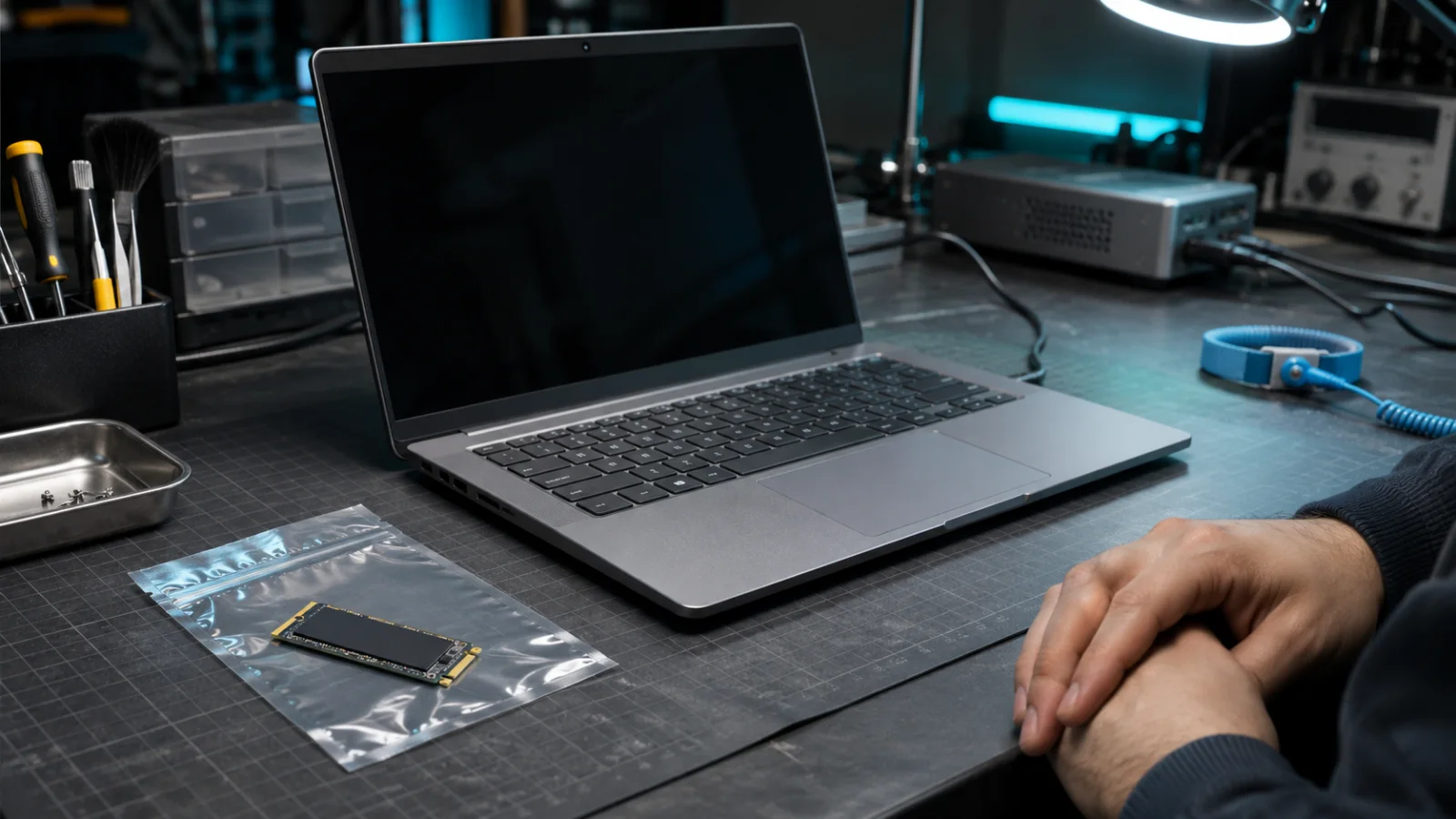
Symptoms: identify what happened
People searching for NVMe SSD data recovery may mean very different problems: a deleted file, a locked encrypted volume, an SSD missing from File Explorer, or a drive that disappears during use. The safest first step depends on the symptom. A recent deletion on a stable SSD has a different outlook from a BitLocker-locked volume or a controller that no longer presents the drive to the operating system.
An NVMe SSD has no moving parts, so silence is normal and is not a diagnostic clue. Repeated disconnects, a reported zero capacity, input/output errors, or unusual heat are reasons to stop experimenting. One check in UEFI may show whether firmware detects the device, but it cannot confirm the condition or recoverability of the data. If an SSD is missing from BIOS, start with our NVMe not detected in BIOS guide; recovery software cannot help when Windows cannot see the drive consistently.
Diagnosis table: symptom and next action
| Symptom | Possible cause | Next action |
|---|---|---|
| Recently deleted file; SSD is stable | Logical deletion; TRIM may already have marked blocks | Stop writes and check Recycle Bin and backups |
| Windows asks for a recovery key | BitLocker volume locked or boot state changed | Find the 48-digit recovery key before using recovery software |
| Volume shows RAW or Windows asks to format | Unreadable file system, corruption, or incompatibility | Cancel formatting; get an assessment before repair if files matter |
| Drive missing, disconnecting, or returning I/O errors | Connection, power, firmware, or possible hardware failure | Stop repeated connection attempts and have the device assessed |
| Files appear but will not open | Encryption, corruption, or missing original application | Check encryption and the creating app before scanning |
This table helps choose a check; it does not confirm a failure. Windows may show a drive letter even when blocks cannot be read, and a missing partition does not always mean the data was erased. Record the exact message and when the drive last worked normally. If you share a screenshot with support, hide private file names and recovery keys.
Step 1 — Protect the SSD before recovery
Stop downloads, installs, updates, sync jobs, and copies targeting the NVMe. If Windows is installed on the same SSD and the lost files matter most, shut down normally if the system is stable; do not install recovery software on that drive.
Check: no new writes or sync jobs are targeting the affected disk.
If it didn't work: power the computer off and get advice before booting from that volume again.Do not format the disk, initialize a partition table, or run CHKDSK against the only copy of important data. These actions change file-system structures and may reduce analysis options. Avoid automatic “repair” utilities that do not explain what they write.
Check: you canceled any prompt to initialize or format the disk.
If it didn't work: cancel the prompt and stop; record the exact message.If the SSD is stable and the data justifies the time or cost, ask a technician whether they can make a sector-level image to a separate drive before analysis. Store the image on a different device with enough capacity. Do not clone an unstable SSD with a consumer utility unless you understand how it handles read errors.
Check: the provider confirms in writing which device will be read, where the image will be written, and whether the original will avoid writes.
If it didn't work: do not authorize an improvised repair or clone; request a specialist assessment.

Step 2 — Check backups and BitLocker
Start with copies that do not need to read the damaged SSD: Windows Recycle Bin, File History, a work backup, NAS, unplugged external drive, or a cloud service that was already configured. Check the last version date and open a test copy from the backup. Cloud sync can propagate a deletion, so check the service’s version history or trash before syncing the folder again.
If Windows shows a BitLocker recovery screen, look for the key in the personal Microsoft account, work or school account, a printout, or a USB drive where it was saved. Microsoft describes the BitLocker recovery key as a 48-digit number; compare the displayed key ID with your records. Microsoft cannot recreate a lost key. Do not reset the PC to bypass encryption: a reset removes files and does not decrypt the volume’s data.
Keep the key out of the article, public support tickets, and shared screenshots. A recovery key grants access to encrypted data. Share it only with the owner or a trusted provider over a secure channel, and only when needed. If the device belongs to an organization, contact its administrator before attempting an unlock or recovery.
Check: you found a usable backup or confirmed that the recovery key matches the displayed key ID.
If it didn't work: do not format the drive; use Microsoft’s recovery-key guidance or ask the administrator who configured BitLocker.
Step 3 — When recovery software may help
Software may be a reasonable option when the NVMe is consistently detected, the problem appears logical, and you accept uncertainty. Download the program on another device or drive, read its official documentation, and recover files to separate storage. Never save recovered files to the source SSD; those writes could replace blocks that remain recoverable.
Microsoft Windows File Recovery is a command-line tool that attempts to recover deleted files from local storage. Microsoft advises minimizing computer use after deletion and requires the source and destination to be different. The tool does not support network or cloud shares as the source. Microsoft’s documented example for recovering Word documents is:
winfr C: E: /regular /n *.docxIn Microsoft’s example, C: is the source volume and E: is a separate destination. Substitute letters only after confirming your setup; choosing the wrong drive can write to the wrong place. This command shows documented syntax; it does not guarantee file recovery and is not appropriate for an SSD that disconnects or an encrypted volume that remains locked. Read Microsoft’s instructions to choose a mode and filter for your case.
After deletion, an operating system may send the SSD a TRIM command. TRIM tells the controller that certain blocks no longer contain useful data; the SSD’s garbage collection may later erase those blocks so the memory can be reused. Timing and results depend on the drive, system, and its state. A scan may find nothing even when a file was deleted recently. Samsung and Seagate explain that recovery after SSD failure or deletion can be difficult; consumer software cannot promise otherwise.
Check: the tool recognizes the intended volume, writes only to a separate destination, and produces files you can open.
If it didn't work: stop repeated scans, keep logs free of private data, and request an assessment if the files justify a service.
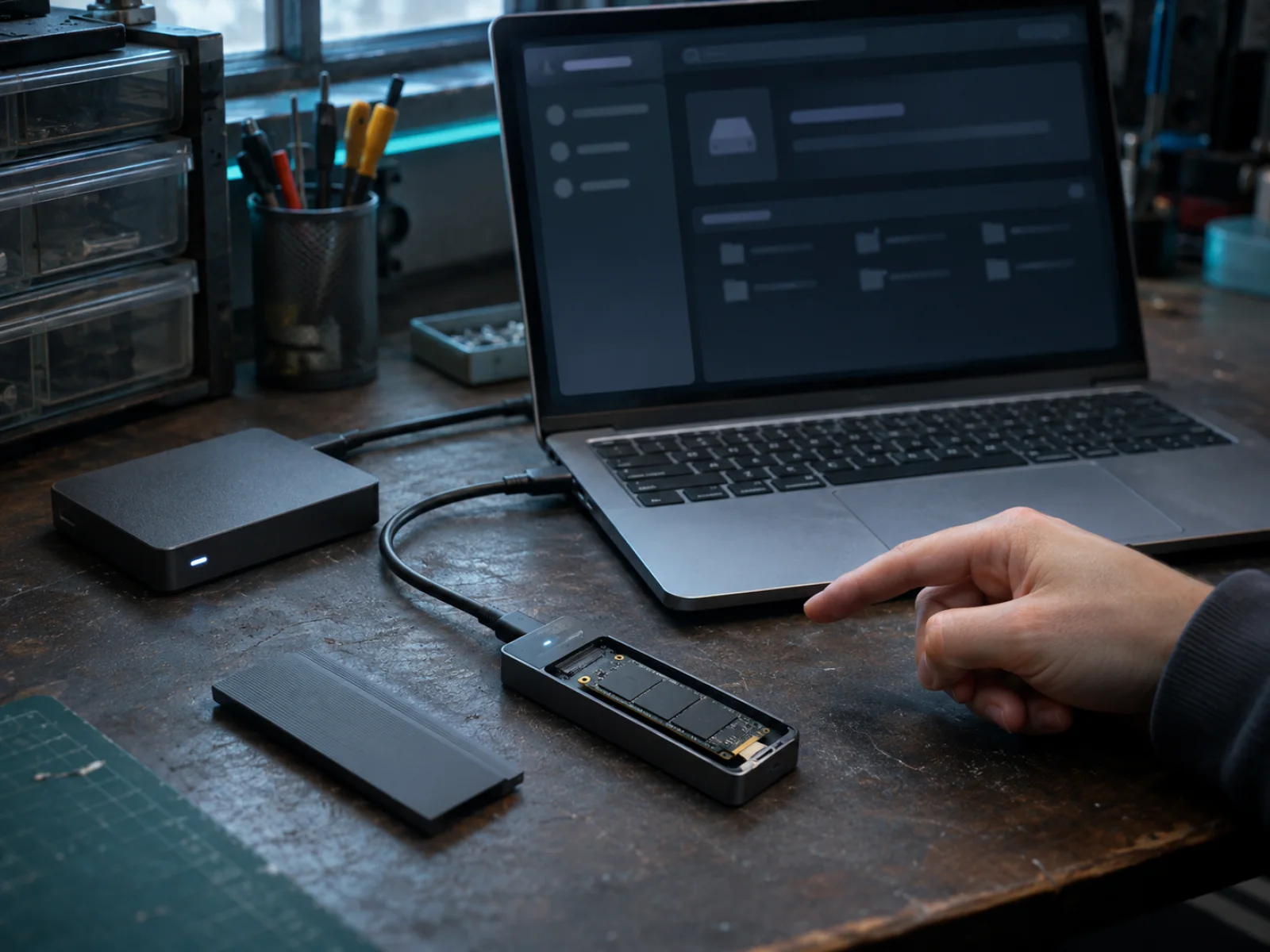
Use a separate physical destination with enough free space, rather than a second partition on the same NVMe. Confirm source and destination labels before each run, and keep recovered copies out of automatic sync jobs until you have opened them. This separation reduces accidental writes to the original and preserves it for a later specialist assessment. If Windows is running from the affected SSD, remember that ordinary system activity can write to that drive even when you are not saving a document.
Step 4 — Compare NVMe recovery options
| Option | Consider | Limits |
|---|---|---|
| Existing backup | Fast and avoids scanning the NVMe; check versions and file integrity | May be old or may have synced a deletion |
| Software on a stable drive | Often more affordable and under your control; separate destination required | TRIM, encryption, and hardware failure can prevent recovery |
| Specialist lab | Useful for an unstable drive, irreplaceable data, or suspected hardware failure | Assessment, price, timing, and results vary; no universal guarantee |

Before shipping an SSD, ask about diagnostic fees, charges if recovery fails, privacy terms, personal-data handling, return-media costs, and data-retention or destruction. Ask whether the assessment avoids writing to the drive and whether you will receive a quote before paid work starts. Prices vary by country, model, capacity, condition, and urgency; compare current quotes instead of relying on a generic price from an old article.
Check the manufacturer’s warranty and service plans. A product warranty usually covers hardware under its terms; it does not necessarily cover file recovery. Samsung says data-recovery costs are excluded from its SSD warranty. Seagate provides an eligibility lookup based on product, region, and any associated plan. Read the terms for your model before shipping: replacing a drive under warranty and recovering its data are separate services.
For a problem limited to UEFI detection, use our NVMe compatibility and detection guide. For first steps on an external disk, see the safe external-drive recovery guide. To reduce the chance of another loss, read our guide to Windows local and cloud backup choices. These guides do not replace an assessment of the drive.
When to stop and call a technician
Stop immediately if the SSD keeps disappearing and returning, becomes unusually hot, reports input/output errors, appears with the wrong capacity, or holds unique files without a backup. Stop if a volume suddenly asks to be formatted after an update or hardware change. Do not repeat connection cycles or put the SSD in a refrigerator; moisture and condensation can damage electronics.
If you must remove an SSD from a computer, shut it down, unplug power, and follow the manufacturer’s service manual. Never work on a powered device or force the M.2 connector or heatsink. For a laptop under warranty, ask the manufacturer or a qualified technician for the approved procedure. A soldered SSD or encryption tied to the motherboard may require a different approach from a removable M.2 module.
After files are recovered, open copies from the destination and make at least one independent backup before reusing the SSD. If documents are incomplete or encrypted by their original application, preserve the recovered copy and find the key or software before changing it.
Frequently asked questions
These answers summarize the first safe checks and the limits of common recovery options.
Can you recover a deleted file from an NVMe SSD?
Sometimes, but it is not guaranteed. TRIM and garbage collection may erase blocks after deletion. Stop using the drive, check backups, then consider documented software only if the SSD is stable.
Does TRIM make every recovery impossible?
No, not in every case, but it can make deleted blocks unavailable. The outcome depends on when blocks are cleaned and on the SSD’s state. There is no universal time window or reliable success rate to promise.
Can software recover an NVMe SSD missing from BIOS?
Operating-system software cannot read a device that the controller does not present to the system. Start with detection checks, and avoid repeated attempts if the drive disconnects or the data matters.
Should I format a RAW volume to recover files?
No, not if you want to preserve its data. Cancel the format prompt and avoid repairs that write to the original until you have an image or specialist advice.
What should I do if BitLocker asks for a key?
Find the 48-digit recovery key in the account or records where it was saved, then compare its ID with the one on screen. Resetting the PC does not recover the encrypted volume.
Does an SSD warranty pay for data recovery?
Not necessarily. Policies differ by manufacturer, model, country, and plan. Read the written terms and request a separate recovery quote before shipping the drive.
Next step
After protecting your files, reduce the risk of another loss with an independent copy. Read our guide to choosing a local or cloud backup for Windows, then test by opening a file restored from that copy.
Official sources
- Microsoft — Windows File Recovery (accessed November 9, 2026).
- Microsoft — Find your BitLocker recovery key (accessed November 9, 2026).
- Seagate — SSD TRIM and garbage collection (accessed November 9, 2026).
- Samsung — Avoid data loss on an SSD (accessed November 9, 2026).
- Samsung Semiconductor — Consumer SSD warranty (accessed November 9, 2026).
- Seagate — Data recovery services and eligibility (accessed November 9, 2026).
Be the first to leave a comment.