Quick Fix — Try This First
If Windows reports “BitLocker recovery key missing,” use the ID on the screen to locate the saved key; the ID itself cannot unlock the drive.
- Photograph or write down the first eight digits of the recovery key ID shown on the locked screen. Do not share the full 48-digit key.
- On a different trusted device, check the Microsoft account used to set up this PC at Microsoft’s recovery-key page.
- If this is a work or school device, contact the organization’s IT administrator and provide the key ID through its approved channel.
- Check the USB drive, printout, or saved file where the key may have been stored.
- Match the key ID before entering a key. If no matching key exists, stop before resetting the PC because reset removes local files.
Check: the matching key unlocks the drive and Windows starts. If no key matches, preserve the device and review recovery options before choosing a reset.
If the BitLocker recovery screen says your BitLocker recovery key is missing, Windows is asking for the 48-digit key that unlocks the encrypted drive. This usually means automatic unlocking did not proceed after a security or hardware change, or Windows cannot use the protector it expected. The key ID helps you find the corresponding saved key; it is not itself the key.
There is no safe utility that recreates a lost recovery key. Microsoft says its support staff cannot retrieve or regenerate one. Start with the accounts and storage locations that may already contain it. Do not format the drive, reinstall Windows, or repeatedly try unrelated keys while you still need the data.

Symptoms: what the recovery screen tells you
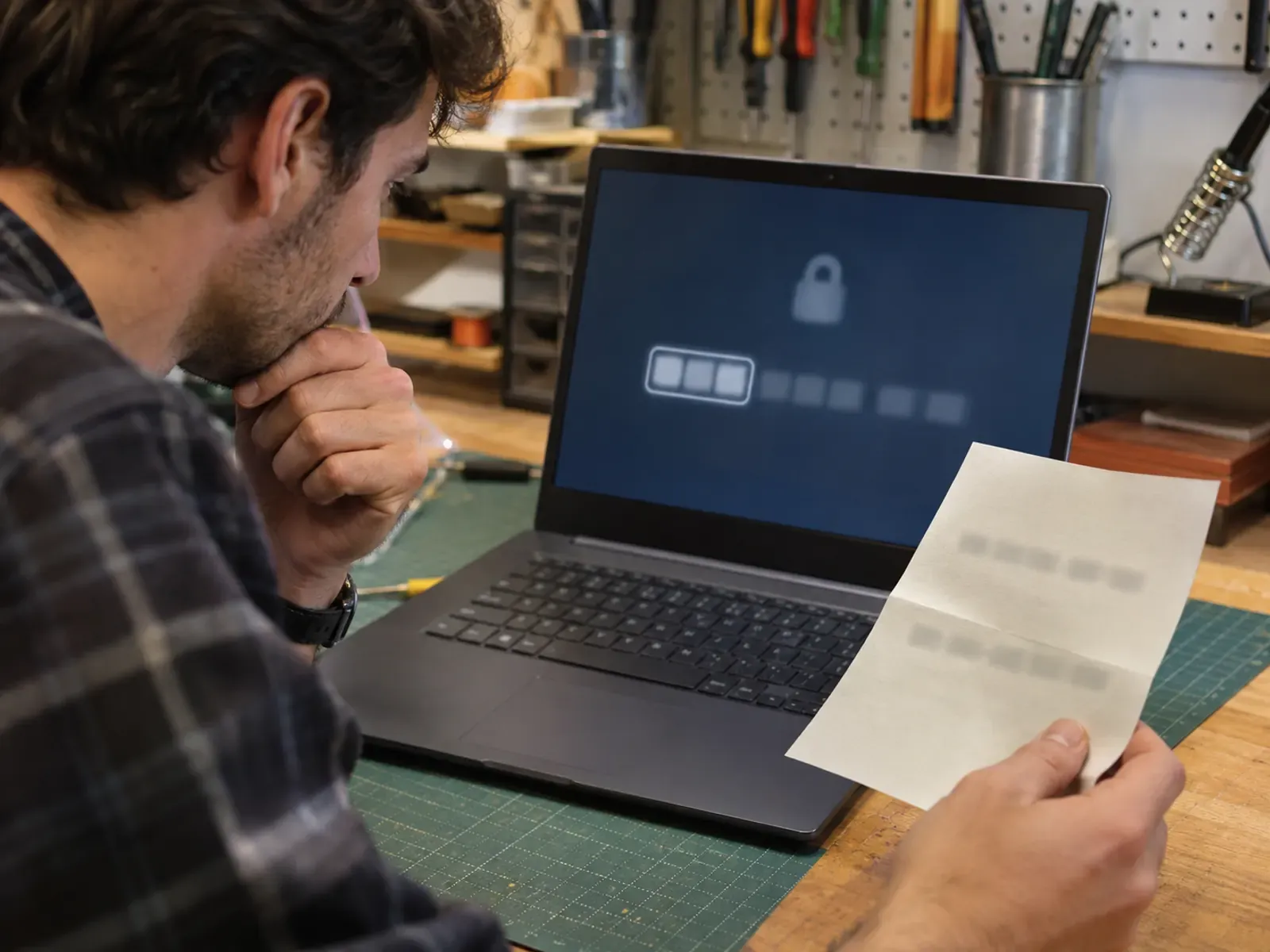
You may see a blue BitLocker recovery screen before Windows loads, or a prompt when opening an encrypted data drive. The screen may show a recovery-key ID and ask for a 48-digit number. Beginning with Windows 11 version 24H2, the startup screen can also show a hint for the Microsoft account associated with a key. A recovery prompt alone does not prove the drive has failed or that the key was deleted.
Write down the key ID exactly, especially its first eight digits when the screen requests them. Keep the ID private enough to avoid confusion with another device, but remember that it cannot unlock the drive by itself. Never post the complete recovery key in a forum, chat, screenshot, or support ticket that is not an approved private channel.
Diagnosis: match the likely storage location
| What you know | Likely key location | Next action |
|---|---|---|
| You set up Windows with a personal Microsoft account | The Microsoft account used during setup may hold the key. | Check the account recovery-key page from another device and compare the key ID. |
| The PC belongs to an employer or school | The organization may manage and escrow the key. | Contact its IT administrator; do not use a personal account as a substitute. |
| You saved a copy during encryption setup | A printout, USB drive, or saved text file may contain it. | Check the locations you chose when protection was enabled. |
| The prompt followed a known firmware or hardware change | The saved key may still be valid; the change may have triggered recovery. | First find the matching key. Ask the device maker or administrator before reversing a change. |
Find the matching BitLocker recovery key
Applies to: Microsoft BitLocker recovery screens on Windows 10 and Windows 11. For a work or school PC, use the organization route.
1. Check the personal Microsoft account
On a separate phone or computer, open a browser and go to Microsoft’s recovery-key page. Sign in with the Microsoft account used to set up or enable BitLocker on the locked PC. Find the device entry and compare its key ID with the first eight digits from the recovery screen; only then copy its 48-digit recovery key. If the PC was set up by someone else, ask them to check their account. For multiple accounts you own, sign out and repeat these steps for each one.
Check: the listed key ID matches the recovery screen. Enter only that corresponding key on the PC. If it did not work: recheck the ID and signed-in account, then continue to the organization or saved-copy checks below.
2. Ask the organization that manages the computer
For a work or school PC, first contact the help desk if policy requires it. From a separate device, open the organization recovery-key portal and sign in with the work or school account. Select Devices, expand the matching PC, select View BitLocker Keys, then compare the key ID with the recovery screen before using its 48-digit key. If the portal blocks access, give IT the key ID and device name through its approved channel. Never send your password or full key in an ordinary message.
Check: the administrator returns a key whose ID matches your screen. If it did not work: ask whether the device is registered under a different organization account or whether the key was escrowed to another managed system. Follow the organization’s recovery policy.
3. Search the places where you may have saved it
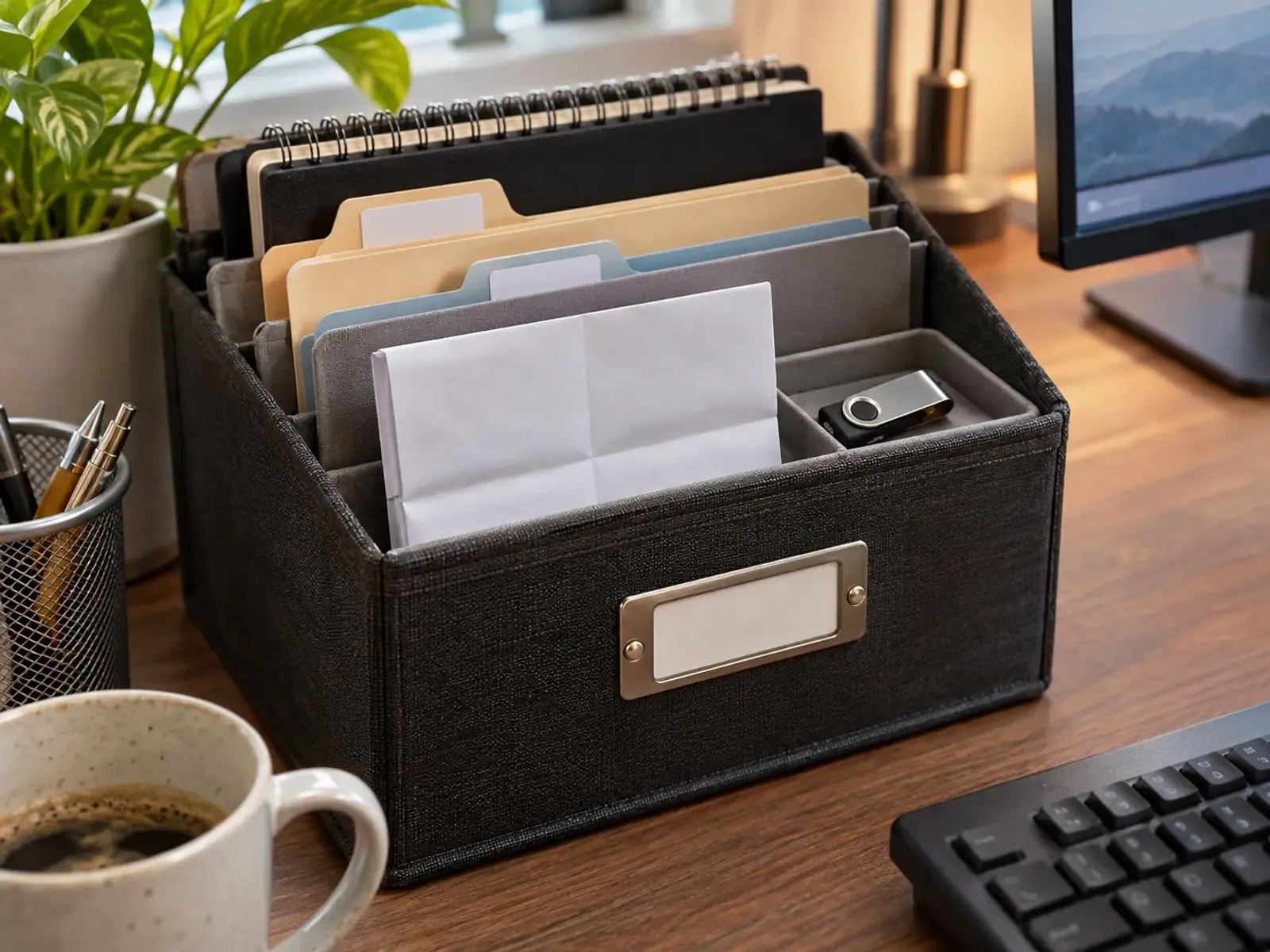
Look for a printed page kept with the PC’s records, a USB drive containing a text file, or a saved document in the account you used when enabling encryption. If the recovery screen is on the PC, use another device to read a USB copy so you do not need to interrupt that screen. Search only storage you own or are authorized to access. Match the key ID before using a stored number.
Check: the saved copy identifies the same key ID. If it did not work: do not keep testing unrelated numbers. Return to the personal-account and organization checks, or contact the device administrator.
What to do if the prompt followed a change
BitLocker recovery can be requested after a security risk or a hardware change. If you know exactly what changed just before the prompt, record it and tell the PC maker or organization administrator. Do not guess at firmware settings or disable security features to make the prompt disappear. First locate the matching recovery key; then ask for model-specific guidance about safely reversing a recent change.
If the key unlocks Windows, back up important files before making further system changes. Keep the recovery key somewhere separate from the encrypted PC and make sure an authorized person can retrieve it during an outage. Our guides to Windows backup options, recovering files after a failed update, and Windows error codes cover related recovery planning.
When to stop and get help
Stop before resetting or reinstalling Windows if the files matter and you do not have a verified backup. Microsoft warns that resetting the device removes files. For a managed PC, use the organization’s help desk. For a personal device, contact the manufacturer or a qualified data-recovery professional before changing partitions, formatting, or replacing the drive. A provider cannot guarantee recovery without the key, so ask what can be preserved before authorizing work.
If the data is backed up and you decide to reset, read Microsoft’s Windows recovery options first. Understand which reset choice removes files and make sure you have the account credentials and any recovery material needed to set up the device again.
Prevent another recovery-key lockout
- Confirm that the recovery key is saved to the correct personal or work account.
- Keep an additional copy in a secure location separate from the encrypted PC.
- For work devices, confirm who in IT can retrieve keys during an outage.
- After a device or security change, verify that you can still access the key before relying on the PC.
- Do not store a plain-text key in a public folder or share it in an ordinary support conversation.
FAQ
Can Microsoft generate a replacement key?
No. Microsoft says Support cannot retrieve, provide, or recreate a lost recovery key. Check the accounts and saved locations linked to the device.
Is the recovery-key ID enough to unlock the drive?
No. It identifies which saved recovery key to use. You still need the matching 48-digit key.
Will resetting Windows preserve my files?
Microsoft warns that when the key cannot be found and the recovery trigger cannot be undone, resetting the device removes files. Review the exact recovery option before proceeding.
Should I disable BitLocker to clear the prompt?
Do not change encryption or firmware settings as a guess. First locate the matching key and get guidance for the exact device and change.
Sources
- Microsoft Support, Find your BitLocker recovery key (consulted November 10, 2026).
- Microsoft Support, Back up your BitLocker recovery key (consulted November 10, 2026).
- Microsoft Support, Recovery options in Windows (consulted November 10, 2026).
Be the first to leave a comment.