Symptoms: external hard drive not detected
If an external hard drive is not detected, data recovery starts with identifying where Windows loses sight of it. A missing drive letter is different from a disk that never appears in Device Manager. A disk shown as RAW or unallocated is also different from a USB device that repeatedly disconnects. These clues help you choose a safe next step without changing the drive.
This guide is for Windows 10 and Windows 11 users with an external USB hard drive. Menu labels can vary by Windows build and PC manufacturer. It uses Microsoft and drive-maker documentation, not a test on a specific model. If you need the files, treat the original disk as read-only: do not copy new files to it, initialize it, format it, or accept a repair prompt.
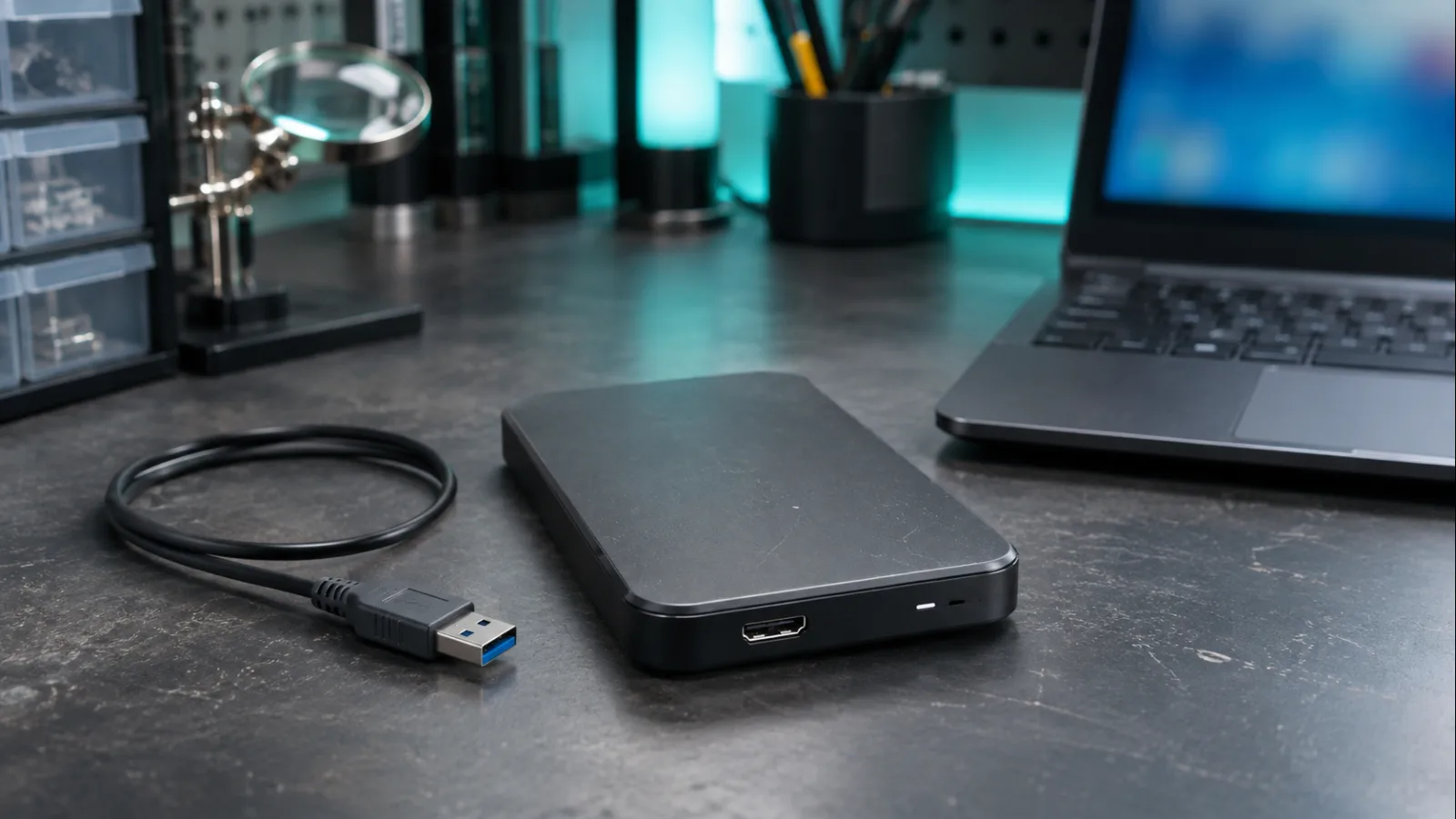
Generated illustration: an unbranded external drive and a disconnected USB cable on a workbench.
Diagnosis table
| Symptom | Likely cause | Next action |
|---|---|---|
| Drive is missing in File Explorer but listed in Disk Management | Missing drive letter, unsupported file system, or partition problem | Read the disk status. Assign a letter only to a healthy, recognized volume with no letter. If data matters and the disk says RAW, unallocated, or not initialized, stop. |
| No new disk appears in Disk Management, but a USB device appears in Device Manager | Cable, port, power, enclosure bridge, or drive electronics | Try one known-good cable and a direct USB port; use the maker’s power adapter when the drive requires it. |
| Nothing changes in Device Manager or Disk Management | Port, cable, power, host controller, or a failed enclosure/drive | Check another direct port and, if safe, another computer. Avoid repeated reconnects if the drive clicks or disconnects. |
| Clicking, scraping, repeated spin-up, or frequent disappearance | Possible mechanical or power failure | Disconnect it and seek a data-recovery specialist if the files are valuable. |
| Windows asks to initialize or format the disk | Windows cannot read the existing partition information | Cancel the prompt. Initialization and formatting write changes that can reduce recovery options. |
Safe checks, from simplest to more involved
- Decide whether the files matter. If they do, do not accept Windows prompts to initialize, format, scan-and-fix, or repair. Avoid CHKDSK with repair options until you have another copy of the files or a sector-level image. Repairs can write to a damaged file system and change what a recovery tool sees. If the data is irreplaceable, skip to the stopping criteria below.
- Check the connection without opening the drive. Disconnect the USB cable, inspect the plugs for visible damage, and reconnect once. Connect directly to a computer port instead of a hub, dock, keyboard, or monitor. Try a known-good cable that matches the drive’s connector. If the drive has a separate power supply, use its supplied adapter and check that its cable is seated. Do not substitute a random adapter with unknown voltage or polarity.
- Observe the drive’s behavior. Note whether its light turns on, whether it spins normally, and whether Windows plays a connect sound. A light alone does not prove that the disk is healthy. Stop promptly if you hear clicking or scraping, smell burning, feel unusual heat, or see repeated spin-up and power loss. Do not shake, tap, freeze, or open a hard drive.
- Look in Device Manager. Right-click Start and open Device Manager. Expand Disk drives and Universal Serial Bus controllers. Connect the external drive and look for a new entry or a warning symbol. If it appears under USB but not Disk drives, Windows may be seeing the enclosure interface without successfully identifying its storage device. Do not uninstall unrelated controllers or change firmware settings as a first step.
- Check Disk Management without changing anything. Press Windows+R, enter
diskmgmt.msc, and select OK. Wait for the view to finish loading, then match the disk by its displayed capacity and removable-drive context. Do not rely only on “Disk 1” or another number: numbering can change when devices are reconnected. If the right volume is healthy and has no letter, assigning an unused letter may restore File Explorer access without formatting. If the volume is RAW, unallocated, not initialized, or shows an I/O error, cancel every write or repair prompt and do not create a new volume. - Separate a missing drive letter from a missing disk. When Disk Management shows a healthy partition with a recognized file system but no letter, the drive may be present even though File Explorer does not list it. In that specific case, right-click the volume and use Change Drive Letter and Paths to assign an unused letter. Do not do this to a RAW, unallocated, unknown, or failing disk. If the volume is encrypted, you may need its recovery key before files can be opened.
- Try one other computer only if the drive behaves normally. A second computer can help separate a host-port problem from a drive or enclosure problem. Use a direct USB port and a suitable power supply. Do not keep testing a drive that clicks, becomes unusually hot, disconnects repeatedly, or produces recurring I/O errors; each power cycle can worsen a physical failure.
- Choose recovery only after the device is stable. If the drive is detected consistently and the issue is accidental deletion or logical file-system damage, first look for a backup. Microsoft’s Windows File Recovery can attempt to recover deleted files from a detected storage device, but the destination must be a different drive with enough room. It is not a fix for a mechanically failing disk, and it cannot guarantee recovery. Stop using the source drive to reduce new writes. For unique or business-critical files, use a reputable recovery professional instead of experimenting with multiple utilities.
For a similar USB-storage case, see USB drive shows 0 bytes. If Windows cannot read the partition, compare the precautions in the USB drive recovery guide. A device-level USB error may need a different path; see USB device descriptor request failed.
DIY recovery or a professional lab?
A useful comparison is the drive’s condition, the value of the files, and whether you can accept an uncertain result. Self-service solutions make sense only when the disk is stable, detected consistently, and the files are not irreplaceable. A recovery lab is the safer choice after a drop, liquid exposure, repeated I/O errors, or mechanical noise. Do not choose a tool by a recovery-rate headline alone: check whether it works with the device’s visible state, what it changes on the source, and whether recovered data is written to a separate disk. Ask a provider how it handles privacy, evaluation, and unsuccessful recovery before shipping a drive.
When to stop and call a technician
Stop using the drive if it makes new clicking or scraping sounds, spins up and down repeatedly, vanishes during access, reports repeated I/O errors, has been dropped or exposed to liquid, or contains the only copy of important data. Unplug it once, keep it in a stable, dry place, and describe the sounds and messages to a recovery provider. Do not remove the drive’s cover or the sealed hard-drive lid. Do not install recovery software onto the source disk or save recovered files back to it.
If the data is not important and you only want to reuse the disk, first confirm that the correct device is selected and that a separate copy of anything needed exists. Formatting or repartitioning can restore a usable volume, but it is a destructive setup step for the files on that disk. Follow the drive manufacturer’s instructions for the exact model after deciding that recovery is no longer required.
FAQ
Why does my external hard drive show in Disk Management but not File Explorer?
It may have no drive letter, an unsupported or damaged file system, or a partition Windows cannot mount. A healthy recognized volume without a letter may be assigned one. RAW, unallocated, not-initialized, or error states need a data-safe assessment before any writes.
Should I initialize a disk that Windows says is not initialized?
Not if it contains files you need. Initialization writes partition information and does not repair a failed disk. Cancel the prompt and investigate detection, backups, and recovery options first.
Can I run CHKDSK to make the drive appear?
CHKDSK is a file-system repair utility, not a hardware diagnostic. Repair options can make changes to the disk. If the data is important and no verified copy exists, do not run repair commands on the original before imaging or getting professional advice.
Can Windows File Recovery restore a drive that is not detected?
No. The device must be visible to Windows as a readable source for the utility to attempt file recovery. It is intended for deleted or lost files, not a drive that is absent from the storage devices list or failing physically.
Why does an external hard drive click?
Clicking can have multiple causes, including a mechanical fault or insufficient power; sound alone cannot diagnose the exact part. If the sound is new or repeated and the files matter, disconnect it and avoid more power cycles.
Can I use the same drive as the recovery destination?
No. Save recovered files to a different physical drive. Writing recovered data to the source may overwrite files that have not yet been recovered.
Next step: If the symptom is actually a USB enumeration error, use the ElectronixLab tools and troubleshooting guides to choose the relevant diagnostic path before making storage changes.
Sources
- Microsoft Support: Disk Management in Windows (consulted November 9, 2026).
- Microsoft Support: Windows File Recovery (consulted November 9, 2026).
- Seagate Support: USB External Troubleshooter (consulted November 9, 2026).
- Seagate Support: Drivers for external drives FAQ (consulted November 9, 2026).
Be the first to leave a comment.