Quick Fix — Try This First
- If the drive clicks, disappears, gets hot, or holds the only copy, unplug it and stop testing.
- Otherwise, check cable and power, then connect directly to the Mac without a hub.
- In Disk Utility, choose View > Show All Devices and check whether the physical device appears.
- Do not initialize, erase, or repair the drive before confirming a backup or choosing specialist recovery.
When a Mac external drive is not mounting, Finder may hide a volume while the physical device remains visible. Separate a cable, power, visibility, or file-system issue before taking action. If the data matters, avoid operations that write to the drive. Menu names can vary by macOS version.
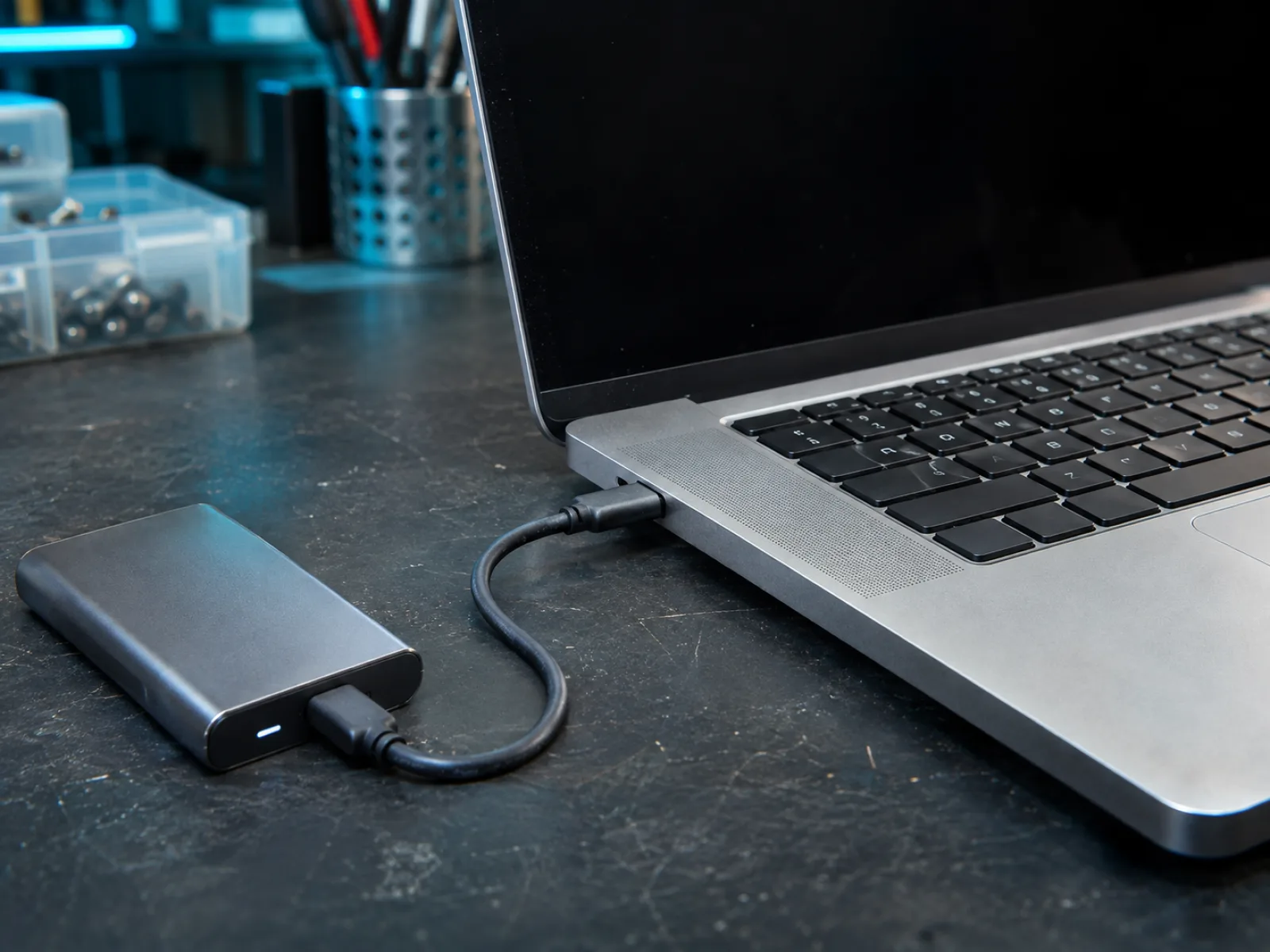
Symptoms and first interpretation
| Symptom | Likely cause | Next action |
|---|---|---|
| Missing from Finder but visible in Disk Utility | Unmounted volume or logical error | Record its name and state without erasing it. |
| Missing from Finder and Disk Utility | Cable, port, power, or hardware failure | Try a direct connection and specified power source. |
| Clicks, grinds, stops, or reconnects | Possible mechanical fault or unstable power | Unplug and call a specialist. |
| macOS asks to initialize it | Partition or format is not recognized | Cancel if you need the files. |
| Volume appears but files will not open | File-system error or encryption | Avoid First Aid if the drive is unstable or lacks a backup. |
Mac external drive not mounting: safe recovery steps
1. Assess the risk
Decide whether this drive holds the only copy, and listen during one controlled connection. Repeated clicks, grinding, heat, odor, severe slowdown, or disconnects mean stop. Do not shake or open the enclosure. If the files are irreplaceable, consult a specialist before other checks.
Check: there is no unusual noise or instability. If a warning appears: unplug the drive and go straight to professional assessment.
2. Check cable, adapter, and power
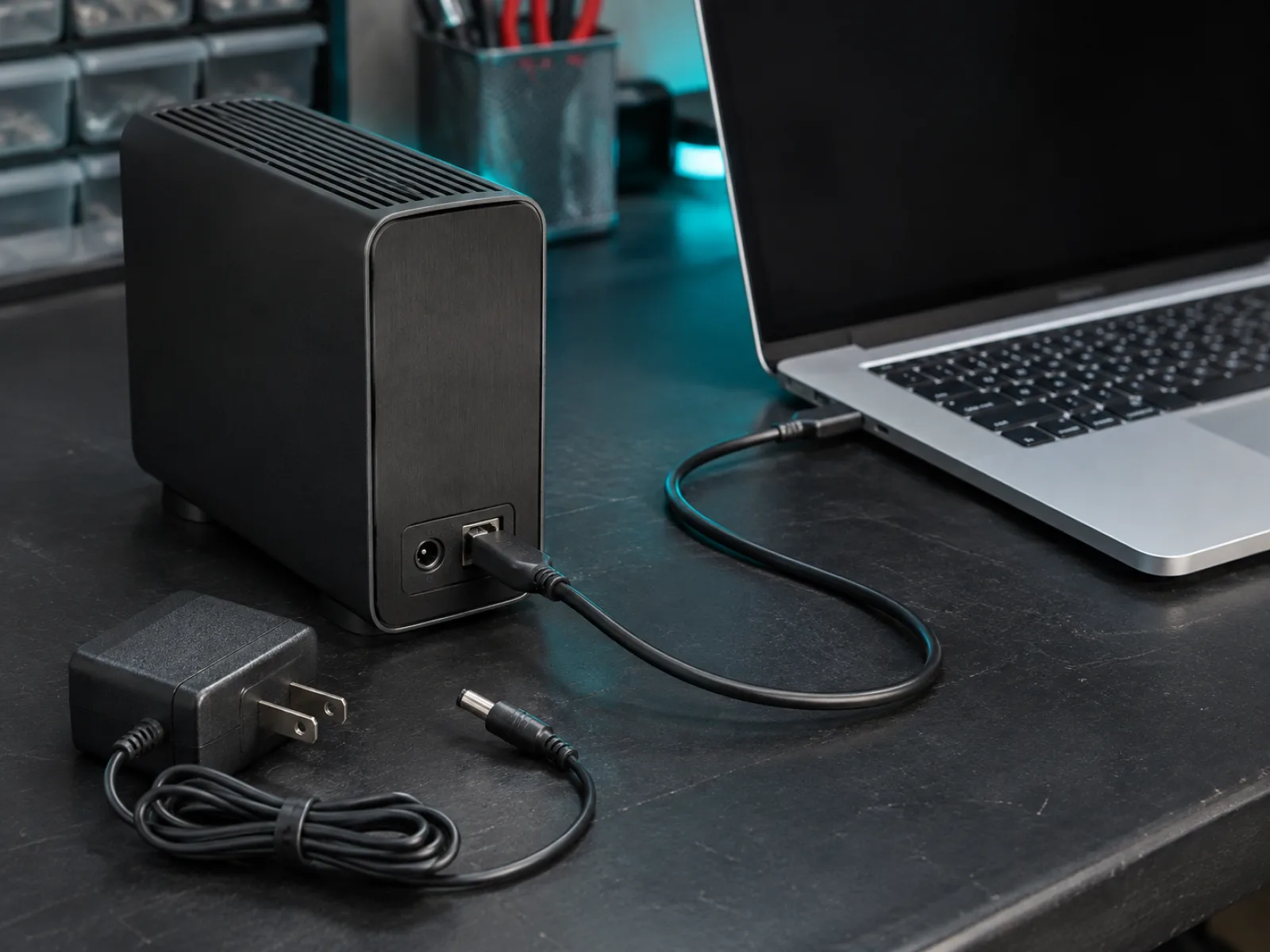
Eject the drive if it is still visible. Inspect connectors without tools, connect the intended adapter, and attach the device directly to the Mac using its cable. USB-C cables can look alike but support different functions; use the cable supplied or recommended by the drive maker. For a bus-powered enclosure, use the recommended adapter if specified.
Check: the enclosure receives its expected power and the plug fits without force. If nothing changes: try another port or compatible cable, changing one item at a time.
3. Check Finder, then Disk Utility
In Finder > Settings, enable external disks under General and in the sidebar if needed. This changes visibility only. Then open Disk Utility, choose View > Show All Devices, and look for the external device.
If the physical device appears with a dimmed volume, record its name and capacity. Try Mount once only if the drive is quiet and the files are not unique. If macOS offers Initialize, cancel. Encrypted storage needs its valid credentials; do not format it to bypass a lock.
Check: note whether the device and volume appear, plus capacity and format. If it is absent: shut down the Mac, disconnect nonessential accessories, then check cable and power.
4. Protect data before First Aid or recovery software
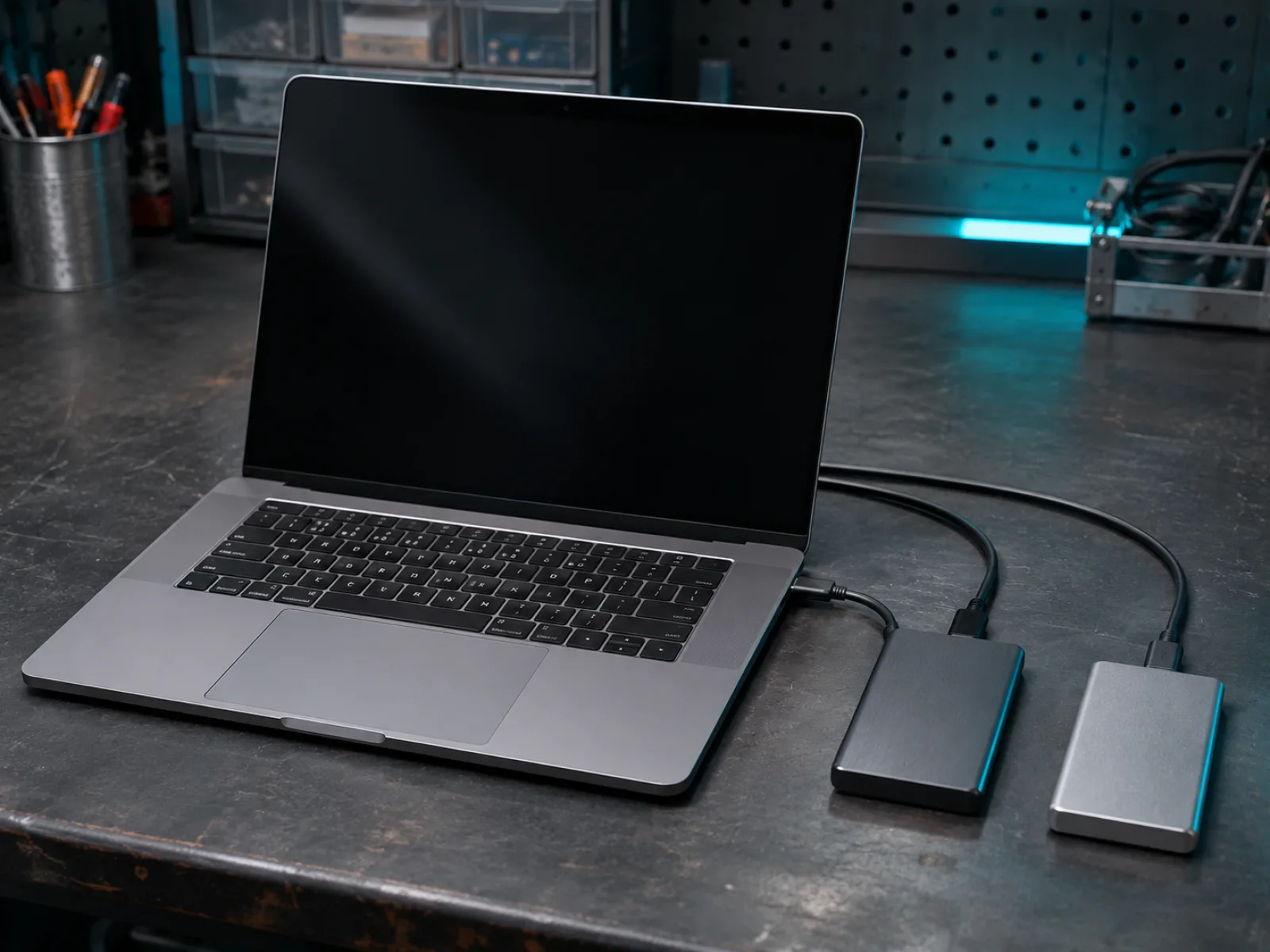
Apple recommends a current backup before First Aid. The tool checks and may repair a volume structure; it is not a file copy. If the drive is unstable or has the only copy, do not run it before getting advice. Never recover files onto the source drive.
If the device is stable and you accept the risk, first copy readable folders to another healthy drive and open a few copied files. Without a backup, ask whether a full image is appropriate. Encryption requires a valid password or key; do not give it to an unverified service.
Check: copies open from the other device. If reading fails or stops: stop, do not run First Aid, and request a recovery assessment.
5. Use First Aid after considering the data
With a verified backup and a stable drive, follow Apple’s Disk Utility steps. Show all devices and run First Aid on each volume, then each container, then the device, moving from lowest to highest. Do not erase the drive if First Aid fails. Record the exact message and model.
Common mistakes
- Choosing “Initialize” or “Erase” can reformat the drive; cancel if you need files on it.
- Running First Aid before protecting the data can change file-system structures. Copy readable files first, or seek recovery help if the device is unstable.
- Testing a chain of hubs and adapters makes diagnosis harder; start with a known-good compatible cable and a direct connection.
Troubleshooting if it still fails
Choose the next step based on Disk Utility. If no physical device appears, check the cable, port, power, or enclosure first. If the device appears but its volume will not mount, the file system or format may be involved. Clicking, repeated disconnects, or an unexpected capacity are reasons to stop testing.
- Make one controlled check with a compatible cable, port, and power source, without a hub.
- If the device is visible and the data is backed up, follow Apple’s guide and run First Aid on the volume, container, and device.
- If the data is not backed up or the drive is unstable, unplug it and seek recovery assessment before repair.
If the drive appears in Disk Utility, note its displayed name, format, capacity, and whether the volume is mounted; these observations help describe the fault without changing the media. Do not click Erase, Partition, or Initialize while preserving files is the goal. If you later run First Aid, select the volume first and follow Apple’s documented order through its container and physical device. Record any error text exactly. If repair reports failure or the device disconnects, stop and preserve the original rather than repeatedly retrying.
When to stop and call a specialist
Unplug the drive if it clicks, heats up, smells burnt, repeatedly disappears, or holds unique files. Also stop if macOS requests initialization, First Aid fails, encryption is unclear, or a mechanical drive was dropped. Do not open the enclosure: its USB bridge may also handle encryption.
Frequently asked questions
Is the drive empty if Finder does not show it?
No. Disk Utility may still see the device even when Finder cannot mount the volume. Check before any destructive action.
Should I accept the initialize prompt?
No, if you need the files. Cancel; initialization writes a new structure and does not repair the old data.
Can First Aid change files?
First Aid checks and may modify file-system structures. Apple recommends a backup first. With no copy, ask for advice before using it.
Will a different cable repair a failing drive?
It may fix a connection, but not an internal failure. Stop after a simple check if noise or errors continue.
Related articles and next step
Read our external hard drive not detected guide, NVMe SSD recovery options, and USB guide before formatting. Next step: record the model and symptoms, then request a diagnosis before First Aid if the device remains absent.
Sources
- Apple Support — repair a storage device with Disk Utility (accessed November 11, 2026).
- Mac User Guide — see connected devices in Finder (accessed November 11, 2026).
- Mac User Guide — connect external storage (accessed November 11, 2026).
These steps rely on the cited Apple documents; ElectronixLab has not tested a specific Mac or drive.
Last updated: November 11, 2026
Be the first to leave a comment.