Quick Fix — Decide whether to stop using the drive
- If you hear grinding, repeated hard clicks, clunks, or the drive disappears, stop file transfers and shut it down normally if it is responsive. Do not keep restarting it to listen again.
- If the noise is a soft occasional click during normal activity and the drive remains stable, first copy the most important files to a separate healthy drive. Do not use the same drive as the backup destination.
- If the drive contains irreplaceable data, shows read errors, or cannot stay connected, stop DIY scans and contact a data-recovery specialist before troubleshooting.
- Do not open the drive, tap it, freeze it, run CHKDSK, or start a long surface test before the data is safe.
- After a verified backup, use only the manufacturer’s current diagnostic guidance to assess a stable drive; a passing test does not restore trust in a drive that has already failed.
Confirm the copied files open from the separate destination. A clicking drive cannot be declared healthy from sound alone.
A hard drive clicking noise can be a normal soft sound during activity, but persistent hard clicks, repeated clunks, or grinding can signal a physical fault. If the files matter, the decision is not to diagnose every possible cause first. Protect the data, avoid additional reads when the drive is unstable, and decide whether a careful backup is safe or whether the drive should be powered down.
This guide follows drive-maker and recovery-tool documentation; it is not a hands-on diagnosis of your disk. If the data is more valuable than the cost of recovery, minimize power-on time and ask a professional about the safest next step.
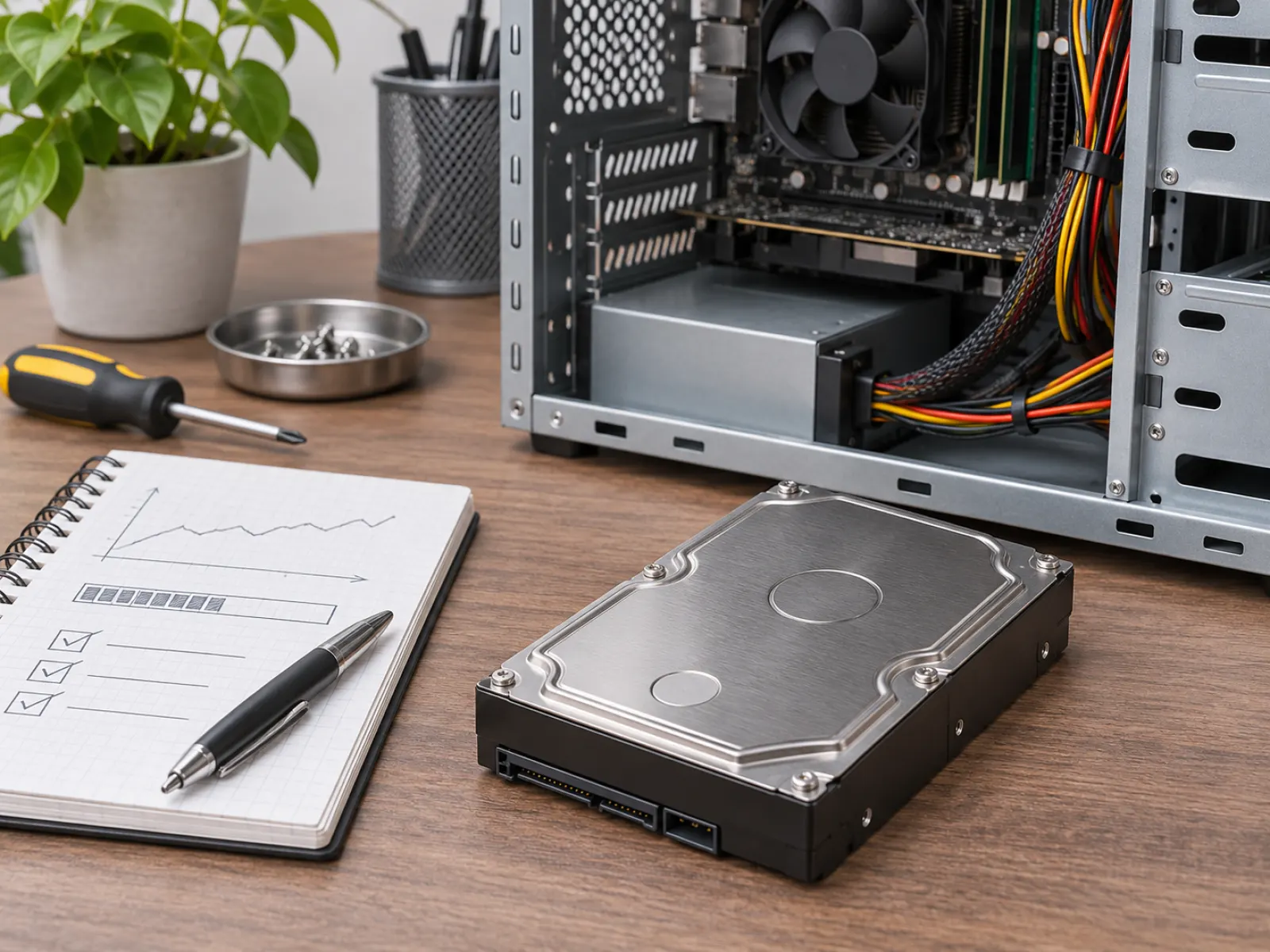
Which drive sounds are normal, and which are concerning?
Mechanical hard drives contain moving parts. A low hum, spin-up sound, or occasional soft click during read/write activity may be normal for a particular model. A single firm click when a drive parks its heads during sleep or shutdown can also occur. Sound varies with the drive, enclosure, mounting, and the room, so compare with the same device’s prior behavior rather than an unrelated model.
Seagate’s sound guide distinguishes soft clicking or chatter during activity from persistent hard clicking, repeated clunks, or grinding. A new or worsening pattern matters more than one isolated noise. Repeated clicking together with slow access, failed reads, disconnects, SMART warnings, or a boot error increases concern. Grinding or scraping is especially urgent because continued operation can damage the media.
A desktop fan, loose case panel, vibration, or a nearby external device can sound like a disk fault. If the files are already backed up and the drive is otherwise stable, identify the source without opening the drive itself. Never let a sound experiment take priority over an unverified copy of important data.
Read these symptoms before choosing a fix
| What you notice | Possible meaning | Safer next action |
|---|---|---|
| Soft, occasional click only while files are being read or written | Could be normal head movement, depending on model and context | Check the manufacturer’s sound guidance; ensure a current backup exists |
| One firm click at sleep or shutdown | May be a head-parking event on some drives | Compare with the same drive’s normal behavior; do not repeatedly power-cycle it |
| Persistent hard clicks, repeated clunks, or grinding | Possible mechanical fault or abnormal operation | Stop activity and power down; ask about recovery before running diagnostic scans |
| Clicking plus disconnects, slow reads, SMART warning, or boot failure | Possible drive or connection fault; remaining data may be at risk | For backed-up data, follow the maker’s supported diagnostic path. For unique data, stop and consult recovery support |
| Noise changes when a fan or enclosure vibrates | Could be mounting or another component, but sound alone cannot confirm it | Only investigate after data is backed up and the drive remains stable |
Follow these checks only while the drive is stable
Step 1 — Record the symptom without replaying it
Applies to: mechanical hard drives (HDDs), internal or external. It does not diagnose an SSD.
Instructions: if the drive is currently connected, stop copying or downloading files. Note whether the noise is a soft click during access, a single click at sleep/shutdown, repeated hard clicks, clunks, or grinding. Record any disconnect, read error, SMART warning, or recent drop. Do not restart the drive just to hear the noise again.
Expected result: you have one description of the symptom and any errors without adding more drive activity. Check: compare it with the same drive’s earlier behavior and the manufacturer’s sound guide. If it is uncertain: treat a new repeated click or grinding as a stop condition and ask the maker or a recovery professional.
Step 2 — Decide whether a file copy is safe
Instructions: only if the disk remains stable, files open normally, and the noise is a soft occasional click, press Windows key + E to open File Explorer, select This PC, open the source drive, and copy—not move—the most valuable files to a different healthy drive. Do not use the clicking drive as the destination. If the disk repeatedly clicks hard, grinds, disconnects, or returns read errors, stop transfers instead of starting a large copy.
Expected result: prioritized files are copied to another physical drive. Check: open several copied files from the destination and confirm they are readable. If a copy stalls or fails: cancel further retries, note the file/error, and contact a recovery professional when the data is unique.
Step 3 — Check an external connection only after data is safe
Instructions: use this step only after a verified backup or when no needed data remains. Shut the computer down, disconnect power as appropriate for the enclosure, then inspect the external cable and connector for looseness or visible damage. Reconnect using the cable and power adapter specified for that enclosure, directly to the computer rather than through a hub. Do not substitute a power adapter unless its voltage, polarity, connector, and current rating all match the maker’s specification. Do not open a sealed drive or disassemble a laptop.
Expected result: the enclosure has a secure, manufacturer-compatible external connection. Check: start it once and see whether it remains detected without the repeated noise. If it still clicks hard, disconnects, or becomes unavailable: shut it down and stop testing; the cable check cannot rule out an internal drive fault.
Protect data before troubleshooting
Choose a backup or stop based on stability and data value
Start by deciding how much data exists only on this drive. If the drive is stable, files open normally, and the sound is only a soft occasional click, copy the most valuable files to a separate healthy device. Begin with irreplaceable work, personal records, and current projects. Verify a selection of copied files from the destination and keep the source unchanged until the copy is checked.
If the drive is clicking hard, grinding, repeatedly disconnecting, or returning read errors, avoid a large copy attempt unless a recovery professional advises it. A failing disk may have only limited time or readable areas left. DIY recovery software and full-disk diagnostics keep the drive working and may make a physical problem worse. Do not write recovered files to the failing source.
If the drive is not stable but the data is not unique, replace the drive and restore from a known-good backup. If the data is unique or valuable, contact a recovery provider first. Tell them the noise pattern, whether the drive was dropped or exposed to liquid, what error appears, and whether you already tried software. This information helps them assess the risk without asking you to repeat steps.
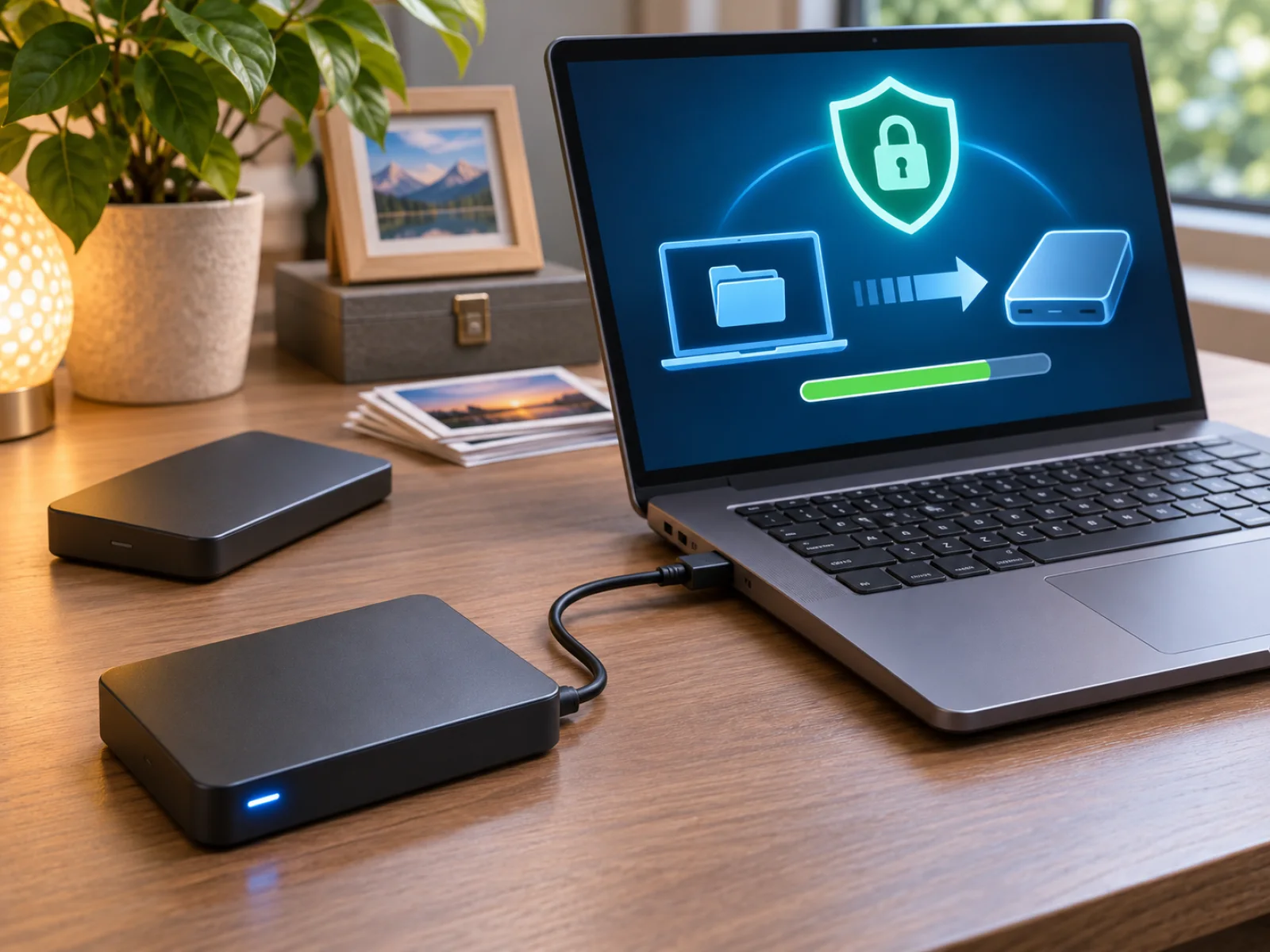
Check simple external-drive causes only when safe
For an external drive that is stable and already backed up, a loose or underpowered connection can contribute to disconnects or unusual behavior. Check the cable, connector, power adapter supplied for the enclosure, and manufacturer-supported port before considering a drive fault. Avoid hubs while testing if a direct connection is available. Do not swap power supplies unless the voltage, polarity, connector, and current rating are confirmed by the enclosure maker.
For an internal desktop drive, vibration from a loose mount or fan can be audible. If you are not experienced with computer hardware, ask a technician to inspect the case. Do not remove the drive or open the sealed metal housing while it is powered. Laptop disassembly can damage the device or compromise a warranty; use the manufacturer’s service instructions.
These checks are appropriate only when the drive is stable and the data is backed up. If hard clicking or grinding continues, stop. Repeated cable changes, reconnects, and restarts are not a substitute for data recovery.
When a diagnostic test is appropriate
Drive-maker diagnostics can help evaluate a stable disk after important files have been backed up. Read the exact tool’s instructions and understand whether its test is short, extended, read-only, or destructive. Do not run a write test on a drive containing the only copy of data. If a diagnostic freezes, the drive drops offline, or the noise becomes worse, stop the test.
A SMART warning should be treated seriously, but SMART status is not a complete health guarantee. Seagate advises backing up important files immediately when an SMART error appears. A clean result does not reverse a physical fault or guarantee future reliability. If the drive has shown repeated hard clicks, disconnects, or grinding, retire it after the data is safe even if a brief scan passes.
Compare recovery options before choosing a fix
This comparison is about risk and access, not a recovery guarantee
Use this troubleshooting comparison to decide how much activity the data can tolerate. A software fix is only reasonable when the drive is stable and a backup exists.
| Option | Best fit | Cost and limit |
|---|---|---|
| Copy important files to another drive | Stable disk with only a soft occasional click | Uses another drive; stop immediately if reads fail or noise worsens |
| Manufacturer diagnostic | Data is already backed up and the drive remains stable | Often provided by the maker, but a pass does not guarantee future reliability |
| Sector imaging or recovery software | Logical file loss or technically experienced users with a stable source | Requires separate storage and careful device selection; repeated reads may stress a failing drive |
| Professional recovery | Repeated hard clicks, grinding, physical damage, or unique data | Usually more expensive; request an assessment and written terms before proceeding |
When to choose professional recovery
Ask about assessment, privacy, and no-recovery terms
Contact a specialist before additional scans when the disk makes repeated hard clicks, clunks, grinding, or scraping; when it was dropped; when it heats unusually; or when it is no longer detected consistently. Also consider professional help if a failed home copy reports repeated errors and the missing files cannot be recreated.
Ask how the initial assessment works, whether evaluation is charged, what happens if no files are recovered, how the provider protects personal data, and whether the estimate can change after inspection. Confirm that the service handles your drive type and capacity. Avoid anyone who promises a guaranteed result before seeing the drive or tells you to open it at home.
Common actions that can make recovery harder
- Repeatedly powering a mechanically noisy drive on and off to “see if it got better.”
- Running CHKDSK, a file-system repair, a full surface scan, or repeated SMART tests before the only data is safe.
- Opening the sealed drive, tapping it, freezing it, or placing it in an oven; these actions do not repair a modern hard drive.
- Saving recovered files to the same failing disk or formatting it after an operating system prompt.
- Assuming RAID or a second partition is a backup without checking that a separate copy can be restored.
After the immediate problem
Replace a drive that has shown persistent hard clicks, grinding, or repeated read failures after the data is recovered. Keep at least one independent backup and periodically open a sample of files from it. If the drive was external, label it as suspect so another person does not reconnect it by mistake. For any replacement, select a drive suited to its workload and maintain enough free capacity for a full backup.
Related reading: safe steps for an external drive that is not detected and recovering deleted photos from an SD card.
Frequently Asked Questions
Does every hard-drive click mean the drive is failing?
No. A soft occasional sound can occur during normal activity, but repeated hard clicks, grinding, clunks, read errors, or disappearing from the system are reasons to stop and protect the data.
Should I keep restarting a clicking drive to check the sound?
No. Do not repeatedly power-cycle a drive with repeated hard clicks or grinding. Stop transfers and seek recovery advice if the data is important or the drive is unstable.
Should I run CHKDSK or a long surface scan?
Not while the only copy of important data is at risk. Repair scans and extended tests can add activity; make a verified backup first or consult a recovery specialist.
What if the drive makes only a soft click and remains stable?
Copy the most important files to a separate healthy drive and verify that they open. Keep the original unchanged until the copy is confirmed.
Sources
- Seagate, Identifying Hard Drive Sounds and Determining What They Mean (consulted November 10, 2026).
- Seagate, Internal Hard Drive Troubleshooter (noise and SMART guidance; consulted November 10, 2026).
- Seagate, When Data Loss Occurs (stop-use guidance; consulted November 10, 2026).
- CGSecurity, DDRescue: data recovery from a damaged disk (imaging damaged disks; consulted November 10, 2026).
Be the first to leave a comment.