A USB drive showing 0 bytes should not be formatted until you know what Windows is actually detecting. “No Media,” “Unallocated,” RAW, and a healthy partition without a drive letter are different conditions. If the data matters, every write — formatting, initialisation, CHKDSK, or volume creation — can make recovery harder.
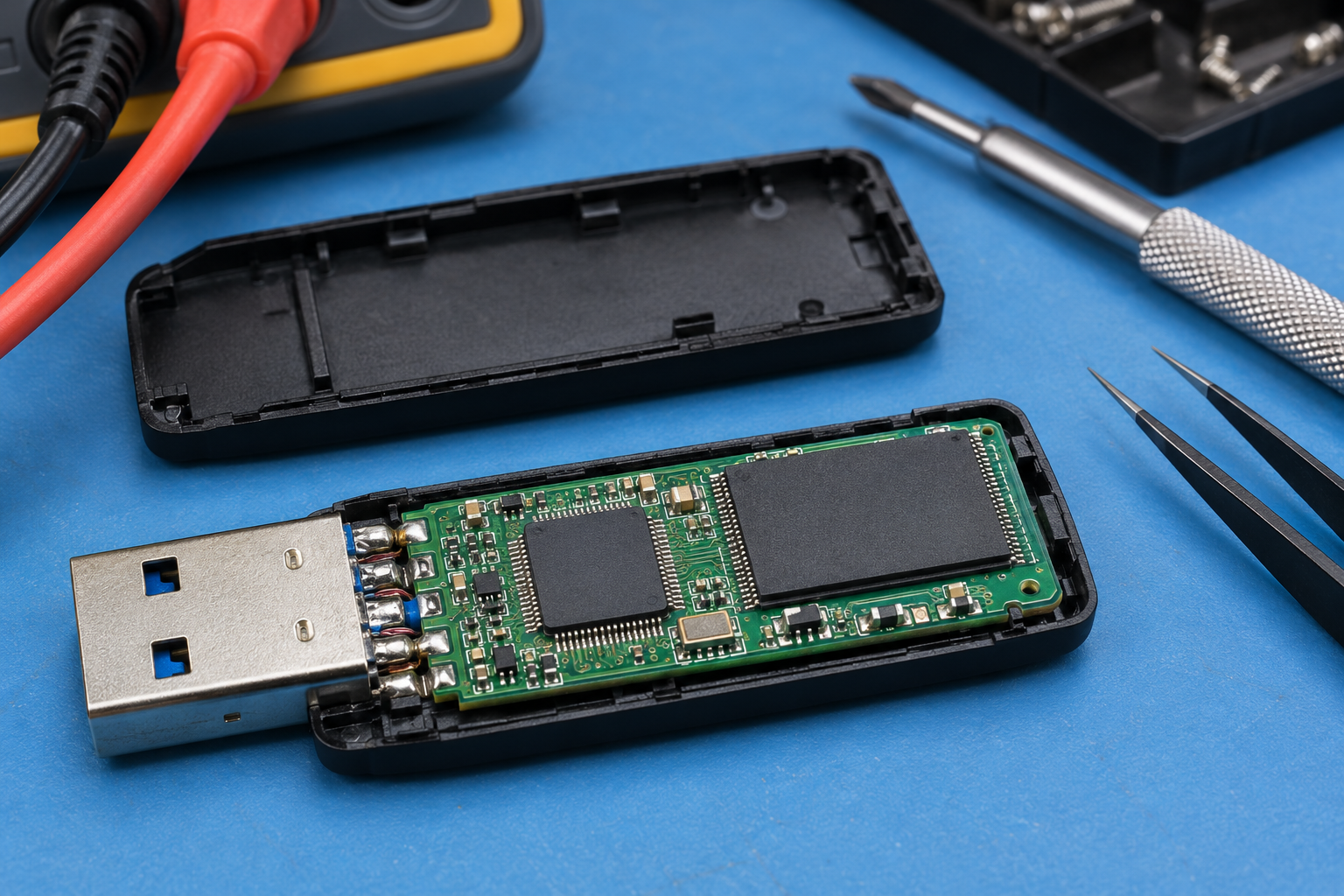
First distinguish a port problem, a partition failure, and a hardware fault in the controller or NAND memory. Disk Management and Device Manager provide evidence, but software cannot read memory that the controller no longer exposes as usable storage.
Decision guide
| Observation | Meaning | Action |
|---|---|---|
| 0 bytes / No Media | The USB device responds but exposes no usable storage | Do not initialise; test elsewhere and consider hardware recovery |
| Unallocated with correct capacity | The medium responds but no usable partition is described | Recover data before creating a volume |
| RAW with correct capacity | File system is damaged or unrecognised | Create an image before repair attempts |
| Correct capacity without a letter | A healthy volume may lack a mount point | Assign a letter only after confirming partition health |
Detailed procedure
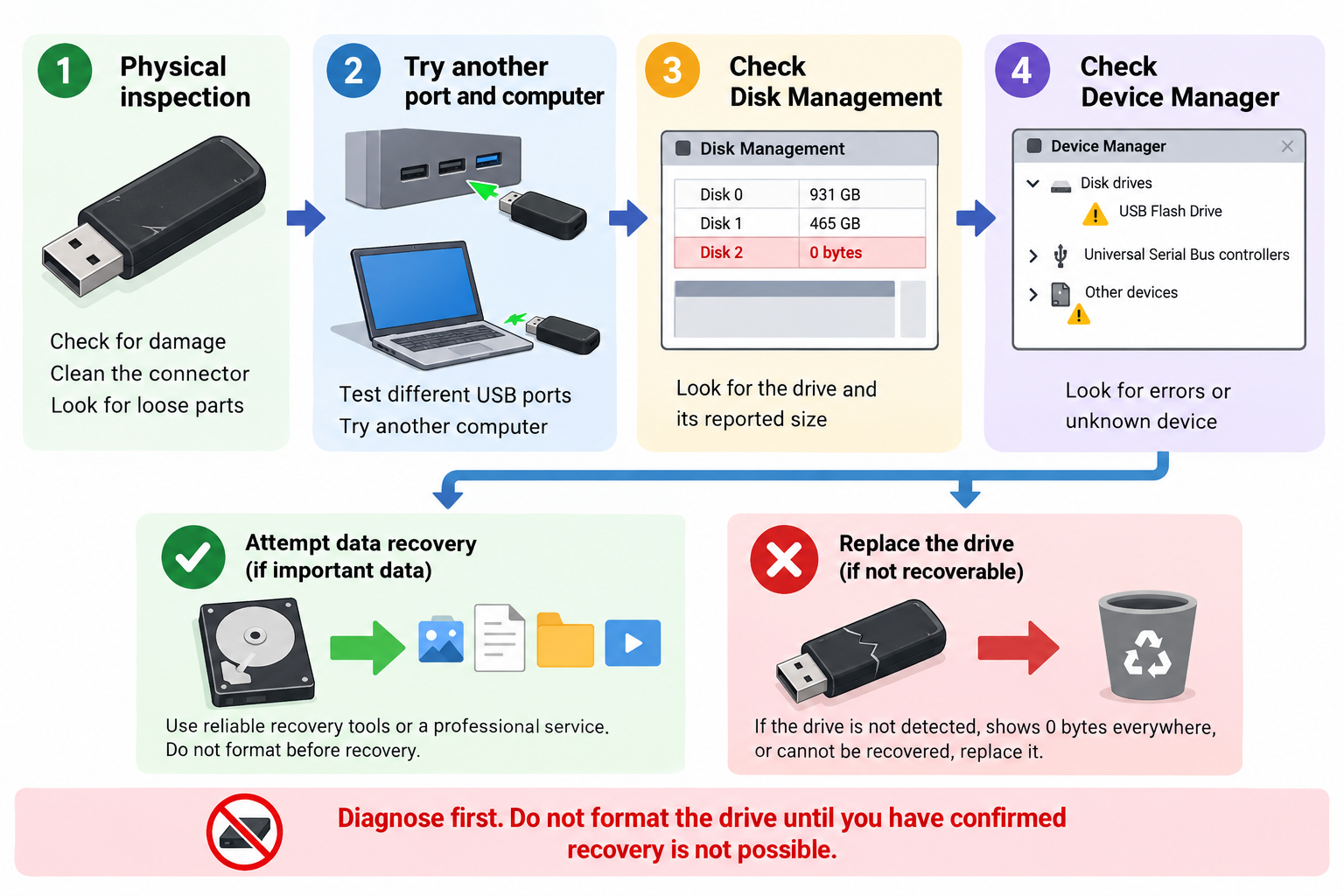
1. Protect the data
Decide first whether the files have value. If they do, do not format, initialise, or run CHKDSK. Record reported capacity, connection sounds, and messages. Disconnect an unstable drive rather than repeating unnecessary power cycles.
2. Inspect the drive and connector
Look for a cracked case, bent connector, mechanical movement, corrosion, or heat. Clean only with a suitable method and do not open a device under warranty. A fractured connector joint can cause intermittent disconnection.
3. Change ports without a hub
Try a port directly on the computer and then another computer. Avoid hubs and extension cables during diagnosis. If the correct capacity appears elsewhere, copy important files immediately before pursuing a software correction.
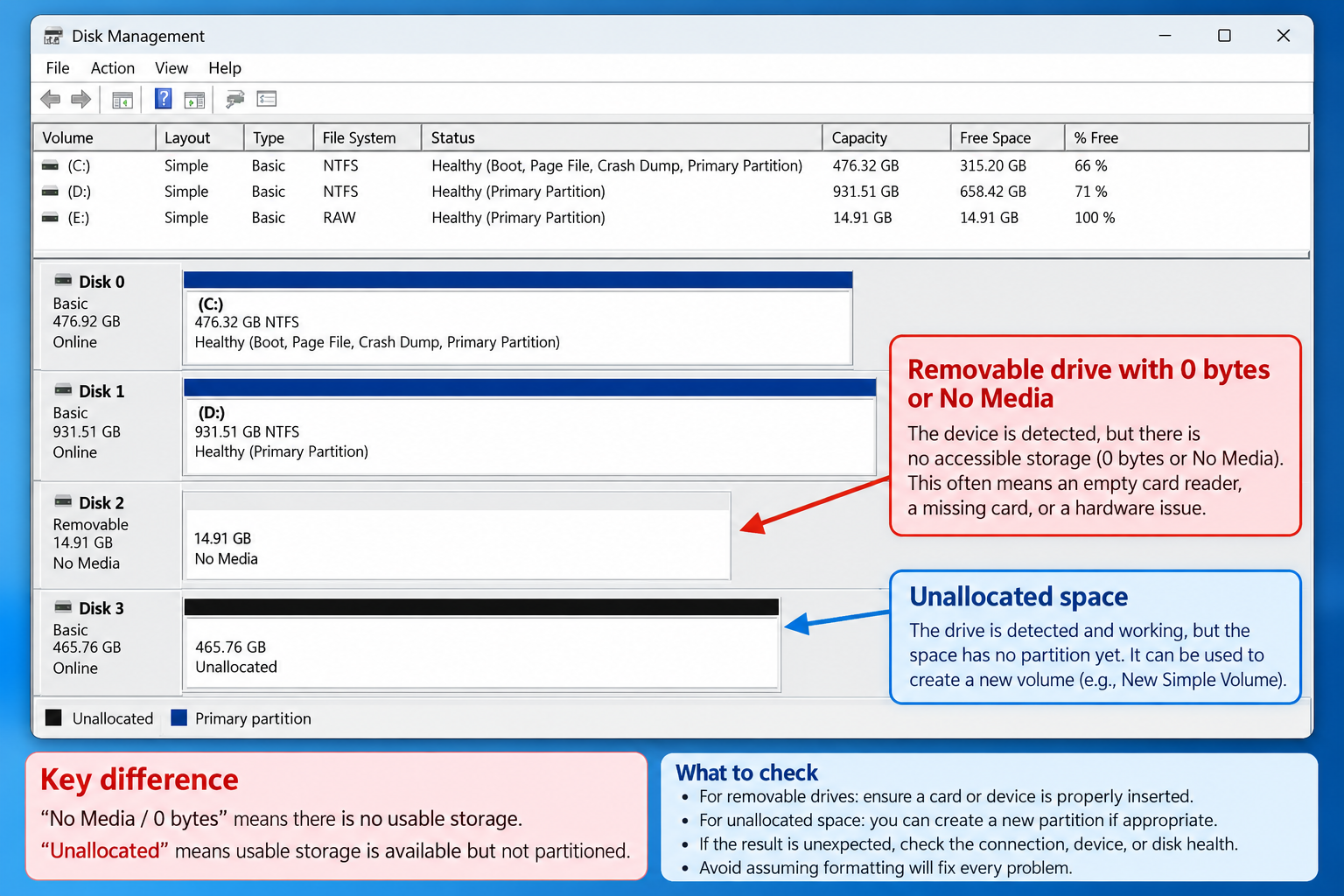
4. Read Disk Management
Open diskmgmt.msc and identify the disk by capacity, not drive letter alone. Record whether it says No Media, Unallocated, RAW, Offline, or healthy. Do not click Initialise or Format reflexively.
5. Check Device Manager
Inspect Disk drives and Universal Serial Bus controllers. An unknown device or error code may indicate a driver, power, or hardware issue. Removing a device entry does not repair failed NAND and must not be described as data recovery.
6. Separate Unallocated from No Media
Unallocated with correct capacity means sectors are accessible but no usable partition is described. No Media with zero bytes often means the controller no longer exposes memory. Recovery possibilities are fundamentally different.
7. Image a responding medium
For important data, work from a sector image rather than the original. Prefer a tool that handles read errors and resumes. If the drive disconnects, becomes hot, or slows dramatically, stop before worsening the failure.
8. Choose the next action
For a new empty drive that consistently reports correct capacity as Unallocated, creating a volume may be appropriate. If it held data or remains at zero bytes everywhere, use professional recovery or replace it after accepting the loss.
Do not confuse these actions
| Action | Effect | When to avoid it |
|---|---|---|
| Assign a letter | Adds a mount point | When partition health is unknown |
| Initialise | Writes a new disk structure | Before recovering previous data |
| Format | Creates a new file system | When files must be recovered |
| CHKDSK | Modifies structures for consistency | On unstable media or before imaging |
Verification method and traceability
Define the expected result
Before every action, record what you are trying to confirm, the starting condition, and the expected result. This prevents a coincidence from becoming a diagnosis. Photograph the initial state, preserve exact references, and change one parameter at a time. If a measurement conflicts with observed behaviour, repeat it with another comparison point before deciding.
Keep usable evidence
Record values with units, instrument setting, approximate temperature, and corresponding step. A screenshot or photograph should show context rather than an isolated number. These notes make it possible to resume diagnosis, compare results after repair, and give a professional precise information instead of a vague description.
Recognise limitations
A simple check may not reproduce operation under load, at temperature, or after repeated cycles. An intermittent fault can disappear during inspection. A theoretical result depends on tolerances and assumptions. When safety, irreplaceable data, or hazardous voltage is involved, the correct decision may be to stop and hand the next step to a specialist.
Final control
After the intervention, return every guard, cable, and connector to its intended position. Confirm that no tool remains and no safety function has been defeated. Perform a limited supervised test, then compare the outcome with the original symptom. One successful run is not always sufficient evidence that a fault is resolved.
Frequently asked questions
Will formatting fix zero bytes?
Not when Windows reports No Media or never exposes the actual capacity. Formatting requires addressable storage.
Can a driver update recover files?
It may correct software detection, but it cannot rebuild failed NAND or a failed controller.
When should testing stop?
Stop if the drive heats up, disconnects, holds irreplaceable data, or every computer reports No Media.
Technical sources
Recovery-first decision example
Suppose a 64 GB drive appears as 58 GB RAW on one computer and with the same capacity on another. The controller is exposing storage consistently, so imaging and file-system recovery are reasonable next steps before any repair. By contrast, a device that appears as No Media, 0 bytes on every computer does not offer sectors to ordinary recovery software. Repeating scans or buying another formatting utility cannot change that hardware-level limitation.
If the drive briefly reports its correct size, prioritise a controlled image rather than browsing folders. File browsing creates scattered reads and may stress an unstable device. Store the image on a different healthy disk with enough free capacity, retain a log of unreadable regions, and perform recovery against a copy. Never save recovered files back to the affected USB drive. When the contents are unique or legally important, stop experimentation and use a reputable recovery laboratory.
Be the first to leave a comment.