Quick Fix — Try This First
- Copy, rather than move, one large file to the external SSD and note the speed after the first few seconds.
- Connect the SSD directly to a computer port, bypassing a dock, monitor, and unpowered hub.
- Repeat the same copy with a manufacturer-rated data cable and a different port; keep the source file and destination unchanged.
- Compare the result with the drive maker’s published performance for your exact model and connection.
Check: a repeatable improvement after changing one link points to that cable, port, or hub. If it does not: compare file size, host drive, and sustained versus short transfers below.
An external SSD slow transfer speed does not by itself prove that the drive is failing. The link may negotiate a slower USB mode, a hub may share bandwidth, the source disk may be slow, or a short burst may end when the SSD’s fast write cache is exhausted. This guide isolates those causes without formatting the drive or running a destructive benchmark.
Quick diagnostic table
| Observed pattern | Most useful next comparison |
|---|---|
| Fast at first, then slower | Compare a short burst with a longer write and check the exact drive specifications. |
| Slow on one port only | Repeat directly on another host port with the same cable and file. |
| Slow only with many small files | Compare one large local file from the same source. |
| Slow across computers and cables | Back up important data, then check the manufacturer health tool. |
Read the transfer pattern before changing settings
Use File Explorer to copy one large file that already exists and that you can copy again. Do not use a valuable one-off file as a test, and do not cut or move it. Watch the copy dialog for the initial rate and whether it stays steady or falls after a while. A brief peak followed by a lower sustained rate can be normal for some models; the manufacturer’s exact specification and test conditions matter.
Many small files behave differently from one large file because Windows must handle each file and its metadata. A slow folder containing thousands of tiny files is not a fair comparison with a published sequential-write figure. Compare like with like, and repeat once so a temporary background scan is not mistaken for a hardware limit.
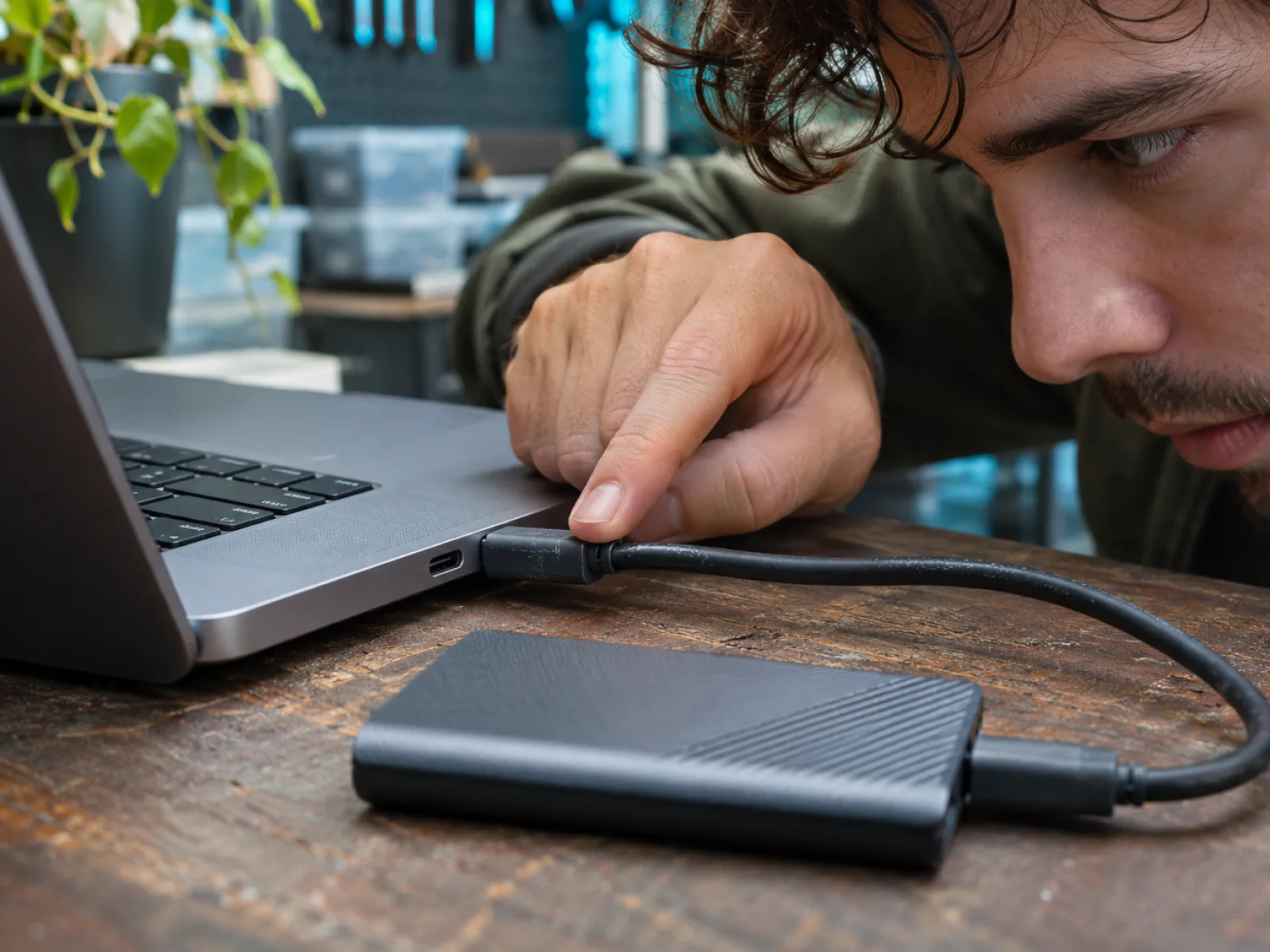
Trace the USB path from the SSD to the computer
- Applies to: any USB external SSD on Windows 11. Remove intermediate hubs and docks for the comparison. Try a different computer port, then repeat the same file copy. Expected: the transfer stays similar or improves. Check: the copy dialog shows a stable rate on the same file. If it does not: continue to the cable and model check.
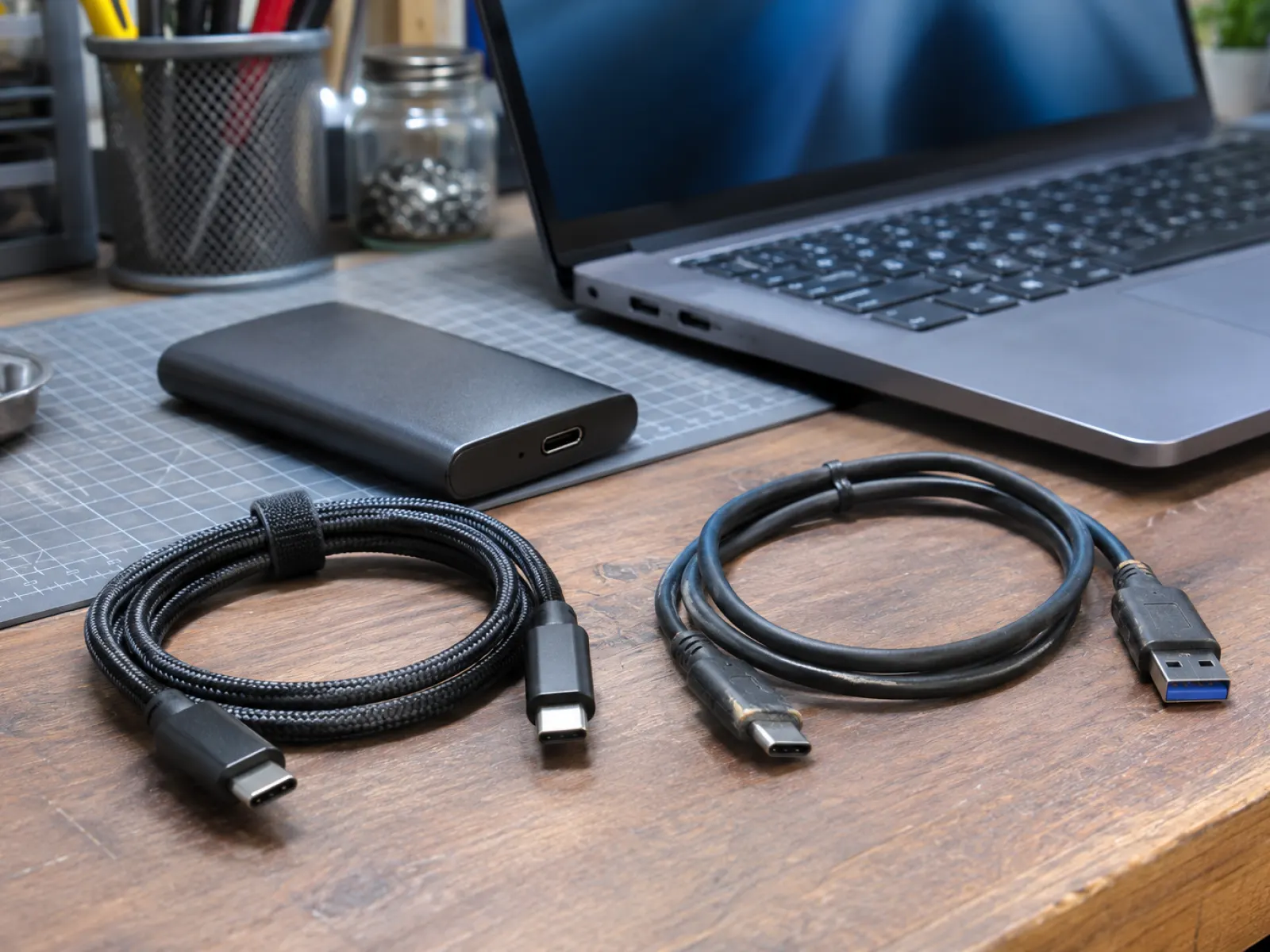
- Inspect the cable and both connectors for looseness or visible damage. Use a short data cable rated for the drive’s interface; USB-C describes a connector shape and does not guarantee a particular data rate. Check: the connection remains present throughout the copy. If it disconnects: stop testing that cable and use a known-good compatible replacement.
- Compare the host port, cable, enclosure, and SSD capabilities. USB-IF’s USB 3.2 material defines several link rates, and a connection can only use modes supported by every component. Check: the device maker’s documentation lists the exact port and cable capability. If the specification is unclear: use the model manual rather than inferring speed from the port color or connector shape.
Separate the SSD from its source and destination
Copying from a slow internal drive, a network folder, cloud-synced directory, or another USB device can make a healthy external SSD appear slow. Repeat with a large local file from a different known-fast source if available. Do not run multiple copies at once. Pause cloud synchronization only if you understand its status and can resume it safely; never delete a synced copy as a test.
A full drive, sustained heat, encryption, file-system workload, and the SSD’s own cache design can affect long writes. Check the exact manufacturer utility or support page for drive health and supported firmware. Avoid reformatting as a speed fix: format changes can erase data and do not repair a slow cable or host port. For drive-health symptoms, see our SSD health checks before replacement and external SSD disconnect diagnosis.
When a speed check is not enough
Stop repeated copying if the SSD disappears, reports file errors, becomes unusually hot, or contains the only copy of important data. Back up readable files first and avoid repair utilities that write to the disk until a backup exists. If the drive is unstable across another computer and a known-good cable, preserve the data and contact the drive manufacturer or a data-recovery professional.
For a capacity or health warning, compare the SSD’s own SMART/health tool with the manufacturer’s guidance; percentages are not standardized across brands. If Windows shows the drive at 100% active time, use the separate SSD active-time diagnosis. The next step is to identify the slowest link, not to assume that every low copy rate means a failing SSD.
Frequently Asked Questions
Why is my external SSD slow with some files but fast with others?
Many small files require more per-file work than one large sequential copy. Compare the same large file from the same source and do not treat the two workloads as equivalent.
Does every USB-C port support the fastest SSD speed?
No. USB-C describes the connector, while the host, cable, enclosure, and SSD determine supported data modes. Check the specifications for each exact model.
Should I format the SSD to make transfers faster?
Not as an initial fix. Formatting can erase data and will not correct a slow port, cable, hub, or source drive. Back up data before any file-system change.
When should I replace the external SSD?
First test it with a known-good cable and another computer, and review the manufacturer’s health diagnostics. Disconnects, file errors, or unreadable data deserve backup and support before replacement.
Sources and next step
Last updated: November 12, 2026.
USB-IF, USB 3.2 Specification (consulted November 12, 2026); Microsoft, Windows storage and file-copy support (consulted November 12, 2026). Also see the SSD health guide and Error Code Finder.
Be the first to leave a comment.