Quick answer: 100% active time means Windows considers the drive busy; it does not mean the SSD is transferring data at its maximum rate. Identify the process waiting on storage, let normal work finish, and back up promptly if Windows reports a fault or the drive disappears.
Contents
- What active time actually shows
- Sort the symptoms
- Find the application using the SSD
- Rule out temporary background work
- Check free space and drive health
- Compare transfer rate and temperature
- Review Windows and drivers safely
- When to stop troubleshooting
- Frequently asked questions
What active time actually shows
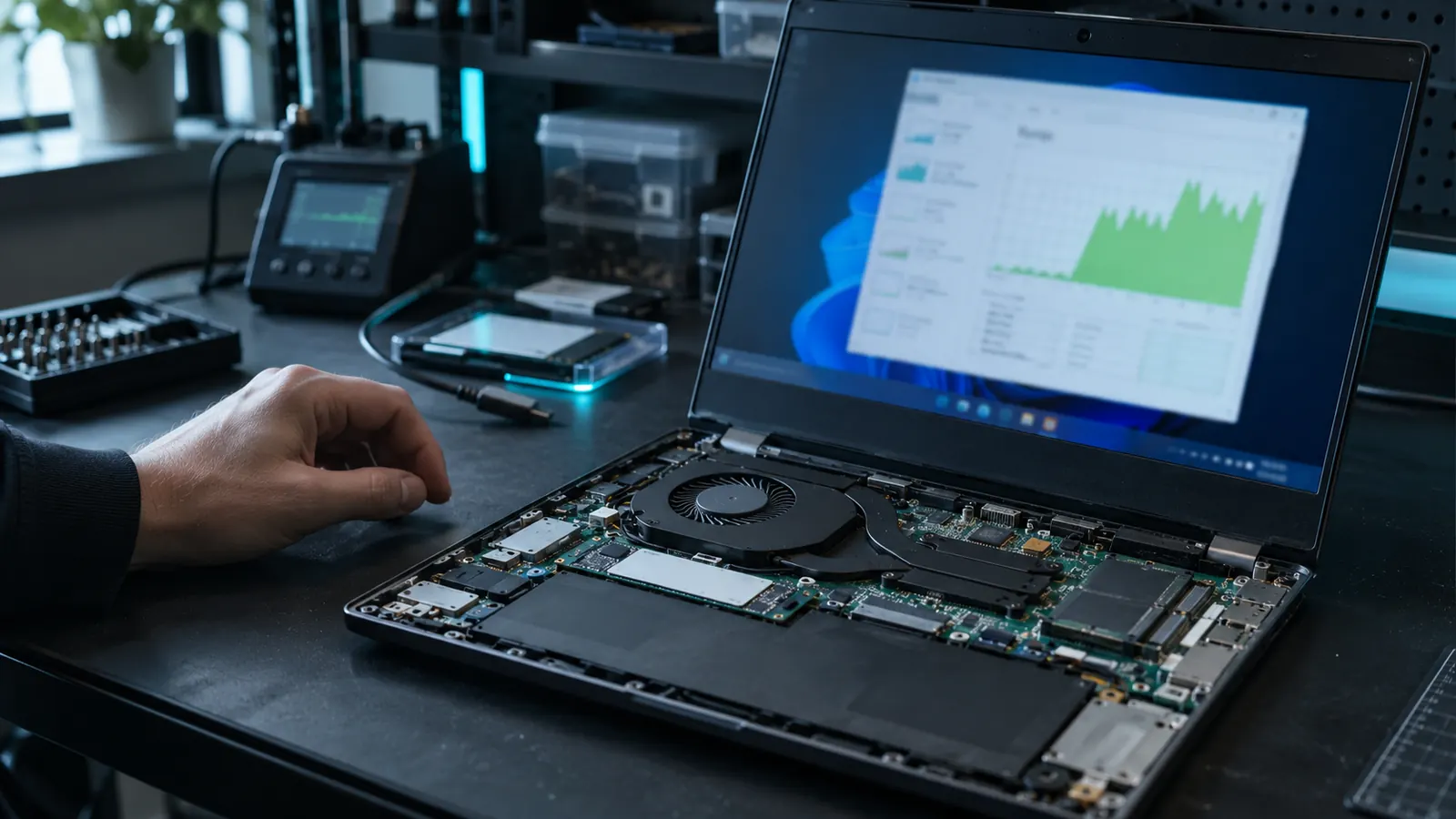
In Task Manager, disk active time represents the share of time the device is handling requests. Throughput in MB/s describes how much data is transferred over a period. These values are not interchangeable: storage can stay busy handling many small or random requests, or a long queue, while transferring relatively little data per second. Response time and the number of operations matter too.
A short spike during startup, an update, antivirus scanning, indexing, or copying many small files can be expected. Near-100% activity that repeatedly coincides with freezes, read errors, disconnects, or the drive vanishing deserves a different investigation. The number alone proves neither that the SSD has failed nor that Windows is at fault.
Record when the issue occurs, which apps are open, the approximate throughput shown, and whether the system freezes. Compare idle time with one known task. Avoid repeated benchmarks while drive health is uncertain: they add writes and are no substitute for a backup.
Response time helps describe waiting, but it cannot diagnose the drive by itself. A small operation may require a great deal of searching and metadata work relative to the number of bytes transferred. A software build, sync job, or photo library can therefore keep the drive busy while average throughput looks modest. A large transfer can show a high rate without making the PC unusable. Compare the same workload instead of screenshots taken in different conditions.
Also check which device is selected: Task Manager can show a physical disk and its volumes, while a drive letter identifies a volume. On a multi-drive computer, C: activity may not belong to the disk used by a game, cache, or paging file. Select the disk on the Performance tab and note its model so you compare the correct device in Windows properties or the maker’s official tool.
Sort the symptoms before changing the PC
| Symptom | Possible cause | Next action |
|---|---|---|
| High activity for a few minutes after startup | Startup apps, updates, or scanning | Identify the process and wait for the background task to finish |
| 100% with low throughput while PC remains responsive | Many small operations or queued work | Compare the process, response time, and workload |
| Freezes, errors, or drive disappearing | Drive, connection, or controller instability | Back up accessible files and stop intensive tests |
| Issue started after an update or new software | Driver, service, or background app | Compare the timeline and inspect the related app |
| Throughput falls after several minutes of copying | Cache, workload, temperature, or model-specific limit | Check the exact model documentation and observe without repeating the test |
Find the application using the SSD
Open Task Manager with Ctrl + Shift + Esc. On the Processes tab, sort by the Disk column, then also look at Performance > Disk. Check which application is generating requests at the exact time the slowdown happens. An app near the top is a lead, not proof of fault: Windows may show the requester while another service performs the work.
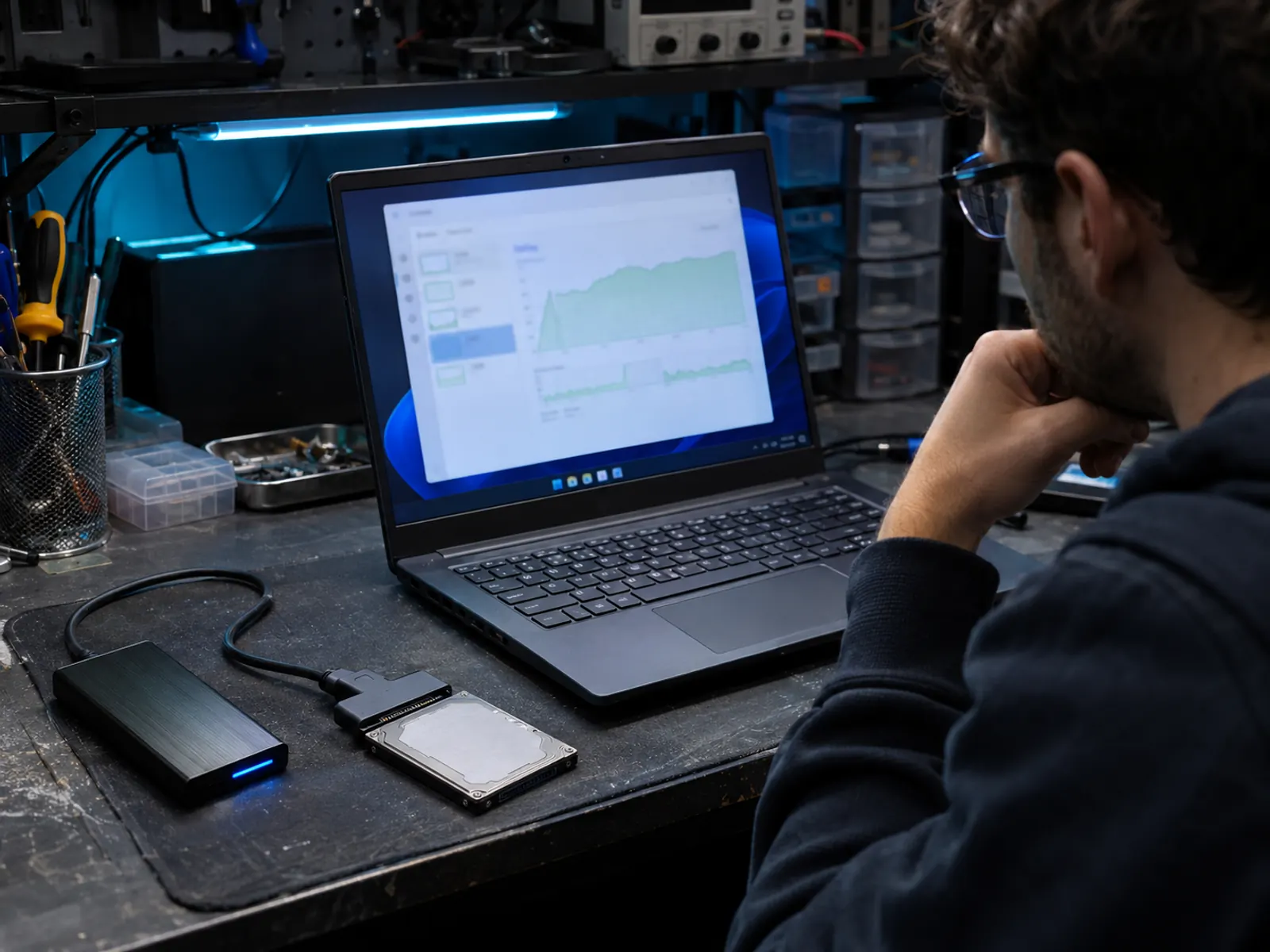
If an app you recognize is copying, syncing, updating, or indexing files, let it finish and compare afterward. If it should not be running, close it through its normal interface and see whether activity falls. Do not end a Windows process at random: some processes host multiple services, interrupt an update, or risk data loss.
The process listed in Task Manager may not identify the responsible file precisely enough. Resource Monitor can show paths and per-process reads and writes, but a technical path is not an instruction to delete a file. Backup software may reread files even when its name is not at the top of the list at every instant; antivirus may inspect the same files a sync app is handling. Look for a repeatable time relationship: does activity rise when a task starts and fall when it finishes? This is more useful than randomly disabling Windows components.
Check: after closing the identified app normally, do throughput and responsiveness return toward their usual level while the PC is idle?
If it didn’t work: record the process name, publisher, time, and symptom, then check the app maker’s documentation or ask IT support.
Rule out temporary background work
Connect the computer to power if the manufacturer recommends a particular performance mode for this diagnosis, close unnecessary apps, and let Windows finish updates in progress. An update may download, unpack, and write files in phases; forcing it to stop can cause other problems. Restart once if an installation is waiting for a restart, then observe the system without immediately launching several tests.
Open Settings > Windows Update to see whether an update is in progress or waiting for a restart. Then search Windows for Resource Monitor and inspect the Disk tab to see active files and processes. System file names can be difficult to interpret; do not delete a file based only on this view. Microsoft also recommends monitoring resource use in Task Manager and closing unused apps, but that does not mean one app explains every case.
Check: after the known task and a normal restart, does activity settle without freezing?
If it didn’t work: compare a normal session after startup and note software installed or updated just before the issue began. Do not use third-party “cleaners” to stop services.
Check free space and drive health
In File Explorer, open This PC and check the system volume’s free space. A nearly full drive can complicate updates and app work; it does not mean system folders should be deleted. Use Windows storage recommendations and review each category before removing anything, especially Downloads, cloud files, and previous installations.
On supported PCs and drives, open Settings > System > Storage > Advanced storage settings > Disks & volumes, then the drive properties. Windows critical warnings include low spare capacity, degraded reliability, or a drive switched to read-only. Microsoft says its built-in monitoring covers NVMe SSDs and not SATA SSDs or hard drives. No Windows warning is therefore not a health certificate.

For an external drive, first check the cable and port without moving a drive during active writing. If disconnects accompany the slowdown, also see the guide to an external SSD disconnecting under load. If an internal drive is no longer detected, use the checks for an NVMe SSD missing from BIOS. Do not remove an internal SSD while powered or open a device unless you are qualified.
Check: is there enough free space for normal tasks, and is there no health warning?
If it didn’t work: if a warning appears, back up important files as soon as possible, avoid software repair attempts, and contact the manufacturer or a technician. Prioritize irreplaceable data.
Compare throughput without mixing interfaces
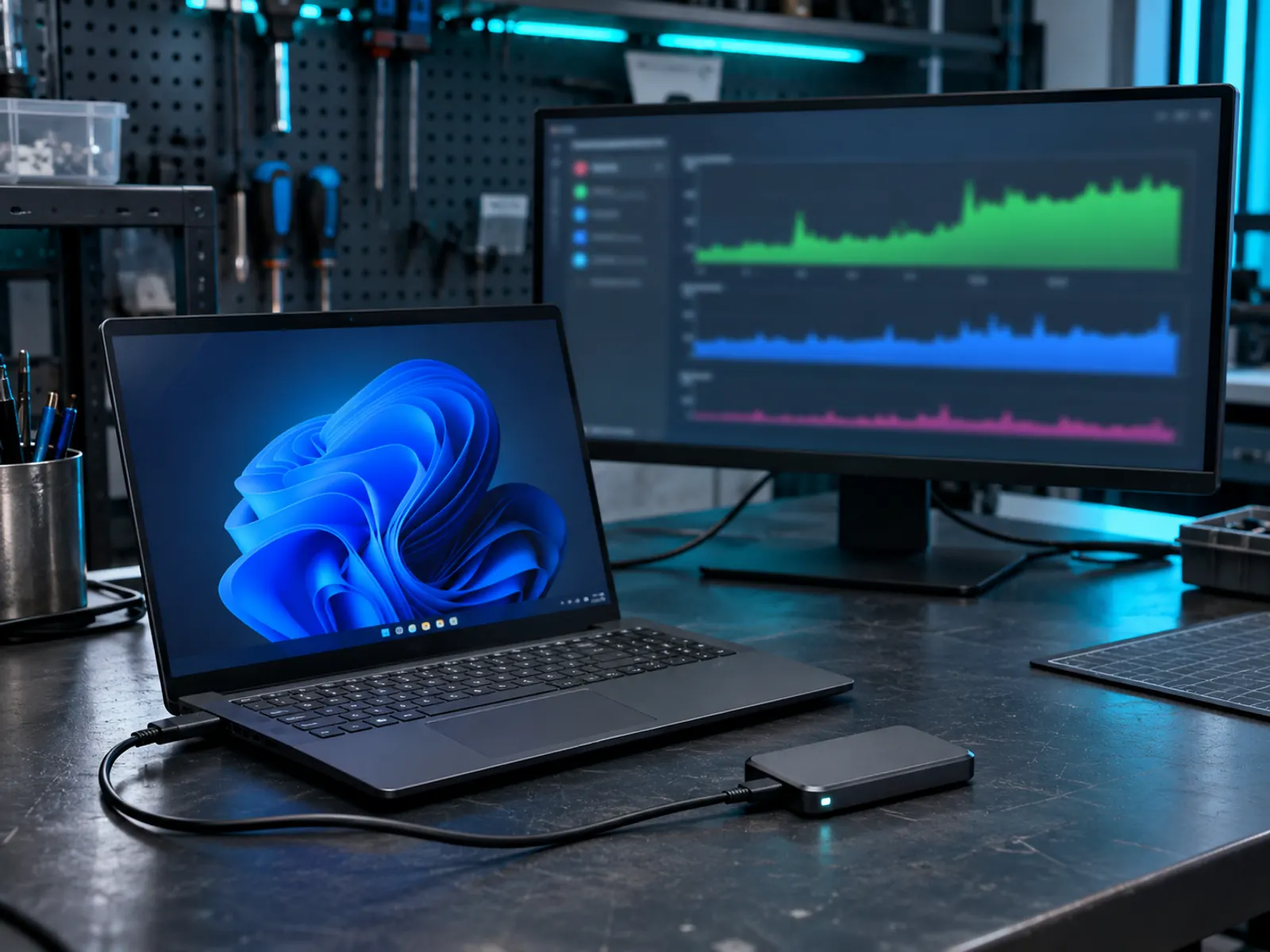
Interpret a low transfer rate in context. SATA, NVMe, USB, the external enclosure, cable, port, file type, and task can all change the result. Copying thousands of small files is not comparable to copying one large file. Displayed units can differ too: MB/s (megabytes per second) and Mb/s (megabits per second) are not the same. Compare measurements made under similar conditions with the exact model’s specifications.
If the drive slows after running for a while, note the elapsed time, the temperature shown by the manufacturer’s official tool if available, and whether the enclosure feels warm. SSD performance can vary with workload, cooling, cache, and controller; without an exact model, one universal temperature figure cannot diagnose failure. Let the PC cool in open air and ensure its vents are not blocked. Do not freeze an SSD, open it, or remove its heatsink while it is under warranty.
Check: does the issue recur with the same task and connection, without warnings or disconnects?
If it didn’t work: record the exact model, interface, measurement tool, and conditions, then ask the manufacturer whether this matches its specification.
Review Windows and drivers without risky resets
If the issue began just after software, a driver, or an update was installed, note that timeline. Install Windows updates through the usual Windows channel, and storage drivers only from Windows Update or the PC or SSD maker’s support site. Avoid unknown driver-updater tools. Do not update SSD firmware while the system is unstable, power may be lost, or the data is not backed up.
Also check scheduled backup and sync tasks, antivirus, and game-library apps. Pause syncing temporarily only with the app’s normal controls, then turn it back on. Do not globally disable antivirus or security services to “test.” If several programs access storage at the same time, high active time may simply reflect their combined workload.
The Optimize button in Windows “Defragment and Optimize Drives” does not replace drive health or throughput diagnosis. Windows says its scheduled optimization handles SSDs with TRIM. Avoid repeatedly forcing defragmentation on an SSD and registry or service recipes copied without context.
Check: after official updates and background tasks finish, is the symptom gone during normal use?
If it didn’t work: gather relevant screenshots, the PC and SSD models, Windows and driver versions, and give them to the manufacturer’s support team.
When to stop troubleshooting
Stop write tests and prioritize a backup if Windows reports a reliability warning, the drive becomes read-only, files become unreadable, the drive vanishes, or the PC repeatedly freezes. If the data is critical or copying fails, avoid repeated restarts and ask a recovery specialist before reinstalling Windows, initializing, or cloning the drive.
A burning smell, unusual noise from a mechanical drive, a physically damaged SSD or battery, or extreme heat calls for shutting the device down and getting professional help. Do not touch internal components while powered. An SSD without moving parts can fail without making a sound.
For a broader view of PC space and status, the ElectronixLab PC Health tool can provide additional information; it does not measure storage queues or certify SSD health. For further reading, see external SSD disconnects and an NVMe SSD missing from BIOS.
Frequently asked questions
Does 100% disk active time mean my SSD is dead?
No. It means Windows considers the drive busy. A background task, many small operations, or queued requests can raise the number. Warnings, errors, freezes, and disconnects are stronger evidence.
Why is throughput low when active time is 100%?
The drive may spend its time handling many short requests instead of transferring one large file. Throughput also depends on workload, cache, interface, controller, driver, and drive condition.
Should I disable SysMain or Windows Search?
Not as a first step. These services have legitimate Windows functions, and a process name does not prove it is faulty. Identify the workload first and check Microsoft or the manufacturer’s advice for your case.
My SSD is nearly full. Should I delete system files?
No. Use Windows storage recommendations, review each category, and back up before deleting. Do not manually remove Windows folders or files whose role you do not know.
Windows shows no warning. Is the drive healthy?
Not necessarily. Microsoft says its built-in health screen monitors NVMe SSDs, not SATA SSDs or hard drives. Check the maker’s official tool and keep important files backed up.
Which tool should I use to test transfer speed?
Start with the activity already visible in Windows, and run a throughput test only after a backup and when there are no failure signs. Compare workload and units with the exact model specification; a benchmark alone cannot confirm health.
Sources
- Microsoft Support, Tips to improve PC performance in Windows — accessed November 8, 2026.
- Microsoft Support, What to do about a critical warning for a storage device — accessed November 8, 2026.
- Microsoft Support, Storage settings in Windows — accessed November 8, 2026.
- Microsoft Support, Defragment / optimize your data drives in Windows — accessed November 8, 2026.
Be the first to leave a comment.