Quick Fix — Isolate the Network
If Wi-Fi 6 is connected but slow on Windows 11, compare devices and locations before changing the adapter.
- Compare the same device in the same place using the same test and server, then move closer to the router without changing the test.
- Check whether other devices on the same Wi-Fi are slow at the same time.
- Restart the PC and router according to the maker’s instructions, then run one new comparison.
- If possible, compare Ethernet or another network to separate Internet access from the Wi-Fi link.
Check: improvement near the router points toward range or obstructions; several slow devices point toward the router or Internet service. If only this PC is slow: check its adapter and driver next.
Wi-Fi 6 connected but slow on Windows 11 does not automatically mean the PC’s wireless adapter is faulty. Real throughput depends on Internet service, router, band and channel, distance, obstacles, other clients, and the PC’s adapter. Wi-Fi 6 improves efficiency in busy networks; it does not guarantee a particular speed for each device.
Decision table
| Comparison result | Next area to inspect |
|---|---|
| Several devices are slow near the router | Internet service, router, or network demand. |
| The PC improves near the router | Distance, obstacles, or equipment placement. |
| Only this PC stays slow on multiple networks | Adapter, driver, or local activity. |
| Only one test or server appears slow | Repeat with the same app and a comparable server. |
Compare devices and locations first
Use the same measurement app, server, and location where practical. Pause large transfers and downloads. First compare the PC with a phone or another computer on the same network. Then repeat near the router. Do not treat a Wi-Fi test and a cellular test, or tests against different servers, as equal conditions.
If every device slows down, check Internet service, router, and network demand before changing Windows. If only one device is affected, focus on its adapter, driver, location, and local activity. If performance drops only at a distance, walls, floors, furniture, and interference can weaken the radio path; a newer Wi-Fi generation does not remove those physical limits.

Read adapter information without confusing link rate with Internet
In Windows 11, open Settings > Network & Internet > Wi-Fi to confirm which network the PC joined. For a text report, open Terminal or Command Prompt and run:
netsh wlan show interfacesThis Microsoft command lists WLAN interfaces and available connection information. Radio link values describe the wireless connection; they are not a download-speed measurement from a website. Also note the adapter’s name and model in Device Manager > Network adapters. The PC, router, and driver must support the features being used for Wi-Fi 6.
- Applies to: Windows 11. Compare the same PC near the router and at its normal location. Check: note whether signal or throughput improves near the router. If it does not: compare another device in the same spot.
- Run
netsh wlan show interfacesand record the state and available details for the active interface. Check: Windows sees the interface and reports it connected to the expected network. If the interface is missing or disconnected: inspect the adapter and driver; do not start with a network reset. - Test the PC on another known network and compare multiple devices on the usual network. Check: a problem on one router differs from one that follows the PC. If the PC is slow on both networks: check its driver, antenna, and local software activity.
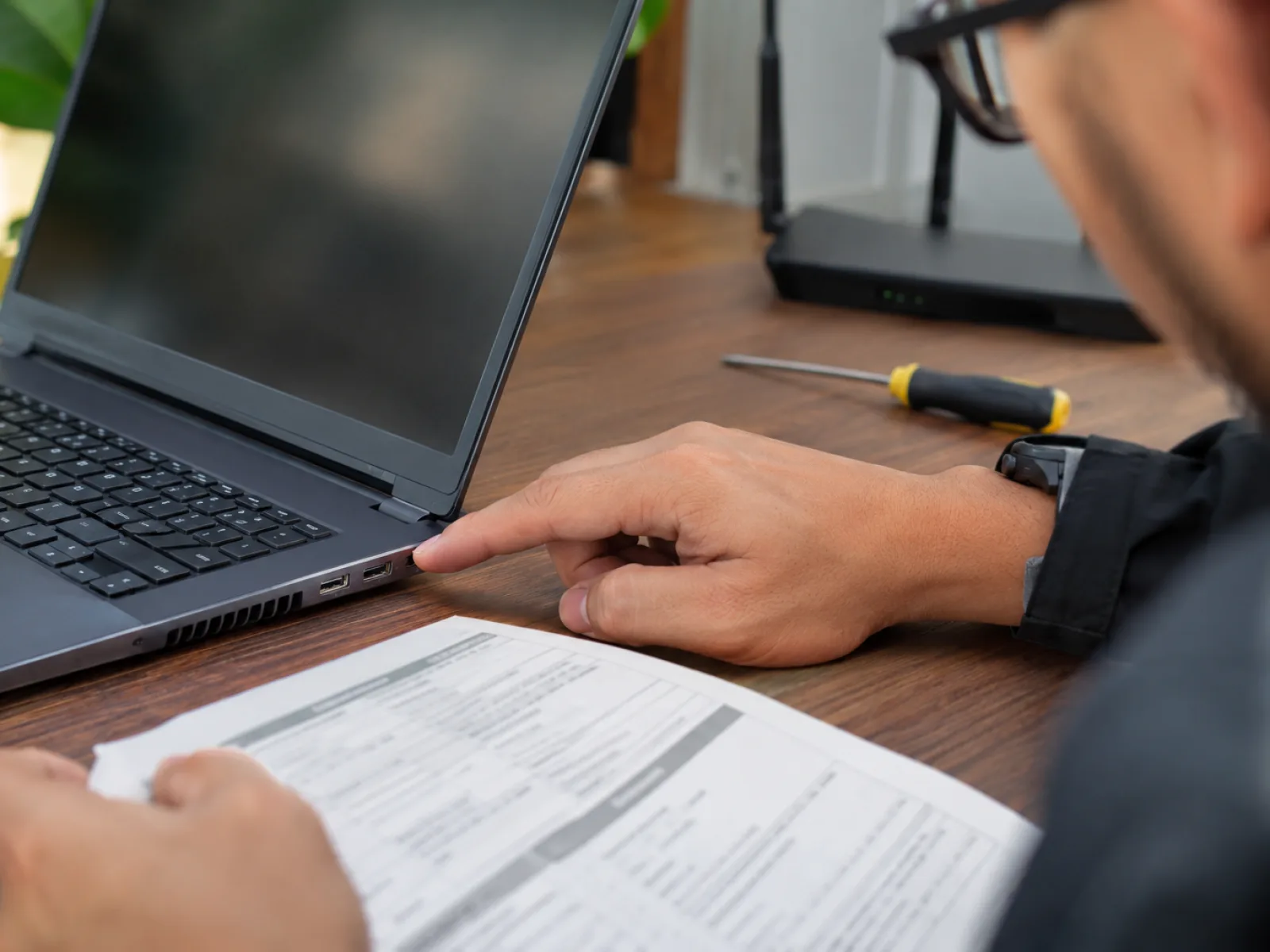
Check the driver and network settings
Install available Windows updates, then check the PC maker’s support page for the Wi-Fi driver intended for the exact model. Avoid third-party driver sites and unrelated BIOS updates. If the slowdown began right after a driver change, record its version and use only the documented rollback option for that adapter.
Check whether a VPN, proxy, cloud sync, or download is consuming bandwidth or changing the route. Turn these off only for a temporary comparison that you can reverse. Do not change advanced adapter options at random; names and effects vary by manufacturer and driver.
When the router or provider may be responsible
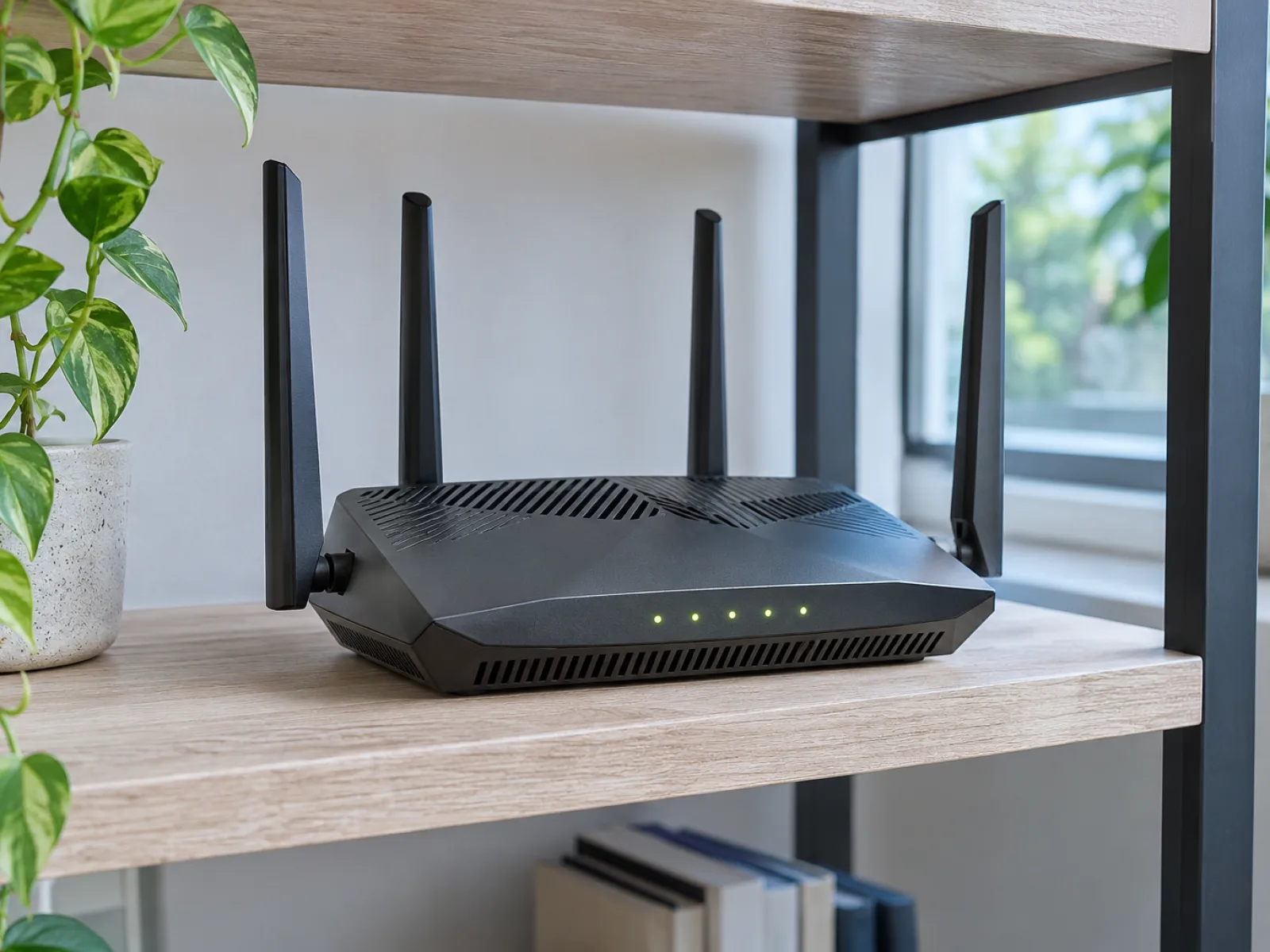
If several devices are slow near the router, check its connection status and indicator lights using its manual. Restart it once, then compare again. Channel, width, and band settings depend on the router and region; do not pick values without checking the model manual and local configuration. If the problem also affects Ethernet, contact your provider with the time and results of repeatable comparisons.
If only one part of the home has poor service, temporarily place the router in an open, central location instead of inside a closed cabinet. A repeater or mesh system may help in some layouts, but a poorly placed relay can also reduce throughput. To separate Internet access from Wi-Fi, see our Windows 11 Wi-Fi connected without Internet diagnosis and Intel Wi-Fi 6 AX201 Code 10 guide.
Common mistakes
Do not treat the Wi-Fi 6 label as a promised Internet speed, compare tests against different servers, or install drivers from unofficial sites. Change one factor at a time so you can identify what actually helped.
Frequently Asked Questions
Why is Wi-Fi 6 slow when Windows says I am connected?
“Connected” confirms a network association, not fast Internet throughput. Compare the same PC near the router and check whether other devices are also slow.
Does Wi-Fi 6 guarantee faster speed on every device?
No. Router, adapter, driver, band, signal, congestion, and Internet service matter too. Available features depend on the exact devices.
Does netsh wlan show interfaces measure Internet speed?
No. It shows information about WLAN interfaces and the Wi-Fi connection. Use a controlled throughput measurement for Internet access and compare like conditions.
Should I reset Windows network settings?
Not as a first step. Compare devices and networks, check the maker’s driver, and reset only after recording settings you may need to configure again.
Sources and next step
Microsoft Support, Fix Wi-Fi connection issues in Windows (consulted November 12, 2026); Microsoft Learn, netsh wlan command reference; Wi-Fi Alliance, Wi-Fi MAC/PHY overview. Last updated: November 12, 2026. Continue with our toolbox or tutorial catalog.
Be the first to leave a comment.