Quick Fix — separate cable, router, and Windows
- Check both Ethernet plugs are seated and a link light appears.
- Try another cable and LAN port on the router; do not use its WAN port.
- Restart the router normally, then compare another device on the same network.
- In Windows, open Settings > Network & Internet > Ethernet and run Network troubleshooter.
Check: if no device gets online, check the router or provider. If only this PC remains offline: inspect its IP address, gateway, and driver before resetting networking.
Ethernet connected but no Internet in Windows 11 means there is a local link, not necessarily a working path to the router or Internet. The cable may negotiate a link while the router has no WAN service, Windows receives invalid IP settings, or name resolution fails. Troubleshoot from the physical connection to the local network, then Internet access.
Find out whether one PC or the whole network is affected
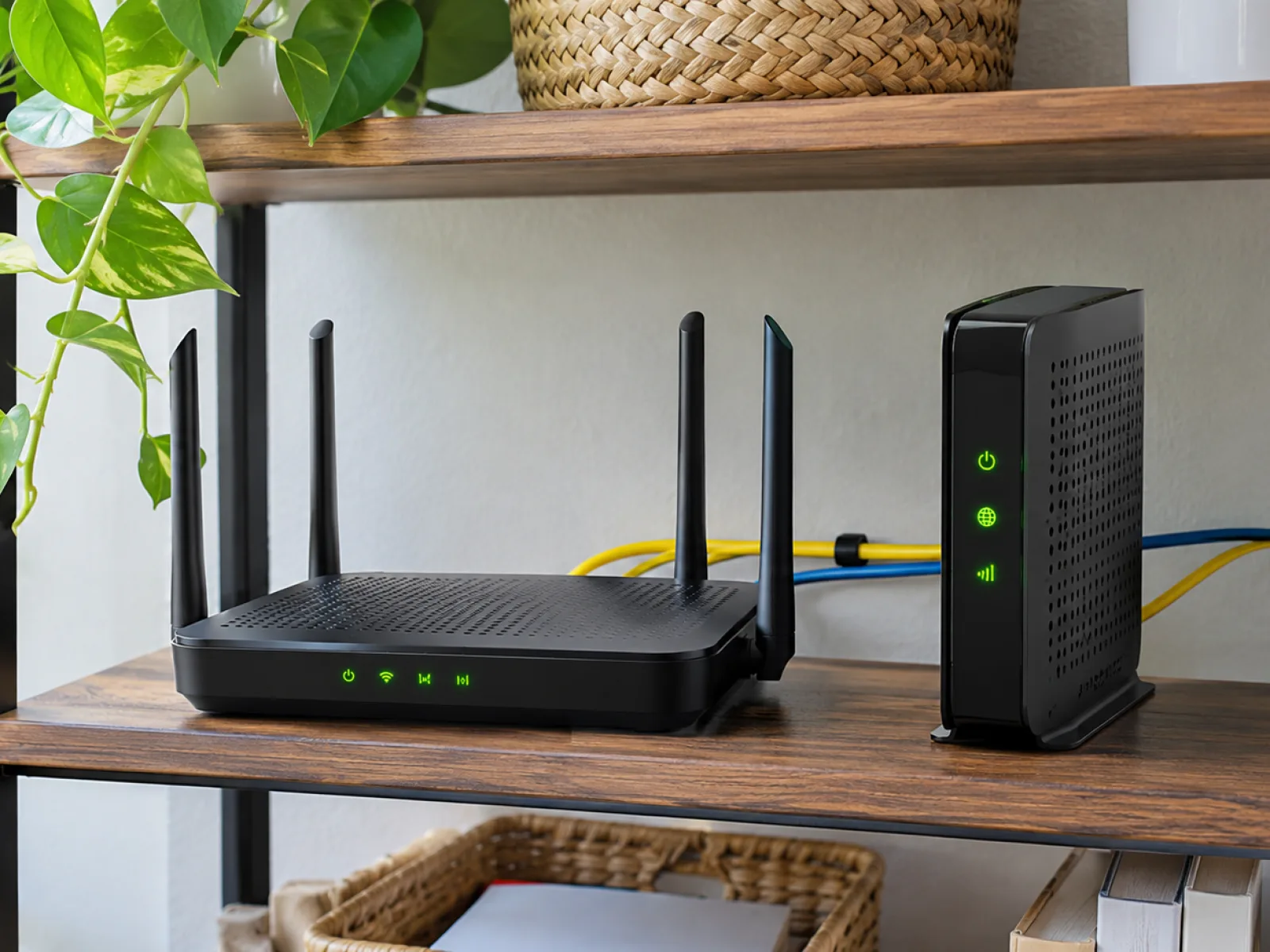
Check whether a phone or another computer can reach the Internet through the same router. If it is also offline, do not start by changing Windows settings; check modem/router lights and service status. If other devices work, focus on this PC’s port, IP address, and Ethernet adapter. Note whether the issue started after an outage, cable change, or update.
| Result | Next step |
|---|---|
| No device has Internet | Check modem, router, and provider. |
| Another cable restores connection | Replace the faulty cable. |
| Wi-Fi works on this PC, Ethernet does not | Check wired port, adapter, and settings. |
| IP address starts with 169.254 | Windows did not receive a usable DHCP lease. |
Check cable and port without changing several things
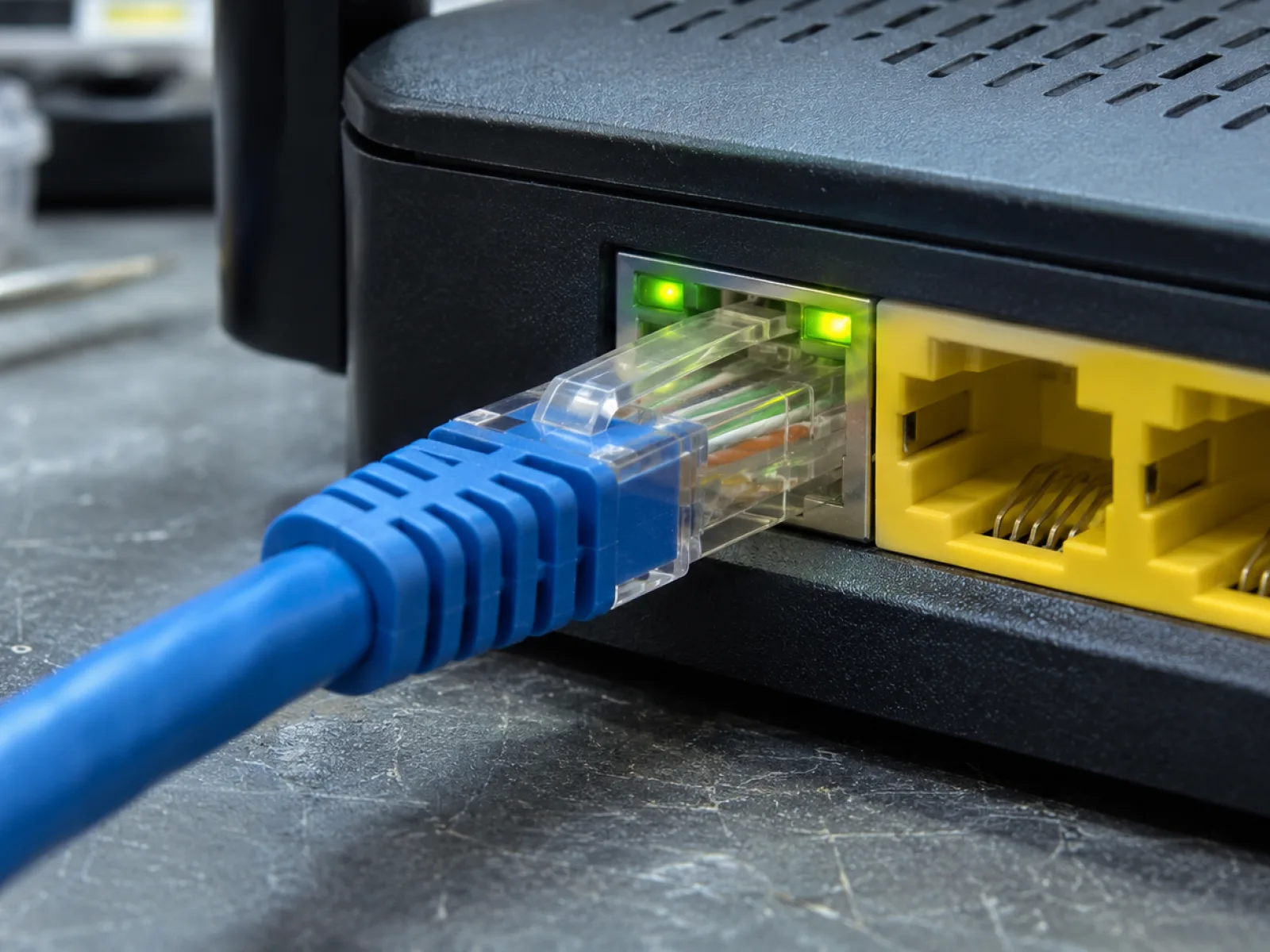
- Applies to: Ethernet says connected but pages fail. Unplug and reseat both ends; inspect cable and plugs without forcing them. Try a known-good cable and another LAN port. Check: is there link and activity? If no light appears with multiple cables: test another device or adapter to isolate the port.
- Restart the router using its normal switch or procedure and wait for lights to return. Do not press Reset; it can erase configuration. Check: do other devices get online? If none work after restart: contact the provider and avoid a factory reset.
- On a school or work network, check whether a captive portal, VPN, or device registration is required. Do not bypass network policy. Check: ask the administrator whether your MAC address or port needs approval. If another workstation works on the same port: continue on this PC.
Inspect the IP address and gateway
Open Terminal or Command Prompt and run ipconfig. Find the Ethernet adapter, IPv4 address, subnet mask, and default gateway. An address beginning 169.254 suggests Windows did not obtain a DHCP address from the router; it does not simply mean Internet is slow. If the gateway is missing, check cable, DHCP, and network configuration before changing DNS. Do not copy an IP address from a forum because two devices could conflict.
If the network uses DHCP and your settings are not static, run ipconfig /release followed by ipconfig /renew. Check: does ipconfig now show an address and router gateway? If renewal fails: try another port and check router DHCP; do not assign a random IP.
Separate local link, Internet access, and DNS
If an IP address and gateway exist, try more than one website and another app; one site may be unavailable. Check whether a VPN or proxy is active and compare another permitted network temporarily. If you use network commands, follow Microsoft’s steps in order and record the result; do not assume DNS is the cause just because a browser shows an error.
You can compare name resolution with nslookup example.com. If it returns an address but the browser remains offline, inspect proxy, VPN, browser, and firewall rather than replacing DNS. If it fails while a gateway exists, DNS on the router, provider, or network may be involved. Do not disable Windows Firewall to test.
Update or reset networking only after simple checks
In Device Manager, inspect the Ethernet adapter, status, and any error code. Get its driver through Windows Update or the PC or network-card maker. If the issue began after an update, note the version and consult the maker before rolling back. Windows Network Reset removes and reinstalls adapters and may require VPN or virtual-adapter setup again; use it after simpler checks and keep necessary connection details.
If the PC has a valid address and several devices are offline, the router or provider may be at fault. Contact them with observed lights, other-device status, and when the outage began.
An Ethernet link light reports a physical connection between the adapter and switch; it does not confirm the router received an Internet address from the provider. A valid local address and gateway narrow the problem but still do not prove external access. Compare one device on the same router, then, if your administrator permits it, compare one other network. Avoid changing IPv4 from automatic to manual unless the network owner gives you the exact values. On a managed network, DNS, proxy, or access controls may be centrally assigned.
Common mistakes
Do not press Reset when you mean restart, enter a random IP, or turn off the firewall. Change one thing at a time so you can tell which check affected the result.
Frequently Asked Questions
Why does Ethernet say connected but no Internet?
The cable can establish a local link while DHCP, router, WAN, or DNS fails. Compare other devices, then check IP and gateway.
Is a 169.254 address normal?
It often appears when Windows does not receive a usable DHCP lease. Check cable, port, and router DHCP service.
Should I change DNS immediately?
No. Check IP, gateway, and other devices first; DNS is only one possible cause.
Does Network Reset have side effects?
It can remove virtual adapters and VPN settings. Keep configuration details before using it.
Sources and next step
Microsoft Support — Fix Ethernet connection problems in Windows. Last updated: November 12, 2026.
Be the first to leave a comment.