Quick Fix — Try This First
- If your Android phone is connected to Wi-Fi but has no internet, check whether another device on the same network can open a new page.
- On the phone, turn Wi-Fi off and back on, then reconnect to the same network. Check for a sign-in notification or captive portal.
- If only this phone is affected, temporarily disconnect a VPN or return a custom Private DNS setting to Automatic, then retry one site.
- If every device is offline, restart the router using its normal power control and check the internet provider’s service status; do not factory-reset the router.
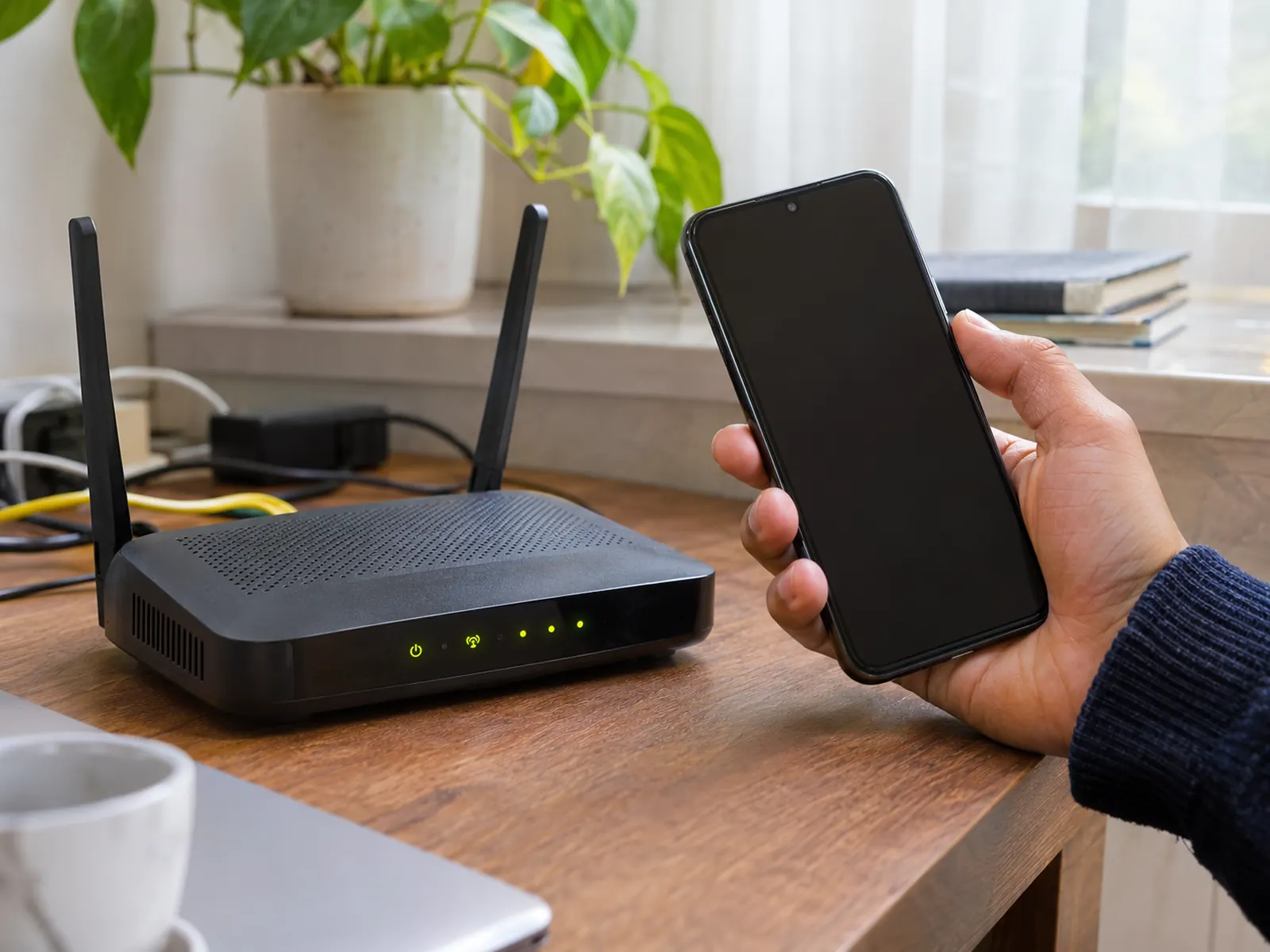
An Android phone connected to Wi-Fi but with no internet can have a phone-side setting problem, a network sign-in page that has not opened, or an outage beyond the router. First compare another device on the same Wi-Fi. That one check tells you whether to focus on Android or the home network; it does not require deleting saved networks or resetting the phone.
Symptoms and diagnosis
Look for the exact behavior, not just the Wi-Fi icon. The phone may say Connected while pages fail, a public network may wait for sign-in, or only one app may be offline. If mobile data works but Wi-Fi does not, that narrows the path to the current Wi-Fi network or the phone’s settings for that network.
| Symptom | Likely cause | Next action |
|---|---|---|
| Several devices on the same Wi-Fi cannot browse | Router, modem, or internet provider | Check the router’s internet indicator and provider status; restart equipment normally. |
| Only this Android phone is offline | Saved network state, VPN, Private DNS, or sign-in page | Reconnect to Wi-Fi, check for sign-in, then test phone-side network settings. |
| Browser opens pages but one app does not | App outage, app data, or app-specific restriction | Test another app and a browser before changing Wi-Fi settings. |
| Public Wi-Fi connects but shows no access | Captive portal not completed | Open a browser and complete the network’s own sign-in page. |

Fix the connection in order
1. Compare the phone with another device
Connect a laptop or another phone to the same Wi-Fi network and open a new website. If both devices fail, the fault is probably upstream of the Android phone: router, modem, service outage, or the internet account. Check the router’s normal status lights and your provider’s outage information. If the other device works, keep the router unchanged and continue with the phone.
Test one app and one browser on the phone. If only a single app fails, its service may be offline or the app may need a restart; that is different from a Wi-Fi connection failure. Also compare with mobile data only if your plan allows it, and turn mobile data back off after the comparison if you want to avoid using it.
Check: you know whether the failure affects this phone, one app, or every device. If all devices fail: skip phone resets and check the modem/router and provider first.
2. Reconnect to Wi-Fi and look for a sign-in page
Open Android’s Settings → Network & internet → Internet screen where available. Turn Wi-Fi off, wait for its state to change, then turn it on and reconnect to the intended network. Menu names vary by Android version and phone maker; search Settings for “Internet” or “Wi-Fi” if the path differs.
For hotel, school, airport, or guest Wi-Fi, open the notification shade and look for a sign-in prompt. If none appears, open a browser and visit a plain website to trigger the network’s captive portal. Use only the network’s own login page. Do not install a certificate or app offered by an unfamiliar portal merely to get online.
If the network is one you control and its saved password may have changed, choose Forget for that network and join it again with the current password. Forgetting removes only that saved network profile; it does not reset all phone connections. Make sure you know the password before forgetting it.
Check: the phone shows internet access and a browser page loads. If it still says connected without internet: keep the same network selected and check VPN or Private DNS only if you use them.
3. Check VPN and Private DNS settings you changed
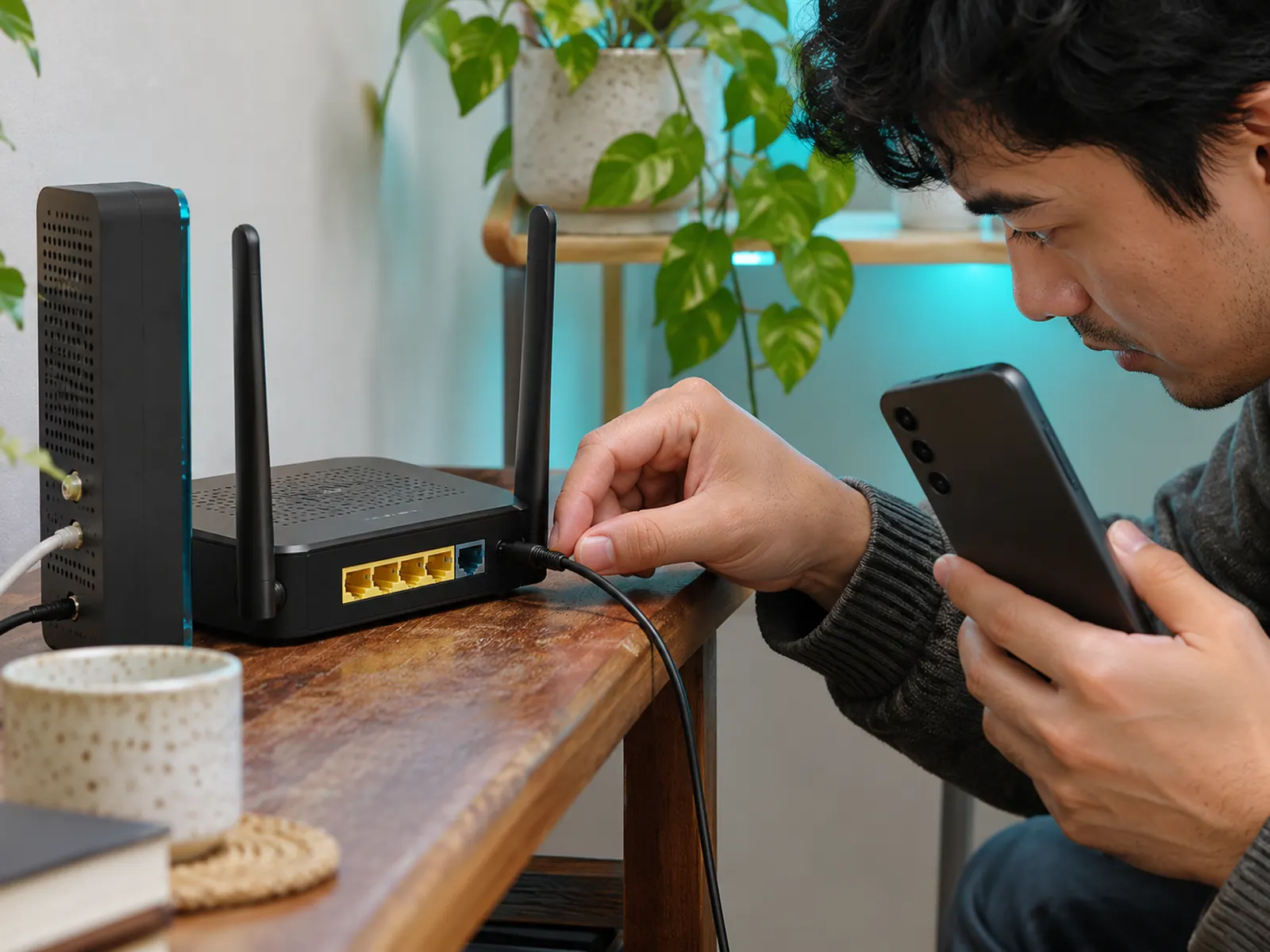
A VPN or custom DNS configuration can affect name lookup or traffic while Wi-Fi itself remains connected. If you deliberately installed a VPN, disconnect it briefly and reload one site. If you manually configured Private DNS, return it to Automatic temporarily for a comparison. Restore the previous setting if it makes no difference.
Android menu names vary. Search Settings for VPN or Private DNS; Google’s Android help explains advanced network settings and VPN setup. Do not enter a random DNS hostname, disable device-management protections, or remove a work VPN to troubleshoot a managed phone. If your administrator requires a VPN, use the approved profile and test a non-restricted site.
Check: the same browser page loads with the VPN disconnected or the custom DNS setting returned to Automatic. If nothing changes: restore the original setting and continue; the connection failure is elsewhere.
4. Restart the phone and router only where the comparison points
Restart the phone from its power menu, reconnect to the Wi-Fi, and test the same site. Restart the router only when several devices fail or its normal indicators show that the internet link is down. Use the router’s power button or follow its manual. Do not press a recessed Reset button: a factory reset can erase Wi-Fi names, passwords, and provider settings.
If only one Android device remains offline, record the network name, Android version, whether mobile data works, and whether VPN or Private DNS changed the result. Then use the manufacturer’s support instructions for that phone. A factory reset of the phone is not a first-line Wi-Fi fix.
Check: the phone reconnects and a fresh webpage loads after the restart. If it did not: try another trusted Wi-Fi network. If the phone fails on multiple networks while other devices work, focus on the phone’s network settings or manufacturer support.
Common mistakes
- Resetting the phone before checking whether other devices are also offline.
- Forgetting a network without knowing its current password.
- Pressing the router’s factory Reset button when a normal restart is enough.
- Changing VPN, Private DNS, router settings, and app data at the same time, which hides which change mattered.
- Assuming every app failure proves Wi-Fi is down. Test a browser and a second app.
Troubleshooting if it still fails
- Every device is offline: inspect the modem/router’s internet connection and provider outage status. If the provider link remains down after a normal restart, report the outage with the router’s indicator state.
- Only this phone fails on one network: forget and rejoin that network only if you know its password, then compare VPN and Private DNS settings you personally changed.
- This phone fails on several trusted networks: restart it, check for a pending system update when mobile data or another network is available, and use the phone maker’s network diagnostics. A persistent failure across networks is stronger evidence of a phone-side issue than one router failure.
Keep the comparison simple: one device on the same Wi-Fi, one browser page, and one setting change at a time. That separates a local internet outage from an Android profile problem without erasing unrelated saved networks.
When to stop
Stop changing settings if this is a managed work or school phone and VPN, Private DNS, or Wi-Fi configuration is locked by policy. Do not expose the phone to an unknown public hotspot to test sensitive work apps. If the router has damaged wiring, overheating, or a burning smell, disconnect power safely and use the provider or manufacturer’s repair process instead of opening the equipment.
Related guides
- Diagnose Wi-Fi connected but no internet on Windows 11 — useful to compare whether another device shares the outage.
- Check a smart plug that cannot join a 2.4 GHz Wi-Fi network.
- Troubleshoot an Intel Wi-Fi adapter error on a Windows PC.
FAQ
Why does my Android say connected to Wi-Fi but no internet?
The phone can be connected to the router while the router has no internet, or a captive portal, VPN, or custom DNS setting can block access. Check another device on the same Wi-Fi before resetting the phone.
How can I tell if the problem is my phone or router?
Connect a second device to the same Wi-Fi and test a new webpage. If both fail, investigate the router or provider; if only the Android phone fails, check its saved network, sign-in prompt, VPN, and Private DNS.
Should I reset network settings on Android?
Use that only after the comparison and simpler reconnect steps fail. The reset can remove saved Wi-Fi networks and Bluetooth pairings, so check the phone maker’s instructions and make sure you have the required passwords first.
Why does hotel Wi-Fi connect but not open websites?
The network may require a captive-portal sign-in. Open a browser and complete the hotel’s own login page; do not install an unknown certificate or app to get access.
Sources
- Google Android Help: Connect to Wi-Fi networks on your Android device
- Google Android Help: Manage advanced network settings
- Google Android Help: Connect to a VPN on Android
Last updated: November 11, 2026.
Be the first to leave a comment.