Quick Fix — find the source of microphone crackling
- Record ten seconds of silence followed by speech in a local recorder.
- Connect the mic directly to the PC without a hub, then compare another port.
- Move its cable away from chargers and displays; compare battery and AC if practical.
- Check Settings > System > Sound > Input level and repeat the recording.
Check: if noise follows the mic to another computer, inspect its cable or hardware. If only one app or port crackles: check that software or port before replacing the device.
A USB microphone that crackles may pick up room noise, clip at a high input level, or have a cable, port, or software-processing issue. One listen cannot locate the cause. Compare short recordings and change one variable at a time to see whether the fault follows the microphone, computer, or app.
Make a repeatable test
Open Settings > System > Sound > Input, select the USB mic, and watch the meter while speaking at a steady distance. Record a few seconds of silence followed by a normal sentence. Avoid calls for the first test: an app can add noise reduction, automatic gain, or effects. Keep the recordings so you can compare them at the same level.
| Symptom | Next check |
|---|---|
| Crackle during silence | Compare another port, cable, or computer. |
| Noise when cable moves | Inspect plug; test a compatible cable. |
| Voice clips on loud syllables | Lower the input level. |
| Local take is clean, call is noisy | Check app input and effects. |
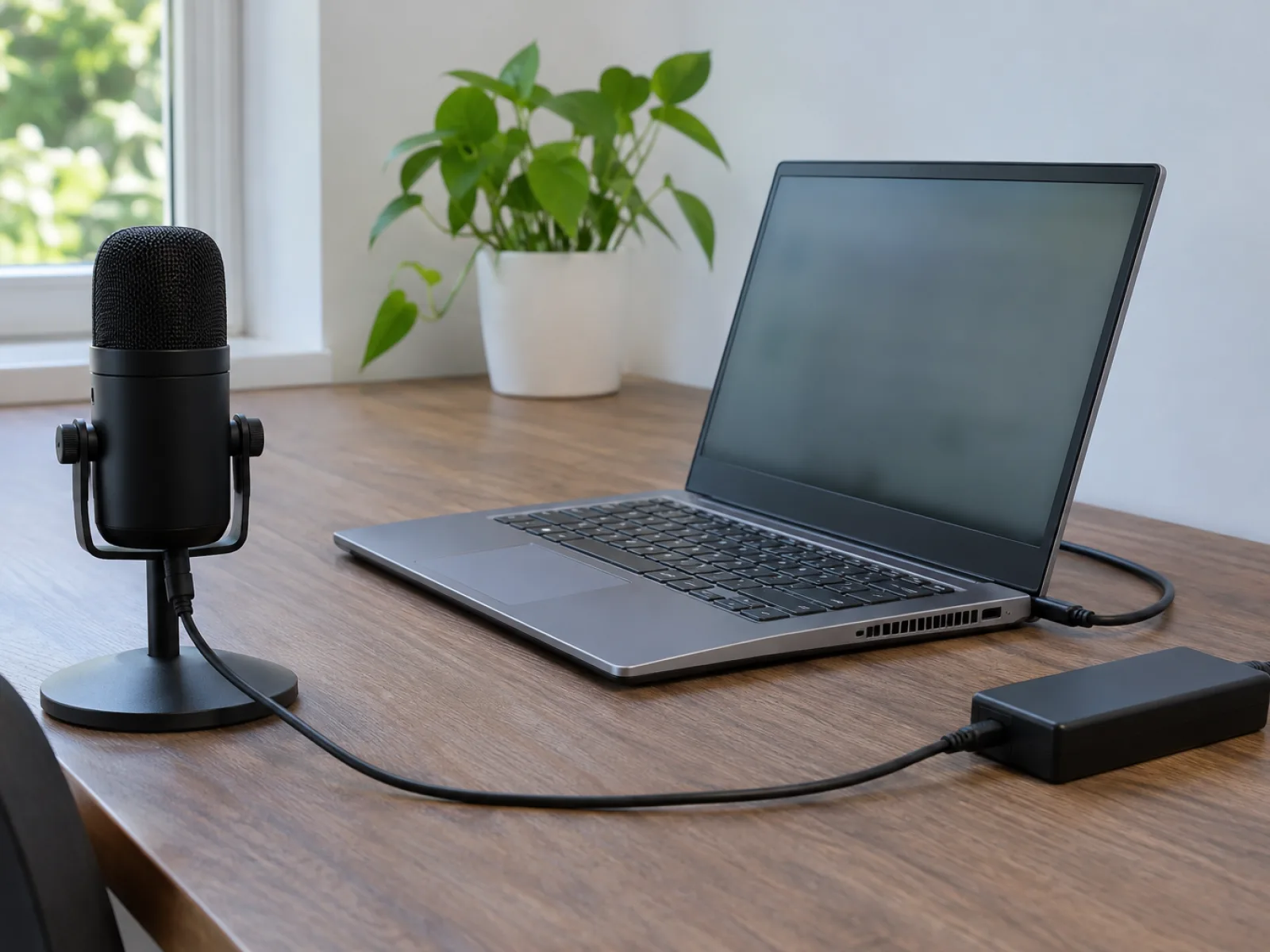
Lower input level and confirm the selected mic
- Applies to: distortion on loud syllables. Lower the Sound > Input level slightly and replay the same sentence. Check: is speech cleaner but still audible? If crackle remains at a low level: restore the level and investigate elsewhere.
- In classic recording controls, confirm the selected device. If Microphone Boost appears, note its value and reduce it by one step. Options vary by driver. Check: watch the meter during silence. If it moves while you are not speaking: compare in a quiet room and another app.
- In the call app, select this mic, turn off one audio effect temporarily, and test again. Check: compare the local recording with the app. If only the app crackles: reset its audio settings or choose its input explicitly.
Isolate cable, USB port, and power
Unplug the mic before moving the cable. Inspect the plug and cable without bending it near the connector. If detachable, use a compatible replacement. Connect directly, then compare another port. A hub or dock adds a link but is not automatically the cause. Follow the maker’s instructions about unplugging a powered device.
On a laptop, compare battery and AC power without using a damaged charger. If noise appears only with the adapter, confirm it is approved by the maker. Never remove a safety earth. Check: repeat at the same level. If the fault follows the charger across ports: ask the maker to inspect the supply.
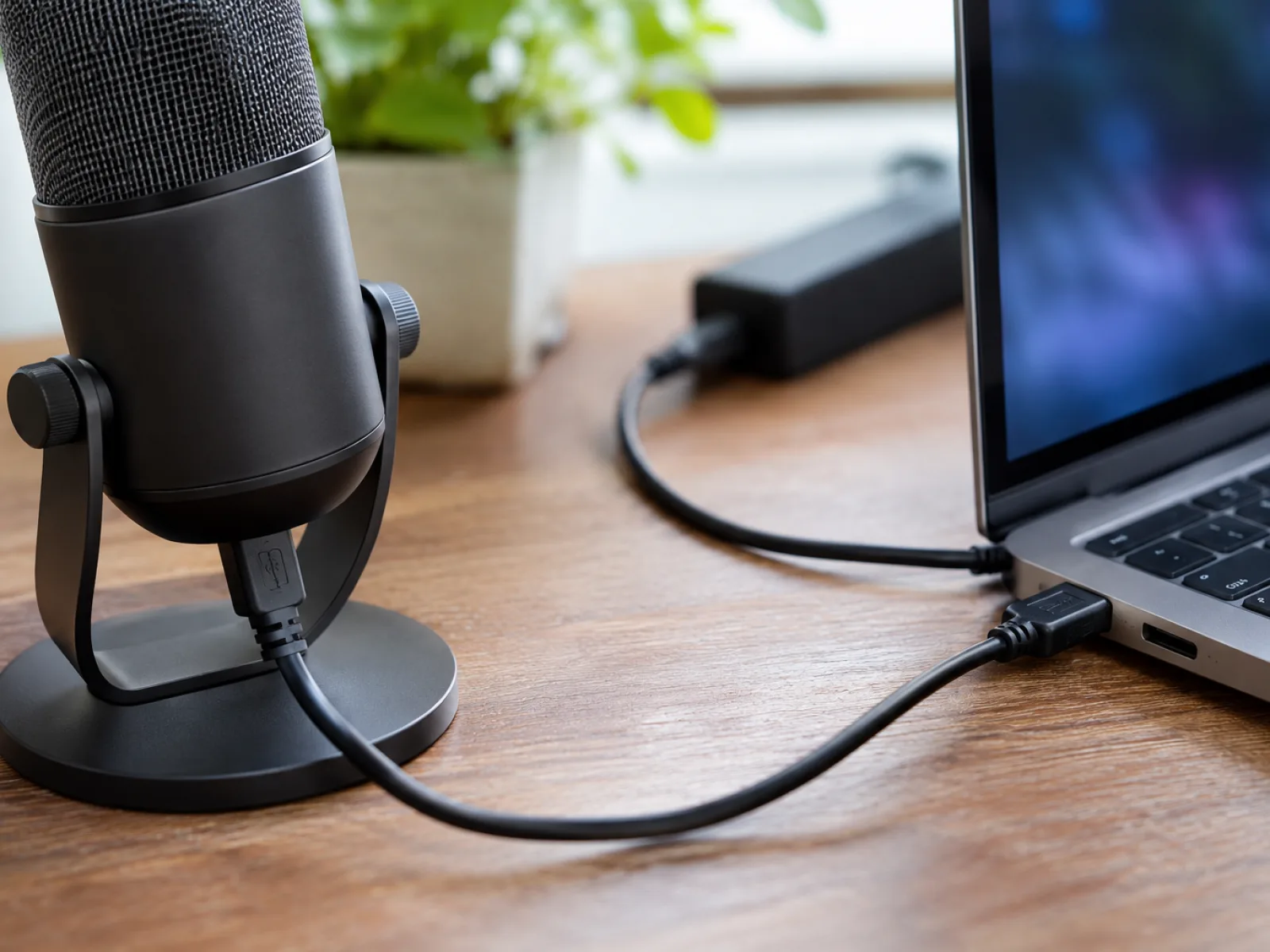
Compare another computer and inspect drivers
Test the microphone on another compatible computer with the same app and a similar level. Change only the port if possible. Move a long cable away from power bricks and motors to see whether sound changes, without assuming every crackle is interference. Keep the mic away from a fan or speaker if noise follows its activity. A filter may hide hiss but cannot fix an intermittent connector.
In Device Manager, find the mic under Audio inputs and outputs. Note its status and any error code. Install drivers through Windows Update or the maker’s official support site; avoid unknown automatic driver tools. Restart and make the same recording. If the problem began after a driver change, roll back only if Windows offers that option.
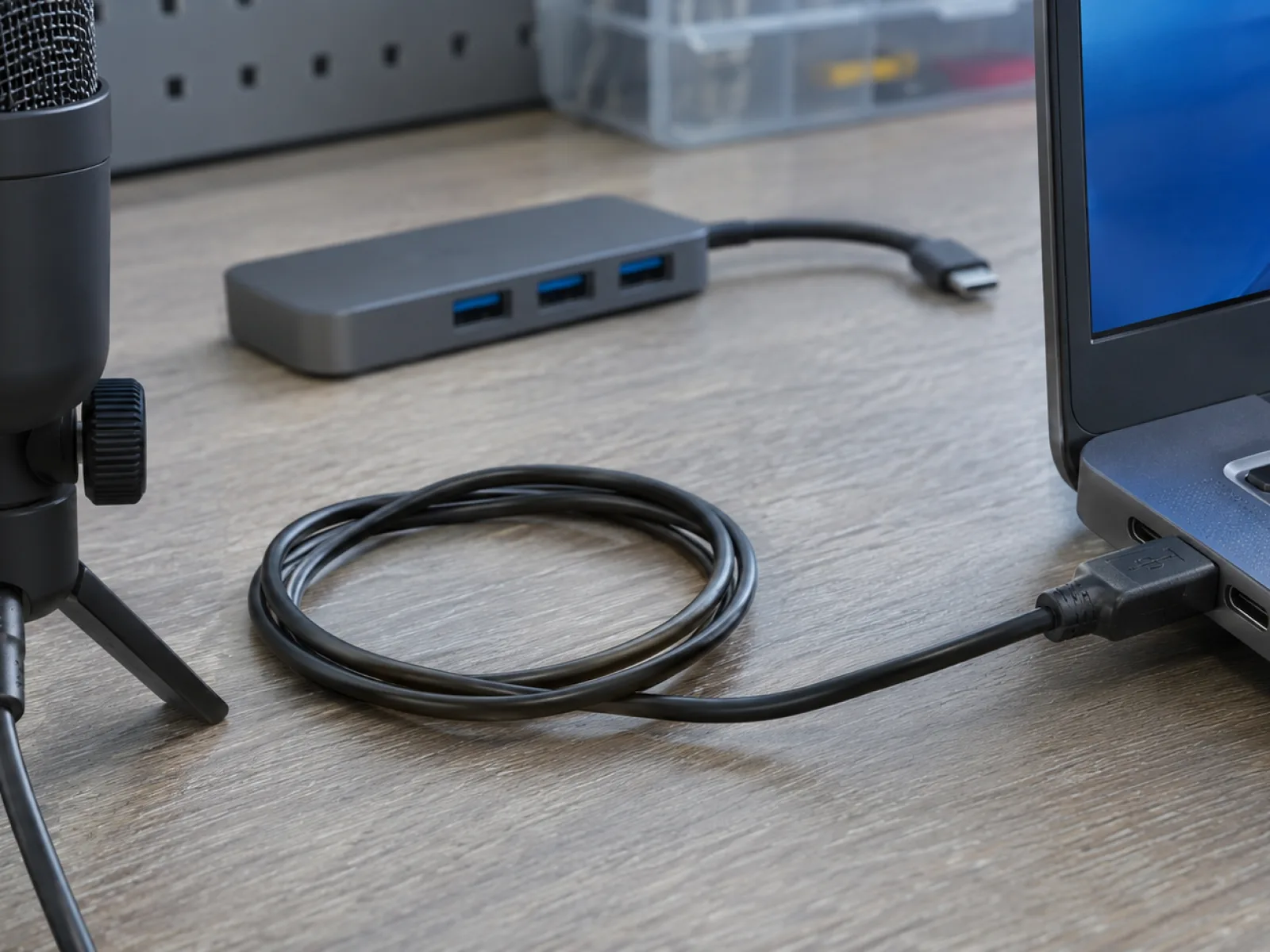
Interpret the cross-checks
If a local recording is clean but a call is noisy, the mic and cable are not automatically at fault: the app may use another input or add an effect. If multiple apps produce noise on this PC, compare another computer. If the fault does not follow the microphone, focus on the port, power, or driver. If crackling remains after changing the port and compatible cable, stop random setting changes and ask the manufacturer for help. Keep a note of each port, input level, and recording result; this avoids repeating the same checks and gives support a useful symptom history.
When to arrange repair
If noise follows the mic across two computers, ports, and a compatible cable, contact its maker. Stop testing if the connector gets hot, moves abnormally, or smells. If several USB mics crackle only on one PC, ask its maker to check ports, power, or drivers. Do not open a device under warranty.
Common mistakes
Do not set gain to maximum, change several effects at once, or spray liquid on the capsule. Compare identical takes and change one item per attempt.
Frequently Asked Questions
Why does my USB microphone crackle when I speak?
High input, a damaged cable, or audio processing may distort the voice. Lower gain and compare a local take.
Can a hub create noise?
It adds a connection and power path. Test without it before assuming it is faulty.
How do I know if the mic is broken?
Try another compatible computer, port, and cable. If the fault follows it, contact the manufacturer.
Should I install a third-party driver?
No. Start with Windows Update and the official device maker.
Sources and next step
Microsoft Support — Fix microphone problems. Last updated: November 12, 2026. See our guide to microphone behavior across apps.
Be the first to leave a comment.