A flash drive with no physical switch can become read-only because Windows set a disk attribute, an administrator applied removable-storage policy, the file system is damaged, security software intervened, or the drive's controller protected failing flash memory. The correct fix depends on which layer reports read-only. Clearing an attribute is reasonable only after the right disk is identified and important data is copied.
Read-only failure can be a last warning before a flash drive dies. If files are still readable, copy them to another physical disk before running DiskPart, CHKDSK, formatting tools, registry edits, or vendor utilities. A successful temporary write test does not restore trust in a drive that has repeatedly switched itself to read-only.
Identify the kind of write protection
| Observation | Likely layer | Safe response |
|---|---|---|
| Only one file is read-only | File attribute or permissions | Check that file and its folder, not the whole disk |
| All removable drives are blocked on one PC | Security policy or endpoint software | Contact the administrator |
| One drive is read-only on every PC | Disk attribute, controller or flash failure | Copy data, inspect attributes, then cross-test |
| DiskPart says Current Read-only State: Yes but Read-only: No | Device/controller is reporting protection | Do not assume the software attribute caused it |
| Capacity is 0 bytes or No Media | Media/controller failure | Do not format; assess recovery |
| Volume is RAW | File-system metadata is unreadable | Recover before formatting |
First preserve what can still be read
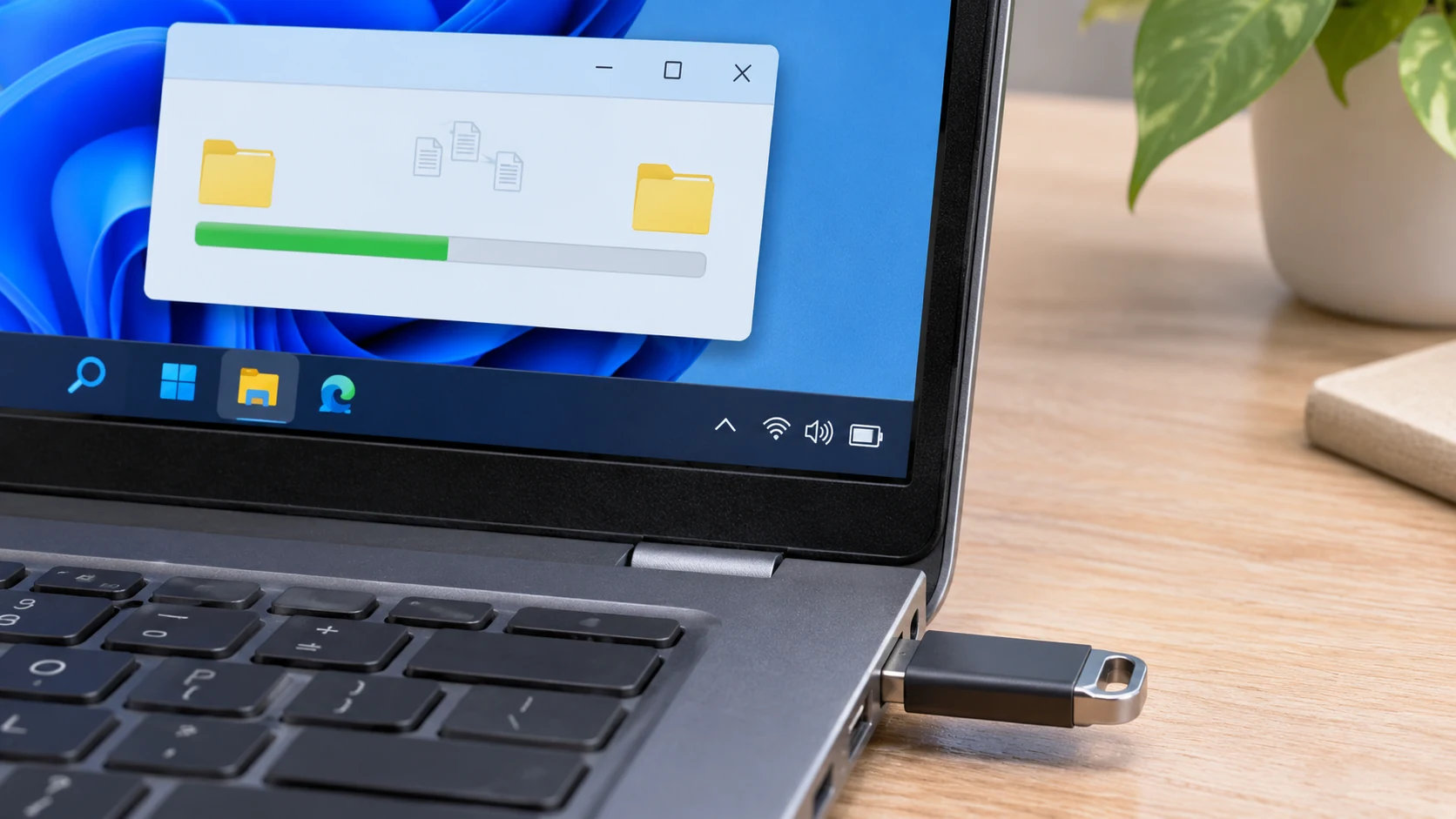
Copy unique documents, photos and project files first. Open several copied files from the destination to verify them. Record the drive's reported capacity and model in Disk Management. Avoid filling the destination with a disk image unless you know it has enough free space and the source remains stable.
If the drive disconnects, becomes hot, reports changing capacities, or slows to repeated timeouts, stop consumer repair attempts. Professional recovery may be appropriate for irreplaceable data. Write protection imposed by the controller can be deliberate damage containment rather than an error Windows can clear.
Safe diagnostic sequence
- Confirm there is no switch. Some SD adapters and older drives have a small lock tab. Do not confuse a seam or decorative slider with a switch; check the model documentation.
- Test a new folder and small disposable file. Do not overwrite an existing document. Note the exact Windows message and whether deletion, rename and format are also blocked.
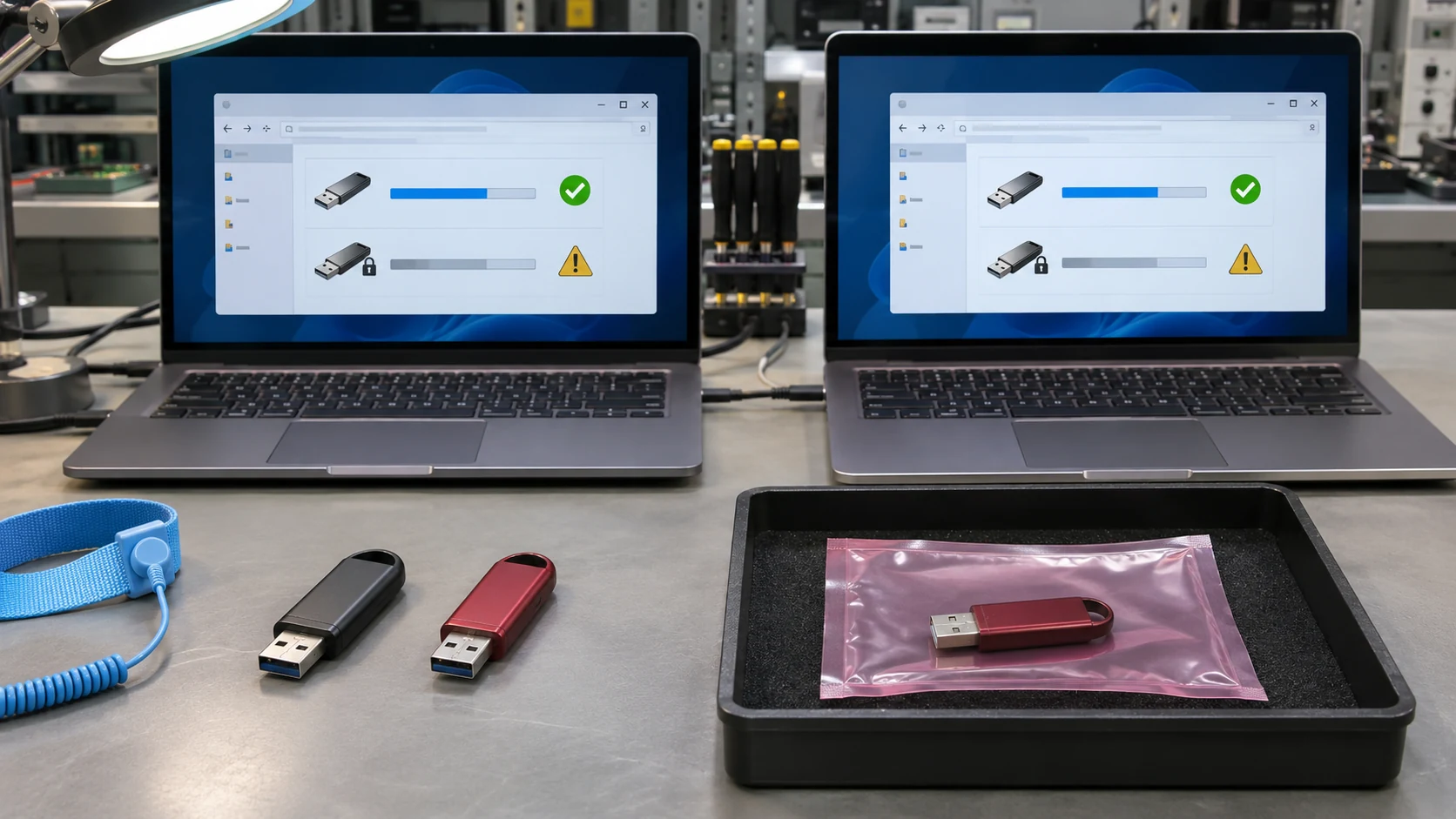
- Try another native port and another computer. This separates a per-PC policy from a drive-wide condition. Avoid public computers and do not bypass organizational controls.
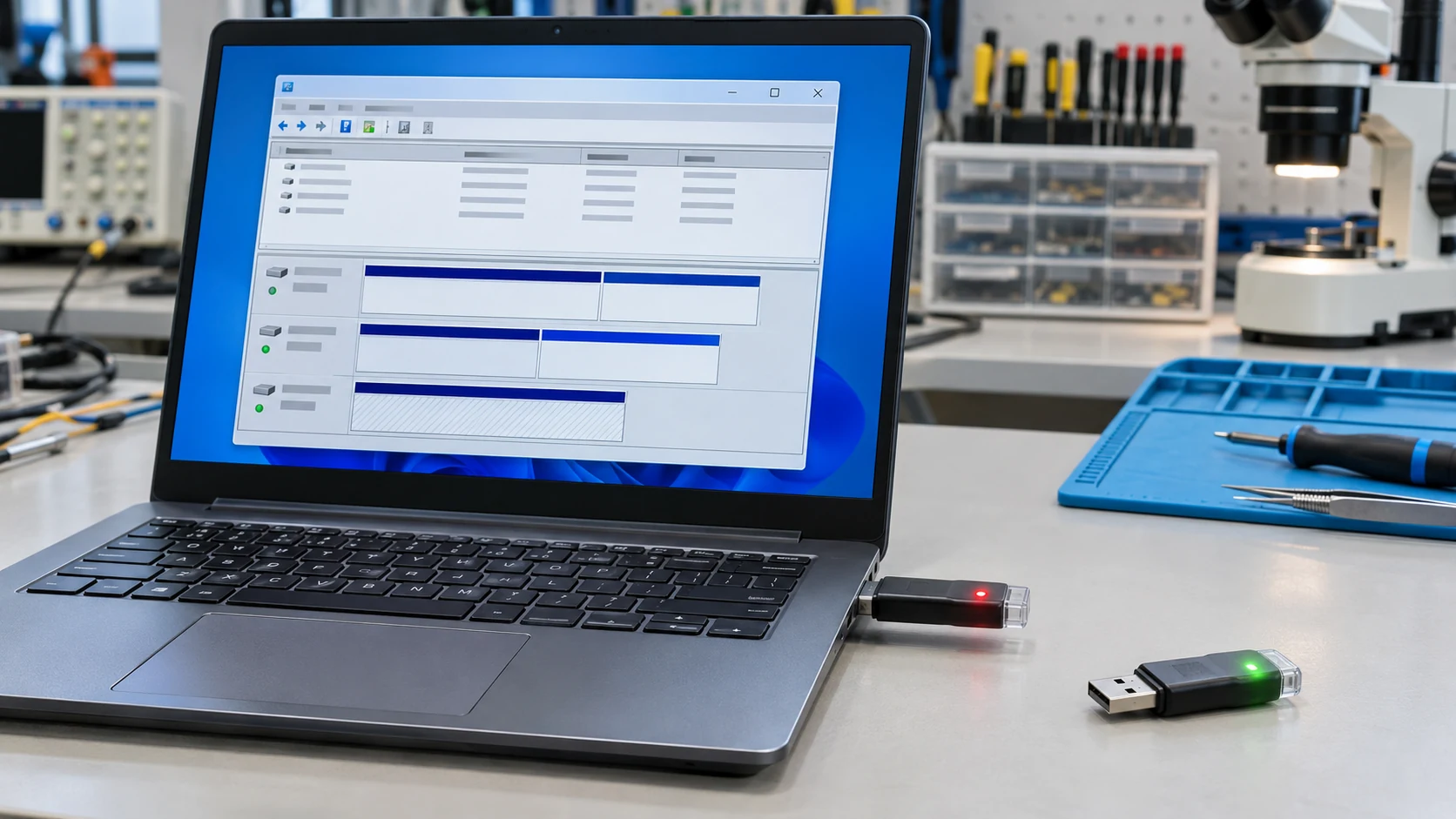
- Open Disk Management. Confirm the disk by capacity. If it is 0 bytes, No Media, RAW, or constantly reconnecting, skip attribute clearing and protect the data.
- Inspect DiskPart attributes as administrator. Run
diskpart, thenlist disk. Identify the USB disk by capacity. Useselect disk Nonly after verification, followed bydetail diskandattributes disk. Never guess the disk number. - Clear only a software read-only attribute. Microsoft documents
attributes disk clear readonlyfor the selected disk. Run it only when the selected disk is unquestionably the USB drive and the data is backed up. Recheck attributes and perform one small write test. - Check policy when every drive is affected. On managed systems, removable-storage write denial may be intentional. Contact IT. On a personal PC, review only changes you recognize; do not paste registry fixes from unrelated websites.
- Retire a drive that returns to read-only. If the condition persists across computers or returns after clearing, the controller may be protecting worn flash. Replace the drive even if files remain readable.
DiskPart commands and their limits
attributes disk displays and can clear the persistent read-only attribute of the disk in focus. It does not repair NAND flash, a failed controller, a hardware lock, a security product, or an organizational policy. The displayed “Current Read-only State” can remain Yes even when the software “Read-only” attribute is No; that difference is valuable evidence that the device or another layer still refuses writes.
Do not continue from attribute inspection to clean. The DiskPart clean command removes partition and volume formatting information from the selected disk. It is destructive and unnecessary for diagnosing a drive that contains files. Likewise, formatting destroys the existing file-system structure and is not a harmless test.
File attribute versus disk protection
The Windows attrib command applies to files and folders. Clearing a file's R attribute cannot unlock a disk whose storage controller rejects writes. If only one file is affected, inspect its properties, permissions and application ownership. If every create, rename and delete operation fails, investigate the disk or policy layer.
Manufacturer evidence matters
Kingston states for DataTraveler models without a write-protection feature that an unexpected protection message can reflect operating-system security, third-party software, or a defective drive. That matches the diagnostic split above: compare PCs, inspect attributes, and treat a persistent device-wide condition as possible hardware failure rather than promising a registry cure.
When formatting is appropriate
Formatting is appropriate only after the data has been recovered or is expendable, the disk reports a stable plausible capacity, and write access is actually available. Use Disk Management or the manufacturer's supported tool. If formatting fails immediately as write-protected on multiple computers, repeated attempts add no evidence.
Frequently asked questions
Will clearing readonly erase files?
The attribute command itself is not a formatting command, but selecting the wrong disk or continuing with destructive DiskPart commands can be catastrophic. Back up first and identify by capacity and detail.
Why is Current Read-only State Yes while Read-only is No?
The persistent software attribute is not set, yet the storage stack still receives a read-only state. Device firmware, failing flash, policy or another filter may be responsible. Cross-test and preserve data.
Can CHKDSK remove write protection?
CHKDSK checks and can modify file-system structures; it cannot force a controller to accept writes. It is not the first action on the only copy of important files.
Can the drive be trusted after a fix?
Not if it became read-only without a known policy change. Copy data, test only with expendable files, and replace it for important storage. Flash media should never be the sole copy.
Technical sources
- Microsoft Learn — attributes disk (consulted 3 November 2026).
- Microsoft Learn — DiskPart and focus selection (consulted 3 November 2026).
- Microsoft Support — Disk Management and formatting warning (consulted 3 November 2026).
- Kingston Support — DataTraveler write-protection troubleshooting (consulted 3 November 2026).
Be the first to leave a comment.