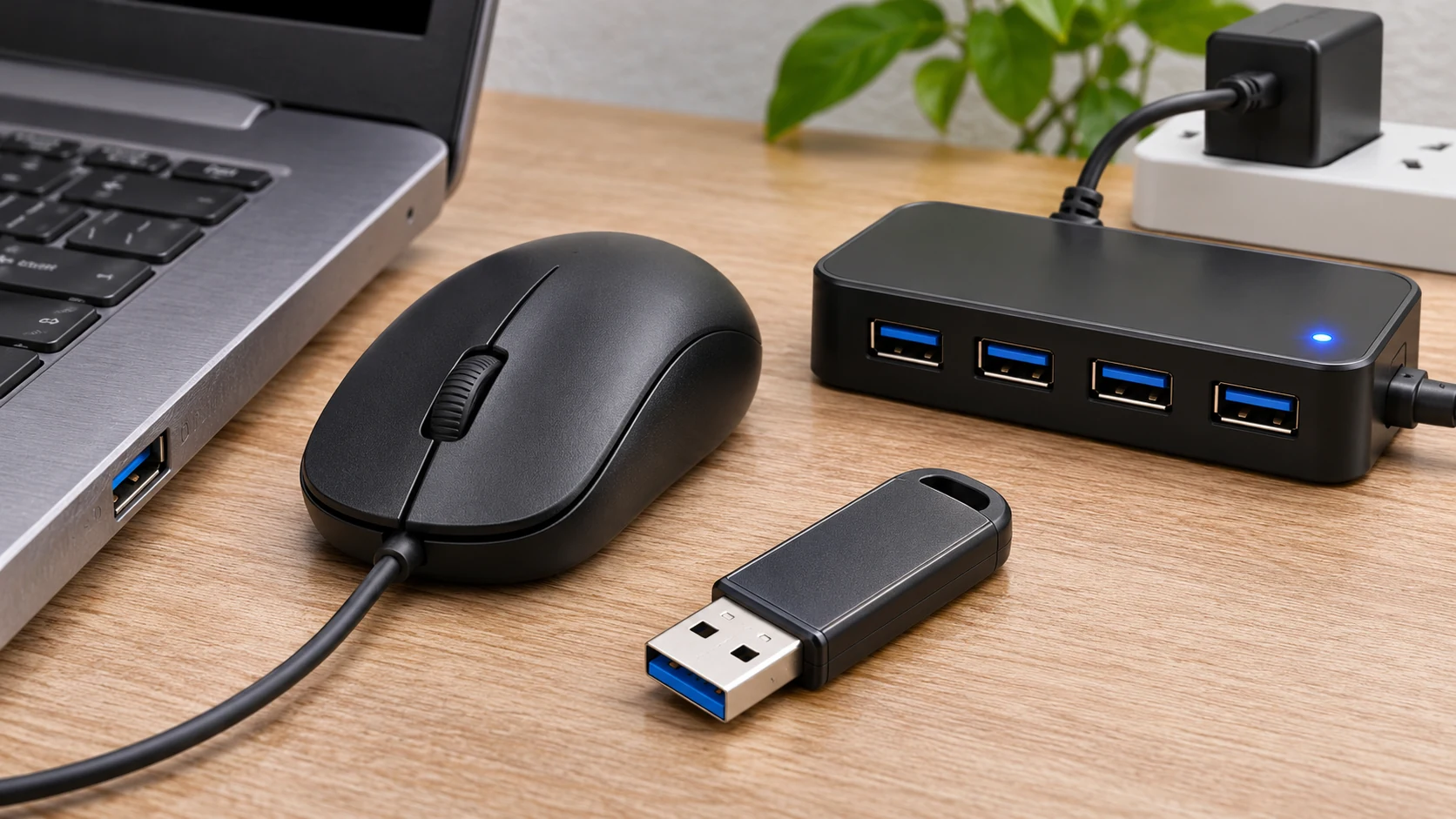
If a USB mouse works but a flash drive does not, the port is not automatically “good.” The mouse proves that the port supplies some power and can exchange low-speed input data. A flash drive also needs stable power, successful high-speed enumeration, a storage driver, a readable partition, and a drive letter. Diagnose those layers in order instead of formatting first.
Start by protecting the files. If the drive contains anything important, do not initialize it, create a new volume, run destructive repair commands, or accept a format prompt. First determine whether Windows sees the physical device, its capacity, a partition, or nothing beyond a USB error.
Why the mouse is an incomplete control test
A basic wired mouse normally draws little current and uses a simple human-interface-device path. A flash drive can expose different contacts, negotiate a faster link, draw more current during startup, and present a storage controller plus flash memory. Therefore, the same port can operate the mouse while failing with a worn SuperSpeed contact, marginal hub, unstable 5 V supply, corrupt storage metadata, or a dying flash controller.
| What Windows shows | Layer reached | Meaningful next step |
|---|---|---|
| Drive appears normally in File Explorer | Enumeration, storage and volume mounting succeeded | Copy important files and test write/read behavior |
| Disk Management shows correct capacity but no letter | Physical disk and partition are visible | Inspect volume status and assign a free letter only when safe |
| Disk Management shows RAW | Device is visible but file system is not recognized | Stop writes and choose recovery before formatting |
| Device Manager shows Unknown USB Device | Enumeration failed before normal storage access | Change port, cable/adapter, hub and computer |
| No Media or 0 bytes | USB controller may answer while flash media is unavailable | Avoid formatting and assess data-recovery value |
| Nothing changes anywhere | No stable detection | Inspect connector and cross-test the drive |
Run the tests in a safe order
- Keep the mouse connected and note its port. Move only the flash drive to the mouse's exact port. If the mouse uses USB-C through an adapter, include that adapter in your notes because it is part of the path.
- Remove the drive and inspect its plug. Look for a bent shell, contamination, looseness, or a damaged plastic tongue. Do not open the drive if data matters; many compact drives use delicate monolithic packages.
- Connect the drive directly. Remove unpowered hubs, keyboard pass-through ports, monitor hubs, and long extensions. Observe the Windows connection sound and watch Device Manager for a refresh.
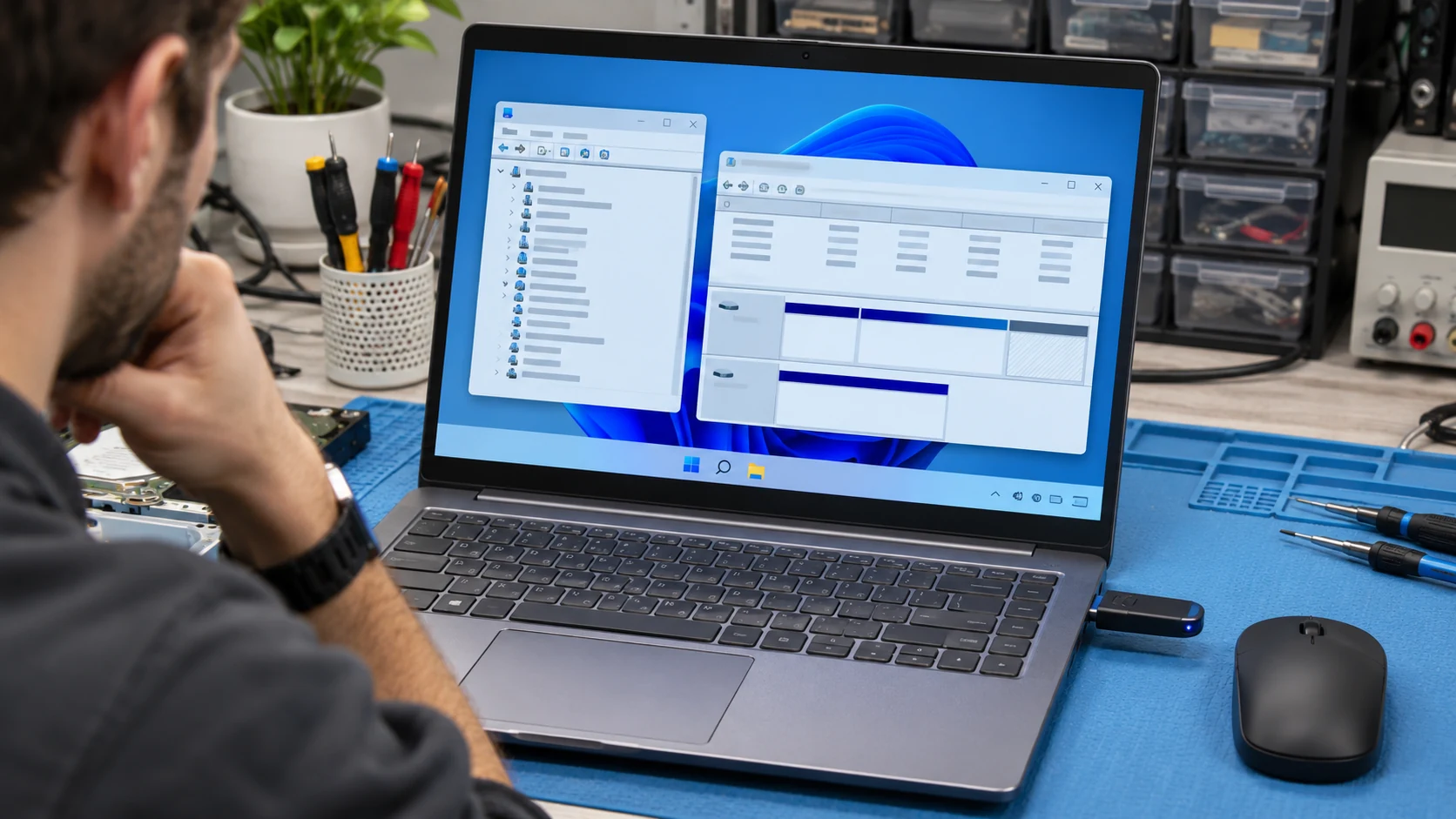
- Check Device Manager before Disk Management. Under Disk drives and Universal Serial Bus controllers, identify the entry that appears and disappears with the drive. An unknown-device error is an enumeration problem; a named disk means Windows progressed further.
- Open Disk Management. Use the disk's capacity and connection timing to identify it. Never select a disk by drive number alone. If the correct capacity and a healthy partition appear without a letter, a letter conflict may explain its absence from Explorer.
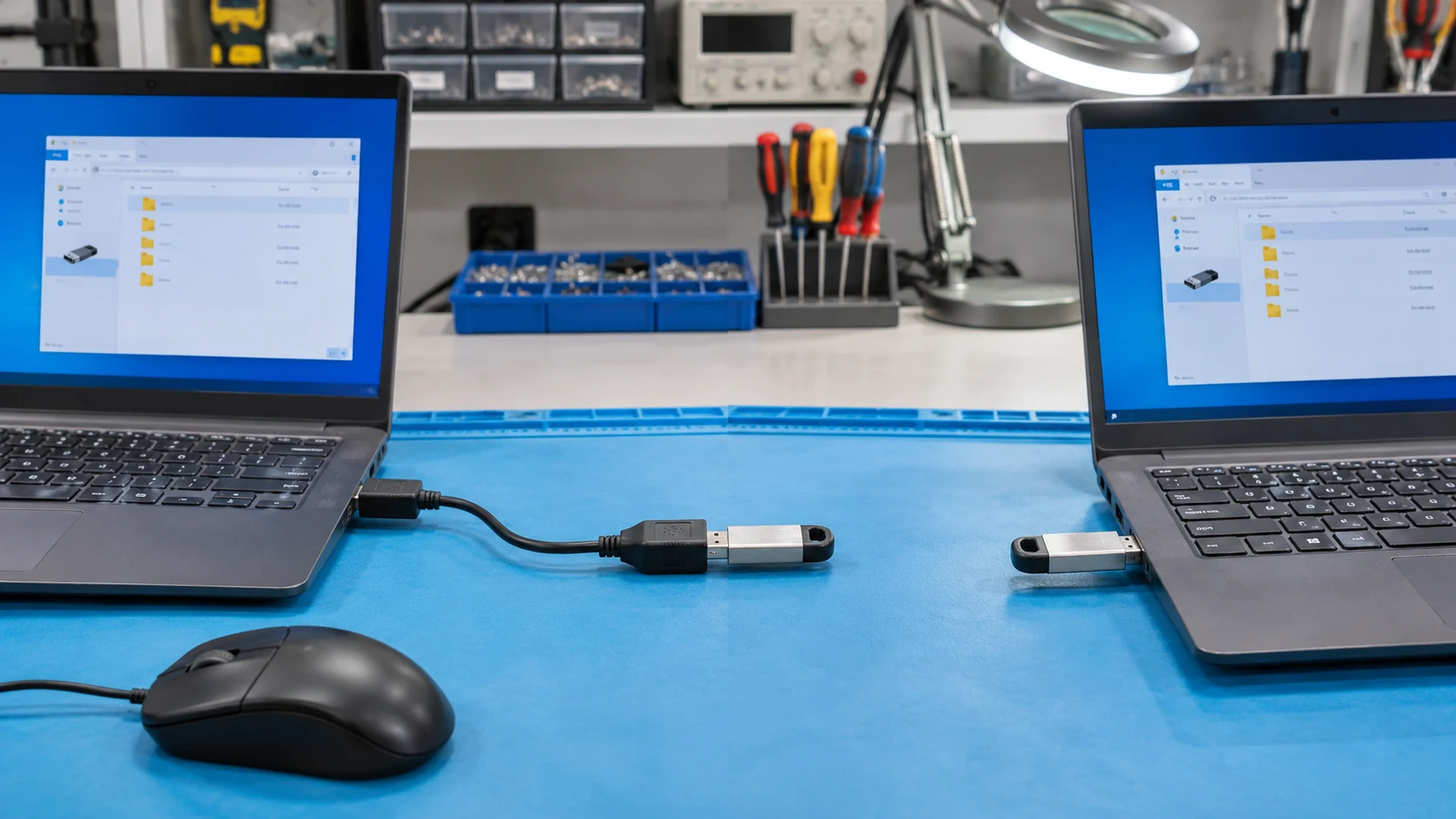
- Cross-test another port and computer. Use rear motherboard ports on a desktop and ports on another side of a laptop. Then test the same drive on a second computer. Keep the tests brief if it repeatedly disconnects or heats up.
- Try a powered hub only as a comparison. If direct connection fails but a reputable powered hub works, port power or signal compatibility may be marginal. A hub is evidence, not a permanent cure for a damaged port.
- Copy data before repair. When the volume becomes readable, copy irreplaceable files first. Do not benchmark, defragment, or fill the drive until the copy is verified on another disk.
Use Device Manager and Disk Management together
Device Manager answers whether Windows enumerated hardware and loaded a class driver. Disk Management answers whether the storage stack sees a disk, its reported capacity, and its volumes. File Explorer is only the final view. A drive can be absent from Explorer yet visible and recoverable at a lower layer.
If Disk Management shows a healthy volume with no letter, right-clicking that volume can provide the drive-letter command. Assign a free letter only after confirming the volume is the USB drive. If it shows RAW, unallocated space, No Media, or an implausible capacity, do not create or format a volume when the files matter.
Interpret the most useful comparisons
The drive works on another computer
The drive is not proven perfect, but the original computer becomes the focus. Return to a direct native port, install official chipset and USB updates for the exact model, and test another known-good storage device. If every flash drive fails while the mouse works, examine port contacts, hub topology, security policy, and storage-class driver state.
Another flash drive works in the same port
The original drive, its connector, or its internal controller is likely. Copy its files immediately if it becomes readable elsewhere. A drive that intermittently reports the wrong capacity or No Media should not be trusted after a temporary recovery.
The drive appears only through a powered hub
This suggests a power or signal-margin issue, but it does not tell you which component is outside specification. Compare with a short direct connection, remove other high-draw devices, and check the computer manufacturer's port specifications. Do not assume the drive needs “extra voltage”; USB voltage must remain within specification.
The drive has a letter but Explorer hangs
The problem has moved beyond simple detection. Stop repeated opening attempts if the drive disconnects. Check whether a read-only copy tool or professional recovery is appropriate. CHKDSK changes file-system structures and should not be the first action on the only copy of important data.
Security policy can block storage while allowing a mouse
On a work or school PC, administrators can allow human-interface devices while restricting removable storage. In that case, the drive may enumerate correctly but access is denied or read-only. Do not bypass organizational controls. Check the notification, Event Viewer or policy message and contact the administrator. This scenario differs from an unknown device, incorrect capacity, or No Media result.
When to stop
- Stop if the drive is hot, smells abnormal, or disconnects when held still.
- Stop destructive actions when the only copy of data is on the drive.
- Stop repeated formatting attempts when capacity is 0 bytes or No Media.
- Stop using a physically loose host port; it can damage another device.
Frequently asked questions
Does a working mouse prove the USB 5 V rail is healthy?
No. It proves only that the mouse receives enough power in that condition. Voltage can sag with a different load, and damaged data contacts can affect storage while a low-speed mouse still operates.
Should I assign a drive letter?
Only when Disk Management shows the correct disk, a valid volume, and no letter. A letter cannot repair failed enumeration, RAW metadata, 0-byte capacity, or No Media.
Can reinstalling USB controllers erase the drive?
Driver reinstallation does not intentionally erase media, but broad controller removal can disrupt other devices. More importantly, it does not solve a failing flash controller. Diagnose the correlated device entry first.
Is formatting a useful test?
Not when data matters. Formatting writes new file-system structures and may reduce recovery options. A blank expendable drive may be formatted only after stable capacity and hardware behavior are established.
Technical sources
- Microsoft Support — Disk Management in Windows (consulted 3 November 2026).
- Microsoft Support — Device Manager driver reinstall (consulted 3 November 2026).
- Dell Support — USB isolation and cross-tests (consulted 3 November 2026).
For a drive that reports zero capacity, continue with USB Drive Shows 0 Bytes.
Be the first to leave a comment.