Quick Fix — find where the keyboard stops responding
- In BIOS, note which keys work; exit without saving any changes.
- At the Windows sign-in screen, open Accessibility options and On-Screen Keyboard; compare physical and on-screen input.
- Disconnect USB keyboards and receivers, then reconnect one keyboard directly to a different port.
- If possible, test a wired USB keyboard and the affected keyboard on another computer.
Check: if On-Screen Keyboard works but physical keys do not in Windows, focus on the connection, driver, and Windows settings. If the keyboard also fails in BIOS or on another PC: inspect the keyboard, cable, or receiver.
A keyboard that works in BIOS but not Windows 11 is not automatically faulty. BIOS uses basic keyboard support; Windows then loads its own drivers, accessibility settings, and software. The test shows that some keys and the connection respond before the operating system starts, but it does not prove that every key, feature, or connection is healthy.
Keyboard works in BIOS but not Windows 11
Shut the PC down normally and turn it back on. In BIOS, use only the keys needed to check navigation; do not change values. Exit without saving. At the Windows sign-in screen, open On-Screen Keyboard from Accessibility options. Test a non-sensitive text field. Never type a password into a third-party editor or website.
| Result | What to check next |
|---|---|
| On-Screen Keyboard types; physical keyboard does not | Compare port, receiver, layout, and driver. |
| Physical keyboard works at sign-in but stops after login | A startup app, macro, or user profile may be involved. |
| A different USB keyboard works in Windows | The original keyboard, receiver, or device-specific software is suspect. |
| No USB keyboard works in Windows | Check system settings, ports, and device status. |
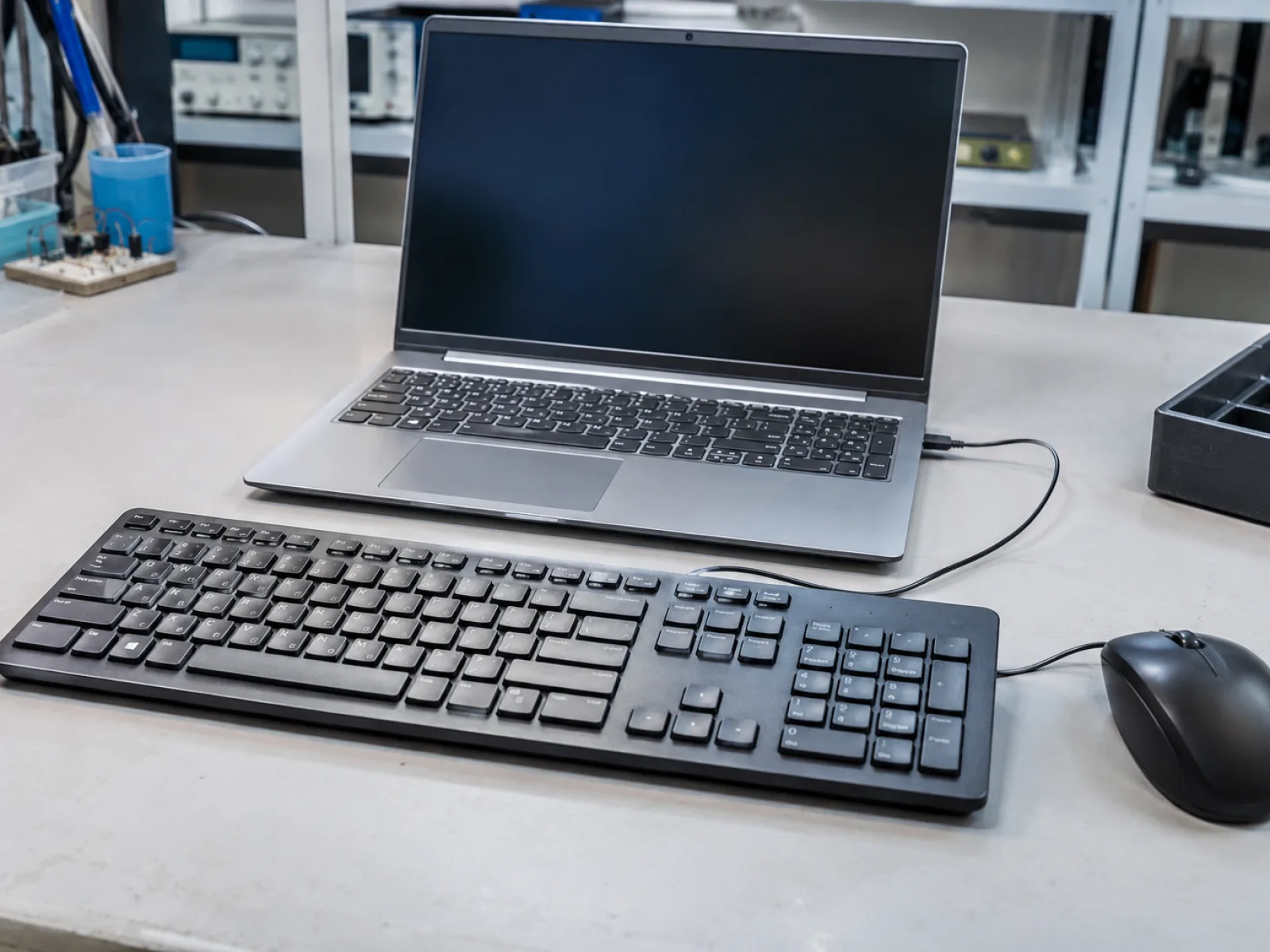
Rule out the port, receiver, and conflicting devices
- Applies to: USB keyboards. Unplug it, wait a few seconds, then connect it directly to the PC without a dock or hub. Check: test at sign-in or in Notepad. If the keyboard does not respond: try another port without changing several parts at once.
- For wireless models, replace or charge batteries as directed by the maker, check the receiver, and move it closer to the keyboard. Do not pair a universal receiver without confirming compatibility. Check: compare with a known-good wired keyboard. If wired input works: the radio link, receiver, or pairing is a likely area to investigate.
- Disconnect nonessential controllers, keypads, and other input devices; reconnect them one at a time. Check: does the keyboard respond by itself? If the failure returns after reconnecting a device: review that device’s software and driver before removing it.
Check accessibility settings and keyboard layout
In Windows 11, open Settings > Accessibility > Keyboard. Review Filter Keys, Sticky Keys, and Toggle Keys; note their current state before changing anything. Filter Keys can ignore brief or repeated keystrokes, but it does not repair a keyboard. Temporarily change one setting only if its behavior matches the symptom, then repeat the same test. Also check Settings > Time & language > Language & region for the active layout: a different layout changes the characters produced even when a key is detected correctly.
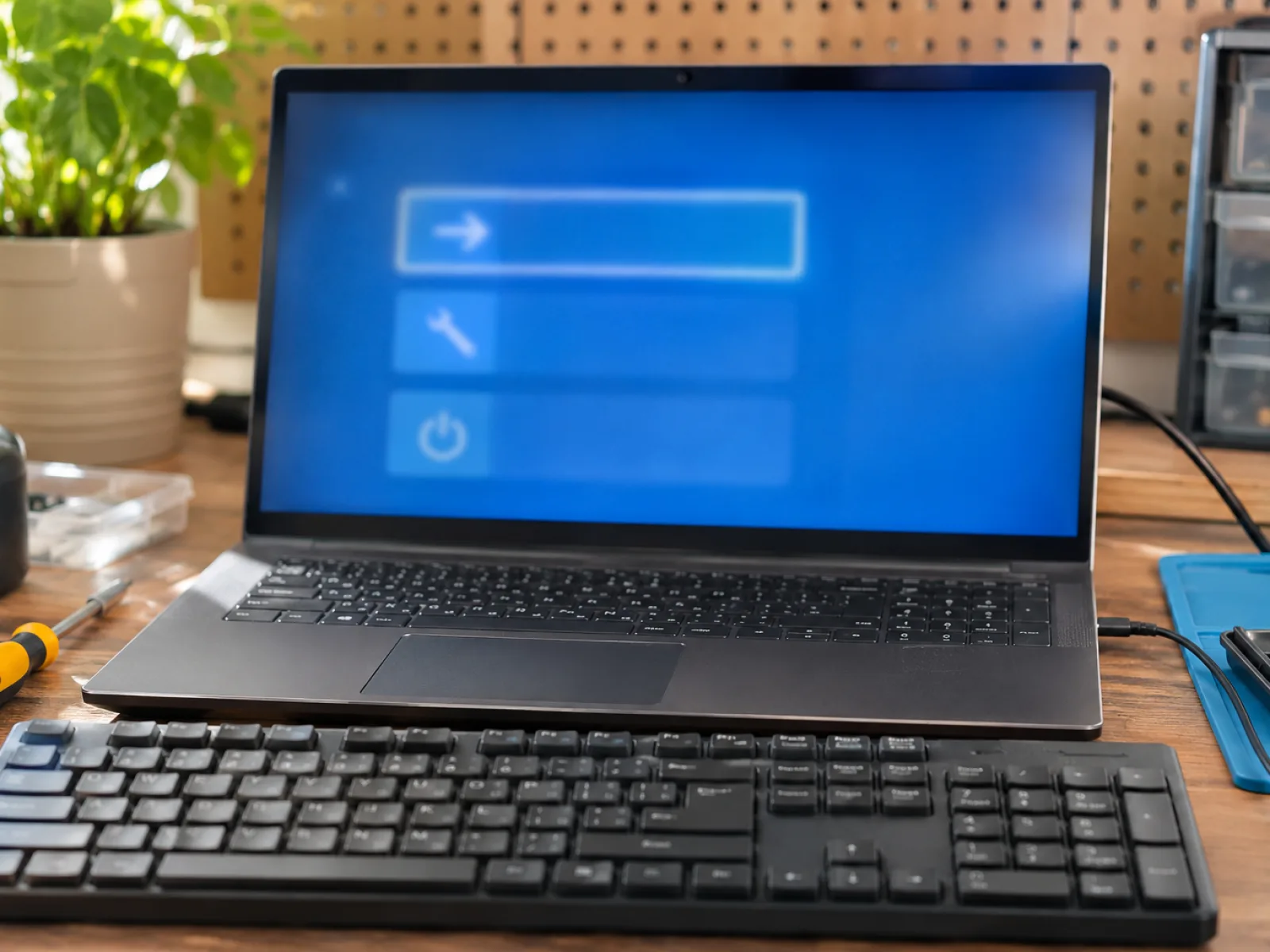
Reinstall the keyboard device carefully
If a USB keyboard works but the built-in one does not, open Device Manager from Start. Expand Keyboards, inspect the affected device’s properties and status, and record its exact name and any error code before acting. If the problem began after an update, check Windows Update and the PC maker’s drivers first. Avoid third-party driver sites and unknown updater tools.
Uninstalling and restarting can make Windows detect a standard device again, but do not bulk-remove USB controllers or HID devices. If you uninstall the keyboard, make sure a mouse or another keyboard can still be used to complete the restart. Check: after restart, test the keyboard at sign-in before opening apps.
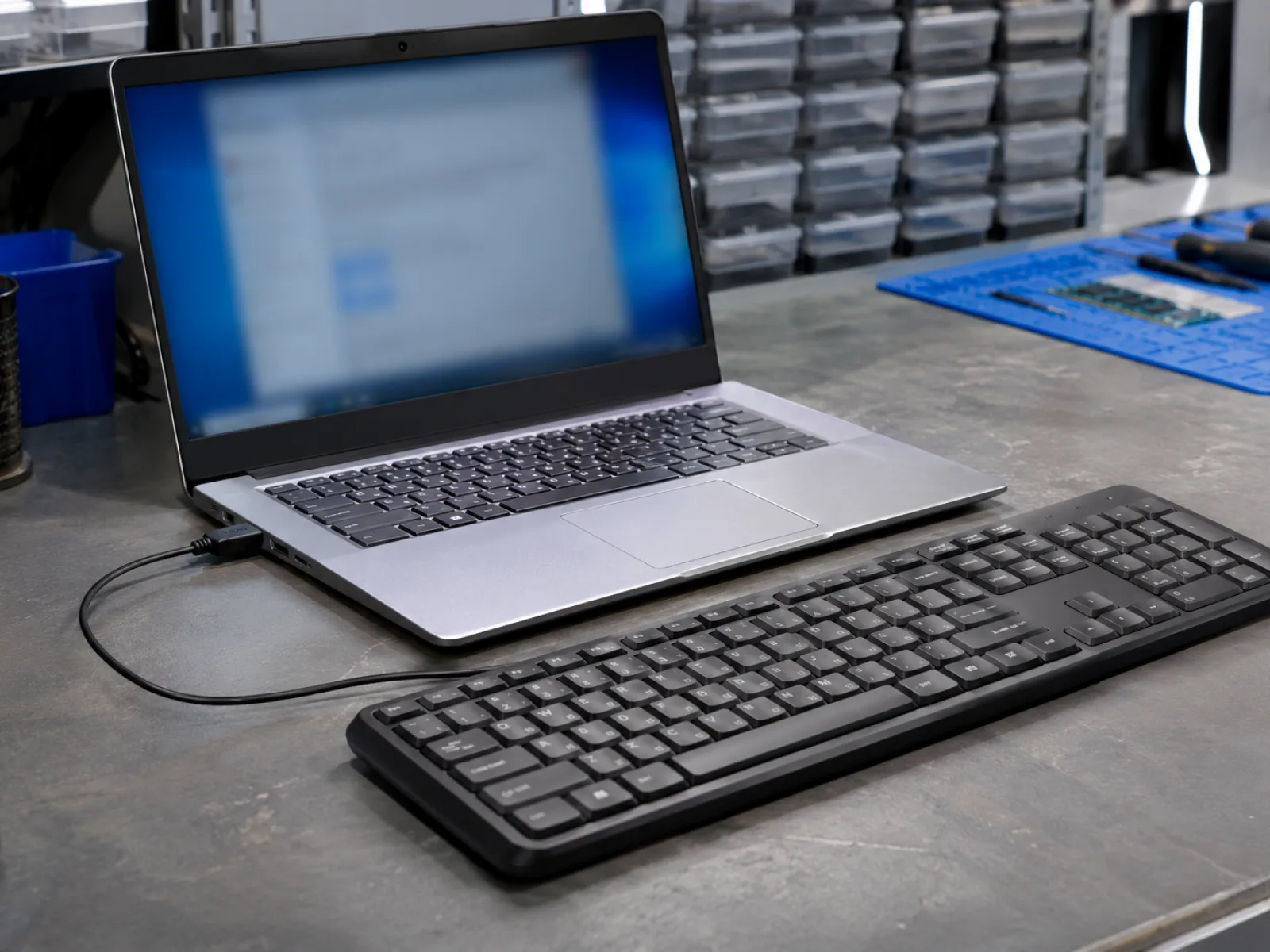
Try a clean startup or arrange service
If the keyboard works before sign-in but stops after login, restart in Safe Mode using Microsoft’s procedure for your Windows edition. Safe Mode limits loaded drivers and services. If input returns, a recently added app or service is a clue; re-enable items gradually, and do not disable security protections at random. If the built-in keyboard remains inactive in the recovery environment, or the laptop suffered a spill or impact, stop disassembly and ask the manufacturer for a diagnosis.
For a laptop under warranty, do not remove the keyboard or open the case unless the service manual directs you to. A keyboard that works only in BIOS can still have an intermittent ribbon cable or partial hardware fault; software checks cannot diagnose that remotely.
Common mistakes
Do not change BIOS settings, reset Windows, or remove every USB controller as the first step. On-Screen Keyboard, a known-good wired keyboard, and a sign-in screen check can narrow the cause with fewer changes. Record an error code before installing a driver.
Frequently Asked Questions
Does working in BIOS prove my keyboard is good?
No. BIOS checks part of its operation but does not prove every key works or rule out an intermittent fault. Test it in Windows and on another computer.
What if no keyboard works at the sign-in screen?
Use On-Screen Keyboard from Accessibility options. Then try a wired USB keyboard connected directly and check device status and ports.
Should I uninstall the keyboard driver?
Not as a first step. Record its status and name, check Windows Update and the PC maker’s drivers, and reinstall only the affected device if you have another way to type.
When should I get a laptop repaired?
If the built-in keyboard also fails in recovery, several keys remain dead, or liquid was spilled, arrange a hardware diagnosis.
Sources and next step
Microsoft Support — Make your mouse, keyboard, and other input devices easier to use. Last updated: November 12, 2026. Continue with the ElectronixLab keyboard tester or our keyboard ghosting and rollover guide.
Be the first to leave a comment.