Quick Fix — Try This First
- Compare a known-good USB-C cable with a charger approved for your phone.
- Let a hot phone cool naturally before retrying; avoid heavy use while charging.
- Check the phone’s battery-protection setting if charging stops at a repeatable limit.
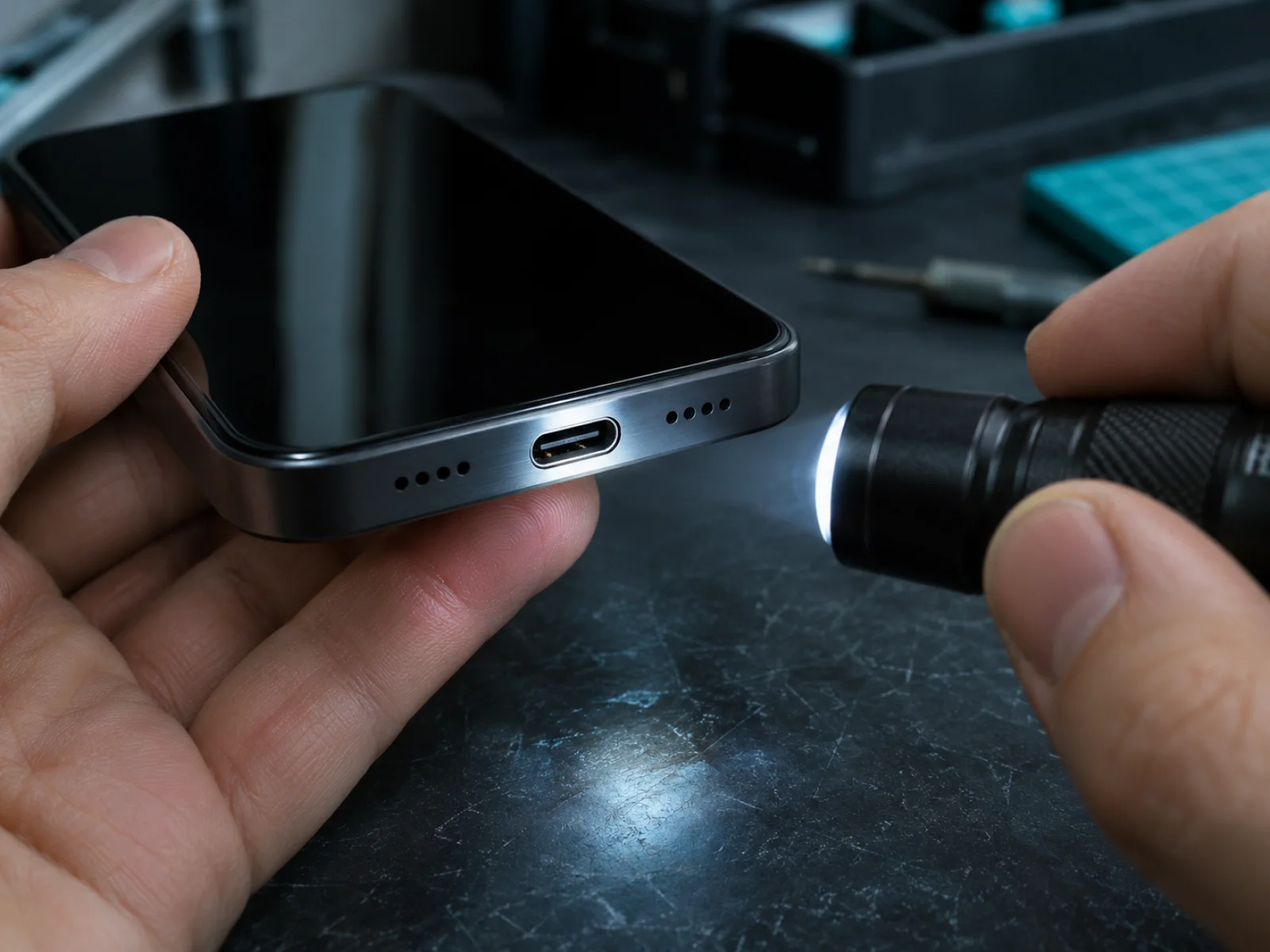
- Inspect the unplugged port with a light; never insert metal tools or probe live contacts.
Check: note whether the charge indicator appears and the battery rises under similar conditions.
Symptoms and likely causes
An Android phone charging slowly over USB-C can have several causes: a low-power adapter, a cable that does not support the expected charging rate, a poor connection, elevated phone temperature, heavy use while plugged in, or a limit set by the phone’s manufacturer. A slow charging message does not by itself identify a failed battery or a damaged port.
USB-C describes a connector, not one guaranteed charging speed. The phone, charger, cable, and any adapter in between must support a compatible charging mode. USB Power Delivery and its Programmable Power Supply option are available only when supported by the specific phone and charger. Do not assume a charger’s largest printed wattage is the power the phone will draw.
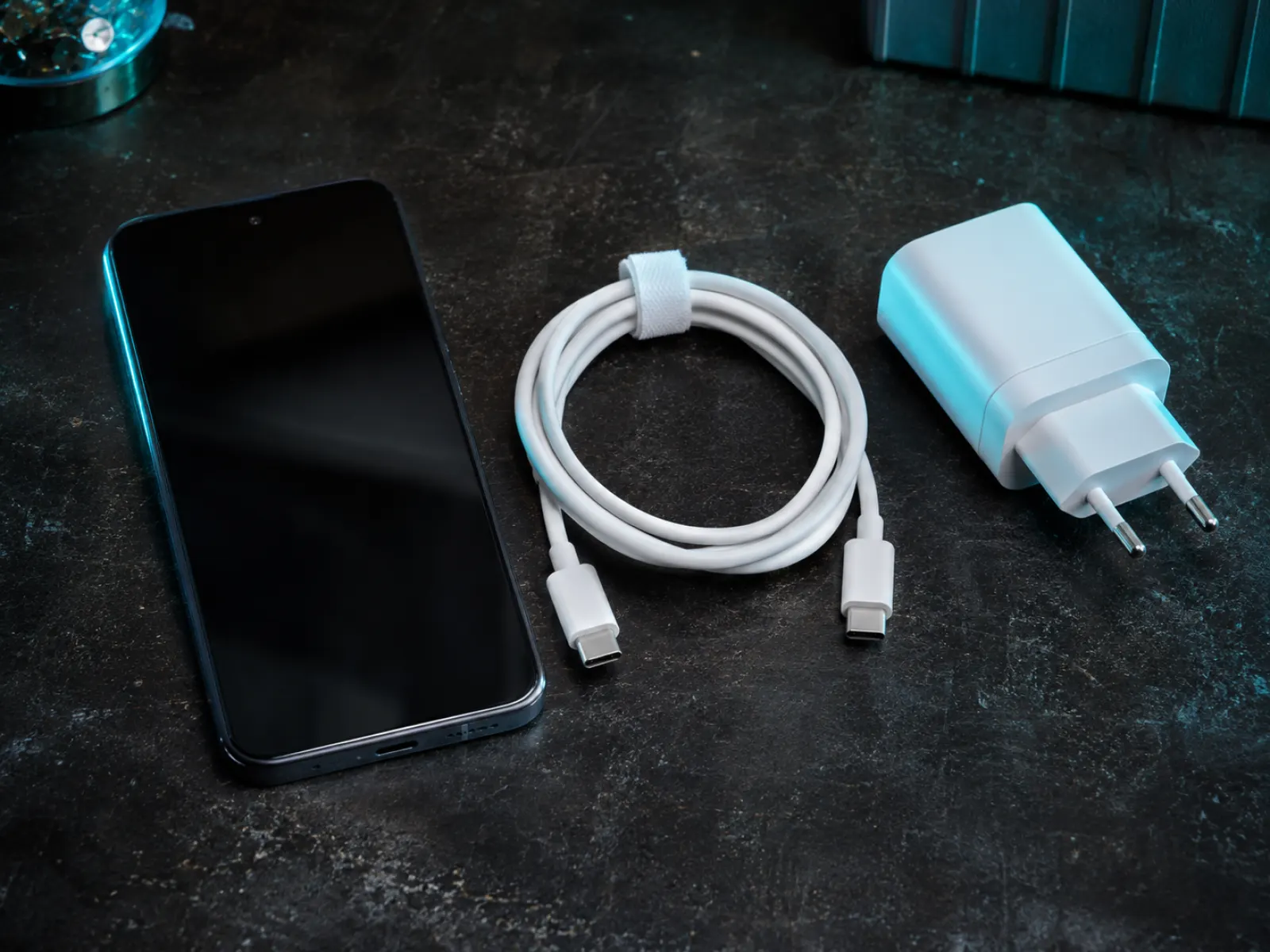
Match the symptom to the next check
| Symptom | Likely cause | Next action |
|---|---|---|
| Charging is slow with one cable but normal with another | Damaged cable or a cable with different charging capability. | Use a known-good cable approved for the phone and charger. |
| The phone charges slowly with several cables from one adapter | Adapter, outlet, or charging-mode compatibility. | Try a compatible manufacturer-recommended adapter at a working outlet. |
| Charging slows while gaming, navigating, or using the camera | The phone is using power and may be warm while charging. | Pause demanding activity and compare charging while the screen is idle. |
| Charging changes when the plug is moved | Loose connector, cable damage, or debris in the port. | Stop wiggling the plug; inspect the port without inserting tools. |
| The phone reports moisture, temperature, or accessory warnings | A protection feature may limit or suspend charging. | Follow the phone maker’s guidance and do not override the warning. |
Fix slow USB-C charging in order
1. Compare the cable, charger, and outlet separately
Applies to: Android phones with USB-C charging. The exact supported charger type and charging rate vary by model.
- Check the cable and adapter for cuts, bent connectors, scorching, or looseness. Stop using damaged accessories.
- Connect the phone directly to a known-good wall outlet, without a hub, extension adapter, or dock.
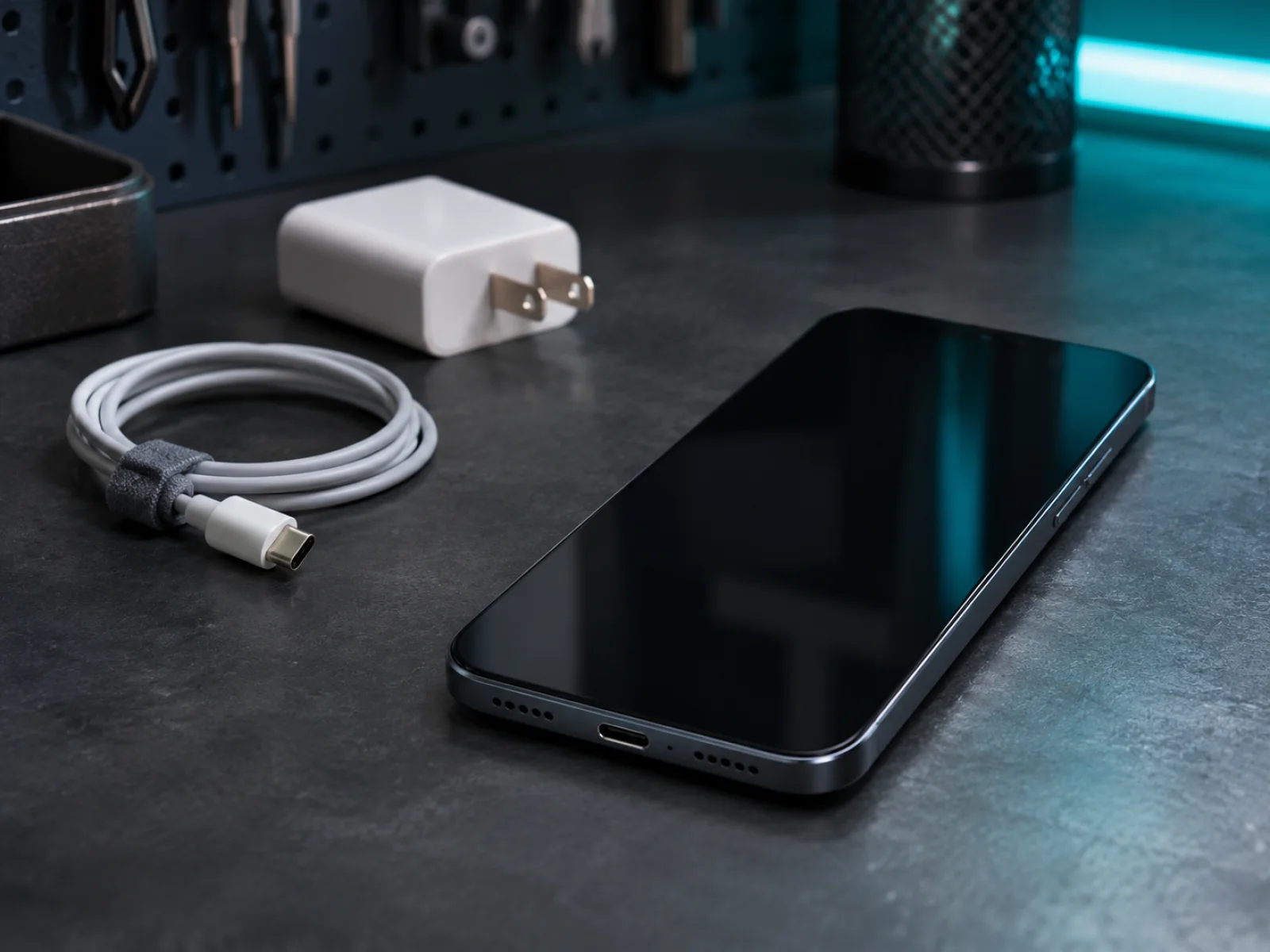
- Try a cable and charger listed by the phone maker as compatible. Change one item at a time so the result points to a specific part.
Expected result: the phone shows charging and behaves consistently with the approved accessory combination.
Check: compare the icon and battery percentage under the same usage and temperature conditions. If it didn’t work: keep the working cable and outlet fixed, then test only a compatible charger; do not buy a higher-wattage adapter based on wattage alone.
2. Reduce heat and background load
Phones can limit charging when their temperature is outside the maker’s preferred range. High screen brightness, navigation, gaming, video recording, and weak-signal activity can also consume power while the phone is connected. These conditions can make the percentage rise slowly even when the charging connection is working.
- Unplug the phone if it feels unusually hot or shows a temperature warning.
- Move it out of direct sun and away from bedding or other heat-trapping surfaces. Let it cool naturally.
- When it is at a normal temperature, reconnect the approved charger and leave the screen idle for a repeatable comparison.
Expected result: a temperature warning clears and charging behavior becomes more consistent when the phone is cool and under lighter use.
Check: compare the same phone, cable, charger, outlet, and approximate starting charge state. If it didn’t work: do not cool the phone with ice, water, or a refrigerator; continue with the port and accessory checks.
3. Inspect the USB-C port without probing it
Power the phone off and disconnect the cable. Use a light to look for visible obstruction, corrosion, or damage. Do not scrape the port with a pin, metal pick, toothpick, or liquid cleaner. The connector contains small contacts that can be damaged, and cleaning directions differ by manufacturer.
Expected result: the port looks unobstructed and the plug can seat fully without force.
Check: reconnect the cable once and see whether the phone charges without moving it. If it didn’t work: stop if the plug is loose, the contacts look damaged, or debris is packed inside; arrange service using the phone maker’s instructions.
4. Confirm the phone and charger support the same charging mode
Read the phone maker’s support page for the exact model and compare it with the charger’s markings. USB Power Delivery, PPS, and manufacturer-specific fast-charge modes are not universal. A USB-C charger can still charge a phone at a slower compatible rate when the faster mode is not supported, but the label on the charger alone cannot confirm the negotiated charging power.
Use a manufacturer-approved charger and cable where the maker recommends them. Avoid uncertified adapters, damaged USB-C cables, or improvised converters. Do not try to measure power by probing a live USB-C connector.
Expected result: the accessory combination is listed as compatible for the phone, and no unsupported mode is assumed.
Check: look for the exact phone model in its official charging guidance. If it didn’t work: use the maker-recommended combination or ask the manufacturer whether a specific charger standard is required.
5. Check charging settings and software only after the physical checks
Some Android phones provide charging protection, scheduled charging, or battery-care features that intentionally change charging behavior. Names and locations vary across manufacturers and Android versions. Consult the phone maker’s support documentation or search Settings for “charging” or “battery”; menu names vary by brand and software version.
Expected result: you can identify whether a documented charging feature explains the behavior.
Check: compare the setting description with the phone maker’s support documentation. If it didn’t work: install only official updates for the exact device, then repeat the same cable-and-charger comparison. Do not reset the phone or disable protection features as an initial fix.
Common mistakes
- Assuming every USB-C cable supports the phone’s fastest charging mode.
- Choosing a charger only by its largest wattage number; the phone may support a different voltage, profile, or protocol.
- Testing several cables and adapters at once, which hides which change mattered.
- Using a phone heavily while comparing its charging rate.
- Wiggling a loose connector or scraping lint from the port with metal.
- Ignoring a temperature or moisture warning, swollen battery, or damaged cable.
If it still charges slowly
| Evidence | Possible cause | Next diagnostic action |
|---|---|---|
| Several approved cables behave the same with one charger | Adapter, outlet, or charging-mode limitation. | Test the phone with a known-good compatible adapter and wall outlet. |
| More than one charger behaves poorly and the plug is loose | USB-C port wear, contamination, or connector damage. | Stop using the loose connection and request port inspection. |
| Charging slows only when the phone is hot or in heavy use | Thermal protection or the phone consuming power while charging. | Repeat the comparison when cool and idle; follow any temperature warning. |
If those checks do not identify the cause, note the phone model, charger and cable model, exact warning text, and when the slowdown occurs. Give those details to the manufacturer or a repair center. Do not claim a battery failure based only on a slow percentage increase.
When to stop and arrange service
Stop charging if the battery is swollen, the phone smells unusual, a connector is burned or melted, the device repeatedly overheats, or a moisture warning persists. Unplug the charger if it is safe to do so and follow the phone maker’s battery and repair guidance. Do not disassemble the phone or probe its battery. For related checks, see how to diagnose a phone that will not charge, USB-C charging behavior on a laptop, and why a USB-C cable may charge but not transfer data.
What charging profiles are normal?
USB-C describes a connector, not a guaranteed speed. The phone and charger negotiate a supported mode; the phone may then reduce power as the battery fills or its temperature changes. The figures below are examples, not promises for a particular Android model: 5 V × 2 A is 10 W, while 9 V × 3 A is 27 W. USB Power Delivery (USB PD) negotiates supported voltage/current combinations; PPS is an optional adjustable-voltage mode used by some compatible devices. Phone limits, cable, charger, battery state, temperature and screen activity all matter.
“Charging rapidly” and “Charging slowly” labels vary by Android model and software. If shown, compare the label under consistent conditions with the manufacturer’s guidance; it is not a measurement. Charging often tapers near full, and some phones slow or pause charging when hot or during an overnight battery feature.
3 A versus 5 A USB-C cables
For standard USB-C cable assemblies, 5 A capability requires an electronic marker (e-marker) for compatible equipment to identify the cable. Do not assume an unmarked cable supports 5 A. Not every phone needs 5 A: use the type specified for its charging system. A higher-rated cable cannot make a phone accept an unsupported mode.
Use an inline USB-C power meter safely
A reputable inline USB-C meter displays negotiated voltage/current and approximate power without probing the connector contacts. Compare known-good cable/charger combinations at similar battery level, temperature and workload. Confirm that the meter supports the relevant USB-C/PD/PPS mode; some meters disturb negotiation and their display is not a calibrated service measurement. Never insert probes into a live USB-C receptacle. Stop if the plug, cable or phone becomes unusually hot or unstable.
Brand settings that can look like slow charging
- Samsung Galaxy: Battery Protection may cap charging at 80% or 85%, depending on model, software and mode.
- Google Pixel: Adaptive Charging may finish near the usual unplug time; supported models may also offer an 80% limit.
- Xiaomi and OnePlus: supported models may offer smart or optimized charging based on temperature, battery condition or schedule. Modes vary by model and region; use the exact manual.
Frequently asked questions
Why is my phone charging slowly with a fast charger?
The charger’s maximum wattage is not the negotiated power. Check compatible phone, cable and charger, temperature, battery limit and charge level.
Why does Android say “Charging slowly”?
The label varies by model and is not a diagnosis by itself. Compare the same setup and check manufacturer guidance.
Why does my phone charge slowly overnight?
Adaptive charging may wait to finish near your usual wake time or stop at a battery limit. Check the exact phone’s battery settings.
Does a higher-wattage charger always charge faster?
No. Phone, charger and cable must share a supported mode; the phone controls its input power.
Can a USB-C cable cause slow charging?
Yes. Damage or an unsupported cable can limit power. Compare with a known-good cable recommended for the model.
Next step
If you want to understand the voltage, current, and power figures printed on a charger, use ElectronixLab’s electrical power calculator. The calculation explains label values; it does not reveal the live power negotiated between a phone and charger.
Sources
- USB-IF: USB Type-C cable ratings and e-marker requirement, consulted November 13, 2026.
- Google Pixel Help: Charging guidance, consulted November 13, 2026.
- Google Pixel Help: Adaptive Charging and battery limits, consulted November 13, 2026.
- Samsung Support: Battery Protection, consulted November 13, 2026.
- Xiaomi Support: Smart Charging, consulted November 13, 2026.
- OnePlus 11 manual: optimized charging (model-specific), consulted November 13, 2026.
Last updated: November 13, 2026.
Be the first to leave a comment.