Solution rapide — À essayer d’abord
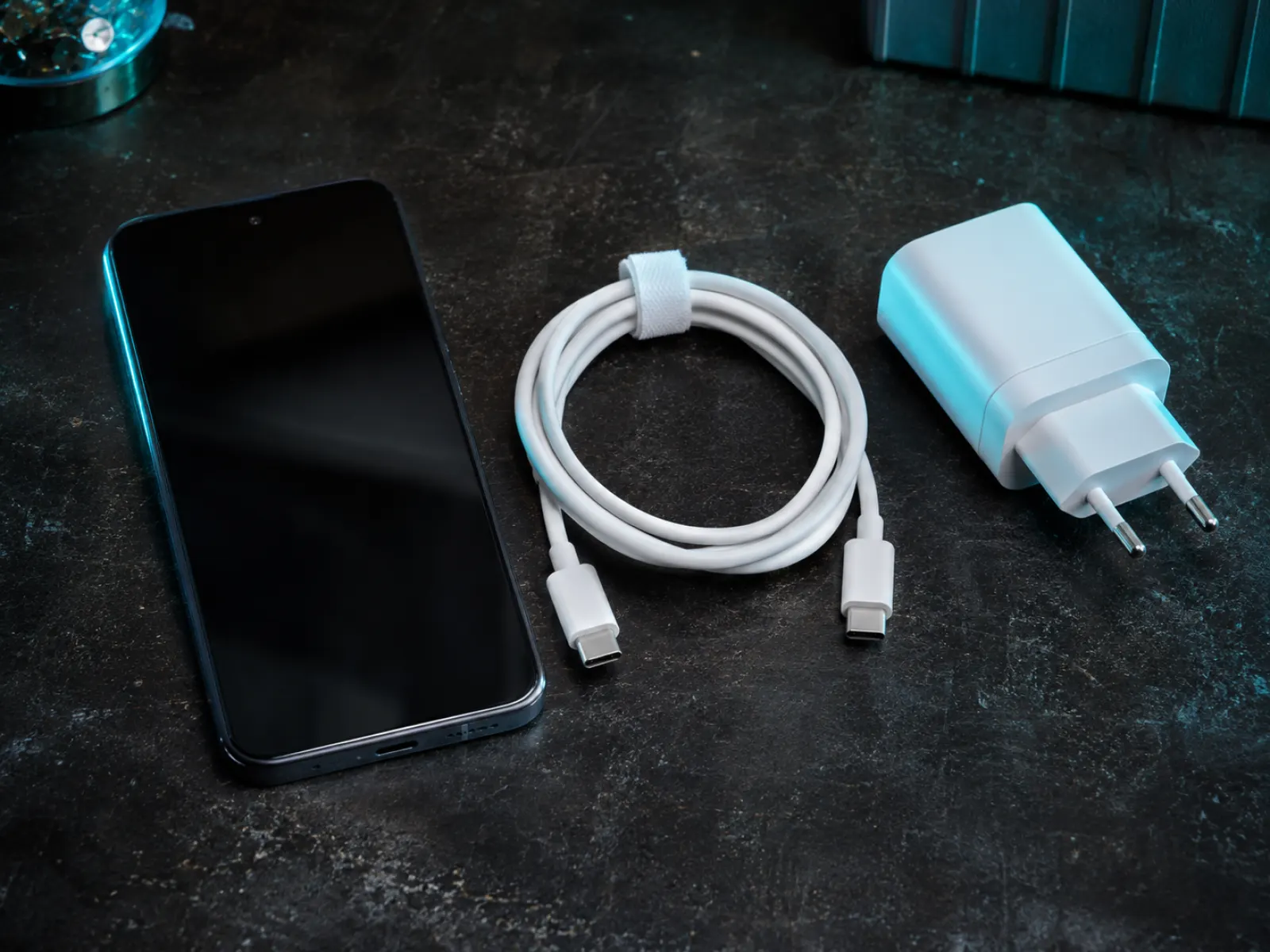
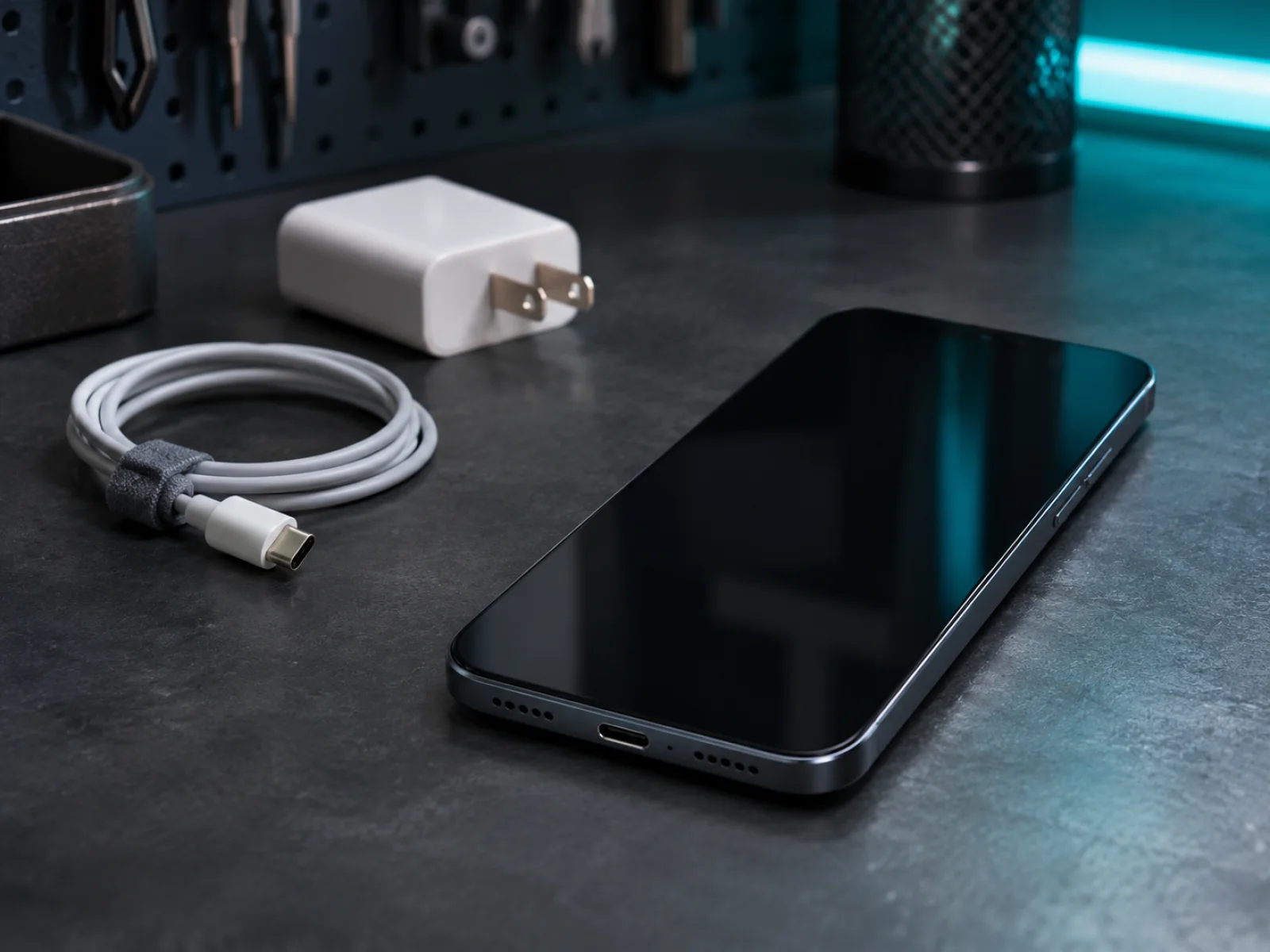
- Comparez un câble USB-C fonctionnel à un chargeur approuvé pour votre téléphone.
- Laissez refroidir naturellement un téléphone chaud avant de réessayer ; évitez les usages intensifs en charge.
- Vérifiez la protection batterie si la charge s’arrête toujours à la même limite.
- Inspectez le port débranché avec une lampe ; n’y introduisez aucun outil métallique et ne sondez pas les contacts sous tension.
Vérification : notez l’icône de charge et la progression de la batterie. Si l’icône n’apparaît pas ou si le niveau ne progresse toujours pas, comparez avec un autre câble compatible puis faites contrôler le port.
Symptoms and likely causes
An Android phone charging slowly over USB-C can have several causes: a low-power adapter, a cable that does not support the expected charging rate, a poor connection, elevated phone temperature, heavy use while plugged in, or a limit set by the phone’s manufacturer. A slow charging message does not by itself identify a failed battery or a damaged port.
USB-C describes a connector, not one guaranteed charging speed. The phone, charger, cable, and any adapter in between must support a compatible charging mode. USB Power Delivery and its Programmable Power Supply option are available only when supported by the specific phone and charger. Do not assume a charger’s largest printed wattage is the power the phone will draw.
Match the symptom to the next check
| Symptom | Likely cause | Next action |
|---|---|---|
| Charging is slow with one cable but normal with another | Damaged cable or a cable with different charging capability. | Use a known-good cable approved for the phone and charger. |
| The phone charges slowly with several cables from one adapter | Adapter, outlet, or charging-mode compatibility. | Try a compatible manufacturer-recommended adapter at a working outlet. |
| Charging slows while gaming, navigating, or using the camera | The phone is using power and may be warm while charging. | Pause demanding activity and compare charging while the screen is idle. |
| Charging changes when the plug is moved | Loose connector, cable damage, or debris in the port. | Stop wiggling the plug; inspect the port without inserting tools. |
| The phone reports moisture, temperature, or accessory warnings | A protection feature may limit or suspend charging. | Follow the phone maker’s guidance and do not override the warning. |
Fix slow USB-C charging in order
1. Compare the cable, charger, and outlet separately
Applies to: Android phones with USB-C charging. The exact supported charger type and charging rate vary by model.
- Check the cable and adapter for cuts, bent connectors, scorching, or looseness. Stop using damaged accessories.
- Connect the phone directly to a known-good wall outlet, without a hub, extension adapter, or dock.
- Try a cable and charger listed by the phone maker as compatible. Change one item at a time so the result points to a specific part.
Résultat attendu : le téléphone indique la charge et se comporte de façon régulière avec les accessoires compatibles.
Vérification : comparez l’icône et le pourcentage de batterie dans les mêmes conditions d’usage et de température. Si la charge reste lente, gardez le câble et la prise fonctionnels puis changez uniquement le chargeur, compatible avec le modèle ; n’achetez pas un adaptateur sur sa seule puissance maximale.
2. Reduce heat and background load
Phones can limit charging when their temperature is outside the maker’s preferred range. High screen brightness, navigation, gaming, video recording, and weak-signal activity can also consume power while the phone is connected. These conditions can make the percentage rise slowly even when the charging connection is working.
- Unplug the phone if it feels unusually hot or shows a temperature warning.
- Move it out of direct sun and away from bedding or other heat-trapping surfaces. Let it cool naturally.
- When it is at a normal temperature, reconnect the approved charger and leave the screen idle for a repeatable comparison.
Résultat attendu : l’avertissement de température disparaît et la charge devient plus régulière lorsque le téléphone a refroidi naturellement et qu’il est moins sollicité.
Vérification : comparez le même téléphone, câble, chargeur, prise et niveau de départ approximatif. Si la charge reste lente, ne refroidissez jamais le téléphone avec de la glace, de l’eau ou un réfrigérateur ; poursuivez les contrôles du port et des accessoires.
3. Inspect the USB-C port without probing it
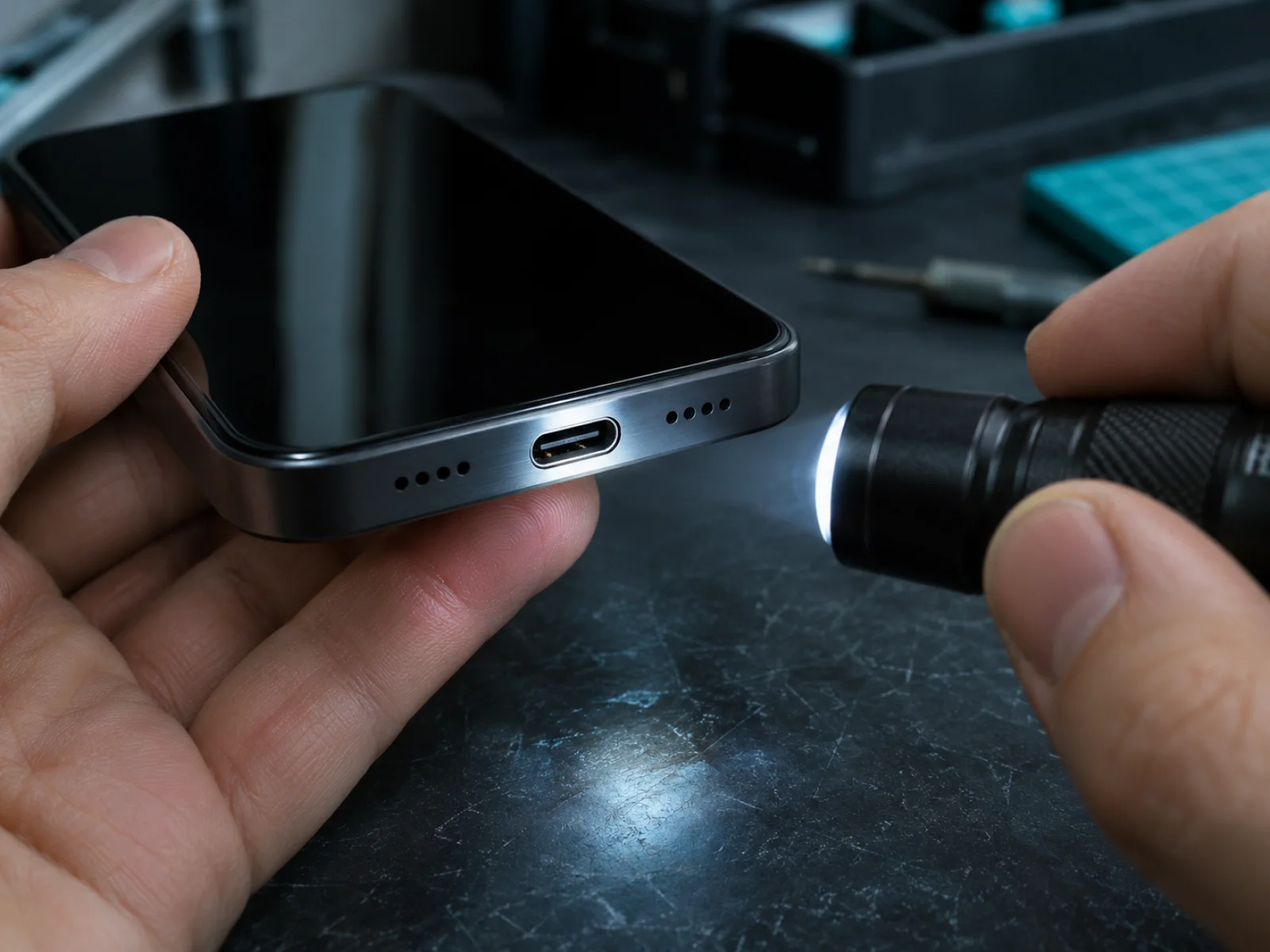
Power the phone off and disconnect the cable. Use a light to look for visible obstruction, corrosion, or damage. Do not scrape the port with a pin, metal pick, toothpick, or liquid cleaner. The connector contains small contacts that can be damaged, and cleaning directions differ by manufacturer.
Résultat attendu : le port paraît dégagé et la fiche s’insère complètement sans forcer.
Vérification : rebranchez une fois le câble et observez si la charge reste stable sans bouger le téléphone. Si la fiche flotte, si les contacts semblent abîmés ou si des débris sont coincés, arrêtez et demandez une réparation selon les consignes du fabricant.
4. Confirm the phone and charger support the same charging mode
Read the phone maker’s support page for the exact model and compare it with the charger’s markings. USB Power Delivery, PPS, and manufacturer-specific fast-charge modes are not universal. A USB-C charger can still charge a phone at a slower compatible rate when the faster mode is not supported, but the label on the charger alone cannot confirm the negotiated charging power.
Use a manufacturer-approved charger and cable where the maker recommends them. Avoid uncertified adapters, damaged USB-C cables, or improvised converters. Do not try to measure power by probing a live USB-C connector.
Résultat attendu : l’ensemble d’accessoires est indiqué comme compatible avec le téléphone et aucun mode non pris en charge n’est supposé.
Vérification : recherchez le modèle exact dans les consignes officielles de charge. Si la compatibilité n’est pas indiquée, utilisez l’ensemble recommandé par le fabricant ou demandez-lui quelle norme de charge convient.
5. Check charging settings and software only after the physical checks
Some Android phones provide charging protection, scheduled charging, or battery-care features that intentionally change charging behavior. Names and locations vary across manufacturers and Android versions. Consult the phone maker’s support documentation or search Settings for “charging” or “battery”; menu names vary by brand and software version.
Résultat attendu : vous pouvez déterminer si une fonction de charge documentée explique le comportement observé.
Vérification : comparez la description du réglage à la documentation du fabricant. Si le comportement reste inexpliqué, installez uniquement les mises à jour officielles du modèle exact puis répétez la comparaison câble-chargeur. Ne réinitialisez pas le téléphone et ne désactivez pas ses protections comme premier essai.
Common mistakes
- Assuming every USB-C cable supports the phone’s fastest charging mode.
- Choosing a charger only by its largest wattage number; the phone may support a different voltage, profile, or protocol.
- Testing several cables and adapters at once, which hides which change mattered.
- Using a phone heavily while comparing its charging rate.
- Wiggling a loose connector or scraping lint from the port with metal.
- Ignoring a temperature or moisture warning, swollen battery, or damaged cable.
If it still charges slowly
| Evidence | Possible cause | Next diagnostic action |
|---|---|---|
| Several approved cables behave the same with one charger | Adapter, outlet, or charging-mode limitation. | Test the phone with a known-good compatible adapter and wall outlet. |
| More than one charger behaves poorly and the plug is loose | USB-C port wear, contamination, or connector damage. | Stop using the loose connection and request port inspection. |
| Charging slows only when the phone is hot or in heavy use | Thermal protection or the phone consuming power while charging. | Repeat the comparison when cool and idle; follow any temperature warning. |
If those checks do not identify the cause, note the phone model, charger and cable model, exact warning text, and when the slowdown occurs. Give those details to the manufacturer or a repair center. Do not claim a battery failure based only on a slow percentage increase.
When to stop and arrange service
Stop charging if the battery is swollen, the phone smells unusual, a connector is burned or melted, the device repeatedly overheats, or a moisture warning persists. Unplug the charger if it is safe to do so and follow the phone maker’s battery and repair guidance. Do not disassemble the phone or probe its battery. For related checks, see how to diagnose a phone that will not charge, USB-C charging behavior on a laptop, and why a USB-C cable may charge but not transfer data.
What charging profiles are normal?
USB-C describes a connector, not a guaranteed speed. The phone and charger negotiate a supported mode; the phone may then reduce power as the battery fills or its temperature changes. The figures below are examples, not promises for a particular Android model: 5 V × 2 A is 10 W, while 9 V × 3 A is 27 W. USB Power Delivery (USB PD) negotiates supported voltage/current combinations; PPS is an optional adjustable-voltage mode used by some compatible devices. Phone limits, cable, charger, battery state, temperature and screen activity all matter.
“Charging rapidly” and “Charging slowly” labels vary by Android model and software. If shown, compare the label under consistent conditions with the manufacturer’s guidance; it is not a measurement. Charging often tapers near full, and some phones slow or pause charging when hot or during an overnight battery feature.
3 A versus 5 A USB-C cables
For standard USB-C cable assemblies, 5 A capability requires an electronic marker (e-marker) for compatible equipment to identify the cable. Do not assume an unmarked cable supports 5 A. Not every phone needs 5 A: use the type specified for its charging system. A higher-rated cable cannot make a phone accept an unsupported mode.
Use an inline USB-C power meter safely
A reputable inline USB-C meter displays negotiated voltage/current and approximate power without probing the connector contacts. Compare known-good cable/charger combinations at similar battery level, temperature and workload. Confirm that the meter supports the relevant USB-C/PD/PPS mode; some meters disturb negotiation and their display is not a calibrated service measurement. Never insert probes into a live USB-C receptacle. Stop if the plug, cable or phone becomes unusually hot or unstable.
Brand settings that can look like slow charging
- Samsung Galaxy: Battery Protection may cap charging at 80% or 85%, depending on model, software and mode.
- Google Pixel: Adaptive Charging may finish near the usual unplug time; supported models may also offer an 80% limit.
- Xiaomi and OnePlus: supported models may offer smart or optimized charging based on temperature, battery condition or schedule. Modes vary by model and region; use the exact manual.
Quels profils de charge sont normaux ?
USB-C désigne un connecteur, pas une vitesse garantie. Le téléphone et le chargeur négocient un mode compatible ; le téléphone peut ensuite réduire la puissance à mesure que la batterie se remplit ou si sa température change. Exemples, sans garantie pour un modèle Android précis : 5 V × 2 A donnent 10 W et 9 V × 3 A donnent 27 W. USB Power Delivery (USB PD) négocie des combinaisons compatibles ; PPS est un mode de tension réglable optionnel sur certains appareils. Les limites du téléphone, le câble, le chargeur, la batterie, la température et l’usage de l’écran comptent.
Les mentions « charge rapide » ou « charge lente » varient selon le modèle et le logiciel Android. Si elles apparaissent, comparez-les dans des conditions identiques aux consignes du fabricant ; elles ne constituent pas une mesure. La puissance diminue souvent près de la pleine charge et certains téléphones ralentissent ou suspendent la charge s’ils chauffent ou pendant une fonction nocturne.
Câbles USB-C de 3 A et de 5 A
Pour les assemblages USB-C standards, un câble pouvant transporter 5 A doit intégrer une puce d’identification électronique (e-marker), reconnue par l’équipement compatible. Sans cette puce, ne supposez pas qu’il accepte 5 A. Tous les téléphones n’ont pas besoin d’un câble 5 A : respectez le type indiqué pour leur système de charge. Un câble mieux classé ne rend pas compatible un mode non pris en charge.
Wattmètre USB-C en ligne, utilisé sans risque
Un wattmètre USB-C en ligne de qualité affiche la tension et le courant négociés ainsi qu’une puissance approximative, sans sonder les contacts du port. Comparez des ensembles câble/chargeur fonctionnels à niveau de batterie, température et usage similaires. Vérifiez la prise en charge USB-C/PD/PPS : certains appareils perturbent la négociation et leur affichage n’est pas une mesure d’atelier étalonnée. N’introduisez jamais de pointes dans un port USB-C sous tension. Arrêtez en cas de chaleur ou d’instabilité inhabituelles.
Réglages de marque pouvant ressembler à une charge lente
- Samsung Galaxy : Protection de la batterie peut limiter la charge à 80 % ou 85 % selon le modèle, le logiciel et le mode.
- Google Pixel : Charge adaptative peut terminer près de l’heure habituelle de débranchement ; certains modèles proposent aussi une limite à 80 %.
- Xiaomi et OnePlus : certains modèles proposent une charge intelligente ou optimisée selon température, batterie ou horaire. Les modes varient ; consultez le manuel exact.
Questions fréquentes
Pourquoi mon téléphone charge-t-il lentement avec un chargeur rapide ?
La puissance maximale du chargeur n’est pas la puissance négociée. Vérifiez compatibilité, température, limite batterie et niveau de charge.
Pourquoi Android indique-t-il « charge lente » ?
Le texte varie selon le modèle et ne suffit pas à diagnostiquer une panne. Comparez le même ensemble et consultez le fabricant.
Pourquoi mon téléphone charge-t-il lentement la nuit ?
La charge adaptative peut attendre l’heure habituelle du réveil ou s’arrêter à une limite. Vérifiez les réglages du modèle exact.
Un chargeur plus puissant charge-t-il toujours plus vite ?
Non. Téléphone, chargeur et câble doivent partager un mode compatible ; le téléphone contrôle la puissance reçue.
Un câble USB-C peut-il ralentir la charge ?
Oui. Un câble abîmé ou inadapté peut limiter la puissance. Comparez avec un câble fonctionnel recommandé pour le modèle.
Next step
If you want to understand the voltage, current, and power figures printed on a charger, use ElectronixLab’s electrical power calculator. The calculation explains label values; it does not reveal the live power negotiated between a phone and charger.
Sources
- USB-IF : intensité des câbles USB-C et exigence e-marker, consulté le 13 novembre 2026.
- Aide Google Pixel : conseils de charge, consulté le 13 novembre 2026.
- Aide Google Pixel : charge adaptative et limites de batterie, consulté le 13 novembre 2026.
- Assistance Samsung : Protection de la batterie, consulté le 13 novembre 2026.
- Assistance Xiaomi : charge intelligente, consulté le 13 novembre 2026.
- Manuel OnePlus 11 : charge optimisée (modèle précis), consulté le 13 novembre 2026.
Dernière mise à jour : 13 novembre 2026.
Soyez le premier à laisser un commentaire.