If your laptop no longer charges through USB-C, first verify the correct charging port, the charger’s available Power Delivery profiles and the cable’s power rating. A reading of 0 V, 5 V or 20 V is a clue about the connection and negotiation, not a diagnosis of a failed motherboard component. Compare a known-compatible charger and cable directly with the laptop before inserting a meter or opening the machine.
This guide covers laptops that officially support USB-C power input. It explains external checks and how to interpret an optional inline USB-PD meter. It does not prescribe live motherboard probing, battery bypasses or forcing a voltage onto the port. Numerical scenarios below are examples for interpretation; they are not measurements from a claimed repair.
USB-C describes a connector, not a guaranteed charging capability
A USB-C socket may support data, display output, power input, power output or a combination. Its shape alone does not establish that it can charge your laptop. Read the exact model manual and identify the charging-capable port. A charging icon on the case can help, but documentation remains more reliable than guessing from a neighbouring Thunderbolt or display symbol.
Direction also matters. A laptop supplying power to a phone is acting as a source; receiving power from an adapter makes it a sink. A working phone connection does not prove that the laptop can accept its own charging supply through that port. Some computers accept different voltages as a sink while supplying only a limited voltage and current to accessories.
Before troubleshooting, record the laptop model, the original adapter rating, the port used and whether charging worked previously. Note the last change: new dock, different cable, extra device on a multiport charger, BIOS update or physical damage. This separates a new accessory mismatch from failure of a previously working arrangement.
What 0 V, 5 V and 20 V actually mean
USB-C attachment uses configuration-channel contacts, CC1 and CC2, to recognize the connection and its orientation. Power Delivery then permits the source and sink to communicate about supported power. Renesas describes a compliant unattached Type-C source as keeping VBUS off until attachment is recognized. Therefore an unloaded USB-C adapter measuring 0 V through an unsuitable test setup is not automatically defective.
The initial attached supply is commonly 5 V. A compatible PD exchange can establish a different voltage requested and supported by both ends. Many laptop arrangements use 20 V, but it is not a universal success criterion. USB-PD Extended Power Range also provides higher fixed voltages on compatible equipment; older meters and cables may not support those arrangements.
| Observed state | Possible meaning | Next useful comparison |
|---|---|---|
| 0 V before connection | No attachment recognized, or the test setup is not presenting a valid sink | Try direct charging without the meter |
| 0 V with the laptop connected | Attachment, power source, cable, port or meter setup needs checking | Known-compatible charger and cable on the documented input |
| About 5 V, without charging | Initial supply exists; required higher-power negotiation may not complete | Check offered profiles, cable capability and meter transparency |
| About 20 V, little current | Higher voltage is present; battery charging is not established by voltage alone | Check charge limits, battery status and system load |
| Voltage repeatedly drops and returns | Connection resets or protection events are possible | Stop moving the plug and compare a stable accessory set |
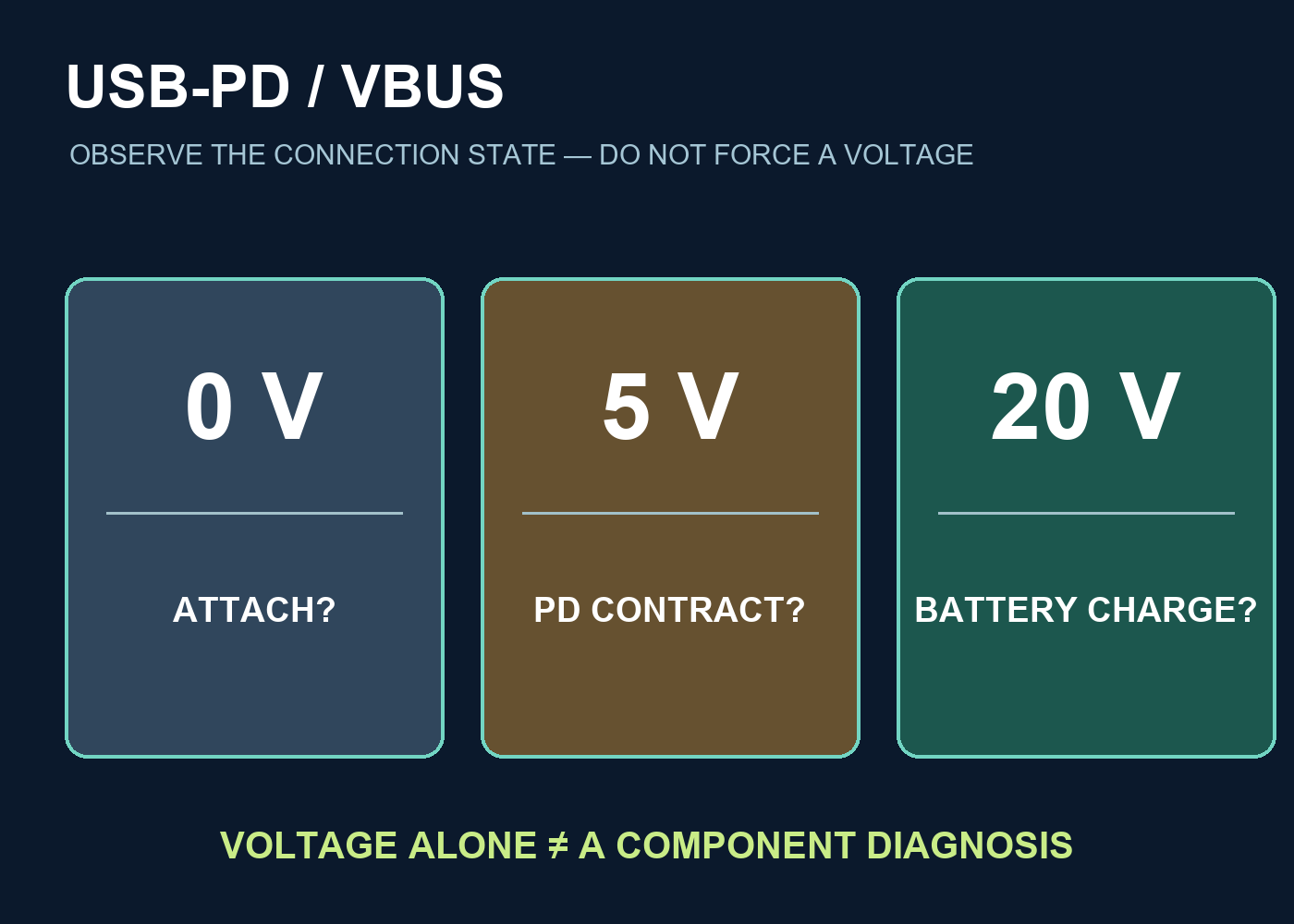
Do not assume every source offers every voltage printed in a generic USB-PD chart. Read its actual output list. A single voltage display does not show the complete negotiation history, battery current or the condition of an internal charging controller. If the laptop expects an EPR supply, a 20 V reading can describe an incomplete or lower-power arrangement rather than full operation.
Check power and cable requirements before buying parts
Read the per-port output, not only the large wattage number
A charger advertised as 100 W may reach that figure only through one particular port or when other ports are unused. Check its allocation table. A second connected device can change the power available to the laptop. For a controlled test, remove other loads and connect the laptop directly to the port intended to provide its required profile.
Power is voltage multiplied by current: P = V × I. For example, 20 V × 3 A equals 60 W, whereas 20 V × 3.25 A equals 65 W. A source restricted to 20 V at 3 A cannot supply a 65 W contract at that voltage. These calculations compare ratings; they do not predict the battery’s charging speed because the running system also uses power.
Choose a cable that supports the required current
A conventional 3 A USB-C cable limits a 20 V arrangement to 60 W. Operation above 3 A requires an appropriately rated electronically marked cable. An e-marker communicates cable capabilities; it does not turn an undersized charger into a larger one. A legacy 100 W cable and a 240 W EPR cable also have different intended voltage capabilities. Use the rating required by the laptop and adapter combination, not merely a claim of fast data transfer.
USB-IF’s current certified USB-C-to-USB-C cable logo programme uses 60 W and 240 W power markings. Older legitimate 100 W cables remain in use, so the absence of a new-style marking alone cannot diagnose a cable. Prefer verifiable specifications and an appropriate known-working reference. An expensive video cable is not a substitute for checking power compatibility.
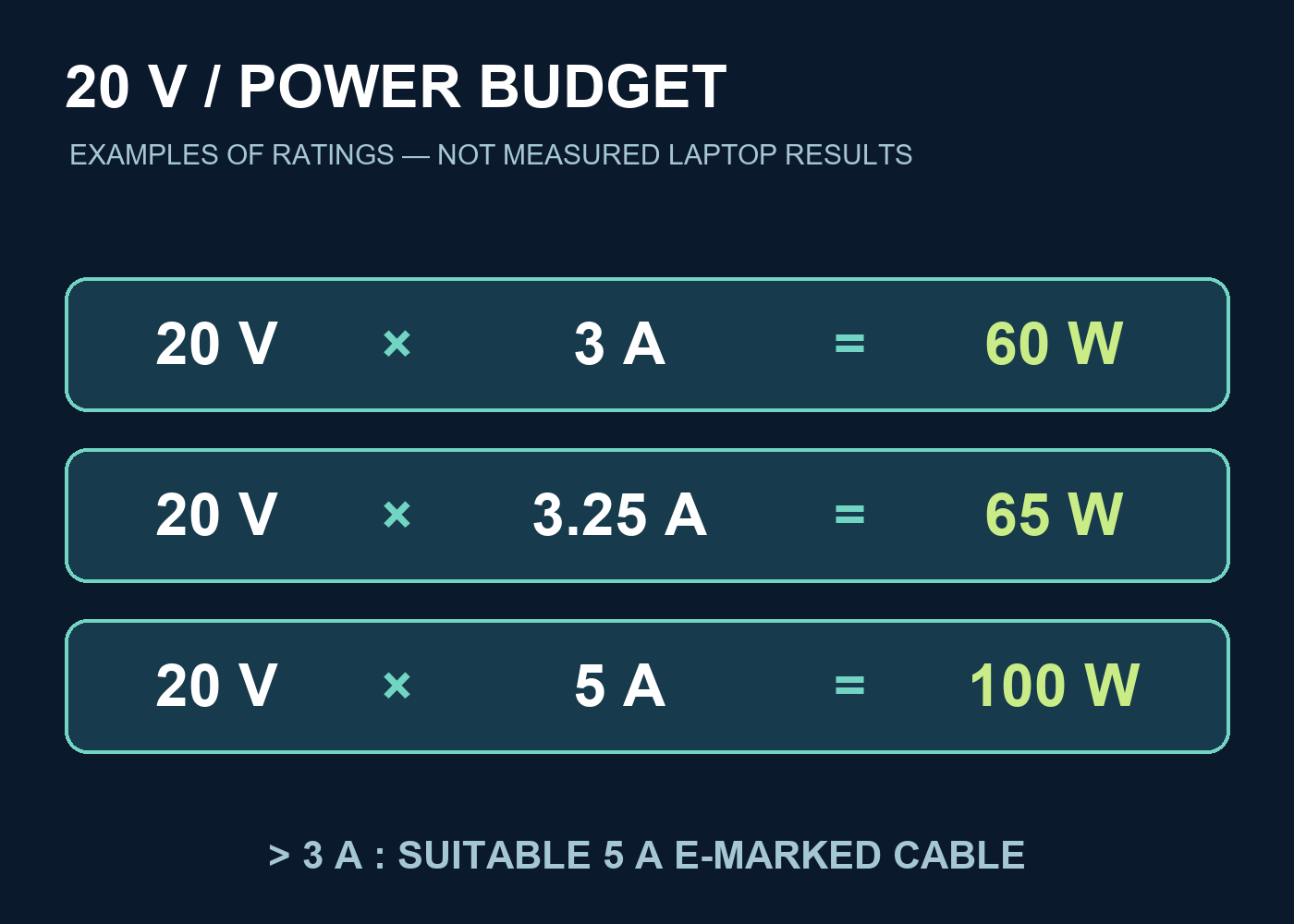
| Available current | Calculated maximum | Interpretation |
|---|---|---|
| 3 A | 60 W | Below a 65 W requirement at this voltage |
| 3.25 A | 65 W | Requires the complete path to support more than 3 A |
| 5 A | 100 W | Requires compatible source, sink and 5 A cable |
External diagnostic procedure
- Confirm that the exact laptop supports charging through the selected USB-C port.
- Compare the original or a verified compatible charger and properly rated cable directly.
- Inspect the connector and compare cable orientation without forcing or moving it under load.
- Test powered off, then check charging limits and adapter recognition.
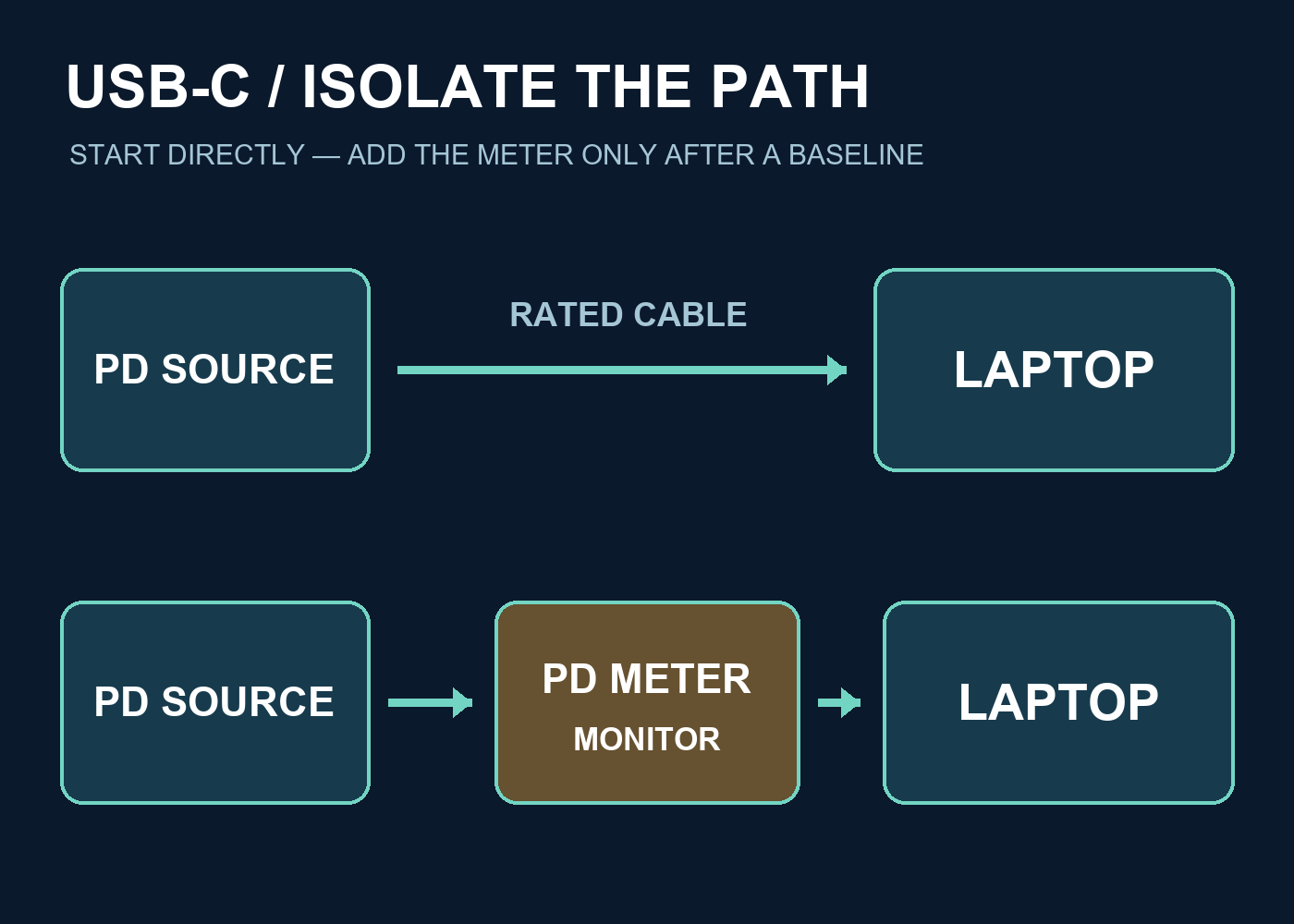
- If still necessary, insert a compatible passive-monitoring PD meter and interpret its limitations.
- Use the comparisons to decide whether an accessory, port or internal diagnostic service is needed.
1. Establish a direct connection
Disconnect the dock, monitor, hub, extension and adapter chain. Connect the verified charger and cable straight to the laptop’s documented charging input. Use a working wall outlet and keep the adapter ventilated. If the adapter has detachable mains components, follow its manufacturer’s inspection instructions; do not open the adapter enclosure.
Record whether the computer recognizes external power, shows a charging icon and increases battery percentage over a suitable observation period. A charge indication by itself is weaker evidence than a sustained increase under comparable conditions. If direct charging works but the dock arrangement fails, investigate the dock’s power input, host cable and advertised power delivered to the computer.
2. Change the charger and cable separately
First compare a known-compatible cable while keeping the charger and port unchanged. Next compare a known-compatible adapter with that verified cable. The replacement must support the laptop’s required profiles, not merely charge a phone successfully. Keep other charger ports empty during the comparison and write down which single change alters the result.
A higher-rated compliant adapter does not simply force its maximum current into a laptop; a compatible connection supplies the agreed power within its capabilities. However, matching the headline wattage alone still does not guarantee compatibility, especially with manufacturer-specific charging arrangements. The exact laptop’s published requirements take priority over a generic wattage recommendation.
3. Inspect the port and compare orientation safely
Shut the laptop down and disconnect power before inspection. Look for a damaged tongue, bent contact, debris, discoloration or a plug that no longer seats properly. Do not scrape inside with a metal pin, spray liquid into the connector or continue using a connection that becomes hot. A swollen battery, burnt smell or melted connector ends the external testing sequence.
If there is no visible damage, reconnect without strain and compare the two plug orientations as separate tests. USB-C should operate reversibly in a compliant arrangement. A repeatable difference suggests that a contact, cable or attachment path needs examination, but it does not identify a specific CC pin or prove the PD controller is dead. Compare another suitable cable before assigning the fault to the socket.
4. Compare powered-off and running behaviour
If a laptop charges when off but loses battery percentage during heavy use, insufficient usable input power is one possible explanation. Microsoft identifies charger compatibility, cable capability and the correct port as common causes of slow charging. Reduce workload for the comparison rather than immediately replacing the battery.
A simplified example is 45 W of input while the running computer needs 55 W: the shortfall is about 10 W before accounting for conversion losses and battery-management behaviour. This explains why a plugged-in icon can coexist with discharge. It is not a measurement of your computer, and an external meter cannot directly measure how much power enters the battery cells.
Check manufacturer charge thresholds and battery condition in the supported utility or firmware interface. A configured stop at 80% can be intentional. On applicable Dell machines, adapter recognition or reported wattage in BIOS provides another useful observation. Do not apply a Dell menu path to another brand. Follow the model’s reset procedure if recommended; do not randomly disconnect an internal battery or reset firmware settings.
5. Add an inline meter only after the basic comparisons
Use a USB-PD meter whose voltage, current, connector direction and supported power range cover the actual arrangement. Verify whether it passes the necessary CC communication and cable-identification information. A meter can alter the connection, add resistance or impose its own limits. Its screen may also need power before it can display anything, so a dark display is not an independent measurement of zero volts.
Begin by confirming that charging still works with a known-working arrangement when the meter is inserted. Then compare the suspect setup. Read the meter’s manual to distinguish actual bus voltage, advertised profiles, requested contract and trigger modes. Do not use a trigger function to force 20 V, bypass negotiation or inject voltage into the laptop. Check the arrow or port labels so you are observing power flowing toward the laptop.
Record a stable voltage and current together with laptop state, battery percentage, charger port, cable and whether a dock is present. Compare like with like: an idle computer at 30% battery differs from a nearly full machine running a game. Small current at 20 V may reflect a full battery, an intentional charge threshold, low demand or an internal fault; that reading cannot distinguish them alone.
How to narrow the fault without an invented component diagnosis
| Comparison | Result | Direction |
|---|---|---|
| Same laptop and charger, different rated cable | Charging returns | Original cable or its compatibility is suspect |
| Same laptop and verified cable, compatible replacement charger | Charging returns | Original adapter or port allocation is suspect |
| Direct connection versus dock | Only direct works | Dock, host cable or power budget |
| Two inputs documented to accept charging | Only one works with the same accessories | Port-specific connection or internal path |
| Known-working direct path versus meter inserted | Only the meter arrangement fails | Meter capability or its effect on negotiation |
Even if a compatible reference charger never gets beyond 5 V on the laptop, several causes remain possible: connection detection, cable communication, firmware state, a protected power path or the receiving circuitry. CC1/CC2 and PD-controller names describe parts of that system; they are not replacement instructions derived from a meter reading.
For professional diagnosis, provide the model, adapter output list, cable rating, orientation comparison and behaviour with and without the meter. An internal technician can then use the correct schematic, board revision and powered-off or controlled electrical checks. Avoid injecting a presumed 20 V rail or bridging input MOSFETs: this bypasses protections and can damage the computer or battery.
Frequently asked questions
Why does the same charger work on a phone but not a laptop?
The phone may need a different voltage or much less power. That test confirms only one combination. Check the laptop’s required profiles and per-port power before accepting the charger as a reference.
Does 20 V prove that the charging controller works?
It shows that higher voltage is present at the measurement point. It does not prove current reaches the battery, that the battery accepts it or that the operating computer has enough power.
Is every laptop supposed to charge from USB-C while gaming?
No. Lenovo’s Legion Pro 5 16IRX9 documentation, for example, describes USB-C charging as a secondary input with operating limitations. Apply that example only to the stated model and consult your own manual.
Should I update the BIOS before trying a different cable?
Start with external compatibility checks. Consider official firmware updates when the manufacturer documents a relevant issue and you can meet its power requirements. An unstable supply is not a suitable basis for improvising a firmware update.
Technical references
Consulted 27 October 2026. Specifications and procedures must be checked against the exact laptop, adapter, cable and meter.
- Renesas — USB Type-C attachment and role detection.
- USB-IF — USB Power Delivery and Extended Power Range.
- USB-IF — cable capabilities and power markings.
- Texas Instruments — SPR/EPR voltage and current ranges.
- Microsoft — slow charging or discharge while plugged in.
- Apple — USB-C adapter and cable charging checks.
- Dell — adapter wattage and battery charging settings.
- Lenovo — Legion Pro 5 16IRX9 USB-C input limitations.
For the phone-specific case, see our phone charging guide. Use the Electronix calculators to check electrical relationships; a calculation does not replace compatibility documentation. For un montage source USB-C, voir le guide de sélection sûre de tension avec une carte déclencheuse USB-C PD.
Soyez le premier à laisser un commentaire.