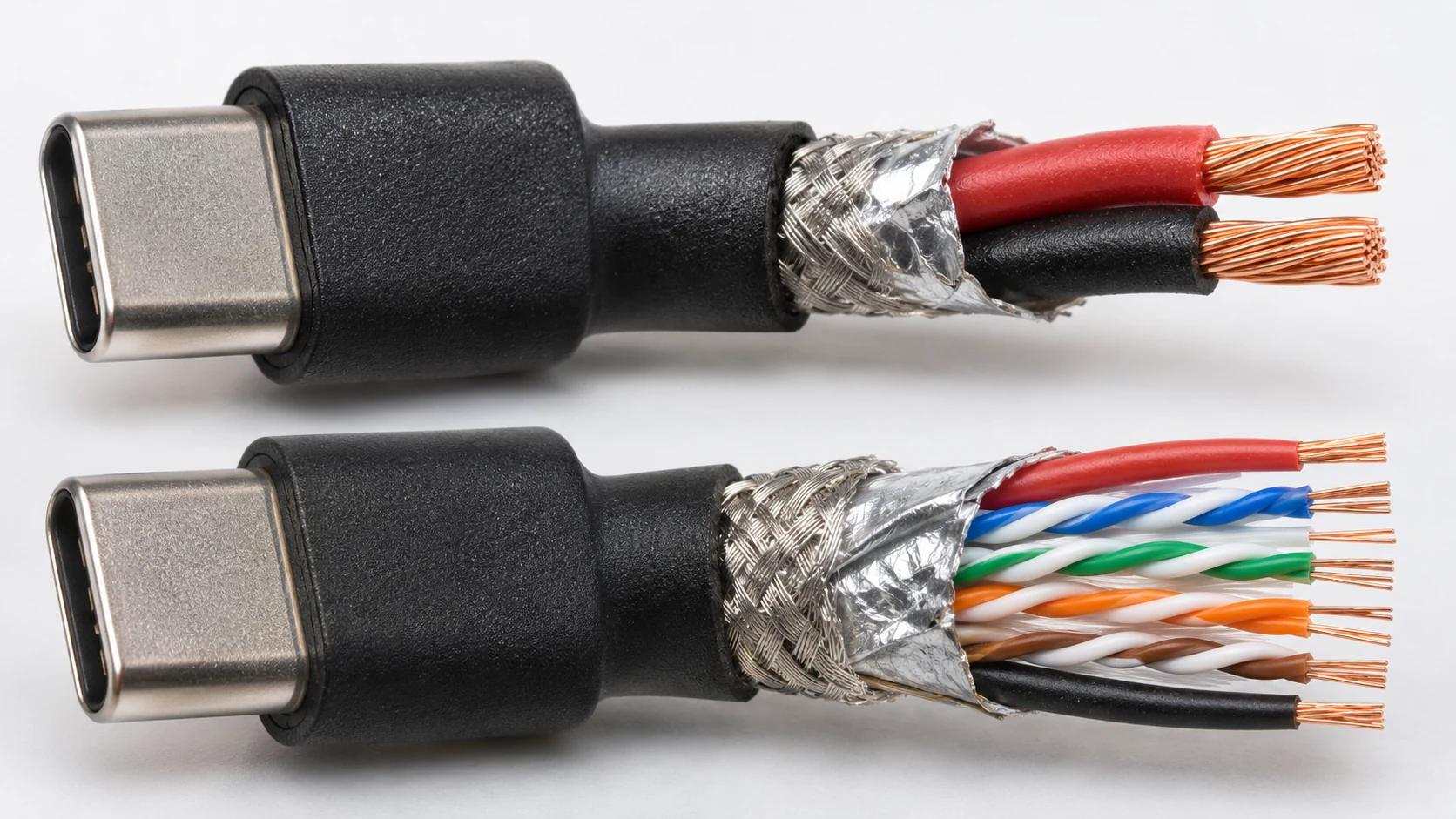
A USB-C cable can charge a phone or laptop and still be unable to transfer files. USB-C describes the reversible connector, not one guaranteed set of data capabilities. The cable may be power-only, limited to USB 2.0, damaged on a data conductor, or connected to a charge-only port. The device can also be locked, set to charging mode, or missing a supported driver.
Use a controlled comparison: keep the phone and computer unchanged, unlock the phone, select file transfer, then substitute a cable already proven to move data. Do not judge by charging speed alone. Power Delivery and data use related but distinct conductors, negotiation and device functions.
Separate connector shape, power and data
| Result | What it proves | What it does not prove |
|---|---|---|
| Battery icon appears | Some power path and attachment detection work | Data pairs, USB mode or file access |
| Fast charging works | Power negotiation may be working | USB 2, USB 3, USB4 or video capability |
| Phone appears in Device Manager | Windows enumerated a USB function | Phone is unlocked or file-transfer mode is selected |
| Known-good data cable works | Original cable is strongly implicated | Its exact internal break without further testing |
| No cable works on one port | Host port, policy or controller becomes plausible | That every cable is defective |
Diagnostic procedure
- Identify the intended transfer. A phone-to-PC file transfer, external SSD, dock, display and audio interface do not require the same cable capabilities. Check both device manuals.
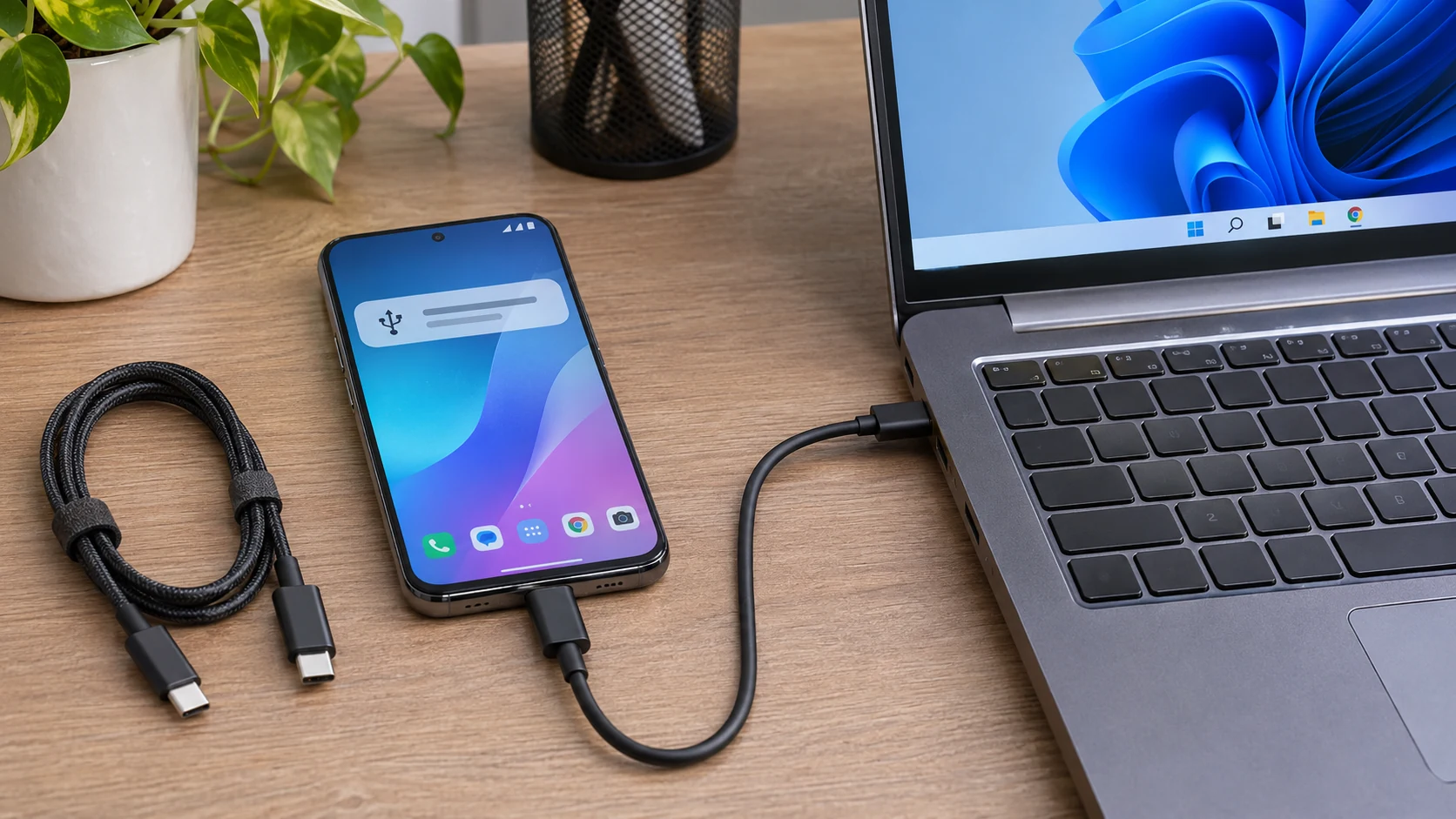
- Unlock the mobile device. Keep its screen awake, reconnect once, and inspect the USB notification. Select File transfer/MTP when available. Charging-only mode is often the default for privacy.
- Use a native computer port. Remove docks, monitor hubs and adapters. Connect directly. If the computer has multiple USB-C ports, consult its markings or manual because some ports support charging only, data only, display, or a combination.
- Substitute a proven data cable. Choose one that has already transferred a large file reliably between the same classes of device. A new cable is not automatically a data cable.
- Reverse the USB-C plugs. A compliant cable should work in either orientation, but a damaged contact or contaminated receptacle can make an orientation appear intermittent. Treat an orientation-dependent result as evidence of a physical defect.
- Inspect both receptacles with power removed. Compact USB-C ports collect lint that can prevent full insertion. Use light, not a metal pin. Follow the device manufacturer's cleaning instructions.
- Check Windows enumeration. In Device Manager, watch Portable Devices, Disk drives and USB controllers while reconnecting. Uninstall only the correlated failed entry, restart, and let Windows reinstall it.
- Cross-test the chain. Test cable plus phone on another computer, then a known-good phone or drive on the original port. Change one element at a time.
How to identify a data-capable cable
Packaging and certified performance markings are more useful than color or thickness. USB-IF requires certified USB-C to USB-C cables to carry power markings and, except for High-Speed USB 2.0 cables, the appropriate supported data rate. Absence of a mark does not mathematically prove “power-only,” but it removes useful evidence. Keep cables labeled by function after a successful test.
Do not infer capability from a 60 W or 240 W power mark alone. That mark describes power rating. A separate data-performance mark can state the supported rate. Thunderbolt, USB4, DisplayPort Alternate Mode and ordinary USB data are also not interchangeable claims.
Phone settings and privacy behavior
Android devices commonly expose a USB notification after unlocking. Select file transfer rather than charging. Some corporate devices disable file transfer by policy. On an iPhone or iPad, trust prompts and supported Apple software or drivers may be required. Never approve an unknown computer merely to test a cable; use a machine you control.
If the phone appears in Device Manager but not File Explorer, inspect the selected USB mode and trust state before editing drivers. If it does not enumerate at all, cable, port, contamination and host controller deserve priority.
Port inspection and stopping criteria
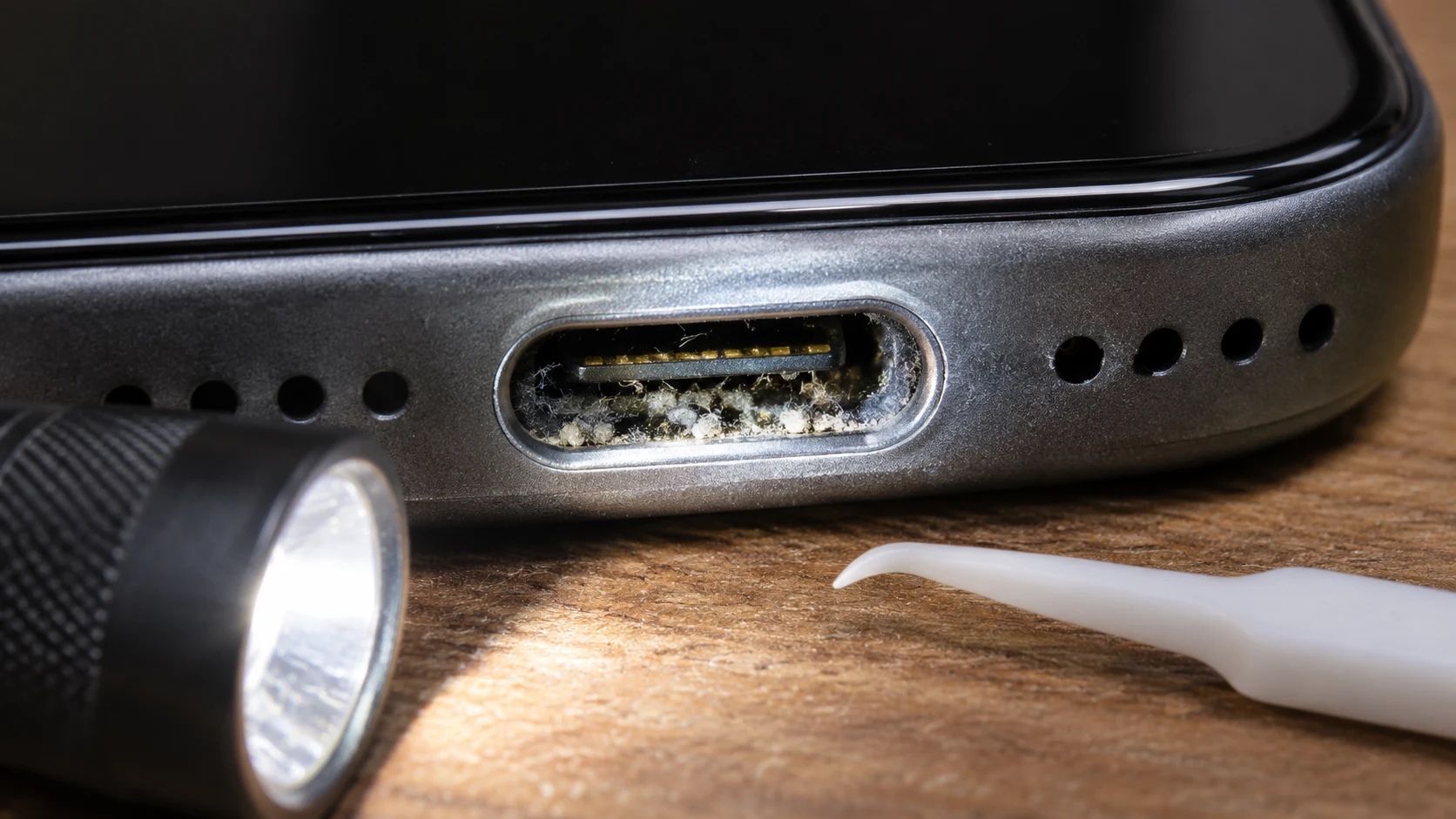
Stop using a cable whose plug is loose, hot, corroded or sharply bent. Stop cleaning if debris is compacted behind the tongue or the tongue moves. A repair shop can clean or replace the receptacle without tearing pads from the board. If an external SSD disconnects, stop repeated large transfers until the cable and port are stable.
Common wrong turns
- Buying another unlabelled “charging cable” and expecting a different data result.
- Installing random Android USB packages before testing a known-good data cable.
- Assuming a high-wattage cable supports high data rates.
- Forcing a plug that does not seat fully because lint blocks the receptacle.
- Testing through several adapters at once, which hides the failed link.
Frequently asked questions
Can a damaged data cable still fast-charge?
Yes. The power path and negotiation can remain usable while a data conductor or contact fails. Confirm by substituting a proven data cable.
Why does the phone charge but show no USB notification?
The cable may have no data conductors, the port may be charge-only, the connector may not be fully seated, or enumeration may be failing. Unlock the phone and compare direct ports and a known-good cable.
Does USB-C guarantee USB 3 speed?
No. USB-C is the connector system. Products can implement different USB data generations and optional features. Check certified markings and product specifications.
Should I enable USB debugging?
No for ordinary file transfer. USB debugging is a developer feature with security implications and does not add missing cable conductors.
Technical sources
- Microsoft Support — fix USB-C problems in Windows (consulted 3 November 2026).
- USB-IF — USB Type-C cable and connector specification (consulted 3 November 2026).
- USB-IF — cables, connectors and certified performance markings (consulted 3 November 2026).
- Microsoft Support — Device Manager driver workflow (consulted 3 November 2026).
Be the first to leave a comment.