Quick Fix — Try This First
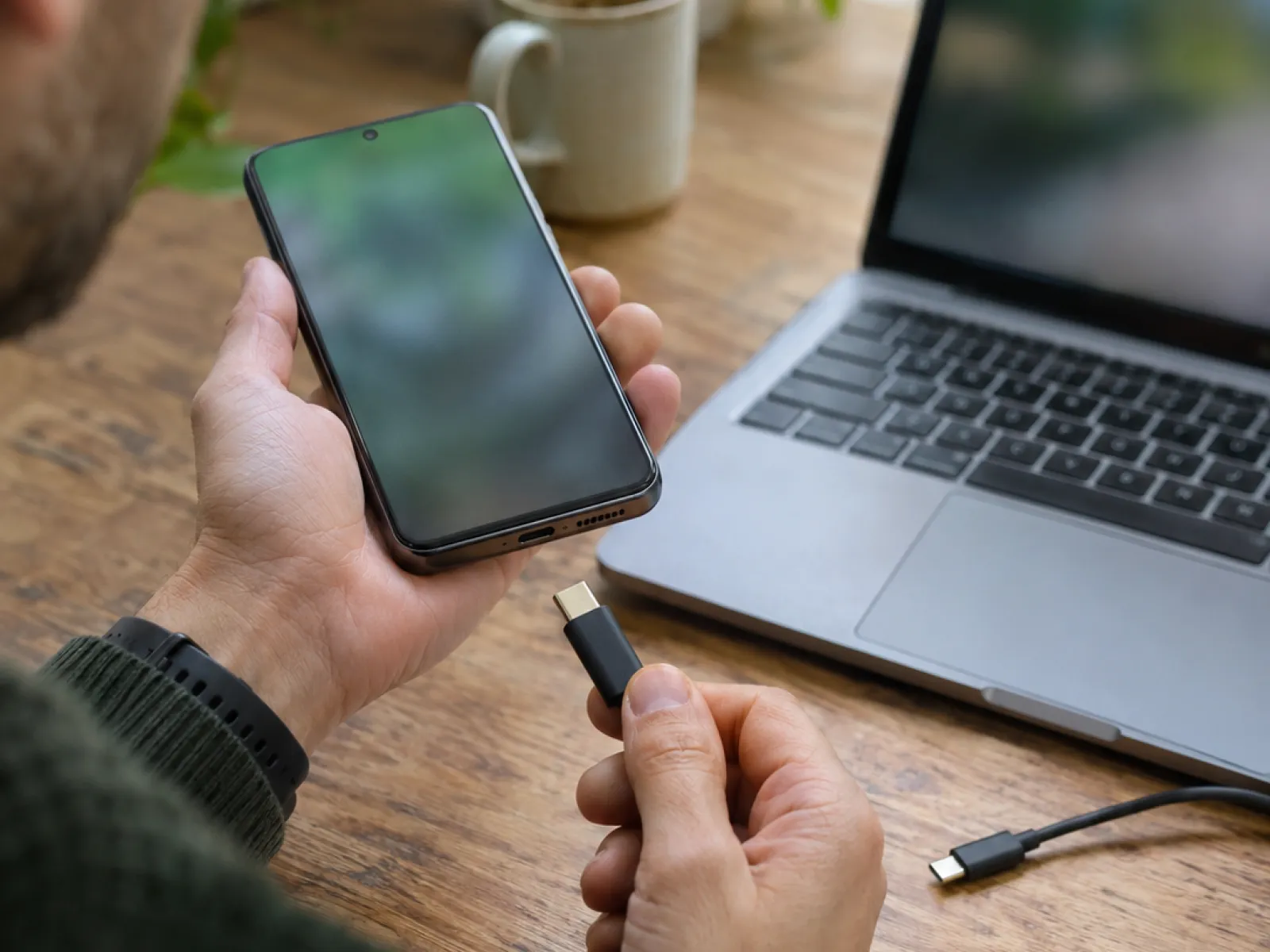
- Unlock the Android phone and connect it directly to the Windows 11 PC with a USB cable that supports data.
- On the phone, tap the “Charging this device via USB” notification and select File transfer under “Use USB for.”
- Open File Explorer and select the phone under This PC. If it is missing, test another data-capable cable and a direct USB port.
- If Windows detects an unknown device, inspect its status in Device Manager before changing any driver.
When Android USB file transfer is not showing in Windows 11, start with the phone’s USB mode and the cable. Charging proves that power reaches the phone; it does not prove the cable carries data. Change one item at a time so you can identify the failed part.
1. Select File transfer on the unlocked phone
- Disconnect the cable, unlock the phone, then reconnect it directly to the PC.
- Swipe down on the phone and tap the USB notification, often labelled “Charging this device via USB.”
- Under “Use USB for,” choose File transfer. Keep the phone unlocked while testing.
- On Windows, press Win+E, select This PC, and look for the phone under connected devices.
Manufacturers can use different wording or place USB preferences in Settings. Search the phone’s Settings for “USB” if the notification does not appear. A phone set to charge only will not expose its files to File Explorer. Check: after selecting File transfer, refresh File Explorer and confirm that the phone appears under This PC. Check: if the notification still says charging only, repeat the mode selection before testing another cable.
2. Prove that the cable and port carry data
Try a cable known to transfer files, not just charge. Connect it directly to another USB port on the PC; bypass a dock, monitor, or hub for this test. If the phone charges but the USB notification never appears, the cable may be charge-only or its data conductors may be damaged.
| Test result | Likely area | Next action |
|---|---|---|
| Phone charges; no USB notification | Cable, port, or phone USB mode | Try a data cable and direct port |
| Phone appears after selecting File transfer | USB mode was set to charging | Keep File transfer selected for this connection |
| Same phone works on another PC | Original PC port or Windows device entry | Compare Device Manager on the original PC |
| No computer detects the phone | Phone port, cable, or hardware | Test a second data cable before repair |
3. Check whether Windows sees the MTP device
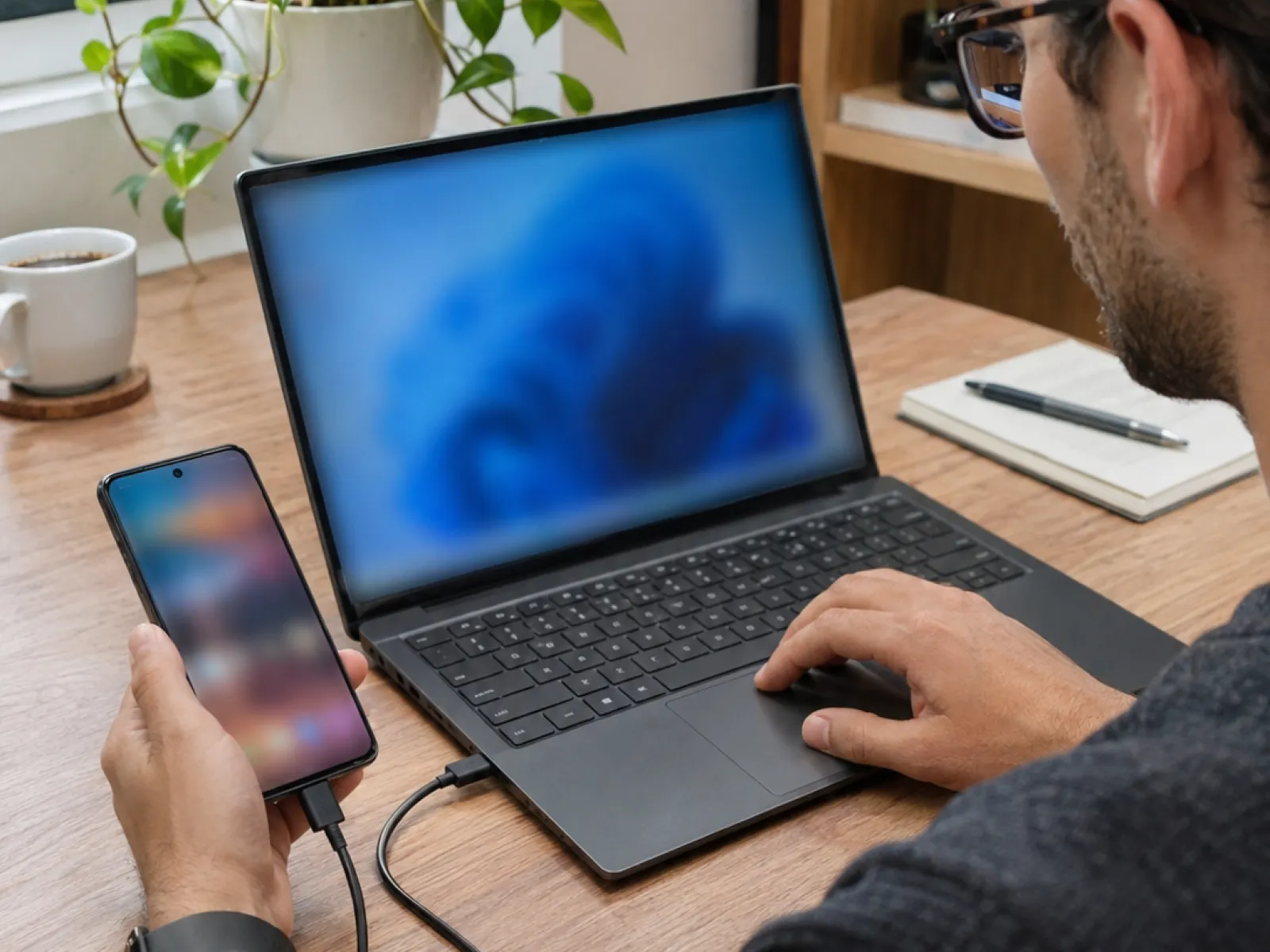
Android file browsing uses Windows Portable Devices support and commonly Media Transfer Protocol (MTP). Right-click Start, open Device Manager, and inspect Portable Devices, Universal Serial Bus devices, and Other devices. Look for the phone, an MTP device, or a yellow warning icon.
PowerShell can list present Plug and Play devices whose names resemble a phone or MTP interface:
Get-PnpDevice -PresentOnly |
  Where-Object { $_.FriendlyName -match 'MTP|Portable|Android|Phone' } |
  Format-Table Status, Class, FriendlyName, InstanceId -AutoSize
This reads device status; it does not install or remove drivers. No result does not prove the phone is defective: the USB mode, cable, or port may prevent Windows from detecting it.
4. Use Device Manager status to choose the fix
Right-click the affected entry, select Properties, and read Device status on the General tab. Note the exact code before making changes. For a warning-marked MTP or portable device, choose Update driver and let Windows search automatically. If the problem began after a driver change, use Properties → Driver → Roll Back Driver only when that button is available.
| Observation | Decision | Action |
|---|---|---|
| No phone or USB entry in Device Manager | Windows is not enumerating the connection | Return to cable, direct port, and phone notification checks |
| Phone appears without a warning | MTP is recognized | Reopen File Explorer and select the phone |
| Unknown device or yellow warning | Windows reports a device or driver issue | Record the code, then use Update driver or the manufacturer’s supported package |
| Works on another computer | Phone and cable can transfer data | Troubleshoot the original Windows device entry |
Do not download a random MTP driver updater. Windows includes WPD/MTP support for compatible devices; use Windows Update or a driver published by your phone or PC maker when a model-specific driver is needed.
Common mistakes
- Assuming every USB-C cable carries data because it charges the phone.
- Leaving the phone locked or set to charging only while searching in File Explorer.
- Removing every USB controller or installing a third-party driver bundle before noting Device Manager status.
Troubleshooting if it still fails
- Phone charges, but USB mode never appears: test another known data cable, then a direct port without a hub.
- Windows shows an error code: record it in Device Manager → Properties → Device status and follow the code’s supported fix.
- The phone fails on two PCs with two data cables: inspect its USB-C port for debris or damage. Do not insert metal tools; stop if the connector is loose or visibly damaged.
Decision rule: If another cable makes the phone appear, replace the cable. If it works on a second PC but not the first, repair the original Windows device entry or port. If no tested PC detects it, investigate the phone connector.
Related guides
- A USB-C cable charges but will not transfer files.
- Diagnose a USB device descriptor request failure.
- Troubleshoot a USB device that keeps disconnecting.
Sources
- Google Android Help: Transfer files between your computer and Android device
- Microsoft Learn: Introduction to WPD drivers
- Microsoft Support: Fix USB-C problems in Windows
- Microsoft Learn: Get-PnpDevice
Last updated: November 11, 2026.
Frequently asked questions
Why does my Android phone charge but not show up in File Explorer?
The cable may carry power but not data, or the phone may be set to charging only. Unlock it, select File transfer in the USB notification, then test a data cable.
Where is File transfer on Android?
Connect and unlock the phone, swipe down, tap the USB charging notification, and choose File transfer. Labels vary by manufacturer.
Does Windows 11 need a separate MTP driver?
Windows includes WPD/MTP support for compatible devices. If Device Manager reports an error, note its code and use Windows Update or the maker’s official driver.
How can I tell if a USB-C cable transfers data?
Test it with a computer and device that can transfer files. Charging alone does not prove data support.
Be the first to leave a comment.