A USB device that repeatedly disconnects and reconnects in Windows 11 may have an unstable cable, worn port, insufficient power, failing driver, or poorly handled power transition. The repeated connection sound does not prove a software problem. This method changes one variable at a time and uses Windows logs instead of random settings.
If the device is storage, stop writes and copy important files as soon as it remains stable. A disconnect during a write can corrupt the file system. Do not use DiskPart clean, format the drive, or open a device under warranty. Shut the PC down before cleaning or inspecting a connector.
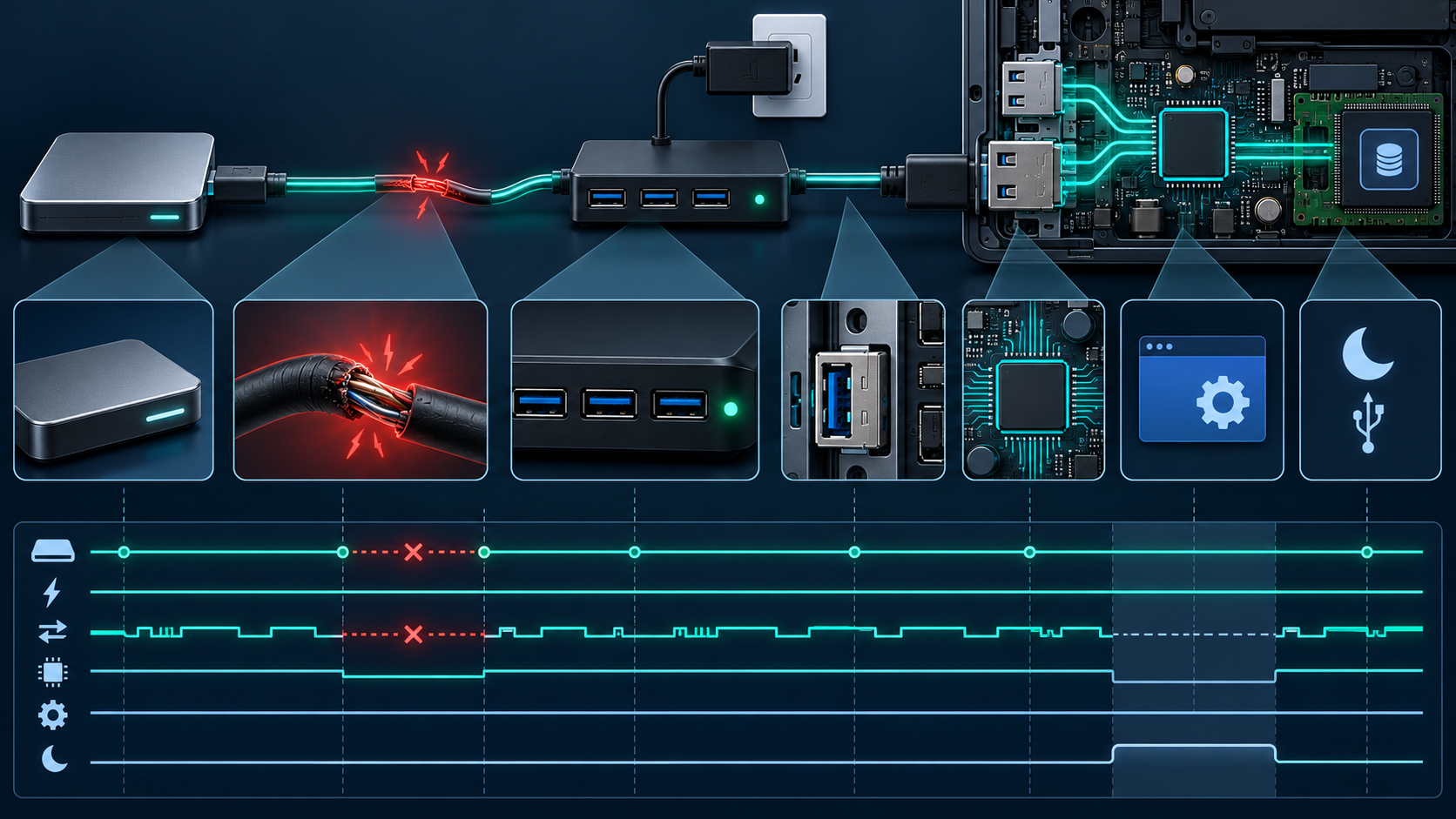
Why Windows repeatedly plays the connection sound
Windows enumerates a device whenever it appears on the bus. If the electrical or logical link disappears, the system removes it and starts enumeration again when it returns. The cycle can last a fraction of a second and leave little visible evidence in File Explorer. A marginal cable, moving plug, or supply that sags under load often creates this behavior.
USB selective suspend lets Windows sleep an idle port without suspending the others. Microsoft recommends keeping it enabled, especially for battery life. Temporarily disabling it can test a disconnect after sleep, but it is not a universal fix. A device that drops during active transfer needs hardware and power checks first.
Step 1: record the exact scenario
Record the affected device, time, port, and action before the drop. Distinguish failure at connection, after idle time, on resume, during a fast copy, or while several devices operate together. These scenarios point to different causes.
Check whether every device disappears or only one. A mouse, drive, and audio interface dropping together on one hub suggest the hub, its supply, or upstream controller. One device failing on several computers points toward its cable, connector, or electronics.
Step 2: test the shortest hardware path
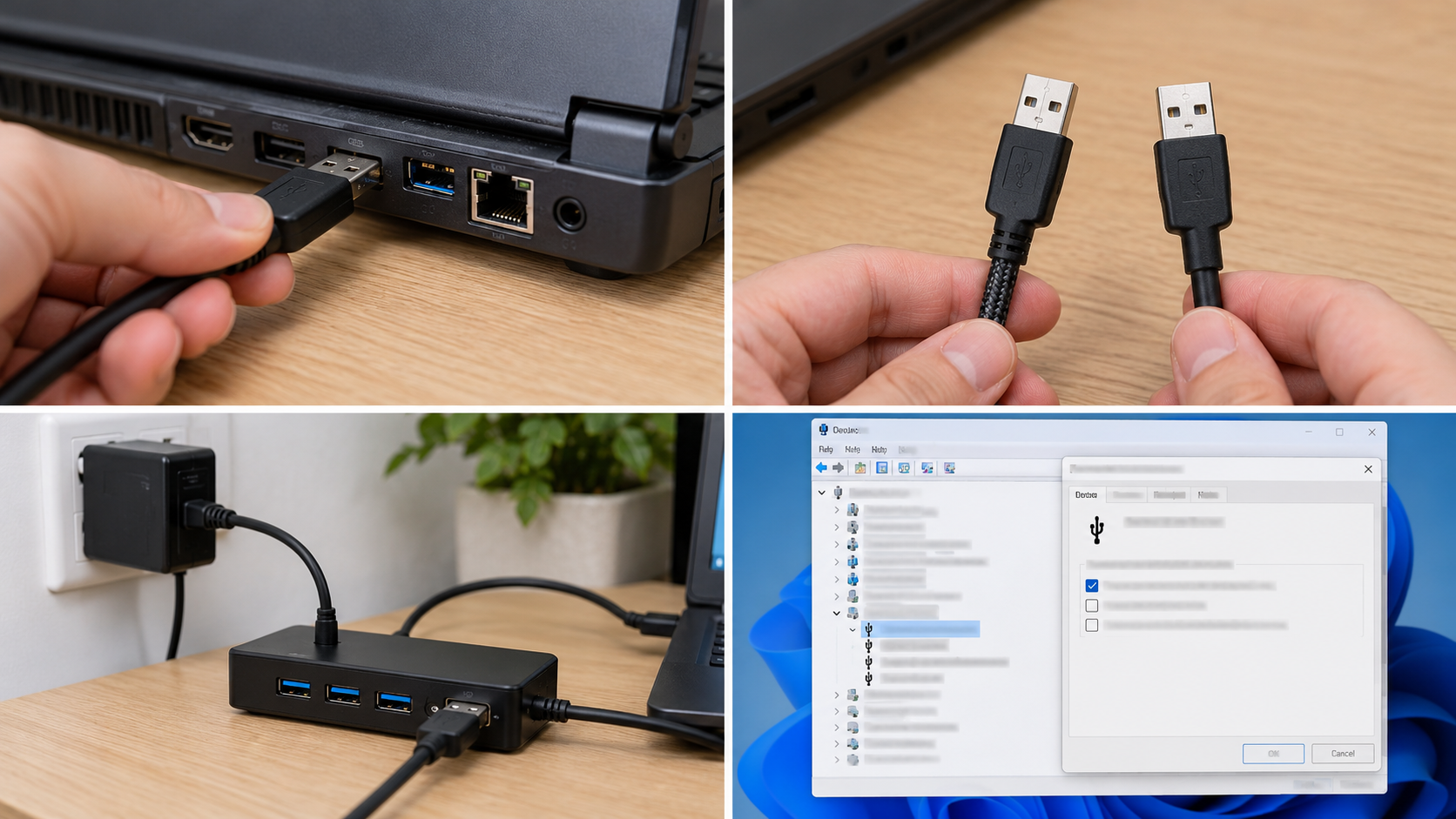
Remove docks, extensions, and passive hubs. Connect directly to the PC. On a desktop, prefer a rear motherboard port over a front-panel connector. Then try a second port, preferably on another controller group.
For a device with a removable cable, use a known short data cable rated for the required speed. A charging cable is not necessarily reliable for data. With the PC off, inspect plug and port for movement, debris, bent tongue, recessed contacts, or corrosion. Use only a soft antistatic brush or controlled dry air.
Step 3: verify available power
Mechanical drives, capture devices, audio interfaces, and charging products may exceed what a passive hub comfortably supplies. Test a powered hub with the correct adapter. Avoid placing several heavy loads on one hub while diagnosing.
A drop only when a drive motor starts or a camera activates suggests voltage sag or a resistive cable. A powered hub that stabilizes operation confirms a power-budget issue but does not prove the PC port is defective. Follow manufacturer requirements and never use an adapter of unknown voltage.
Step 4: inspect Device Manager
Open Device Manager and watch the device category and USB controllers. A view refreshing in time with the sounds confirms that Windows is actually losing the device. Read its status and events when the entry stays visible long enough.
Uninstall only the failed device, then scan for hardware changes or restart. Do not remove every controller at once on a remote PC or without backup input. Install chipset, USB, or Thunderbolt drivers from Windows Update and the PC manufacturer, never a generic driver site.
Step 5: use Event Viewer
In Event Viewer, inspect System logs around the recorded time. Kernel-PnP, DriverFrameworks, or USB events may confirm removal, reset, or startup failure. Filter a short period rather than interpreting every historical warning.
One event cannot identify a defective part. Find a repeating pattern that exactly matches the action and compare instance identifiers and ports. For advanced diagnosis, Microsoft documents USB ETW and the powercfg /energy report. These tools provide evidence, not permission for random registry edits.
Step 6: test selective suspend correctly
If the drop follows idle time or resume, open the affected hub or device properties and find Power Management when available. Temporarily clear permission for the computer to turn off the device, then reproduce the scenario. Some systems expose the option in advanced power-plan settings.
If the problem disappears, restore the default and look for a driver or firmware update. Microsoft generally recommends not disabling selective suspend globally. Permanent disabling can increase consumption and hide a device that resumes poorly. Record the exact setting so it can be reversed.
Step 7: separate driver, firmware, and physical failure
Test the device on another computer and a known device on the suspect port. If failure always follows the device, update its firmware from the manufacturer or replace its cable. If several devices drop on one port group, update BIOS and chipset drivers by following manufacturer instructions exactly.
A connector that drops with movement needs mechanical repair, not a Windows setting. Disconnect a device that overheats, smells burnt, or trips protection. For irreplaceable storage data, minimize reconnection cycles and consider professional recovery.
Quick diagnostic matrix
| Observation | Likely cause | Priority test |
|---|---|---|
| Drops when cable moves | Cable or connector | Another cable and inspection |
| Drops under heavy load | Insufficient power | Correct powered hub |
| Drops after sleep | Resume or suspend | Targeted power test |
| All hub devices disappear | Hub or upstream link | Direct PC connection |
| Device fails on several PCs | Defective device | Cable then manufacturer service |
Frequently asked questions
Should selective suspend be disabled permanently?
No. Use disabling as a targeted test, then prefer corrected driver or firmware.
Can a powered hub fix it?
Yes when the power budget is insufficient, but it cannot repair a bad cable or device.
Why does the drive disappear during a copy?
Load increases power and throughput; cable, supply, temperature, or enclosure can become unstable.
Should I format the drive?
No. Formatting cannot repair a lost USB link and puts data at risk.
When should testing stop?
When the device heats up, loops with important data, has a loose connector, or trips protection.
Official sources and related guides
See our guide to USB descriptor failure and more computer diagnostics.
Be the first to leave a comment.