If a USB device works before sleep but disappears after the Windows 11 PC wakes, first identify whether the device, one port, a hub, or the whole USB controller failed to resume. Save work and try a normal Windows restart before changing settings. If a direct port restores the device while a hub does not, investigate the hub and its power source. If several unrelated devices fail together, focus on the controller, driver, firmware and sleep path rather than blaming one flash drive.
This guide covers an external USB device that was previously recognized. A device that never enumerates, a damaged connector, or a storage drive that appears in Disk Management but has no volume needs a different diagnosis. Do not format a drive merely because it vanished after sleep; formatting can destroy the evidence and data you need.
Record the pattern before changing anything
Note the exact device and port, whether a hub or dock is involved, whether the PC used Sleep or Hibernate, and what Windows shows after wake. Try one controlled sleep and wake cycle with the device attached. If the failure is intermittent, repeat only enough to establish a pattern. A single successful reconnect does not prove the cause has gone away.
| Observation | Likely area to investigate | Next reversible check |
|---|---|---|
| Only one device fails after wake | Device firmware, cable, port contact or its driver | Try the device on a second PC and a second direct port |
| Every device on one hub fails | Hub power or hub resume | Connect one device directly to the PC |
| Several direct ports fail together | Host controller, chipset driver or system firmware | Restart, then check Windows and PC maker updates |
| Device appears in Device Manager but not Explorer | Storage mounting or drive letter rather than detection | Inspect Disk Management without initializing or formatting |
| Replugging restores it immediately | Resume or enumeration path is implicated | Compare with a restart and another cable |
Safe checks in a useful order
Restart and test a direct port
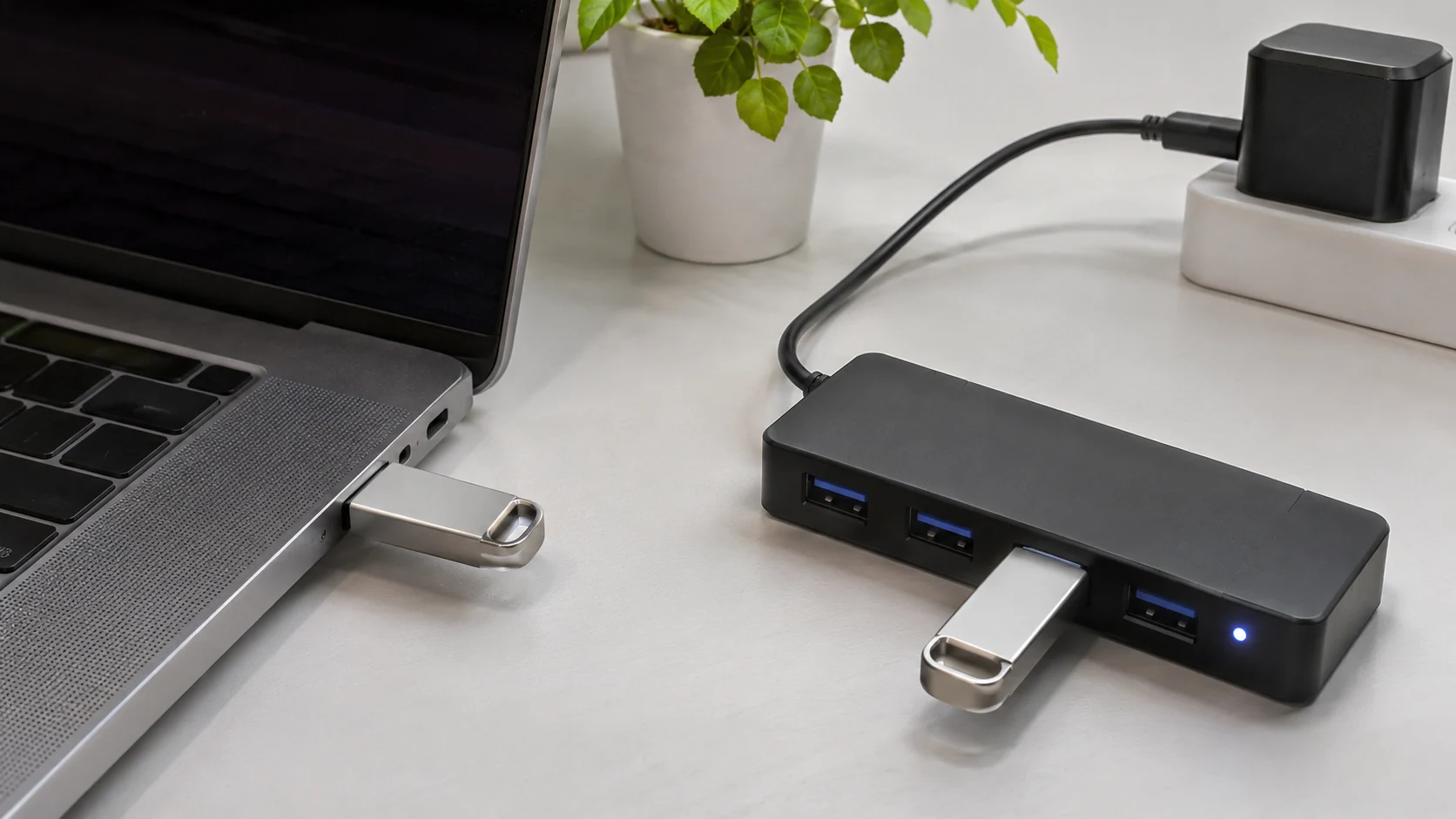
Use Restart from the Windows power menu, not just Shut down and power on. Connect the affected device directly to the laptop or rear motherboard port, avoiding a hub and front-panel extension. Put the computer to sleep once, wake it, and check recognition. If it succeeds only when connected directly, investigate the hub, dock, its adapter and cable. If it fails on every port, keep looking at the host or device.
Separate the device from the computer
Try a known-good, low-risk USB device in the same port after wake, and try the original device on another computer. Do not use a storage device with irreplaceable data as your only test item. If the original device fails on two systems, suspect its cable or electronics. If multiple devices fail only on the first PC, the host path becomes more plausible. Neither comparison identifies an exact failed chip.
Inspect connectors with the PC powered off
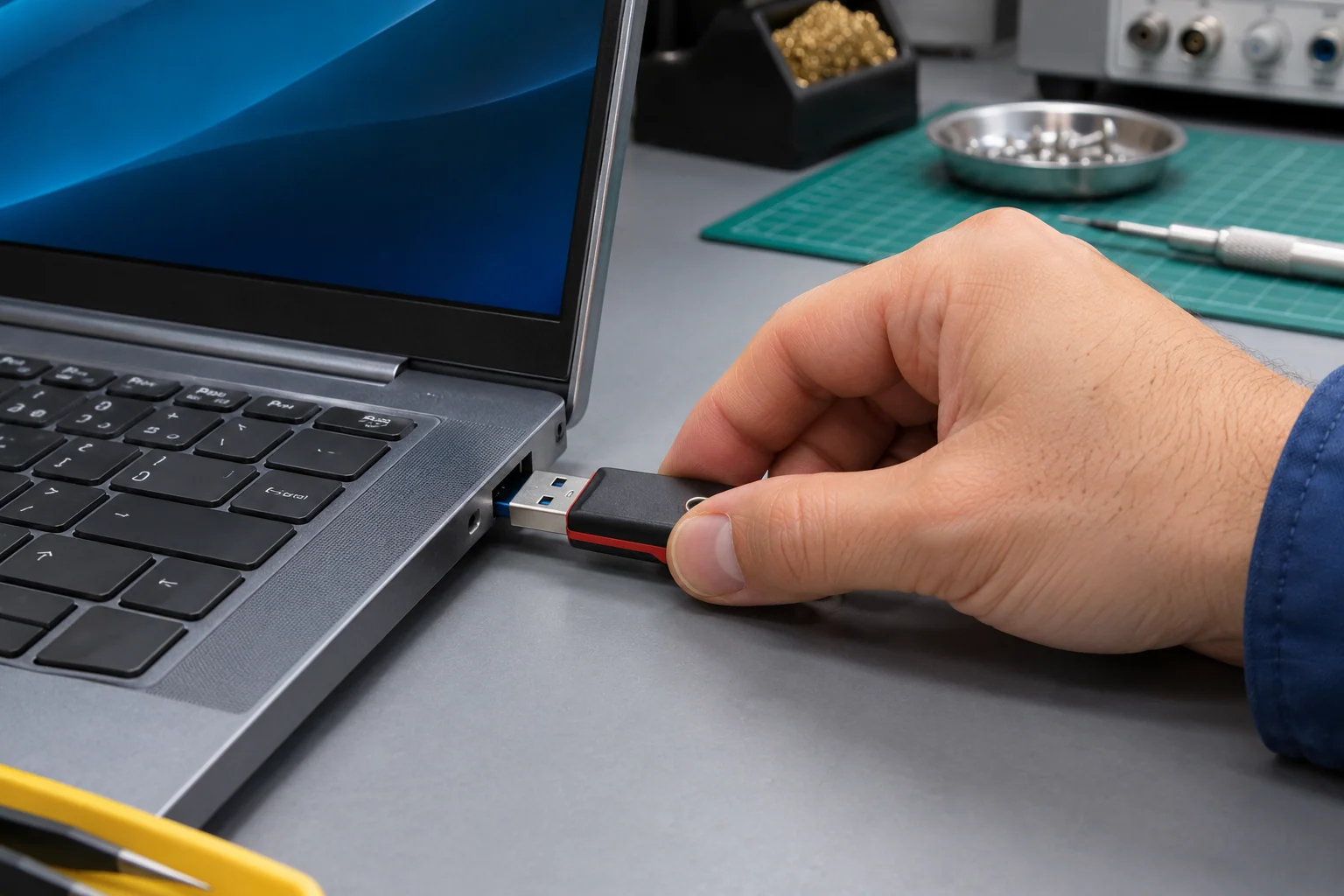
Disconnect power before looking closely at ports and cables. Check for bent contacts, debris, loose plugs or a strained connector. Never insert metal tools into a powered USB port. Clean only with a method approved for the device and stop if a contact is deformed or a port becomes hot. A loose or damaged port needs repair rather than a software workaround.
Check how Windows sees the failure
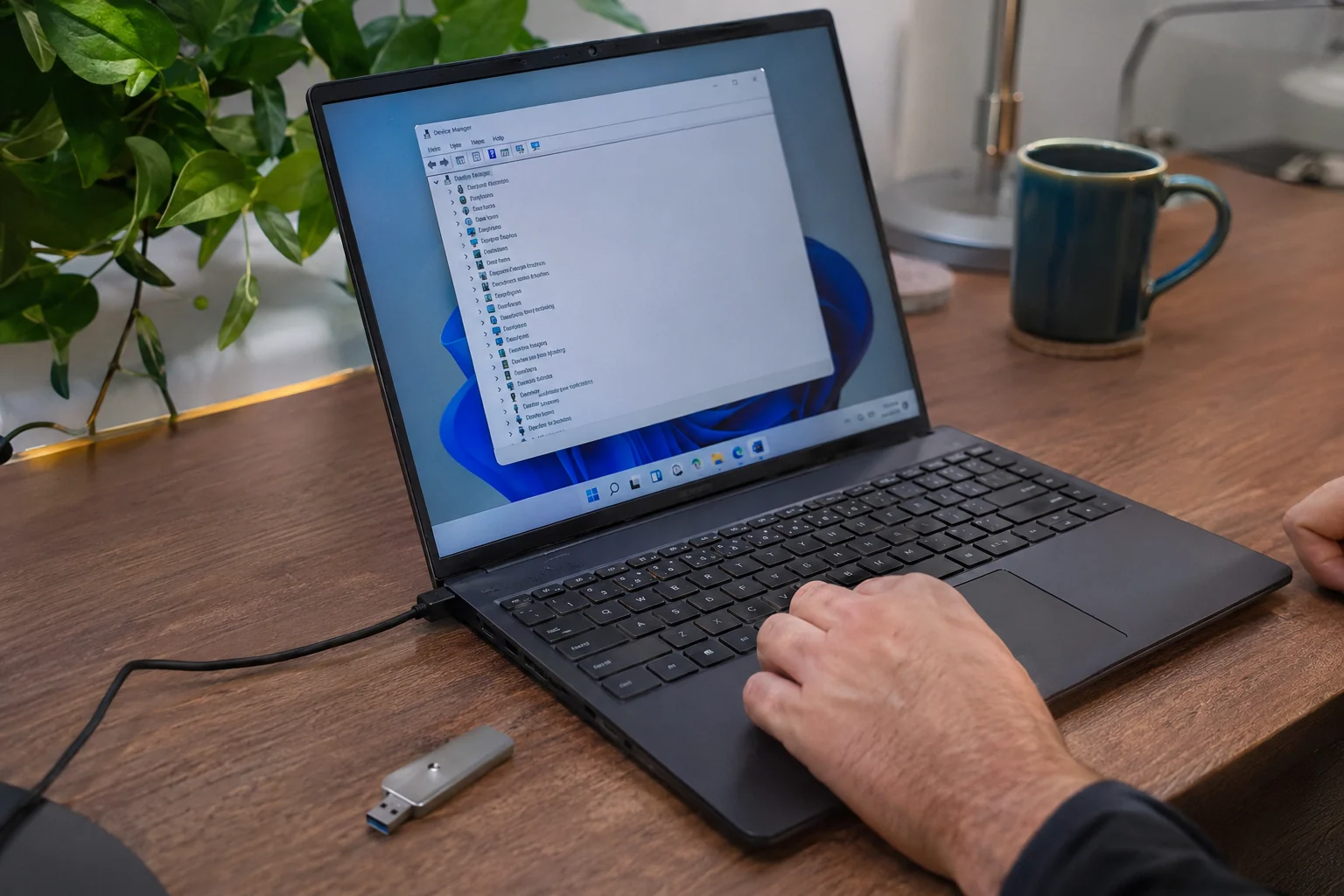
Open Device Manager with the Windows key and X. Expand Universal Serial Bus controllers and the device's own category. Compare the list before sleep and after the failure. An error icon, a disappearing device, and a device that remains listed but cannot be used are different observations. Open Properties to read the device status and note any code exactly. Device Manager can show a driver or enumeration symptom; it does not prove that the controller hardware is defective.
If the device is a storage drive, open Disk Management as a separate check. A drive visible there with a healthy partition but no letter points away from USB detection itself. A drive shown as unallocated or uninitialized requires a data-preservation decision before any write. If valuable data is involved, stop and consult a recovery specialist rather than trying repeated repairs.
Power management: change one setting at a time
Windows supports USB selective suspend so an idle port or device can use less power. Microsoft describes it as a normal capability, and it should not be disabled globally without a reason. On some systems, the device or hub exposes a Power Management tab in Device Manager. If present, record the original setting before a temporary comparison. Some modern hardware does not show that tab; its absence is normal and is not evidence of a fault.
For a controlled test, check the PC maker's guidance and temporarily disable the relevant USB power-saving option if one exists. Repeat the same sleep and wake scenario. If the fault disappears, restore the original option and repeat to see whether the relationship is reproducible. If there is no difference, restore the original setting. Keeping power saving disabled can reduce battery life, and a positive test does not identify which driver, hub or device failed to resume.
Do not make several power-plan, BIOS and Device Manager changes at once. That would make the result impossible to interpret. On managed work or school PCs, administrative policy may restore these settings; ask the administrator before changing them.
Update the correct software
Run Windows Update, including applicable optional driver updates, and check the PC manufacturer's support page for the exact model's chipset, USB, dock and firmware releases. Microsoft documents updating drivers through Device Manager, but it also recommends obtaining the latest compatible driver from the device manufacturer. Avoid unrelated third-party driver download sites. If the issue began immediately after a particular driver update, record the version and consider the supported rollback option rather than installing random older packages.
Update a dock or hub firmware only if the manufacturer provides a package for the exact model and a procedure you can follow safely. Interrupting firmware installation can create a new fault. A BIOS or UEFI update is a separate, higher-impact step; do not use it as the first experiment for a single device.
Interpret the result and know when to stop
If the device resumes correctly through a direct port but repeatedly fails through the same hub, replace the hub cable or power adapter with an approved equivalent before replacing the hub. If the problem follows the device across two computers, consult its manufacturer and protect any stored data. If several devices fail on the same PC after a clean restart and current vendor drivers, record the exact PC model, Windows build, Device Manager status and reproduction steps for the manufacturer's support team.
Stop testing a port that smells hot, is visibly damaged, repeatedly triggers over-current warnings, or disconnects when the plug moves. Do not open a power supply or probe a powered motherboard. Where the device contains important data, make a backup as soon as it is accessible and avoid destructive DiskPart or formatting commands.
Questions that change the diagnosis
Does unplugging and reconnecting prove that selective suspend is the cause?
No. Replugging also restarts USB enumeration and can temporarily overcome a loose contact or cable problem. Compare the same device and port with another cable or computer before attributing the failure to one Windows setting.
Should I uninstall every USB controller?
No. Removing all controllers can temporarily disable input devices and obscures the original fault. Begin with the affected device and manufacturer guidance. Keep a working keyboard or alternative input path available if a supported driver procedure requires a restart.
What if only a USB flash drive is missing from File Explorer?
Check whether Device Manager and Disk Management still see it. A missing drive letter or partition problem is different from a device that does not enumerate. Preserve data before changing partitions.
Sources consulted
Consulted 4 November 2026: Microsoft Learn: USB selective suspend; Microsoft Support: update drivers through Device Manager. System-specific settings and firmware must be checked against the exact PC and device manufacturer's documentation.
Be the first to leave a comment.