“Unknown USB Device (Set Address Failed)” means Windows reached the USB enumeration stage but could not assign a usable address to the device. The message does not prove that a driver is missing. A damaged cable, unstable port power, a marginal hub, connector contamination, device firmware, or the host controller can all interrupt the exchange before the normal device driver is relevant.
The fastest diagnosis is therefore comparative: identify exactly which device creates the entry, remove hubs and adapters, test a direct port, then cross-test the same device and cable on another computer. Preserve important data before any destructive storage operation. If the affected device is a flash drive, do not format it merely because Windows proposes a repair.
What the Set Address Failed message establishes
When a USB device is attached, the host detects an electrical connection, resets the port, requests descriptors, assigns an address, and then loads the appropriate function driver. “Set Address Failed” points to a failure during that early enumeration sequence. It is earlier than opening a file system and usually earlier than a manufacturer application can communicate with the device.
This distinction prevents two common mistakes. First, reinstalling a storage or phone application cannot repair a connector that drops voltage during enumeration. Second, a generic Code 43 label does not identify the failed component. Code 43 is Windows reporting that the device or enumeration process returned a problem; it is not a component-level diagnosis.
| Observation | What it supports | Next useful test |
|---|---|---|
| Only one device fails on every port | Device, its captive cable, or its firmware is suspect | Test the same device on a second computer |
| Several devices fail on one port only | Port contamination, wear, or board connection is plausible | Inspect the port while the computer is fully powered down |
| The device works directly but not through a hub | Hub power, cable, or hub compatibility is implicated | Try a short known-good cable or a correctly powered hub |
| The failure appeared after sleep or an update | Controller state or software remains possible | Perform a full shutdown, then reinstall the failed device entry |
| The connector becomes hot or disconnects when moved | Physical damage is likely | Stop using it and seek connector repair |
Before changing Windows
Record the exact failing entry
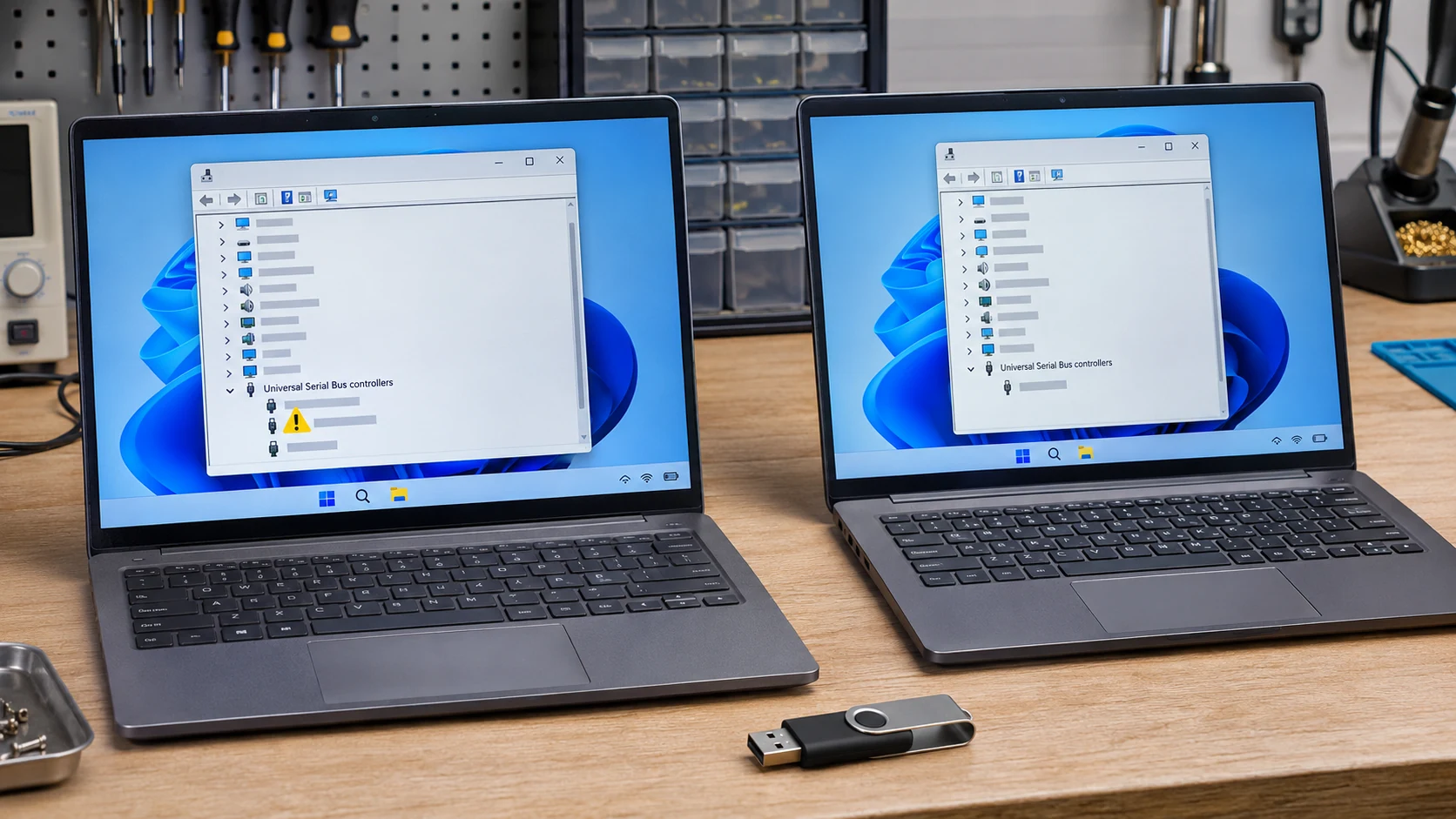
Open Device Manager, expand Universal Serial Bus controllers, open the unknown device, and note the displayed status and location. Disconnect the suspect peripheral and confirm that the same entry disappears. Reconnect it once and confirm that the entry returns. This simple correlation matters when several dormant or internal USB devices are listed.
Do not delete every USB controller at once. A broad removal can temporarily disable the keyboard, mouse, Bluetooth module, camera, and recovery input devices without telling you which branch caused the fault. Work on the one entry that follows the suspect device.
Protect data and power down safely
If the device contains unique files, stop as soon as it is recognized reliably enough to copy data. Copy important files to another physical disk before stress-testing it. For port inspection, shut Windows down, unplug the charger or mains lead, and hold the power button briefly only if the computer manufacturer recommends that procedure. Never probe a USB receptacle with a metal tool.
Step-by-step diagnosis
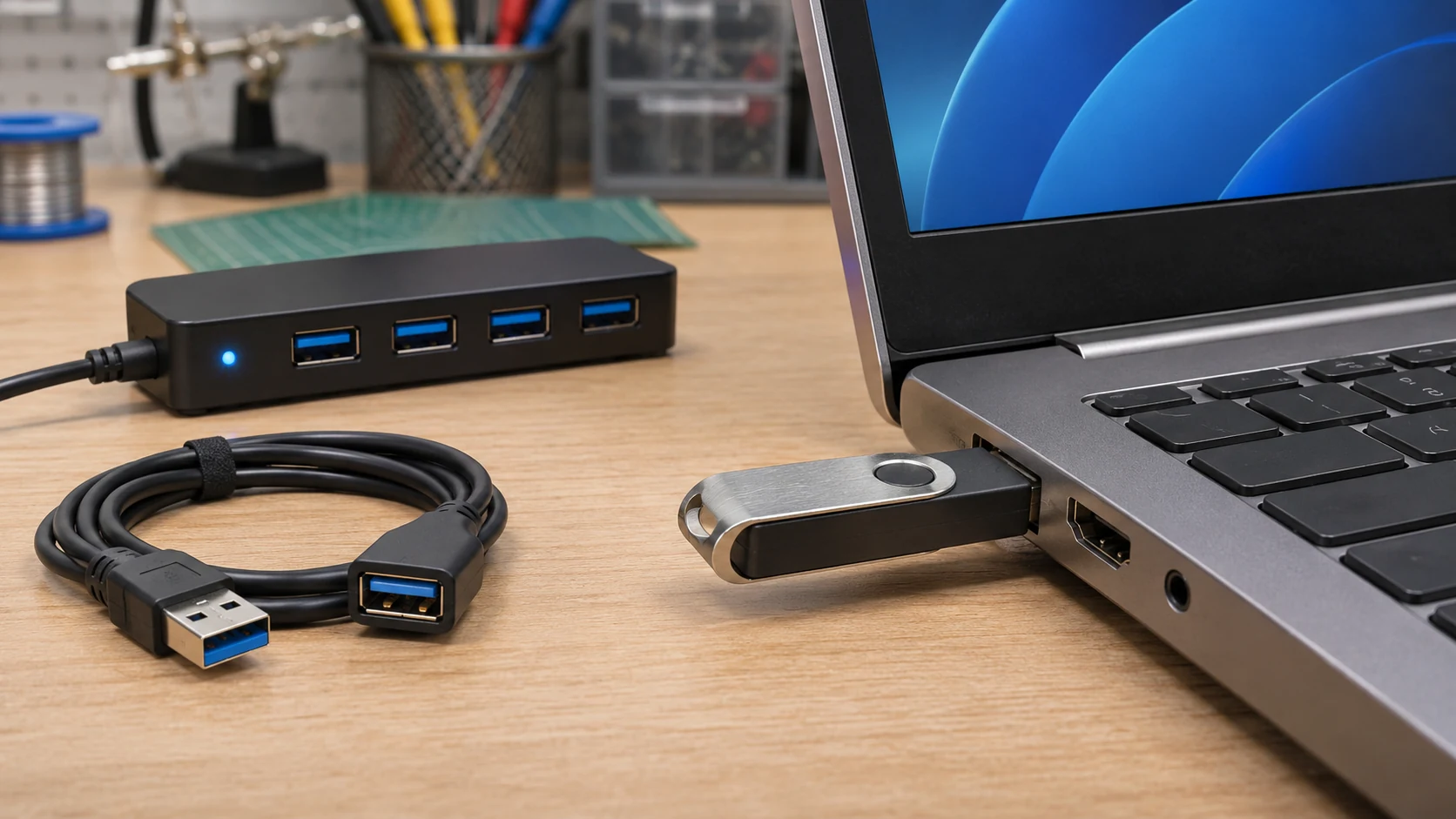
- Disconnect every nonessential USB device. Leave only the keyboard and mouse if needed. Restart and connect the suspect device alone. If enumeration succeeds, reconnect the other peripherals one at a time; a shared power budget or failing hub may be the real trigger.
- Bypass hubs, docks, front-panel extensions, and adapters. Connect to a native port on the computer. Observe whether Device Manager refreshes normally. Success here does not prove the hub is defective, but it isolates the added cable, connector, power supply, and hub electronics.
- Try a different physical port. On a desktop, compare a rear motherboard port with a case-front port. On a laptop, compare ports on opposite sides because they may belong to different internal hubs. A repeatable one-port failure points away from the peripheral driver.
- For a cabled device, substitute the cable. Use a short cable known to transfer data, not merely one that charges. Keep the device and computer unchanged. If the replacement cable enumerates repeatedly, retire the original cable.
- Perform a full shutdown. Choose Shut down, remove external power when appropriate, wait about a minute, and start again. Observe whether the error returns immediately. This can clear a latched controller condition; it cannot repair mechanical damage.
- Cross-test the complete chain. Test the same device with the same cable on another computer. Then, when possible, test a known-good comparable device on the original computer. These two directions separate a device-side failure from a host-side failure far better than repeated reinstalls.
- Reinstall only the failed device entry. In Device Manager, right-click the correlated unknown device, choose Uninstall device, disconnect it, restart Windows, and reconnect it. Microsoft documents this reinstall workflow. If the entry returns with the same early-enumeration failure, do not keep repeating the step.
- Install current platform updates from official channels. Use Windows Update first, then the computer or motherboard manufacturer's support page for chipset, USB, BIOS, or dock firmware that explicitly applies to the exact model. Do not use third-party driver-download sites.
- Stop at evidence of physical failure. A loose tongue, bent contact, liquid residue, burning smell, heat, or connection that changes when held at an angle requires hardware attention. Continued insertion can damage both sides of the connector.
Inspect the port without creating a short
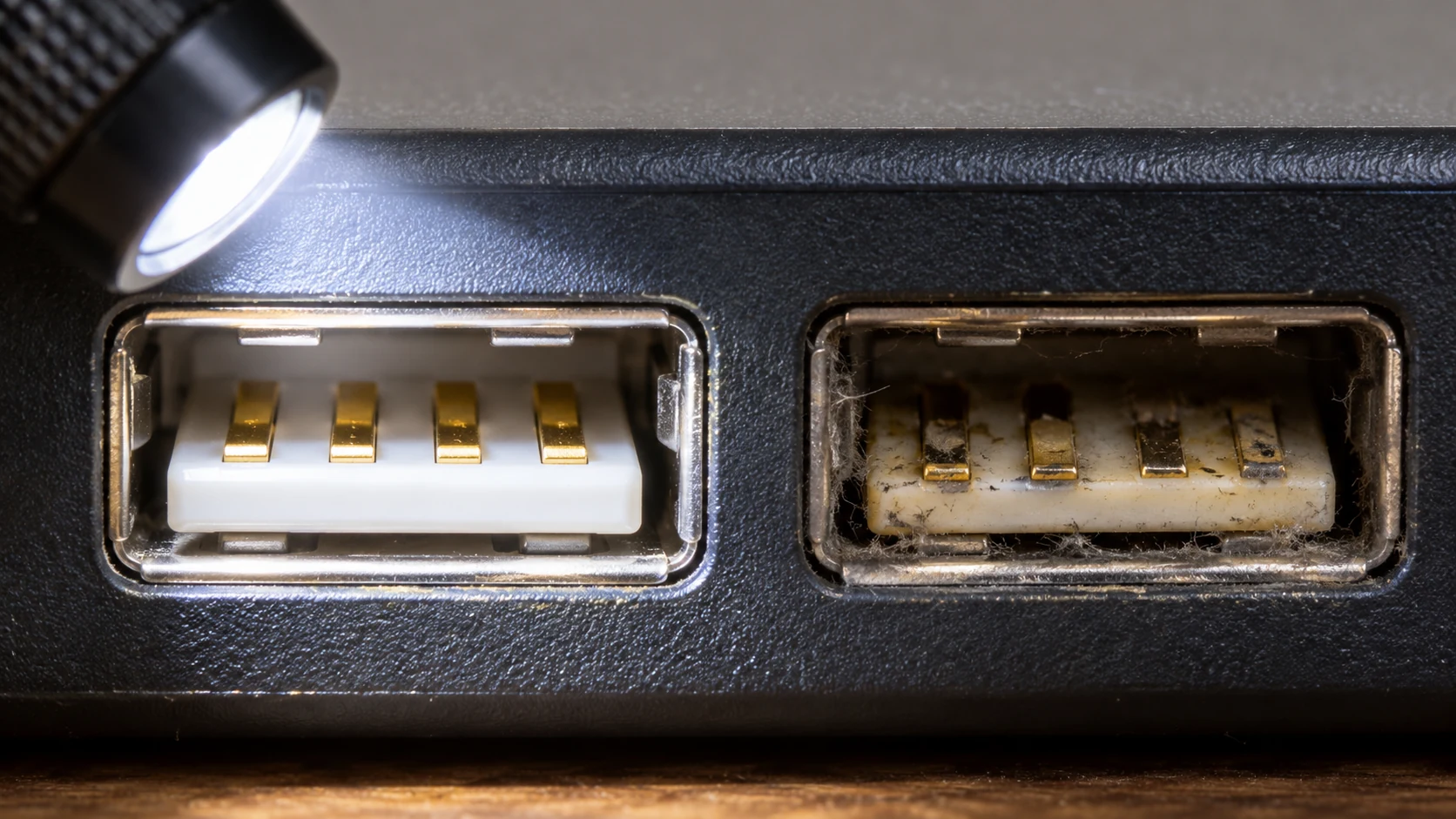
With the computer unpowered, use a flashlight to look for lint, a deformed plastic tongue, corrosion, or a contact touching the shell. Compare the suspect port with an unused port of the same type. Do not scrape contacts with a pin. Compressed air can force debris deeper or introduce propellant, so follow the computer manufacturer's cleaning guidance.
A port can still power a low-current device while one data contact is damaged. Conversely, a device LED proves only that some power is present; it does not prove that the data pair, SuperSpeed contacts, or enumeration exchange is healthy.
How to interpret the cross-tests
Fails on two computers with the same cable
The device or cable is now the leading suspect. Replace a detachable cable first. For storage containing irreplaceable data, avoid initialization, formatting, CHKDSK, or repeated power cycling. A professional recovery service may be justified when the device never reaches a stable capacity or disconnects repeatedly.
Works on another computer
The original host still needs a controlled comparison. Test another known-good device of the same class, check the computer manufacturer's diagnostics, and review whether a dock or port-specific firmware update exists. A successful test elsewhere does not automatically mean Windows is corrupt; the original port may have marginal power or contact resistance.
Works after reinstalling the device entry
Confirm the result through several normal disconnect/reconnect cycles and one restart. One successful connection can be accidental. If the error returns whenever the cable moves, treat it as a physical problem rather than repeatedly removing the driver.
Actions that are rarely justified first
- Do not edit random registry USB keys copied from an unrelated model.
- Do not disable USB power protection or over-current safeguards.
- Do not flash BIOS while the machine is unstable unless the manufacturer specifically identifies the issue and its safe update path.
- Do not reinstall Windows before a direct-port and two-computer cross-test.
- Do not format a flash drive to solve an enumeration failure; formatting requires a stable, addressable storage device.
Frequently asked questions
Is Set Address Failed the same as Device Descriptor Request Failed?
They occur in the same early USB enumeration process, but the labels identify different failed requests. The practical first tests overlap—direct connection, known-good cable, different port, and second computer—while the exact label helps a technician read USB traces.
Can a weak charger cause the error?
For a bus-powered device connected through a dock or hub, inadequate or unstable power can interrupt enumeration. Test directly and use the correct hub or dock supply. A laptop charger issue is plausible only when it affects the host's power behavior; it should not be assumed from the message alone.
Should USB selective suspend be disabled?
Not as the first response to a device that fails immediately on connection. Selective suspend concerns idle power management. If the fault appears specifically after sleep, compare a full shutdown and consult model-specific guidance before changing the power plan.
When is repair more sensible than software work?
When the same device fails on multiple known-good computers, a detachable cable has been excluded, or the connector shows heat or mechanical damage. For a single bad host port, board or connector repair may be required even though other ports work.
Technical sources
- Microsoft USB Blog — enumeration failures including Set Address (consulted 3 November 2026).
- Microsoft Support — update and reinstall drivers through Device Manager (consulted 3 November 2026).
- Dell Support — isolate USB ports, hubs, devices, and drivers (consulted 3 November 2026).
- Lenovo Support — USB device not recognized checks (consulted 3 November 2026).
Related ElectronixLab guide: USB Device Descriptor Request Failed.
Be the first to leave a comment.