“Unknown USB Device (Device Descriptor Request Failed)” appears when Windows cannot retrieve the identification information required from a USB device. It is often associated with Code 43, but the root cause may be the device, cable, connector, port power, host controller, or driver. This procedure isolates hardware first before changing Windows.
Do not format the device, run DiskPart clean, or use partition repair for this symptom. The failure occurs before normal volume access. Shut the PC down before cleaning a port, never insert metal into a connector, and avoid unpowered hubs during isolation tests.
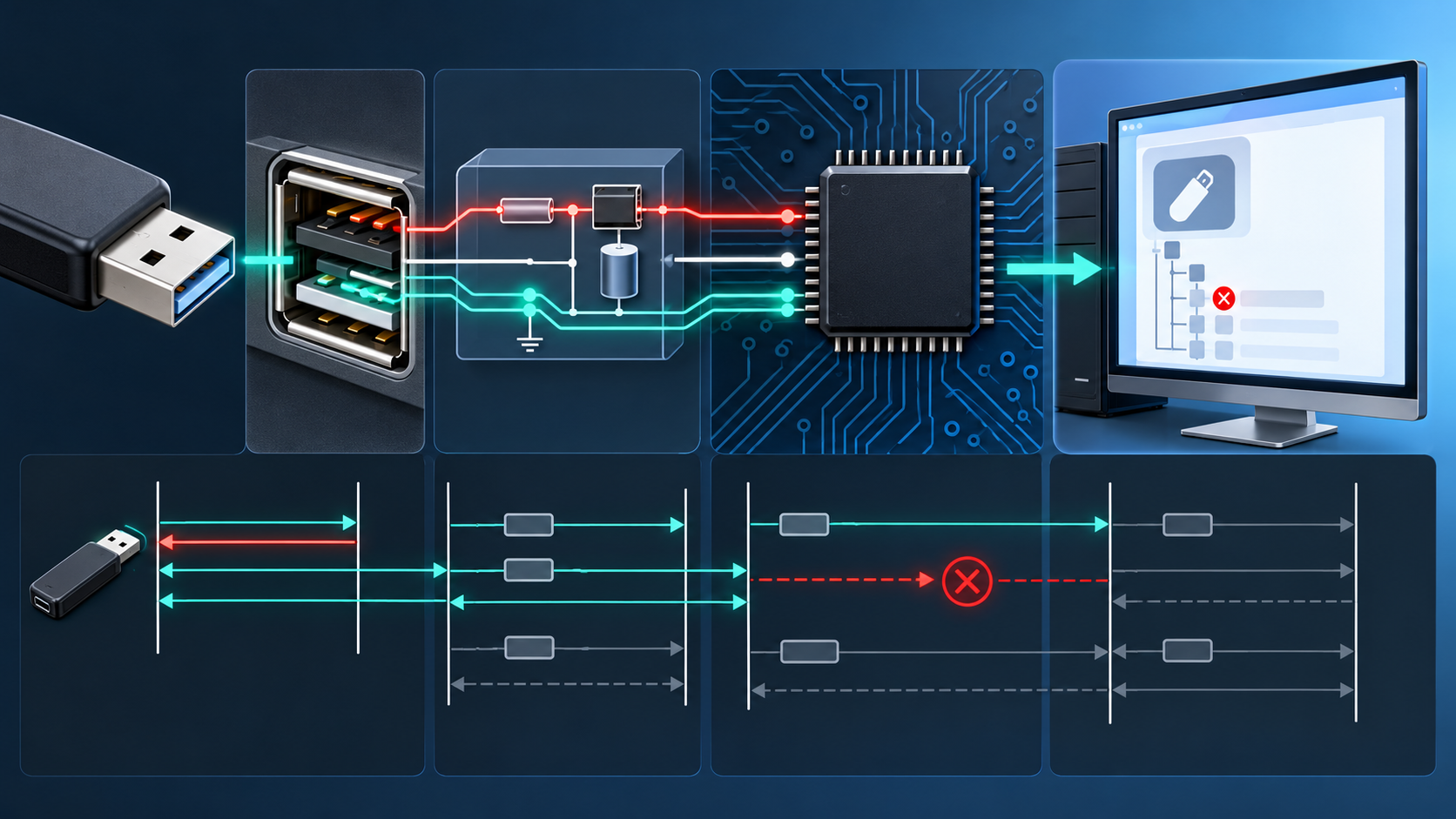
What a descriptor request failure means
At connection, the host detects the device, supplies permitted power, resets the bus, and requests structured descriptor data. That information identifies the device class and supported configurations. If the exchange fails, Windows cannot choose the correct class driver and lists an unknown device.
Code 43 means a controlling driver reported a problem. It does not automatically mean a corrupted driver. Damaged hardware, a charge-only cable, dirty contacts, or unstable voltage can prevent the expected response.
Step 1: isolate the port, cable, and device
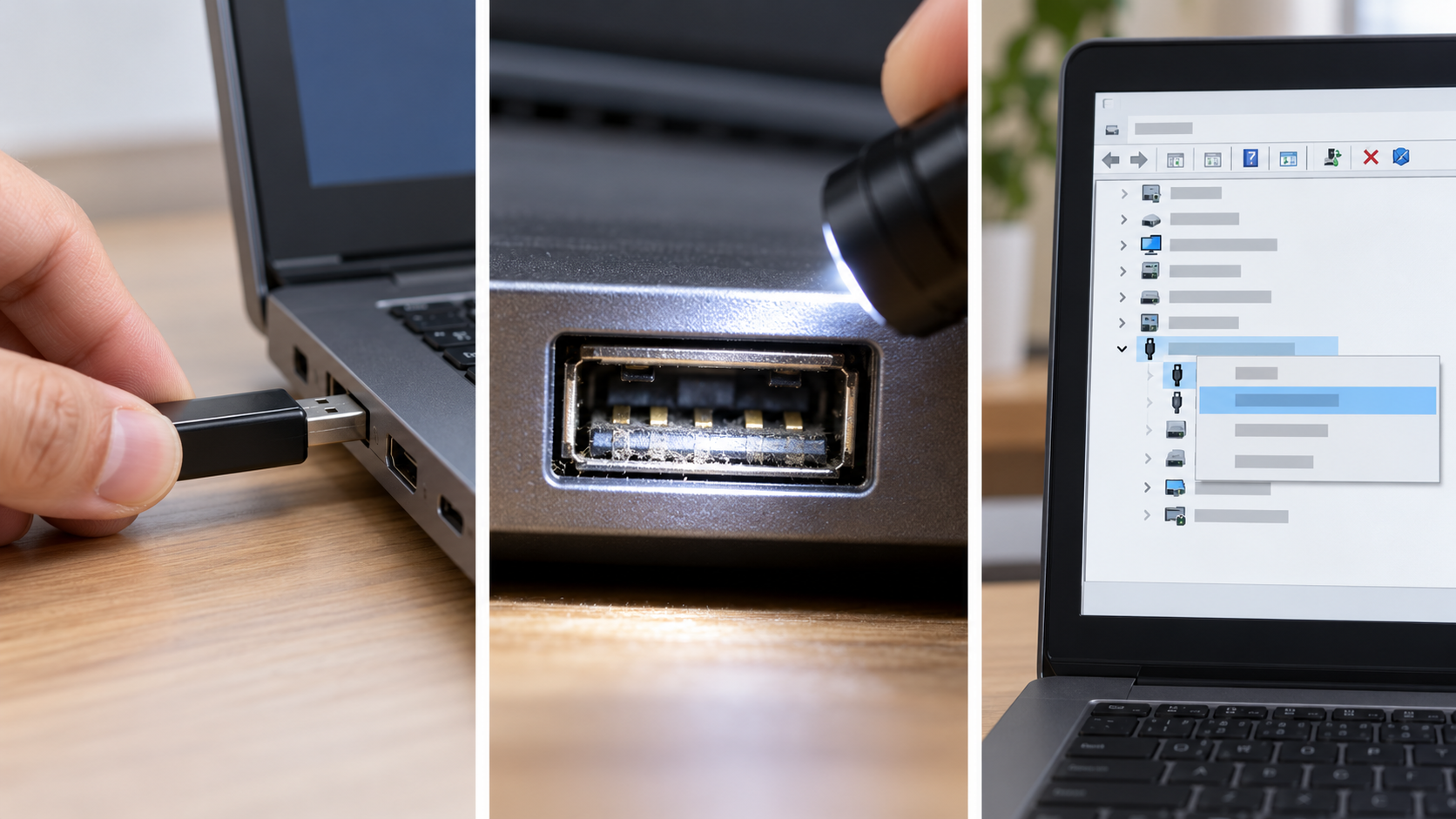
Remove hubs, extensions, and docks. Connect directly to another port on the same PC, preferably a motherboard rear port on a desktop. For a removable cable, use a known data-capable cable of the correct type rather than one proven only to charge.
Test the device on another computer, then test a known-good device on the suspect port. This matrix separates a device that fails everywhere, a port that fails with several devices, and one incompatible combination. Record results and avoid changing several variables at once.
Step 2: inspect without causing damage
Shut the PC down and disconnect power. Illuminate the port and plug. Look for compacted dust, a bent tongue, recessed contact, corrosion, or mechanical movement. Use controlled dry air or a soft antistatic brush. Never insert metal, household liquid, or force.
For a storage device with important data, stop if it becomes unusually hot, reconnects repeatedly, or has a loose plug. Repeated cycling can worsen a cracked joint or failing memory. Professional recovery is safer than aggressive software attempts.
Step 3: reinstall the device cleanly
Open Device Manager, expand USB controllers, locate the unknown entry, and read its status. Uninstall only the failed device, then scan for hardware changes or restart. Microsoft recommends manual driver reinstallation for several Device Manager errors, including Code 43.
Avoid deleting every controller at once on a remote machine or without backup input devices. Windows normally restores them, but a particular environment may temporarily lose keyboard and mouse access. Create a restore point before broad driver changes.
Step 4: updates and power management
Install Windows updates and chipset or USB drivers offered by the PC or motherboard manufacturer. Avoid generic driver-download sites. If the issue began immediately after an update, roll back only when the option exists and the timing clearly supports it.
For intermittent failure after sleep, temporarily prevent Windows from turning off the affected USB hub or test selective suspend to confirm the hypothesis. Do not treat this as a universal fix. It can increase power use and cannot repair a device that fails at boot.
Step 5: electrical reset and firmware
Shut Windows down fully, unplug power and accessories, and hold the power button briefly while the PC is disconnected to discharge residual energy. Reconnect only display, keyboard, and the test device. This can reset a latched controller without erasing data.
Consider BIOS or firmware updates only from the manufacturer, with stable power and exact instructions. Firmware carries more risk than reinstalling a device and should follow the simple hardware isolation tests.
Choose repair, recovery, or replacement
If the device fails on several computers with several cables, its connector or electronics are likely defective. If it works elsewhere but not on a group of ports, investigate the host controller, front-panel cable, internal header, or motherboard power.
Do not format intermittently recognized storage to repair enumeration. When it becomes accessible, copy priority files before surface testing. If no host receives the descriptor, file-system utilities generally cannot reach the storage media.
Review Event Viewer around the exact connection time and compare hardware identifiers in the device properties. The same sequence after every insertion strengthens the diagnosis, but one isolated log entry cannot identify a bad motherboard. Photograph visible connector damage and record tested ports, Windows version, and behavior on a second PC before contacting the manufacturer. This timeline prevents repeated risky attempts and helps distinguish a stable hardware fault from an event tied to sleep or a recent update.
Quick isolation matrix
| Test | Result | Likely conclusion |
|---|---|---|
| Same device, another port | Works | Local port or controller |
| Same device, another PC | Fails | Device or cable |
| Known device, suspect port | Also fails | Port, power, or controller |
| Known data cable | Works | Old cable lacks data or is damaged |
| Failure before volume appears | Always unknown | Do not format |
Frequently asked questions
Can formatting repair the descriptor?
No. Windows must identify the device before accessing partitions.
Does Code 43 prove hardware failure?
No. It means a driver reported a problem, which may be hardware or software.
Should every USB controller be uninstalled?
Start with the failed entry. Global removal is more disruptive and can disable input temporarily.
Why can a cable charge but fail for USB data?
Some cables lack usable data conductors or those conductors are damaged.
When should testing stop?
When the device heats up, reconnects repeatedly, holds irreplaceable data, or has mechanical damage.
Official sources and related guides
- Microsoft Support : erreurs du Gestionnaire de périphériques
- Microsoft Support : problèmes USB dans Windows
See our guide for a USB drive showing 0 bytes and more Windows USB diagnostics.
Be the first to leave a comment.