An Intel Wi-Fi 6 AX201 Code 10 fix should start with safe recovery steps, not with replacing the card. Code 10 means Windows could not start the device; by itself, it does not prove the AX201 is physically damaged. A recent Windows update, a driver conflict, a stuck power state, system firmware, or a compatibility problem can all be relevant. Work from reversible checks toward advanced changes, and use the laptop maker’s driver first.
This troubleshooting guide is for Windows 10 and Windows 11 systems that show “This device cannot start. (Code 10)” for the Intel Wi-Fi 6 AX201 in Device Manager. The AX201 is an Intel integrated-connectivity (CNVi/CRF) part, so it must be supported by the host system’s processor and chipset design; an M.2 socket alone does not guarantee compatibility. If the adapter was added or replaced, check the computer or motherboard maker’s compatibility information before changing software.
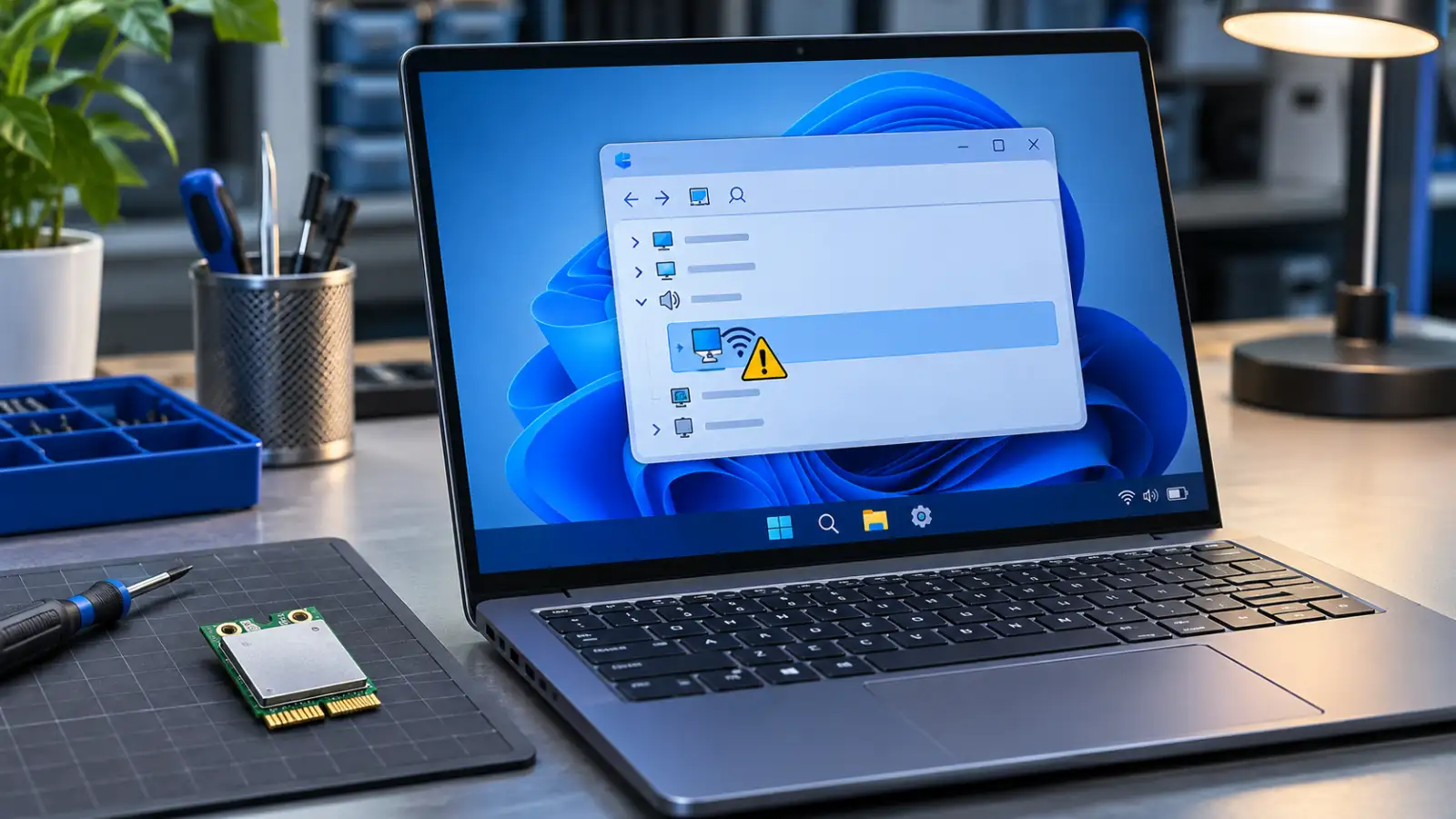
Intel Wi-Fi 6 AX201 Code 10 fix: confirm the exact status
Open Device Manager → Network adapters → Intel Wi-Fi 6 AX201, then open Properties and read Device status on the General tab. Record the full message and any status details. If you see Code 22, the adapter may simply be disabled; enable it from Device Manager. If the AX201 is absent, Windows is not currently detecting it, which calls for checking hidden devices, airplane-mode/radio controls, firmware, and hardware detection. A failed Wi-Fi connection without a Code 10 status may instead be a router, profile, or signal problem.
Also look for Intel Wireless Bluetooth under Bluetooth in Device Manager. The AX201 combines Wi-Fi and Bluetooth through the platform’s integrated connectivity design, but each function has its own driver entry and status. Note whether Bluetooth also has a warning, whether the problem began after an update or sleep/resume, and whether the wireless switch or airplane mode is on. This helps narrow the diagnosis before reinstalling drivers.
Try these troubleshooting steps in order
1. Check the radio and perform a full shutdown
- Turn off Airplane mode and make sure the laptop’s wireless key or hardware switch has not disabled Wi-Fi.
- Save work, select Start → Power → Shut down, and wait until the computer is fully off. Then start it again. A restart can clear a transient state without removing data.
- If the warning remains, Intel recommends a cold reboot: fully shut down and remove power sources, including a removable battery where the device allows it, then reconnect and start. Do not open a sealed laptop or remove an internal battery. Follow the computer maker’s instructions; if unsure, use a normal shutdown and contact support.
A cold reboot is a power-state reset, not a factory reset. It does not erase personal files. If the adapter returns, check Wi-Fi and Bluetooth after another sleep/wake cycle and note whether the issue recurs.
2. Install the computer maker’s Wi-Fi driver
Use Ethernet, USB tethering, or another computer and a USB drive if the affected PC has no connection. Find the exact laptop or motherboard model on the manufacturer’s support site. Download its Windows version’s Wi-Fi driver and, if recommended for that model, chipset and Bluetooth packages before uninstalling anything. Keep a copy of the installer locally so a missing network driver does not leave you without a recovery path.
Run Windows Update as well, including relevant optional driver updates only when they are offered for this device. If the problem began immediately after a driver change, Device Manager’s Properties → Driver → Roll Back Driver may be available. Use the maker’s supported package rather than mixing random driver files or third-party “driver updater” tools.
3. Reinstall the wireless driver cleanly
When a normal update does not help, use the OEM’s clean-install instructions first. Intel’s procedure says to download the installer before uninstalling, open Device Manager, expand Network adapters, uninstall the Intel wireless adapter, select “Delete the driver software for this device” when that option is offered, and restart. Then run the saved installer as administrator. Some Windows inbox drivers cannot be removed; if Windows restores the same built-in driver automatically, continue with the vendor’s supported installation path rather than forcing registry changes.

If the OEM package still fails and the maker supports Intel’s generic driver for this system, compare the installed version with Intel’s official AX201 download page. At the time of review, Intel listed Wi-Fi package 24.80.0, dated October 20, 2026, for Windows 10 64-bit and Windows 11, including AX201. Driver versions can differ by device maker; do not assume the newest generic package is the right choice for every laptop. Install only from the manufacturer or Intel.
Compare likely causes and the next action
The comparison below maps the reported status and recent history to a sensible next step; it does not diagnose hardware by itself.
| What you see | What to try next |
|---|---|
| Code 10 after sleep or update | Full shutdown/cold reboot, then OEM driver update or rollback. |
| Code 22 or Airplane mode | Enable the adapter and check the physical wireless control. |
| AX201 missing from Network adapters | Check OEM driver, firmware/radio settings, and system detection; escalate if still absent. |
| Wi-Fi and Bluetooth both fail | Check platform updates and OEM support; this can point beyond a Wi-Fi-only profile issue. |
| Problem persists after a clean OEM driver install | Check BIOS support and hardware diagnosis with the computer maker. |
BIOS, compatibility, and hardware checks
If the software steps fail, check the laptop or motherboard maker’s support page for a BIOS/UEFI update that applies to the exact model. Read the release notes and instructions, connect reliable AC power, and do not interrupt a firmware update. If you are not comfortable with this process, ask the manufacturer or a qualified technician. Intel lists BIOS updating and restoring BIOS defaults among later steps for persistent wireless error codes, but first capture any custom settings you rely on because restoring defaults may change boot, storage, or security settings.

Do not assume the AX201 itself has failed because Code 10 appeared once. If the adapter remains missing or returns the same error after a supported driver reinstall, BIOS checks, and a cold reboot, contact the computer manufacturer. Ask them to confirm the AX201 is supported by that exact board and processor, and whether the system needs service. If it is a replaceable M.2 card, the OEM can confirm the correct compatible part and warranty implications before anyone opens the device.
When to stop and get help
Stop before resetting Windows or changing BIOS settings if you do not have a verified backup, recovery key, or model-specific instructions. Intel lists system restore or PC reset as later options if earlier troubleshooting fails; these can affect apps, settings, or files. Back up important data first and use the manufacturer’s recovery guidance. For a managed work PC, contact IT before removing drivers or changing firmware.
For related wireless connection problems that do not show Code 10, see Microsoft’s Windows Wi-Fi troubleshooting guide. For a different Windows hardware error, our guide to checking Windows update-related laptop problems explains a cautious software-first approach.
Frequently Asked Questions
Does Code 10 prove that the AX201 is physically damaged?
No. It means Windows could not start the device; the code alone does not distinguish a driver, power-state, firmware, compatibility, or hardware cause.
Does an M.2 socket guarantee AX201 compatibility?
No. The AX201 uses Intel CNVi/CRF integration and must be supported by the host system design. Check the exact computer maker’s specifications.
Which Wi-Fi driver should I try first?
Use the driver published for the exact laptop or motherboard model and Windows version by its manufacturer.
When should I stop before changing BIOS settings or resetting Windows?
Stop if you do not have a verified backup, any required recovery key, or model-specific instructions. Ask the computer manufacturer or a qualified technician for help.
Sources and testing scope
- Intel: error codes for wireless devices in Device Manager
- Intel: clean installation of wireless Wi-Fi drivers
- Intel: AX201 drivers and downloads
- Intel: CNVi and CRF module compatibility
- Microsoft: Device Manager error codes
- Microsoft: fix Wi-Fi connection issues
Testing note: No specific laptop or AX201 hardware was supplied for hands-on testing. This procedure follows current Intel, Microsoft, and OEM guidance; driver availability and BIOS steps depend on the exact computer model.
Be the first to leave a comment.