Quick Fix — Try This First
- If Windows reports a critical SSD warning, the drive becomes read-only, or files disappear, stop writes and copy readable files to a separate drive.
- Do not run a repair, secure erase, or clone onto the suspect SSD before protecting the source data.
- Check Windows drive-health status for supported NVMe devices, then use the SSD manufacturer’s own diagnostic utility for that brand.
- Replace only after comparing the warning, actual symptoms, backup state, and the model’s support guidance.
An SSD health check before replacement helps separate a real device warning from a performance symptom that may have another cause. Back up first if the files matter. Windows 11’s built-in critical-warning feature monitors NVMe SSDs; Microsoft says it does not monitor SATA SSDs or hard drives. A clean status is not a guarantee that every SSD is healthy, and a slow PC alone does not prove that the drive is failing.
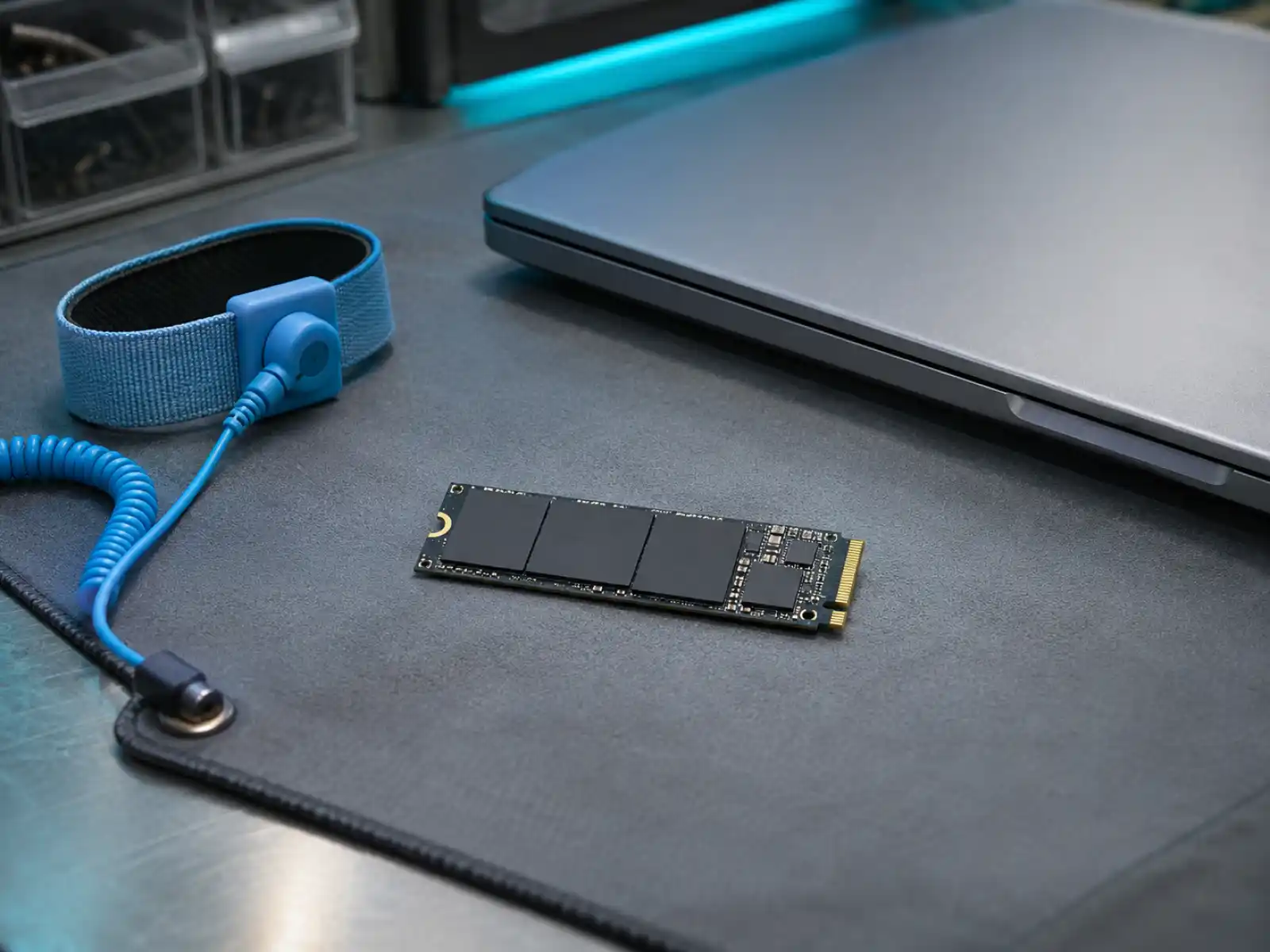
Symptoms, possible causes, and next steps
| Symptom | Likely cause | Next action |
|---|---|---|
| Windows shows reliability degraded, spare capacity low, read-only, or remaining-life warning | Supported NVMe drive reports a critical health condition | Back up promptly and follow the SSD maker’s instructions. |
| PC feels slow but no drive-health warning appears | Storage load, software, memory pressure, or another fault | Check performance evidence; do not replace an SSD based only on slowness. |
| Drive disconnects or files return read errors | Drive, enclosure, cable, power, or connection issue | Stop repeated writes and protect readable files. |
| Manufacturer utility shows a warning | Brand-specific firmware or device diagnostic result | Save the exact message and check support for that model. |
| Drive is not detected in firmware | Compatibility, slot, connection, or device fault | Use the separate NVMe-not-detected guide before replacing it. |
How to check before replacing the SSD
1. Protect files before diagnosis
If the data is important, copy readable files to another healthy device before running scans or repairs. Keep the destination separate from the suspect SSD and open several copied files. If the drive repeatedly disconnects, becomes read-only, overheats, or returns read errors, stop repeated copying and ask a recovery specialist. Do not save recovered files back to the source.
Check: important copies open from a separate drive. If copying fails: stop writes and seek a data-focused assessment instead of continuing a long scan.
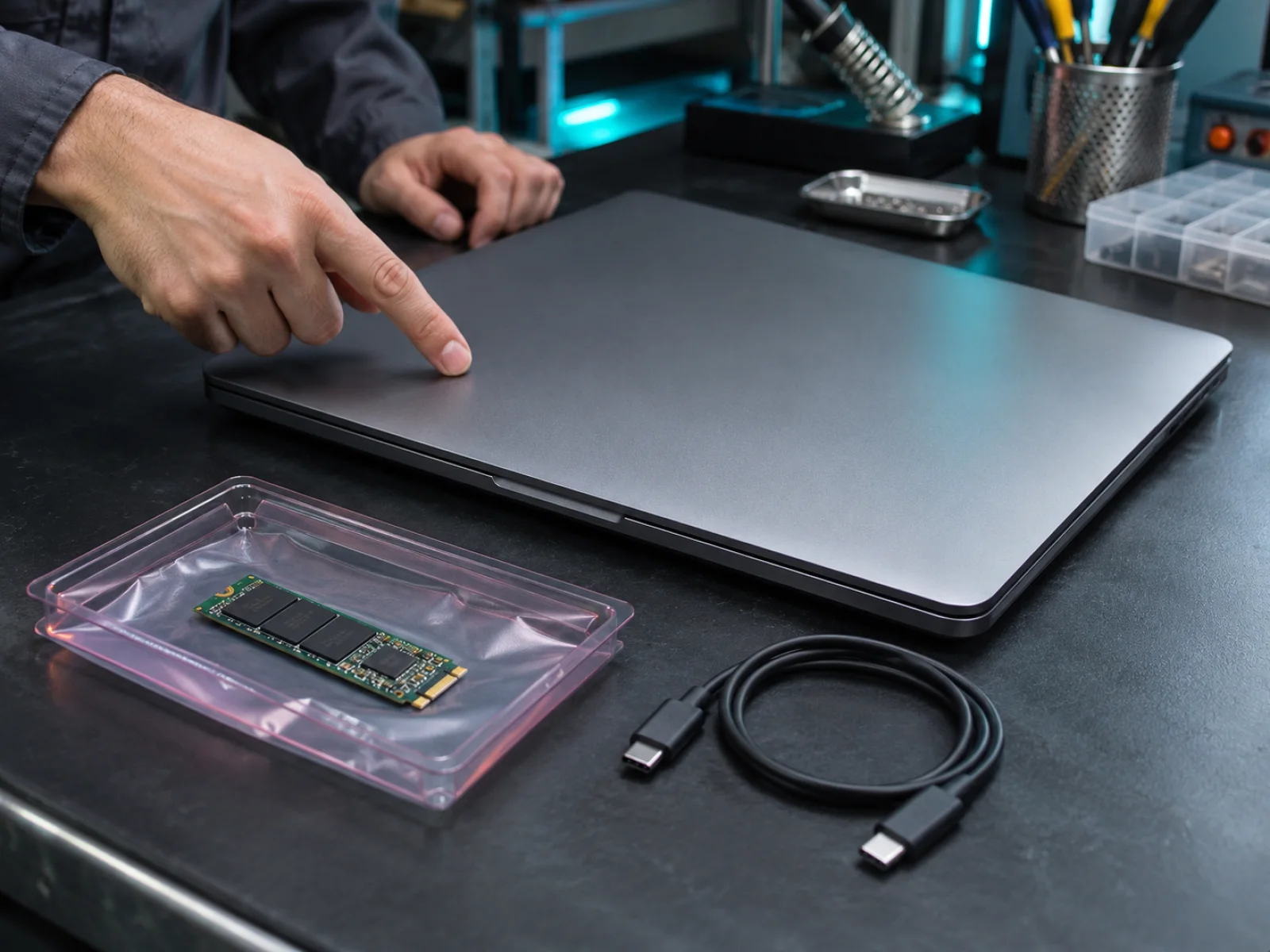
2. Read the Windows health status when supported
Simulated interface illustration: this generic example is not a real drive report and contains no actual health reading. Windows shows this information only for supported NVMe devices.
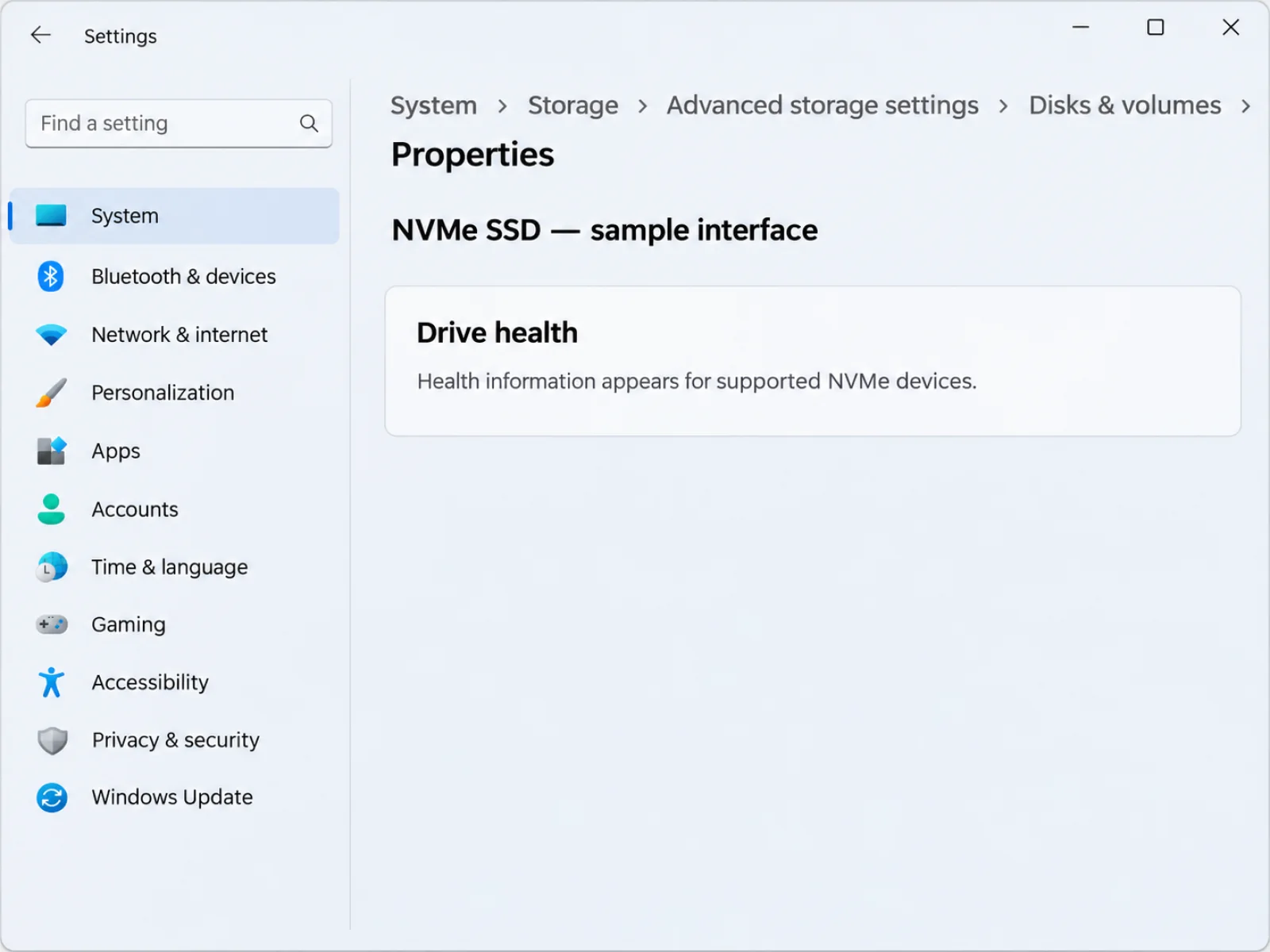
On Windows 11, open Settings > System > Storage > Advanced storage settings > Disks & volumes, select the supported NVMe SSD, and open its properties or health information. Microsoft documents alerts for low spare capacity, degraded reliability, read-only state, estimated remaining life, and temperature. Menu names can vary between builds.
This built-in page is limited: it monitors NVM/NVMe SSDs, not SATA SSDs or HDDs. If no health section appears, do not infer that the drive passed a complete diagnostic.
Check: record the exact status text and device model. If Windows shows a critical warning: back up readable files and consult the SSD manufacturer before replacement.
3. Compare with the manufacturer’s diagnostic
Use the utility published for the SSD brand and follow its current instructions. Samsung Magician supports Samsung drives; it is not a universal diagnostic for every SSD. A vendor utility may read firmware or health data that Windows does not show. Do not install a tool from an unverified download site, and do not use a secure-erase feature as a health test.
Check: the utility recognizes the exact model and presents a status or warning. If it does not recognize the drive: verify the brand, interface, connection, and utility compatibility with the maker’s support page.
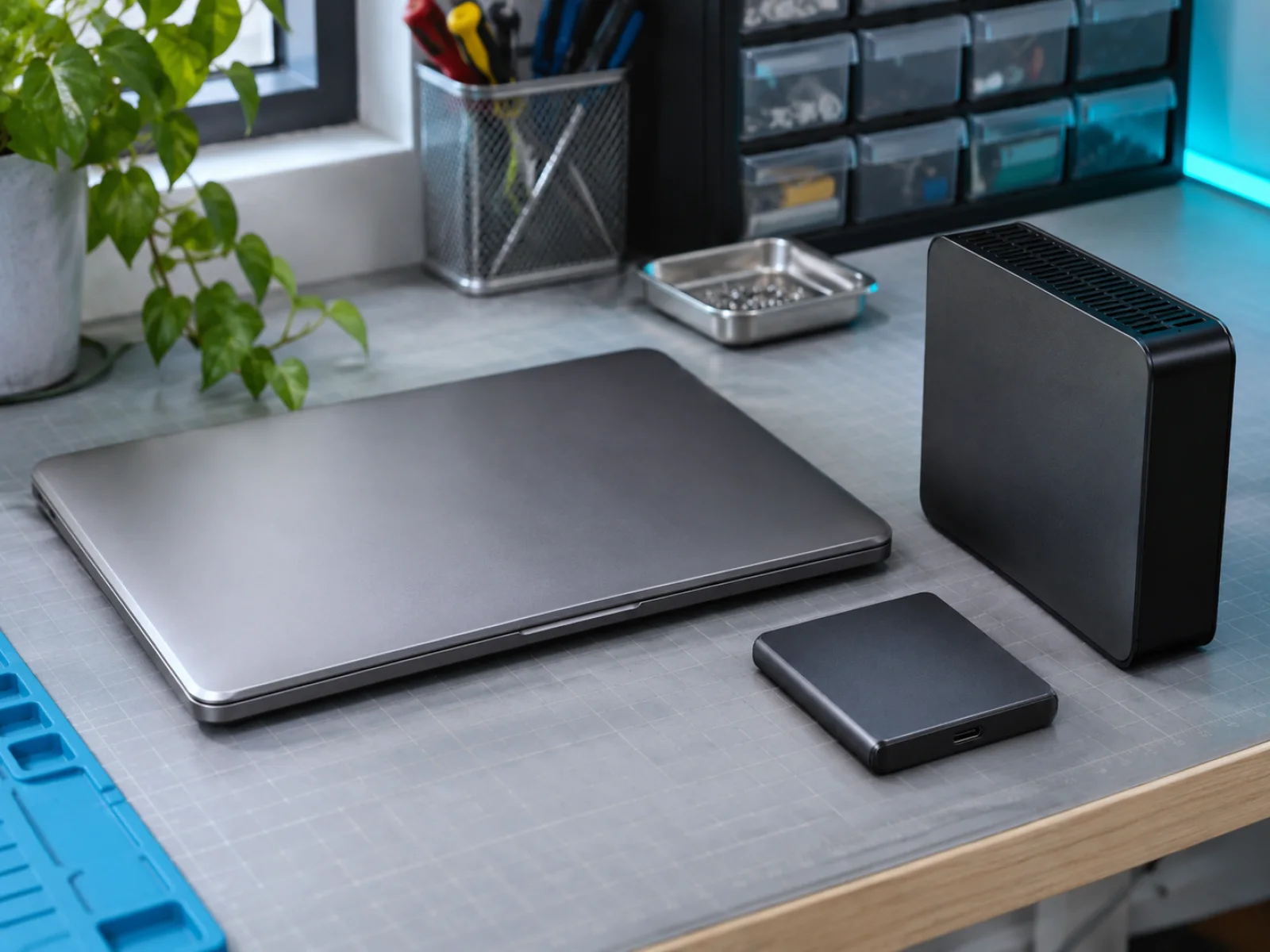
4. Separate SSD wear from a slow-PC symptom
Use a health warning, repeated I/O errors, disappearing capacity, read-only behavior, and manufacturer findings as evidence. High active time or slow application launches alone are not a health diagnosis: background updates, limited memory, indexing, encryption, or a nearly full drive can also affect responsiveness. Compare the symptom with the operating system’s storage activity and the drive maker’s report instead of guessing from one number.
Check: the warning or error can be reproduced or is recorded by a vendor utility. If there is no drive-specific evidence: investigate the separate performance symptom before buying an SSD.
5. Decide whether replacement is safer than continued use
Replace or service the SSD when the manufacturer reports failure, Windows marks a supported drive read-only or degraded, errors continue after a backup, or the device cannot be trusted with important data. Check the computer manual for form factor, interface, capacity, and user-serviceability. Do not open a laptop unless its service instructions permit it and you can work safely with power disconnected.
Common mistakes
- Replacing an SSD based only on slow startup: updates, free space, memory, or another component can also slow a PC.
- Running a benchmark or write test on a drive that warns or is losing files adds unnecessary access before backup.
- Assuming Windows health status covers every drive: the feature supports only compatible devices, including certain NVMe drives.
Troubleshooting if it still fails
If Windows does not show drive health, that does not prove the SSD is healthy or failing. Check whether the drive type is supported and use the manufacturer’s official utility. If Windows shows a critical warning, promptly back up readable files and follow the displayed recommendation.
- If a critical warning, read-only state, or unreadable files persist after backup, replace the SSD and check its warranty.
- If there is no warning but the PC remains slow, check free space, disk activity, and other causes before buying an SSD.
- If the drive disappears, returns read errors, or contains irreplaceable files, stop tests and prioritize professional recovery.
When to stop and call a technician
Stop if data is irreplaceable and the SSD is unstable, if Windows reports read-only or reliability failure, if the SSD is soldered, or if the laptop battery is swollen. Ask a technician to preserve the original drive and confirm encryption and recovery-key requirements before a board or SSD replacement. Never treat a generated image as a view of the actual health utility.
Frequently asked questions
Does Windows 11 show the health of every SSD?
No. Microsoft says its critical-warning feature monitors NVM/NVMe SSDs, not SATA SSDs or hard drives.
Does a slow SSD mean it must be replaced?
No. Slowness has several possible causes. Look for drive-specific warnings, errors, disconnects, or a manufacturer diagnostic result.
Can I use Samsung Magician with any SSD?
No. Samsung describes Magician for Samsung drives. Use the tool and instructions for the actual drive brand.
Should I run a benchmark on a drive with a warning?
Back up first. If the drive is unstable, read-only, or returning errors, avoid extra workload and ask the maker or a recovery specialist.
Related guides and next step
Compare this health check with NVMe SSD not detected checks, Windows diagnosis for a slow SSD at 100% active time, and safe NVMe SSD recovery options. Next step: save the model, exact health warning, and backup state before requesting a replacement quote.
Sources
- Microsoft Support — what to do about a critical warning for a storage device (accessed November 11, 2026).
- Samsung — Magician software and supported Samsung storage (accessed November 11, 2026).
This guide uses Microsoft and manufacturer documentation; it has not been tested on a specific SSD.
Last updated: November 11, 2026
Be the first to leave a comment.