Wi-Fi can be connected to the router while the router has no working internet connection. Start by comparing other devices on the same network; this quickly separates a broader outage from a problem on this PC. The steps below move from reversible checks to changes that alter Windows network settings.
Contents
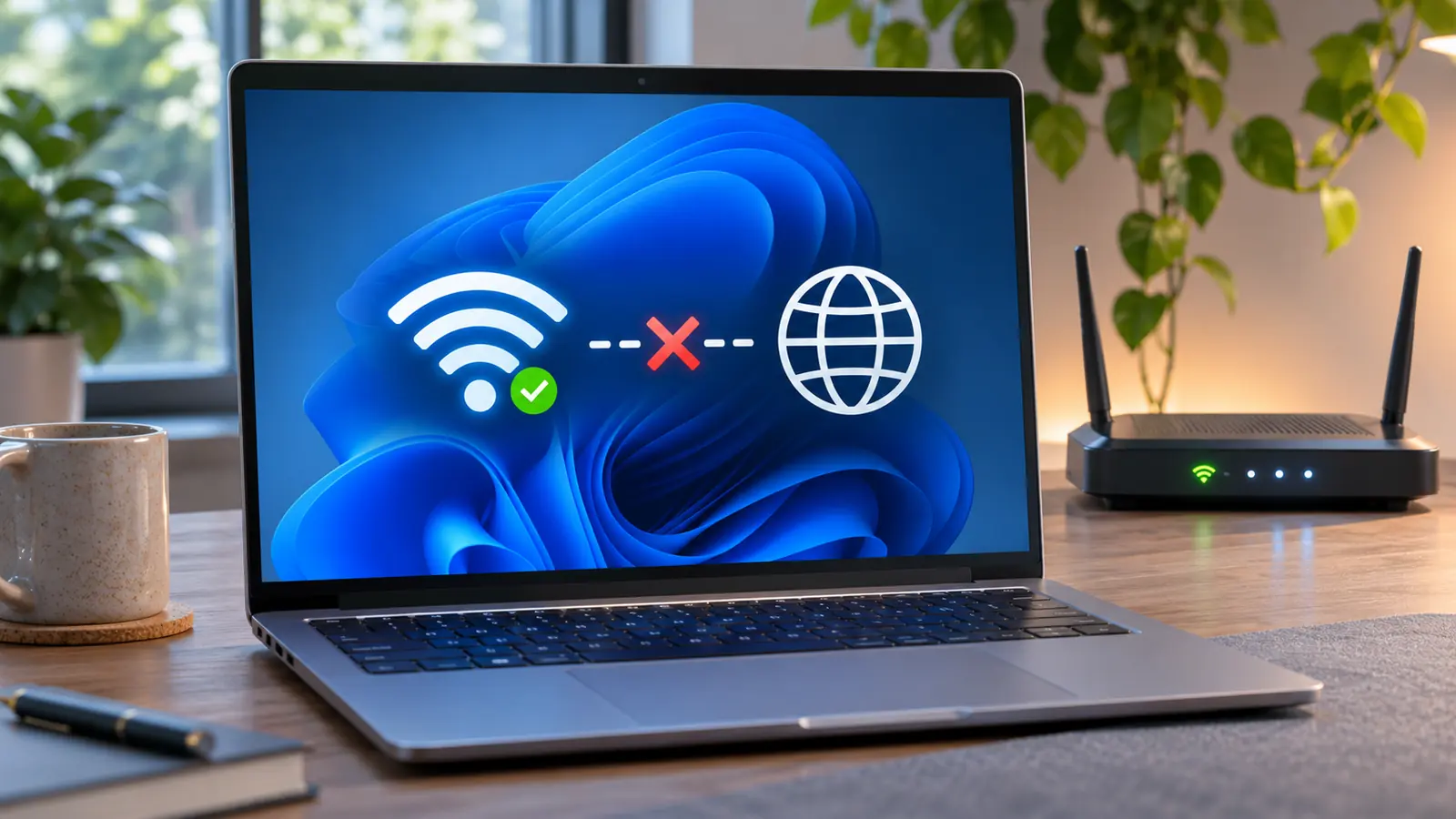
Find out whether the network or PC is affected
Note the network icon message in the taskbar. Windows may show that the PC is connected to Wi-Fi while also reporting no internet. That status describes what Windows detects; it does not identify the cause. Open a familiar website and try another application. If only one application fails, its account, server, or firewall may be involved rather than the overall connection.
On a phone or another computer already connected to the same Wi-Fi, open the same site. If every device fails, the issue is more likely with the modem, router, line, or internet provider. If the other device browses normally, focus on Windows and this PC. You can briefly connect the PC to a mobile hotspot as a comparison. Success on the hotspot shows that the PC can reach the internet through a different network; it does not prove that the home router is faulty.
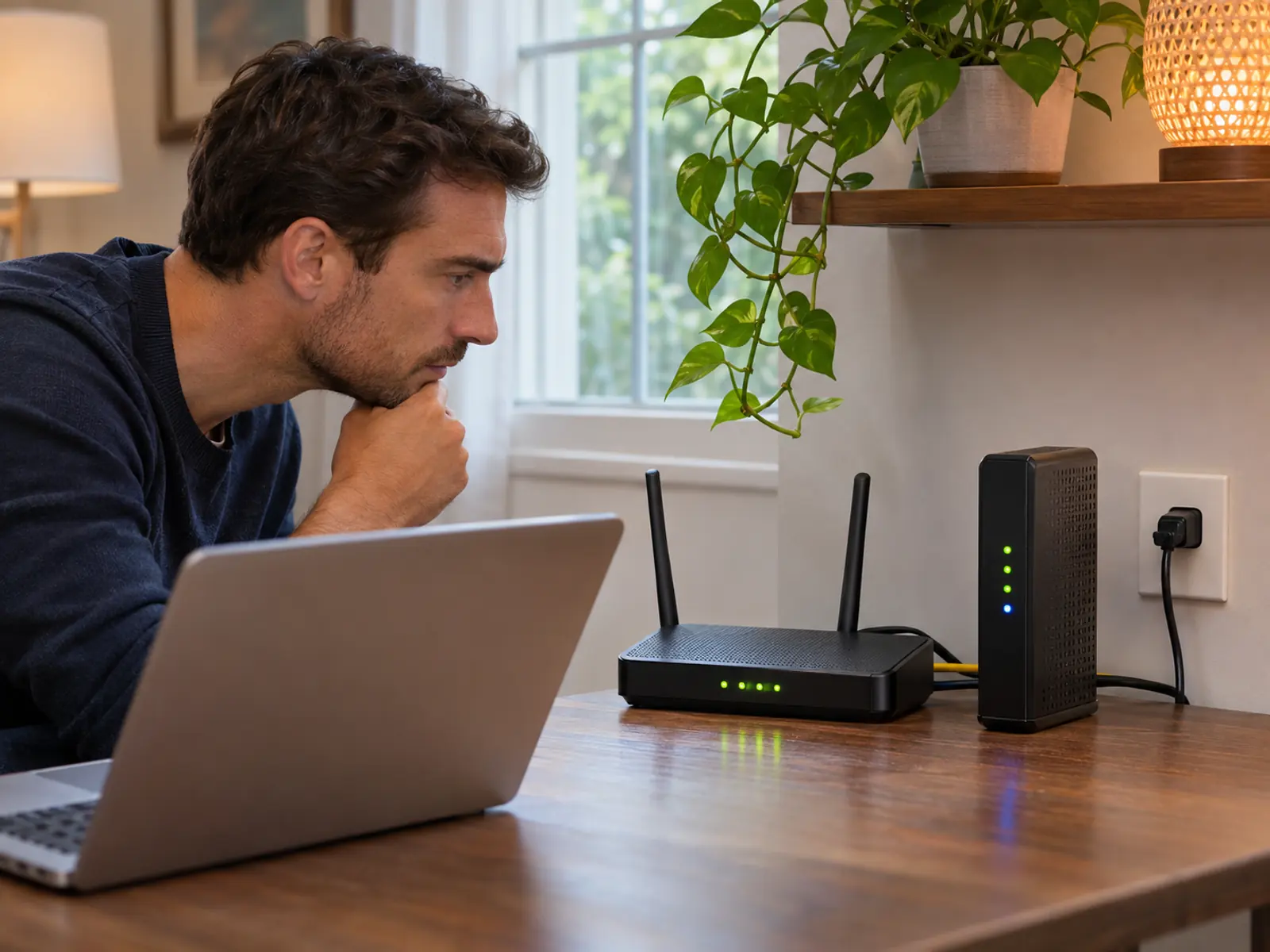
If several devices are offline, check the modem and router lights and messages, then consult the provider’s official status page or app. A normal modem/router restart may help when other devices are offline too: use the power button or disconnect power, wait about 30 seconds, reconnect, and allow the devices to start fully. Do not press the recessed Reset button; it can erase the provider’s configuration. If the line remains unavailable, contact the provider with the start time and observed status.
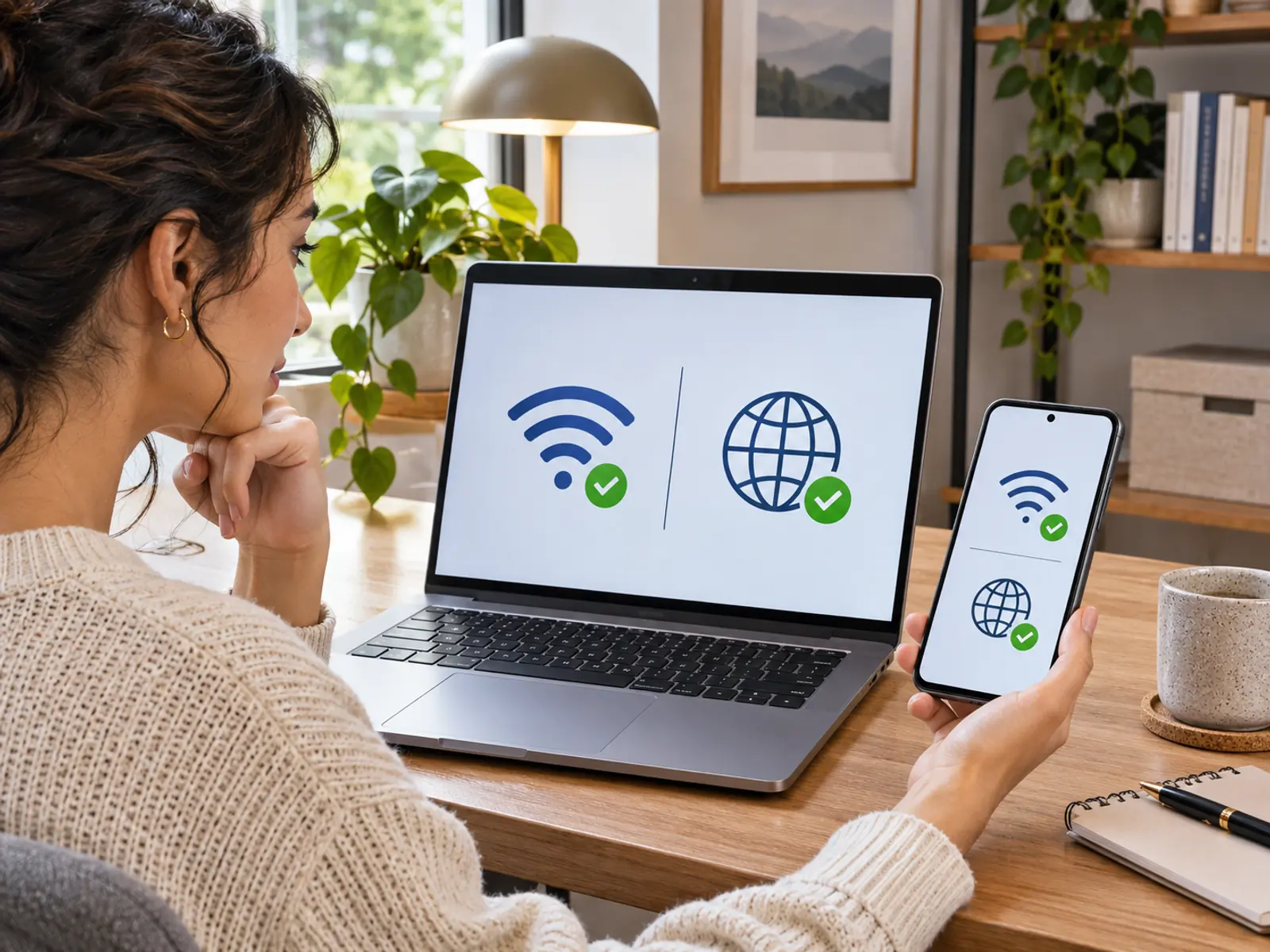
Check Wi-Fi and reconnect
Open Settings > Network & internet and confirm Wi-Fi is on and Airplane mode is off. In Quick Settings, turn Wi-Fi off and on, then wait a few seconds. Move closer to the router temporarily if the signal is weak. On a hotel, school, or public network, open a web page to see whether a sign-in page appears; the captive portal may block access until you accept its terms.
If this is a private network and you know its password, open Settings > Network & internet > Wi-Fi > Manage known networks, select the network name, and choose Forget. Connect again and enter the current password. This recreates the saved Wi-Fi profile, but it cannot fix an ISP outage or an offline router. Do not share the password or try to access a network without permission.
Restart the PC from the Start menu. A full restart can clear a temporary adapter state. If only one room or floor has trouble, compare the signal near the router; testing nearby helps distinguish weak coverage from a wider internet outage. Avoid changing the router’s channel, security mode, or network name before the cause is clear.
Check VPN, proxy, and date
A VPN can connect a tunnel that is no longer passing traffic. If permitted, disconnect the VPN briefly in its app, test a website, and reconnect it. If internet access returns only while the VPN is off, share that result with your administrator or VPN provider; do not bypass a workplace or school policy.
Also check Settings > Network & internet > Proxy. If you do not use a proxy configured by your organization, an unexpected manual proxy can prevent connections. Do not change settings managed by your employer, school, or security software. Confirm Windows has the correct date, time, and time zone: a badly incorrect clock can cause certificate errors and make some sites appear unavailable.
Check the IP address and renew the lease
Open Start, search for Terminal or Command Prompt, and view the configuration with ipconfig. Find the active Wi-Fi adapter, its IPv4 address, and default gateway. An address beginning with 169.254. usually means Windows did not receive an IPv4 address from the network’s DHCP server. This points to address assignment between the PC and router; it is not proof of a DNS failure.
Before running these commands, save any work that depends on a network connection. Open Terminal as administrator only if Windows requires it, then run one command at a time: ipconfig /release, followed by ipconfig /renew. The first releases the adapter’s IPv4 lease; the second requests fresh settings. On a managed network, or when other adapters are in use, these commands can briefly interrupt their connections. If you are not comfortable changing network state, skip this step and contact network support.
Run ipconfig again and check whether the address and gateway now fit the network. Do not enter a static IP address found on a forum: an incorrect address or gateway can create a conflict and disrupt access to other resources. If several devices receive a 169.254 address on this network, the administrator or router provider should check DHCP.
Clear DNS cache and test name lookup
DNS translates domain names into network addresses. If a web address will not resolve while another application works, the local DNS cache may contain an outdated result. In a terminal window, run ipconfig /flushdns, then close and reopen the browser. This clears the PC’s DNS cache; it cannot repair a disconnected internet line or a failed router.
To separate name lookup from network access, run nslookup example.com in Command Prompt. An answer with addresses means the queried server resolved the name, but it does not guarantee that the website responds. A timeout or error may involve the DNS server, connection, filtering, or network policy. Do not automatically replace the DNS server with a public address: on a company, school, parental-control, or filtered network, the supplied DNS may enforce required rules. Ask the administrator or provider which server is expected.
If only certain sites fail, compare another app or browser and check the system clock, browser extensions, and the service’s status page. Record the domain and error message before clearing more settings. “Server not found” is not the same as Wi-Fi being turned off.

Use Windows help and network reset
Windows 11 provides network help in the Get Help app. Search there for Wi-Fi or internet problems and follow the diagnosis for the symptom. The tool may offer different steps depending on the Windows version and configuration; read the proposed changes before accepting them. You can also open Settings > System > Troubleshoot > Other troubleshooters if that option is available on your version.
Network reset is a last resort after the earlier checks. Under Settings > Network & internet > Advanced network settings > Network reset, Windows removes and reinstalls network adapters and restores default settings. This may remove saved profiles and settings; a VPN, virtual switch, or network utility may need to be set up again. Network profiles may also switch to public. Record any special settings and make sure you have the required access before proceeding. Restart the PC afterward and reconnect to Wi-Fi.
On a managed device, ask IT support before using this option. Do not factory-reset the router as an equivalent step; that can erase account credentials and line configuration. If other devices connect but one PC remains offline after a Windows network reset, provide support with relevant ipconfig output after hiding sensitive information.
Check the Wi-Fi adapter and driver
If the issue began after Windows or a driver update, open Device Manager > Network adapters and identify the wireless adapter. Check its properties for a Windows error code. If Roll Back Driver is available and the problem began just after the update, it may return to the previous version; restart and compare. This option is not always available.
Use Windows Update or the PC manufacturer’s official support page for the exact computer model when installing a driver. Avoid third-party driver updater tools, and do not uninstall all network adapters unless you have another connection and a way to reinstall the driver. On a work computer, IT may need to approve the driver.
Frequently asked questions
Does “Connected, no internet” mean the router is definitely broken?
No. The device may communicate with the router but not reach the internet. A proxy, VPN, IP configuration, DNS, or driver may also be involved. First compare another device on the same Wi-Fi.
Should I change DNS or reset Winsock immediately?
No. First check the scope of the outage, IP address, and proxy/VPN settings. Then follow Windows tools and network administrator guidance. Broader reset commands can affect software or managed configurations.
My phone works on Wi-Fi but my laptop does not. What should I tell support?
Share the network name without its password, the exact Windows message, whether a mobile hotspot works, when the issue began, whether a VPN or proxy is in use, and relevant ipconfig results with public addresses, organization names, and other private details removed.
Related article
- Smart plug will not connect to 2.4 GHz Wi-Fi: useful when one smart device is affected rather than the PC’s internet access.
Sources
- Microsoft Support, Fix Wi-Fi connection issues in Windows — accessed November 8, 2026.
- Microsoft Support, Connect to a Wi-Fi network in Windows — accessed November 8, 2026.
- Microsoft Learn, ipconfig — accessed November 8, 2026.
- Microsoft Learn, Troubleshoot DNS client issues — accessed November 8, 2026.
Be the first to leave a comment.