A USB 3.x device can connect at USB 2.0 High Speed when any part of the link falls back to the older signaling path. Start by verifying the negotiated connection speed, then compare the same device through a different direct port and a known data cable. Do not infer link speed from a file copy alone: storage media, small files, encryption, antivirus scanning and the destination disk can all limit throughput even when the USB link is SuperSpeed.
This guide focuses on a device that works but seems limited to USB 2.0. It does not claim that every blue port is fast or that every USB-C cable carries the same data signals. Port color and connector shape are clues, not measurements. The exact capabilities of the host, hub, cable and device matter.
Link speed and copy speed are different questions
USB 2.0 High Speed is a 480 Mb/s signaling mode. USB 3.2 Gen 1 is commonly associated with a 5 Gb/s signaling mode; the USB-IF's naming guidance distinguishes marketing names from connector shapes. Those values are raw signaling rates, not promised file-copy rates. Protocol overhead and the storage device reduce application throughput. A device may negotiate SuperSpeed yet copy slowly because its flash controller or destination disk is busy.
| Finding | What it supports | Next check |
|---|---|---|
| Tool reports High Speed | USB 2.0 mode was negotiated | Change cable, hub and port one at a time |
| Tool reports SuperSpeed, copying is slow | Link is not the immediate limit | Compare source and destination storage |
| Direct port is fast, hub path is slow | Hub or its upstream cable limits the path | Check hub specification and cable |
| One computer is slow with several devices | Host port, driver or power path merits attention | Test another supported port and manufacturer updates |
| One drive is slow on every computer | Device or workload may be the limit | Compare another known-good device |
Check the actual negotiated mode
On Windows, Microsoft USBView is a diagnostic utility that displays the USB topology and device details. Use an official Microsoft distribution or the Windows driver tools rather than an unknown download. Locate the device by unplugging it, noting which entry disappears, then reconnecting it. Read the connection speed reported by the tool. Device Manager alone may identify the controller but does not always make the negotiated speed obvious.
Repeat the check after each physical change. A speed result belongs to that exact combination of computer port, cable, hub and device. A benchmark measured on a different setup cannot establish what this connection negotiated. Avoid writing a large test file to a failing or data-critical drive merely to investigate speed.
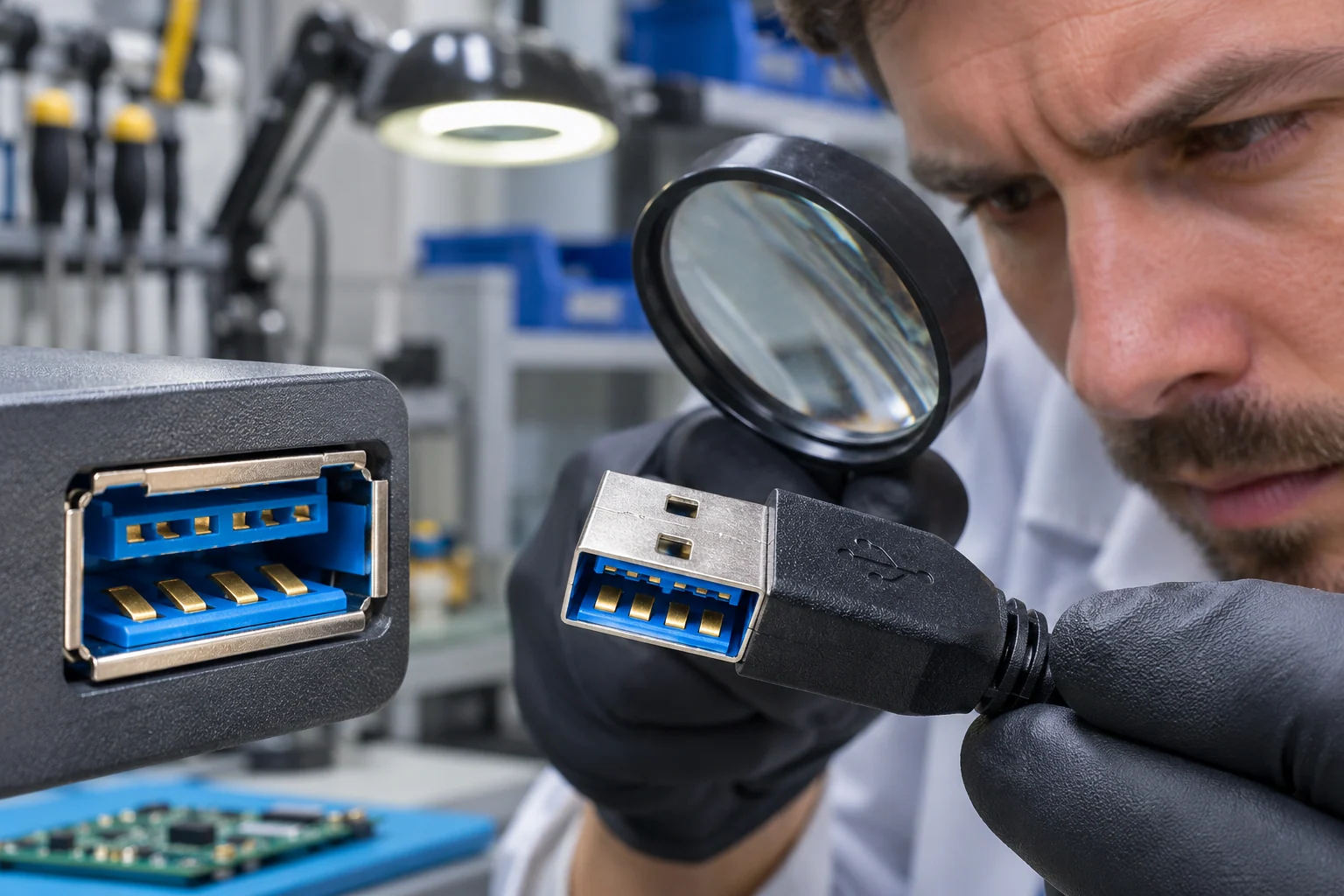
Use a controlled swap sequence
Remove the hub or adapter
Connect the device directly to a port whose computer specification confirms SuperSpeed support. Retest the reported link speed. If the result changes from High Speed to SuperSpeed, the hub, adapter or upstream cable is the next suspect. Read the hub's exact model specification; a USB 3.x-looking connector does not guarantee that every segment supports the same mode.
Replace only the cable
Use a short, known-good cable rated for the required data mode and connector type. Keep the same port and device. If SuperSpeed appears only with the replacement, the original cable may lack the extra data conductors, have damaged contacts or be marginal. Do not assume that a cable rated for high charging power also supports high data speed.
Change the host port
Keep the known-good cable and device, then try another port listed as SuperSpeed by the computer maker. Rear motherboard ports can help isolate a desktop front-panel cable. If one port alone falls back, inspect it while powered off for debris or bent contacts. Do not insert metal objects into a powered port.
Compare with a second device
Try another known-good SuperSpeed device in the same port and cable path. If both fall back, focus on the host or cable path. If only one device falls back across multiple computers, consult that device's manual and support. These comparisons narrow the fault but do not by themselves prove an exact component failure.
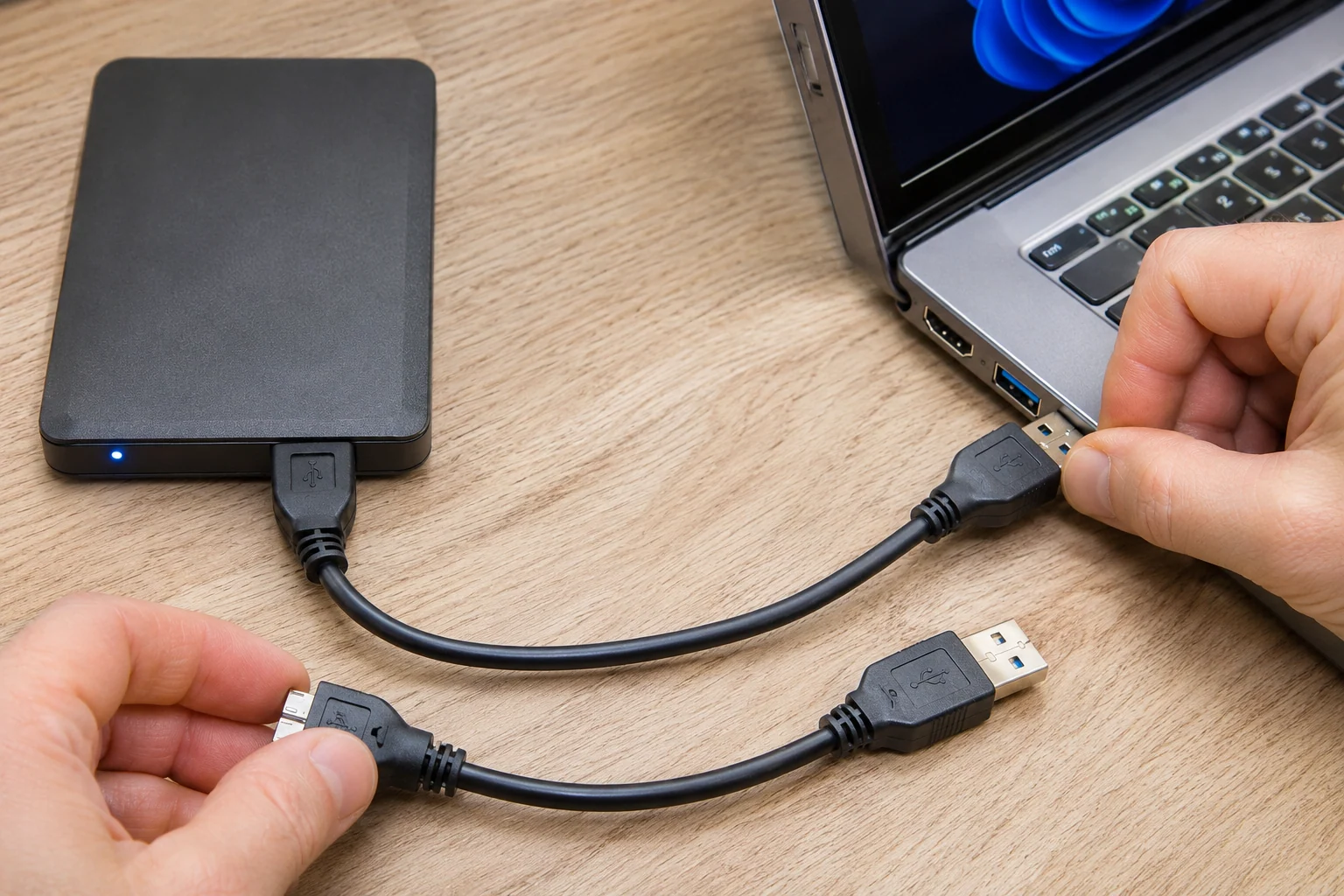
When the link is SuperSpeed but copies remain slow
Measure a representative workload without exposing important data. Many small files impose file-system overhead that a single large file does not. A nearly full flash drive can slow as its controller manages free space. Encryption, antivirus scanning and a slow destination disk also affect the copy. Compare a second known-good drive under the same workload and destination; label any numbers you collect as measurements from your own setup, not a universal USB benchmark.
Use Task Manager to inspect source and destination disk activity during the copy. If the destination is at full utilization, the USB link might not be the bottleneck. If an external SSD is powered through a marginal hub, intermittent disconnects or errors require attention before any speed tuning. Back up data before changing partitions or running destructive tests.
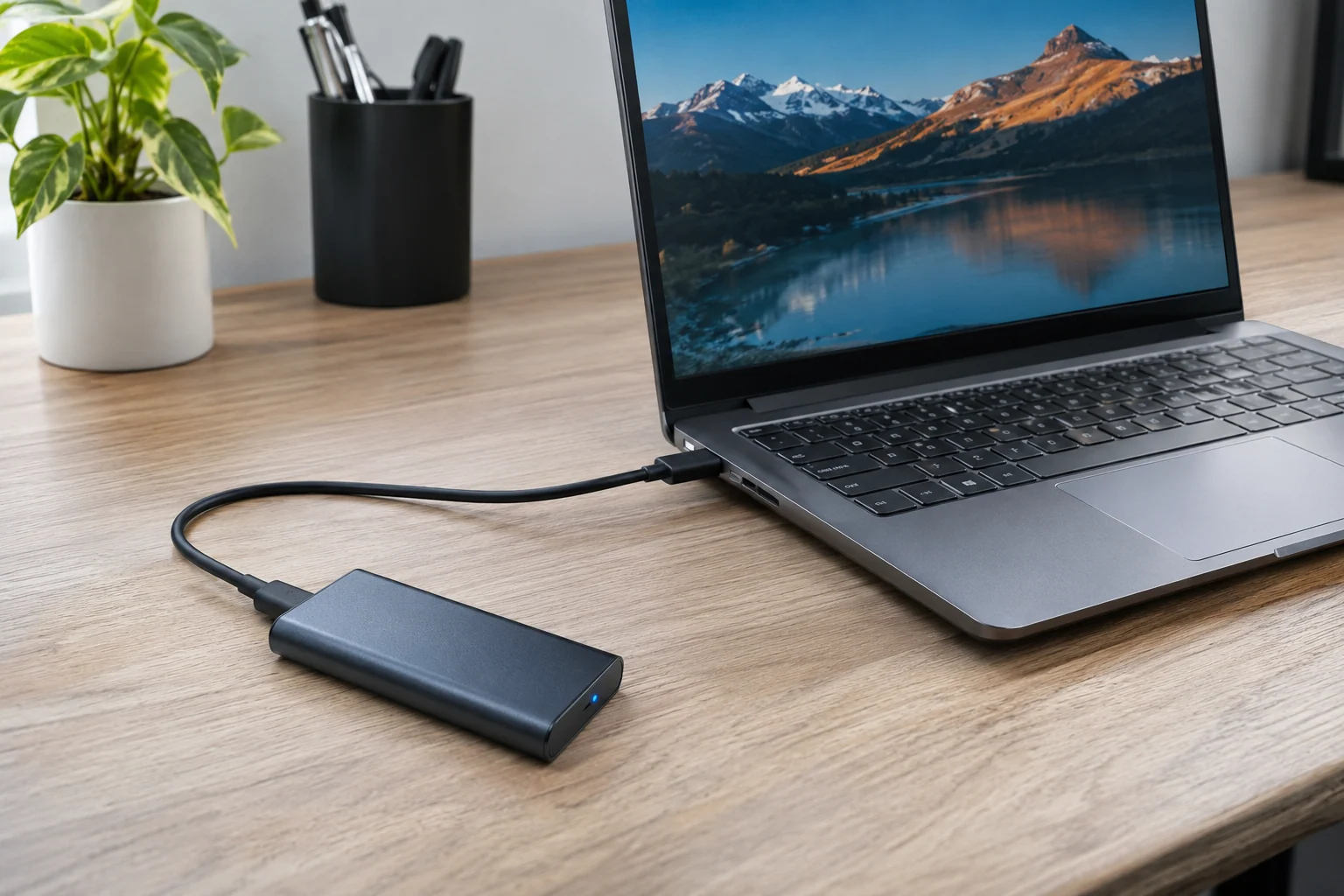
Drivers, firmware and stopping criteria
Install applicable Windows updates and use the PC manufacturer's support page for the exact chipset, USB controller and firmware. For a dock or external SSD, check its own maker's releases. Firmware updates should follow the exact model's instructions; they are not a first step for a single slow copy. Recheck the negotiated speed after an update with the same physical setup.
Stop using a visibly damaged port, a connector that heats up, or a drive that repeatedly disconnects. Transfer important files to another medium as soon as the drive is stable enough. If every direct compatible port reports High Speed with multiple verified SuperSpeed cables and devices, record the PC model, port identity, tool result and software versions for support.
Frequently asked questions
Does a blue USB-A port guarantee USB 3.x speed?
No. Manufacturers sometimes use colors inconsistently, and cable, hub and device capabilities still govern the link. Consult the model specification and inspect the negotiated mode.
Can a USB-C drive run at USB 2.0?
Yes. USB-C describes connector geometry. Cable and port capabilities determine supported data modes; charging capability is a separate property.
Is 480 Mb/s the speed I should see in Explorer?
No. It is a signaling rate. File-copy throughput is lower and depends on protocol and storage performance. Diagnose the reported link mode before interpreting a copy figure.
Sources consulted
Consulted 4 November 2026: USB Implementers Forum: USB 3.2 information; Microsoft Learn: USBView. Verify cable, hub, computer and device capabilities in their exact manufacturers' specifications.
Be the first to leave a comment.