Choosing remote desktop software for Windows 11 depends on one question first: are you connecting to your own unattended PC, helping someone who is sitting at their computer, or managing paid support for work? The built-in Windows Remote Desktop, Quick Assist, Chrome Remote Desktop, and commercial tools solve different problems. Compare their host requirements, access controls, licensing, support, and recurring costs before installing anything.
This guide focuses on those practical differences. The “free” option is not automatically the safest or cheapest for a business, and a paid plan is useful only if its connection limits and controls match your workflow. Prices and plan details below were checked on November 9, 2026; vendors can change them.
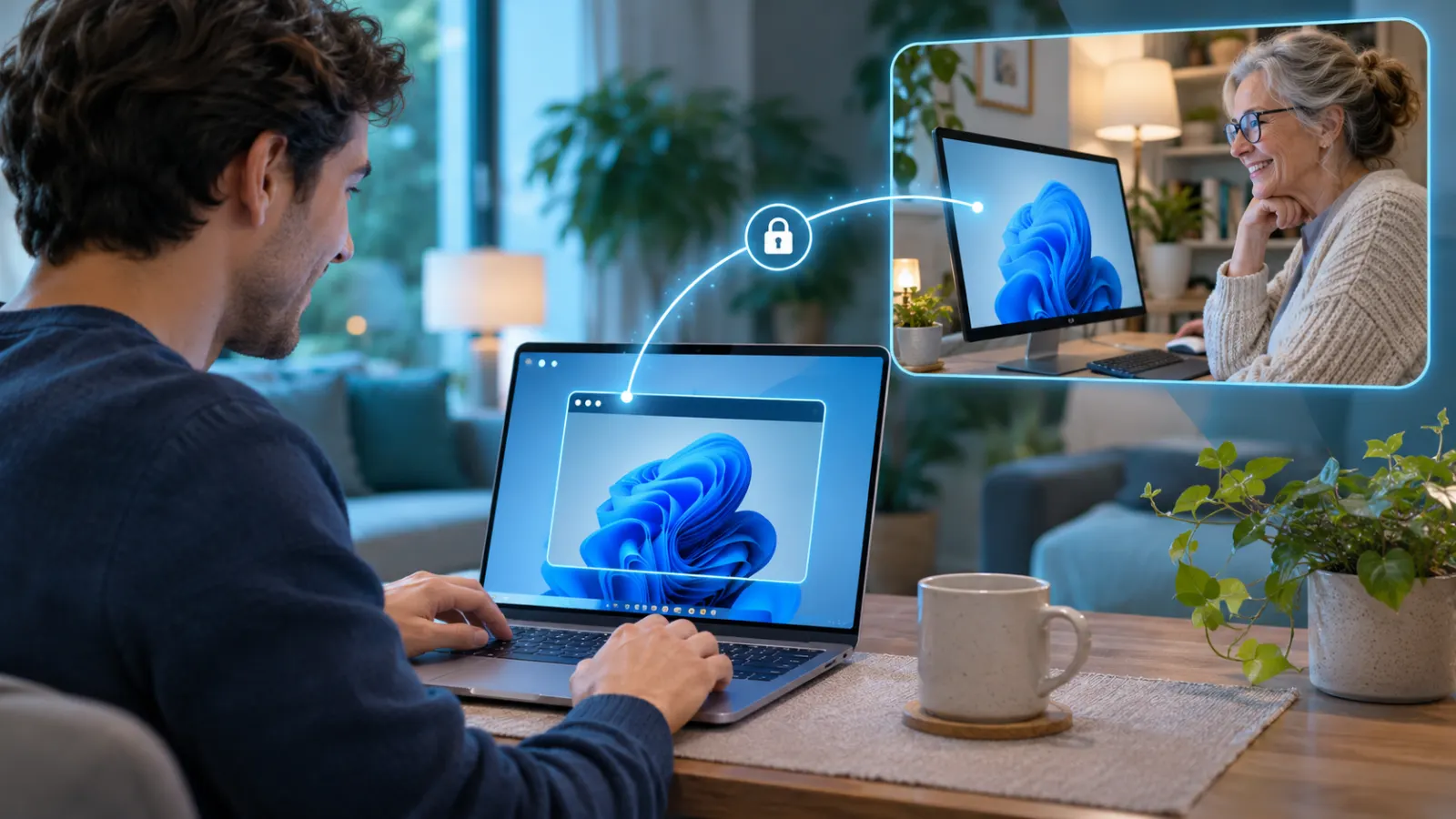
Remote desktop software for Windows 11: match the tool to the task
Start by separating three use cases. For unattended access to your own desktop, check whether the computer can stay powered on, whether you can reach it through a trusted private network, and how sign-in is protected. For one-time assistance, the other person should be present to approve a session and end it. For professional support, look for named users, session limits, device management, audit logs, administration, and a license that explicitly covers commercial use.
- Windows Remote Desktop (RDP): a built-in option for connecting to a Windows Pro host. Microsoft says the computer being controlled must run Pro; the device initiating the connection may use another Windows edition or supported client. It suits managed Windows PCs and private-network access.
- Quick Assist: a simple attended support session. The helper shares a six-digit code and the person receiving help approves the connection and any control request. It is designed for a trusted helper, not unattended access.
- Chrome Remote Desktop: a browser-based choice for accessing your own configured computer or helping another person. It can be convenient across different device types, but setup and account security matter.
- Commercial remote-support products: tools such as AnyDesk offer plans for business needs. Check the number of simultaneous sessions, managed devices, support, administration, and business-use terms rather than comparing only the headline price.
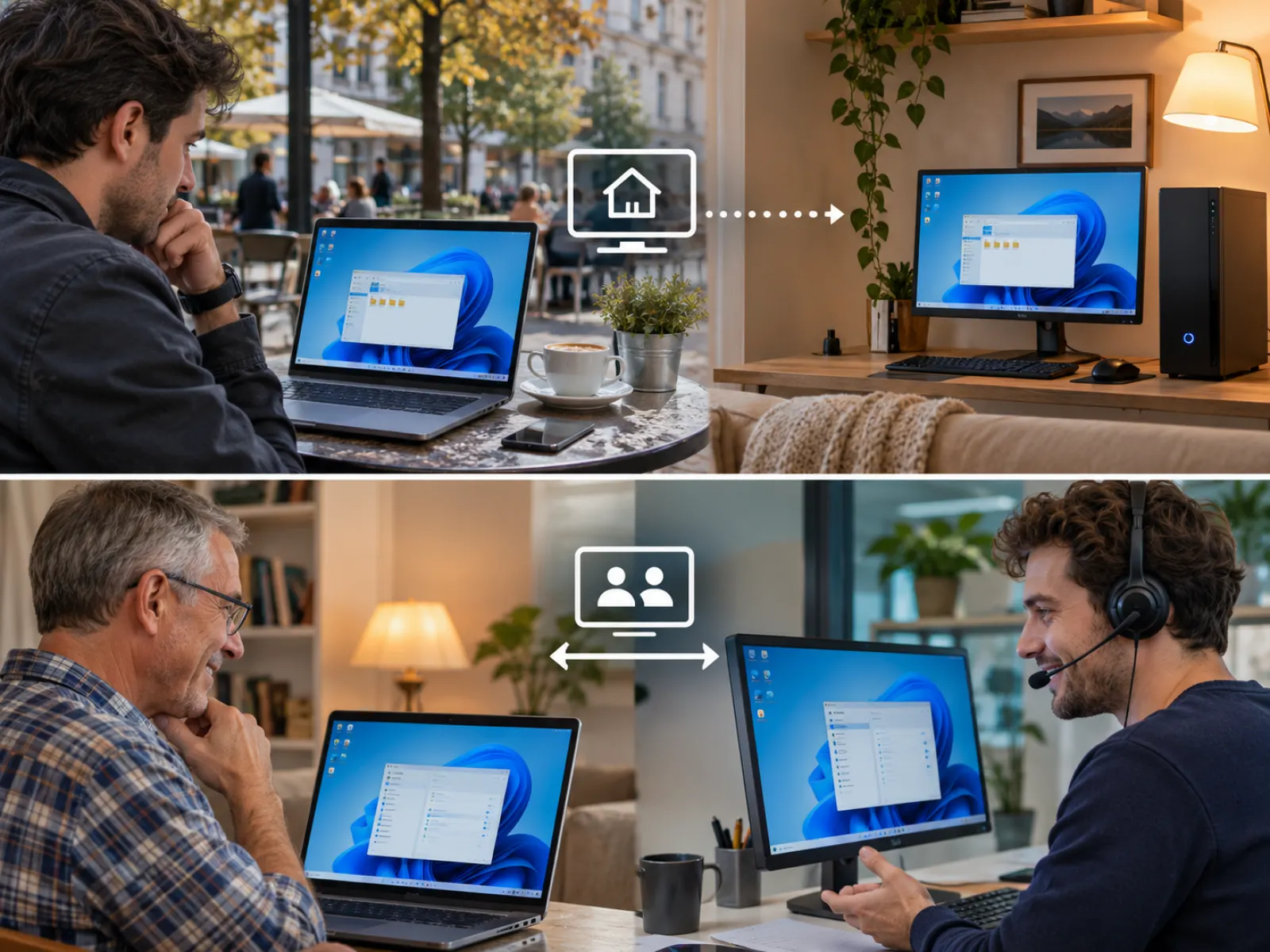
Windows Remote Desktop: useful, with a Pro host requirement
Host edition and setup
Windows 11 includes the Remote Desktop client, but the PC acting as the host must run Windows Pro, Enterprise, or Education in supported configurations; Windows Home cannot host a standard incoming RDP session. If the host is Home, consider Quick Assist for attended help, Chrome Remote Desktop, a suitable commercial tool, or Microsoft’s Windows Home to Pro upgrade. The receiving device can still be a Windows Home PC when used as the client.
To enable it on an eligible host, open Settings → System → Remote Desktop, turn on Remote Desktop, confirm, and note the PC name. Use a separate standard account with a strong password where practical, keep Windows updated, and allow access only for the people who need it. On a home network, test from another device on that trusted network first.
Do not expose RDP port 3389 directly to the public internet. Port forwarding to a home PC can invite password guessing and exploitation. For remote access from outside the network, use an organization-approved VPN or Remote Desktop Gateway with multi-factor authentication, updated devices, and access restrictions. If you do not control the router or security policy, ask the administrator before changing network settings.
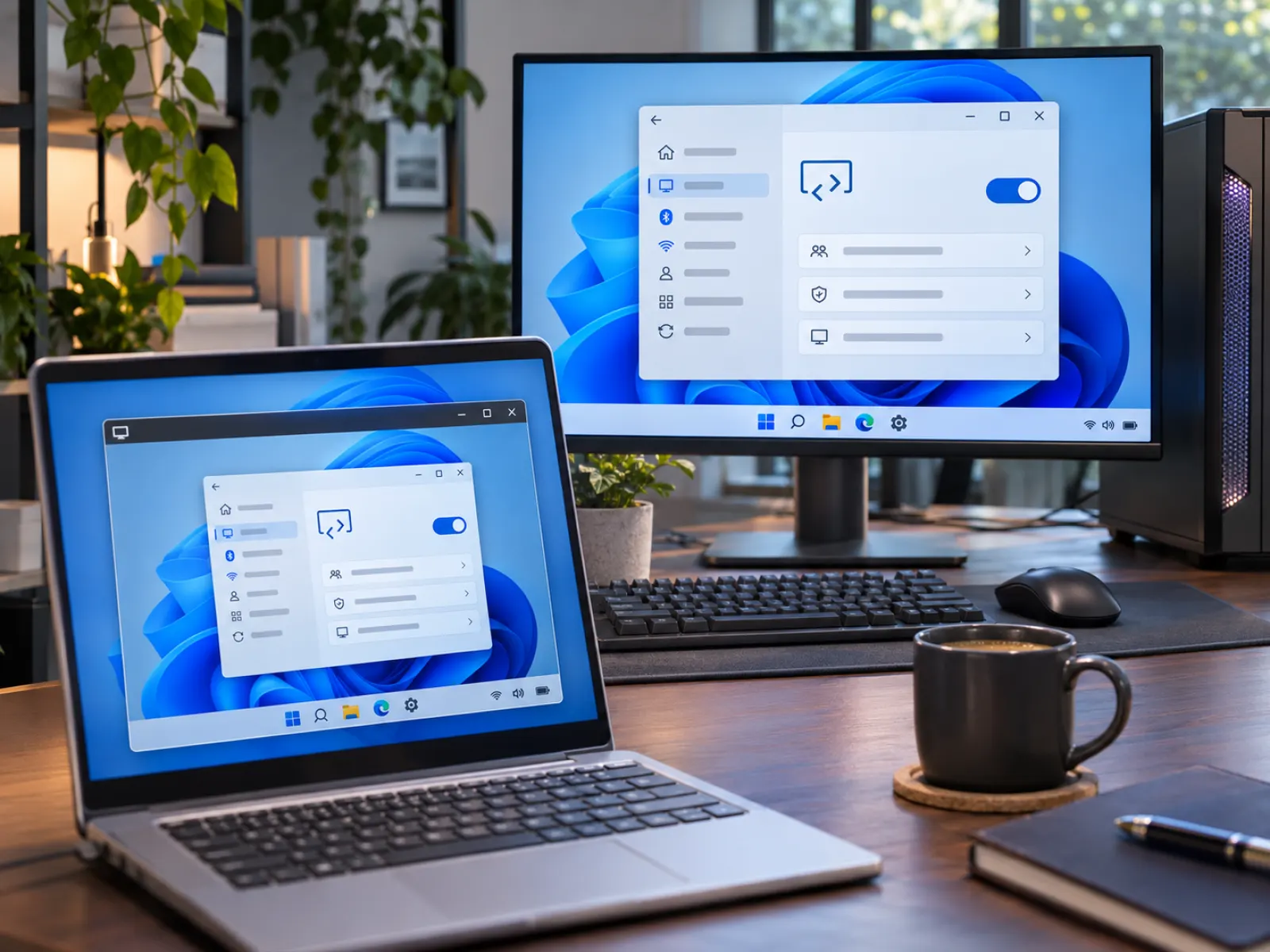
Free vs paid remote desktop features and pricing
Personal access and free options
For personal use, built-in Windows Remote Desktop and Quick Assist do not have a separate per-session subscription, though RDP hosting requires an eligible Windows edition and secure network setup. Chrome Remote Desktop is offered by Google without a subscription for personal remote access. “Free” still has practical costs: setup time, the need to keep a host available, and potentially missing centralized controls or business support.
AnyDesk’s official pricing page, checked November 9, 2026, showed annual-billing introductory prices of $23.12 per month for Solo (regularly listed as $28.90) and $39.92 per month for Standard (regularly $49.90), each for one connection. Taxes may apply, promotional pricing can change, and renewal terms matter. The vendor says its free version is for personal use with limited features and support; professional use requires a license. Check current terms directly before purchase.
When comparing best options, look at what the subscription actually unlocks: concurrent sessions, unattended device count, multiple technicians, role controls, file transfer, session recording, deployment, support response, and billing/renewal conditions. A single-person plan may be poor value if several technicians need to connect at once. Conversely, paying for enterprise features makes little sense if you only occasionally help a family member with their consent.
Security checks before your first connection
Reduce account and session risk
- Download software from Microsoft, Google, or the vendor’s official site; avoid unsolicited links and search ads that imitate support.
- Use multi-factor authentication on the associated account when available, and keep the operating system and remote-access app current.
- Share a one-time support code only with a person you contacted and trust. Never read a code to an unexpected caller claiming to be Microsoft, a bank, or a utility.
- Grant control only for the task, watch the session, and end it when complete. Remove unattended access and saved devices you no longer need.
- For work devices, use the organization’s approved tool and policies. Check logging, access approval, data handling, and license coverage with IT.
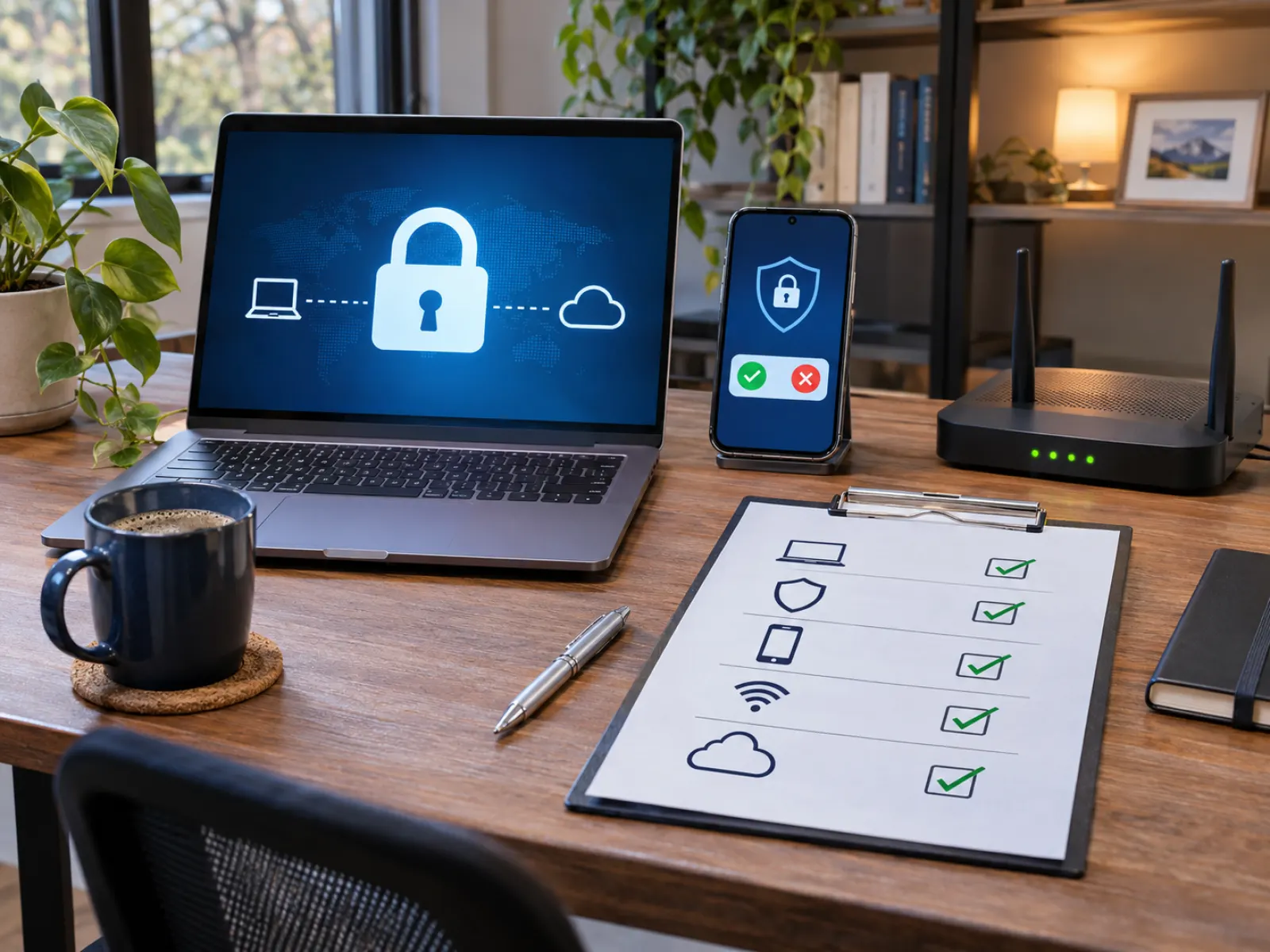
Which remote desktop software is the best fit?
Choose Windows Remote Desktop when you have a Pro host, want built-in Windows access, and can keep connections inside a private or organization-managed network. Choose Quick Assist for occasional, attended help where the other person can approve access. Choose Chrome Remote Desktop when simple cross-device personal access fits your account and management needs. Consider a paid business product when technicians need repeatable support, multiple sessions, administration, or vendor support—and check the license and total annual price.
If none of these conditions fit, do not open firewall ports or grant persistent access just to make a connection work. Ask your IT administrator or a trusted technician to design a secure route. If your Windows 11 PC itself is slow or unreliable, see our Windows 11 backup options guide before relying on remote access as part of a recovery plan.
Frequently Asked Questions
Which Windows 11 editions can host an incoming Remote Desktop session?
The built-in Windows host requires an eligible Pro, Enterprise, or Education edition. Windows Home can run the Remote Desktop client but cannot host a standard incoming session.
Can Quick Assist provide unattended access?
No. Quick Assist is for attended help: the person at the other computer approves the session and can end it.
Is a free remote-access tool automatically suitable for a business?
No. Check the vendor’s business-use terms, user and session limits, support, and access controls against the work you need to do.
How can I reduce remote-access risk?
Install the app from its official vendor, enable multifactor authentication where available, keep it updated, and share one-time support codes only with a person you contacted and trust.
Sources and scope
- Microsoft Support: How to use Remote Desktop
- Microsoft Support: Solve PC problems remotely using Quick Assist
- Google Chrome Remote Desktop
- AnyDesk pricing and plan terms
- Microsoft Support: Upgrade Windows Home to Windows Pro
Testing note: No hardware or remote-access product testing was supplied for this article. The comparison is based on official vendor documentation and plan information reviewed on November 9, 2026. It is general guidance, not a security assessment of a specific network.
Be the first to leave a comment.