If you are comparing disk cloning software for SSD migration, start with the destination drive and the recovery plan—not a “best app” list. Some utilities are tied to one SSD brand; others combine cloning with image backup and recovery media. The right choice depends on whether the new SSD is supported, whether the used data fits, how you will connect both drives, and whether you need a repeatable backup after the move.
This guide compares official tools and their published limits. It is based on vendor documentation checked November 10, 2026, not hands-on speed tests. Prices below are US list prices displayed by Acronis on that date; sales tax, promotions, device count, cloud storage, and renewal terms can change the checkout total.
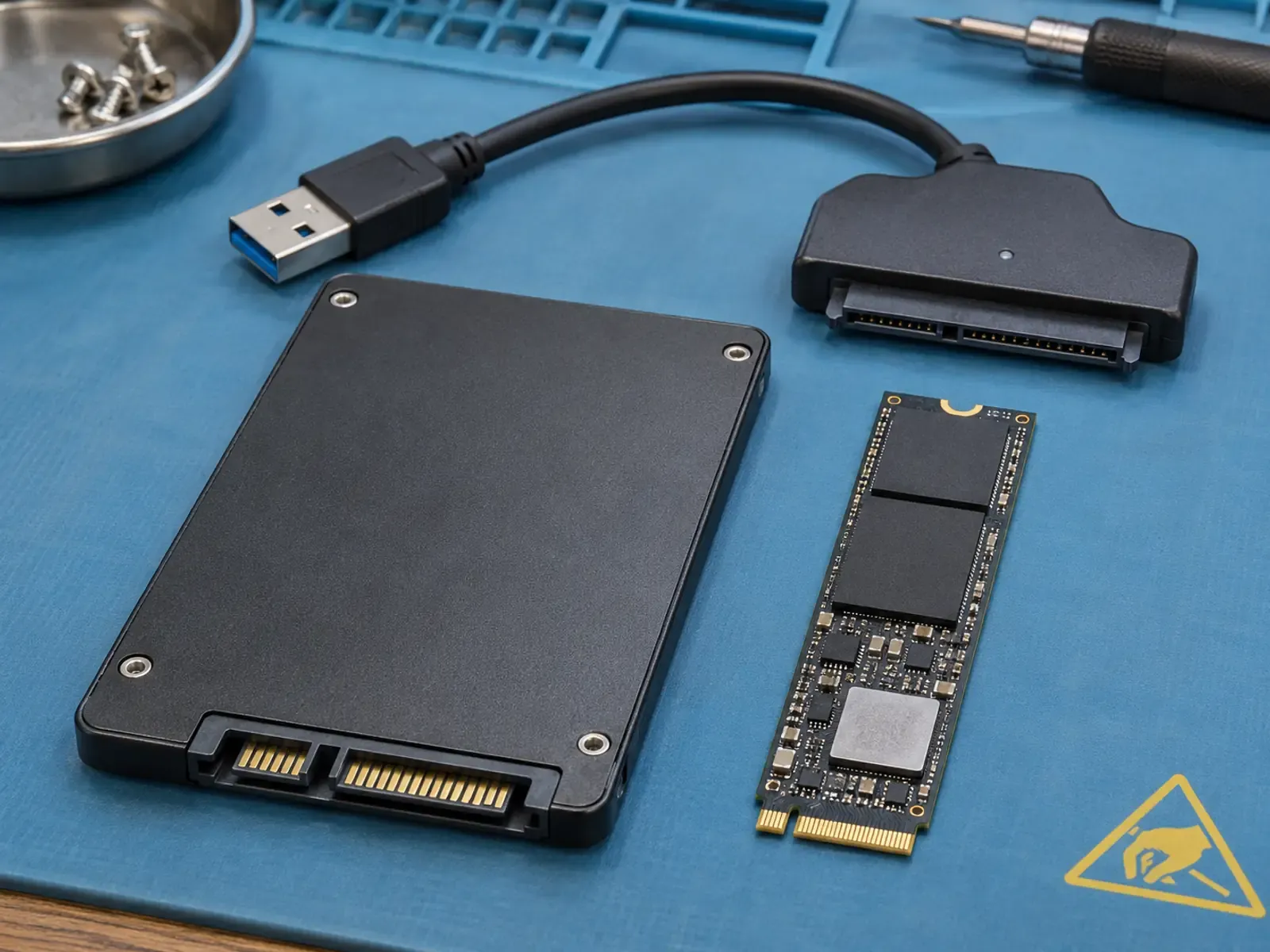
First decide what “clone to an SSD” means
A disk clone copies partitions from one drive to another so the destination can replace the source. A system image stores a recovery copy that you restore later. File copy moves selected documents but does not reproduce Windows, applications, boot partitions, and settings as a working system. These are different jobs. If the old disk is healthy and the goal is to keep the installed system, cloning may be practical. If the source drive is failing, make a data recovery plan first; repeated reads can worsen a damaged drive.
Cloning also has a strict destination consequence: the target is written with the copied layout and data. Back up files that exist only on the target before starting. Do not assume a larger advertised capacity means every partition will automatically expand, or that a smaller-capacity SSD will work just because the used files appear to fit. Partition layout, recovery partitions, file-system overhead, and the tool’s resizing rules matter.
Disk cloning software for SSDs compared
| Option | Best fit | Published strengths | Limits to check | Price context |
|---|---|---|---|---|
| Samsung Data Migration in Magician | Moving a supported source to a Samsung SSD | Samsung describes migration of Windows, applications, and user data. | Designed around Samsung drives and supported migration scenarios; check the exact source and target compatibility. | Use Samsung’s current official download and terms; do not pay for an unrelated “Samsung clone” download. |
| Macrium Reflect X Home | Home users who want cloning plus ongoing image backup and recovery | Macrium lists a home product, annual licensing, cloning, and recovery features. | Annual plan and product features can change; read the current license and system requirements. | Official pricing page uses a currency selector; check the live currency selector for the current US total and renewal terms. |
| Acronis True Image | Users who want cloning together with scheduled local or optional cloud backup | All listed tiers include disk cloning; Advanced and Premium add cloud storage and other features. | Subscription, device count, included storage, and renewals differ by tier. | US page showed Essentials $49.99/year, Advanced $57.99/year, Premium $124.99/year for one computer before tax on Nov. 10, 2026. |
| Clonezilla Live | Experienced users comfortable booting a separate environment | Free and open source, broad file-system support, whole-disk and partition imaging. | Destination partition must be equal or larger; source partitions must be unmounted; no incremental imaging and less approachable recovery. | GPLv2 software; budget time for preparing and learning the bootable workflow. |
How to choose by your actual migration
Choose a manufacturer tool when the new SSD qualifies
Samsung says its Data Migration feature in Samsung Magician is intended to move an existing drive’s operating system, applications, and user data to a new Samsung SSD. This makes it a sensible first option when the destination is a supported Samsung model and the official compatibility list covers your setup. It is not a universal tool for every SSD brand. Check the precise model support, the current Magician release, and any source-drive requirements before you open the migration wizard.
Manufacturer utilities can be straightforward, but they may deliberately support only the maker’s devices or a narrow migration scenario. If your target is another brand, do not install a download that imitates the maker’s name. Use the destination manufacturer’s official support site or select a third-party product with explicit support for your drives and operating system.
Choose a paid suite when backup and recovery matter too
Acronis True Image combines active disk cloning with full image backup, scheduled backups, and recovery tools. Its official purchasing page showed three yearly tiers on November 10, 2026: Essentials at $49.99, Advanced at $57.99, and Premium at $124.99 for one computer. The lower tier lists local backup and cloning without cloud storage. Higher tiers add cloud capacity and security features. Compare the actual device count, selected storage size, renewal rate, and cancellation terms at checkout; the annual price is not a one-time clone fee.
Macrium Reflect X Home is positioned for personal backup and recovery, and its current pricing page lists annual plans. The page also separates the home edition from business products. Check the live currency selector for the current US total and renewal terms before buying. Either suite can be worthwhile if you will use its image backups and restore media after migration; paying only to clone one drive may be unnecessary.
Choose Clonezilla when you can manage the boot workflow
Clonezilla Live runs from bootable media and supports a wide range of file systems and partition formats. Its official documentation says the destination partition must be equal to or larger than the source, and the partition being cloned must be unmounted. It does not provide incremental backup, and the image format is not designed for browsing individual files. That makes it powerful for a prepared user, but less convenient for someone who expects a guided Windows wizard or wants simple file-level recovery.
Check these details before downloading
- Target compatibility: identify the exact SSD model and interface. Check whether it is SATA or NVMe and whether your computer has the correct slot or adapter. Do not assume an M.2 drive is compatible merely because it fits the connector.
- Data and partition fit: review the source’s partition map and used space. Read the selected tool’s rules for smaller targets, recovery partitions, and resizing before beginning.
- Connection plan: confirm how both drives will be attached at once. For a laptop with one internal slot, you may need a compatible external enclosure or adapter. Verify the interface and physical dimensions with the device maker.
- Backup first: save important files to a separate drive or trusted backup destination. A clone is a migration copy and does not replace an independent backup after the move.
- Recovery and encryption: make sure you can sign in, have required BitLocker recovery information, and know how to boot from recovery media if the new disk does not start. Do not disable encryption or change firmware settings by guesswork.
- License and source: download only from the software maker. For paid plans, compare renewal, device limits, support, and included backup features—not just the first-year price.
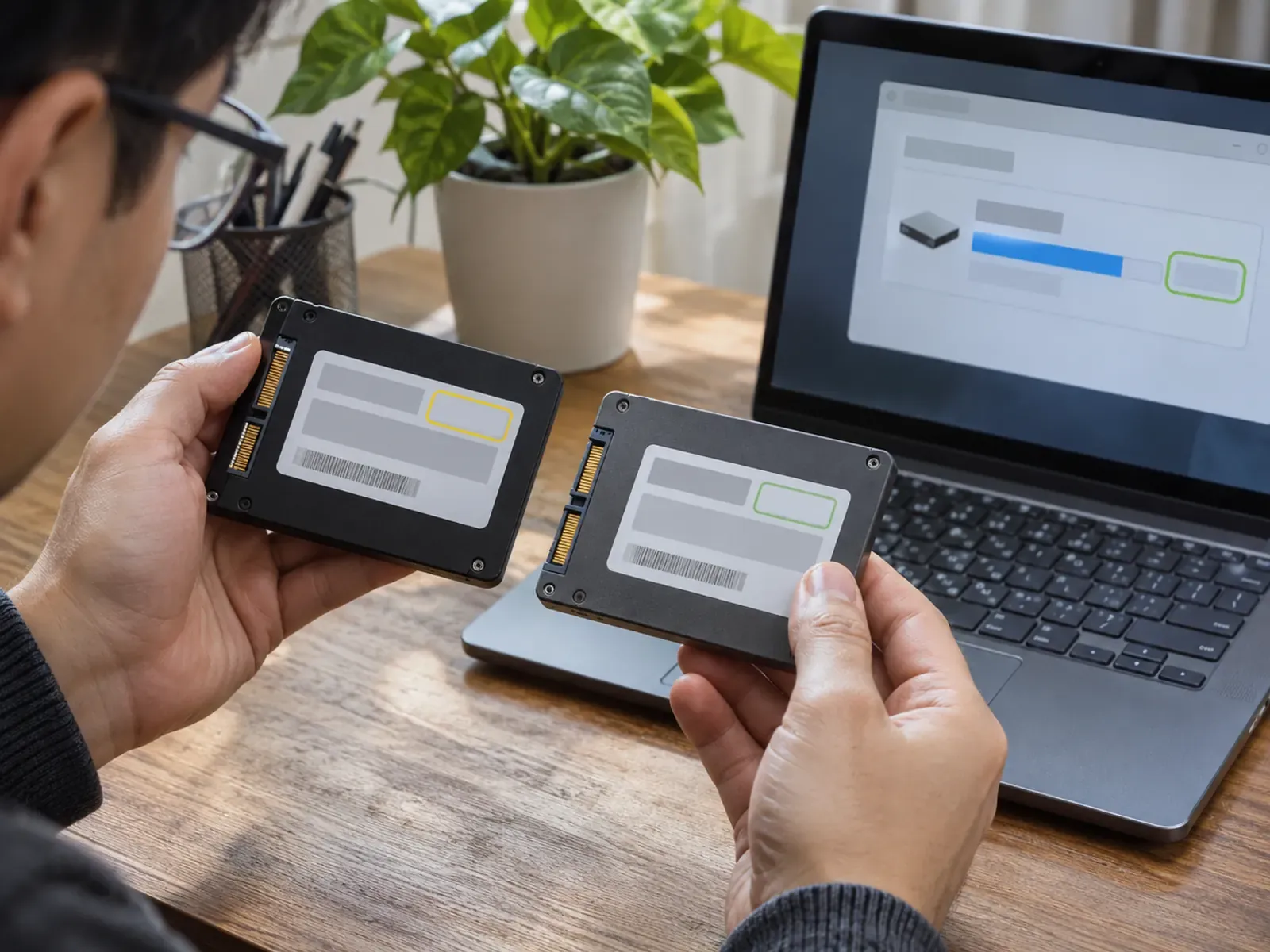
Migration sequence: reduce the chance of a failed swap
- Record the source and target model names, capacities, and connection type. Keep the original disk unchanged until the new system has started and important files have been checked.
- Read the selected product’s official guide and confirm that both disks appear correctly before starting a clone. Stop if the target contains files you still need.
- Choose the whole system disk when your goal is to migrate Windows, including boot and recovery partitions. A file-only copy will not make the destination a bootable replacement.
- Start cloning from the vendor’s documented workflow and keep the computer powered. Do not disconnect either drive or interrupt the process while it is writing.
- When the software reports completion, shut down using its instructions. Install or select the new SSD following the computer manufacturer’s service guidance; do not open a device while it is powered.
- Boot with the original drive disconnected or otherwise prevented from confusing the boot order, if the manufacturer’s procedure supports that. Check that Windows starts, that files open, and that device management shows the expected target drive.
- Keep the original drive untouched until the clone is confirmed and a separate backup exists. Then decide whether to store, securely erase, or repurpose it according to your data needs.
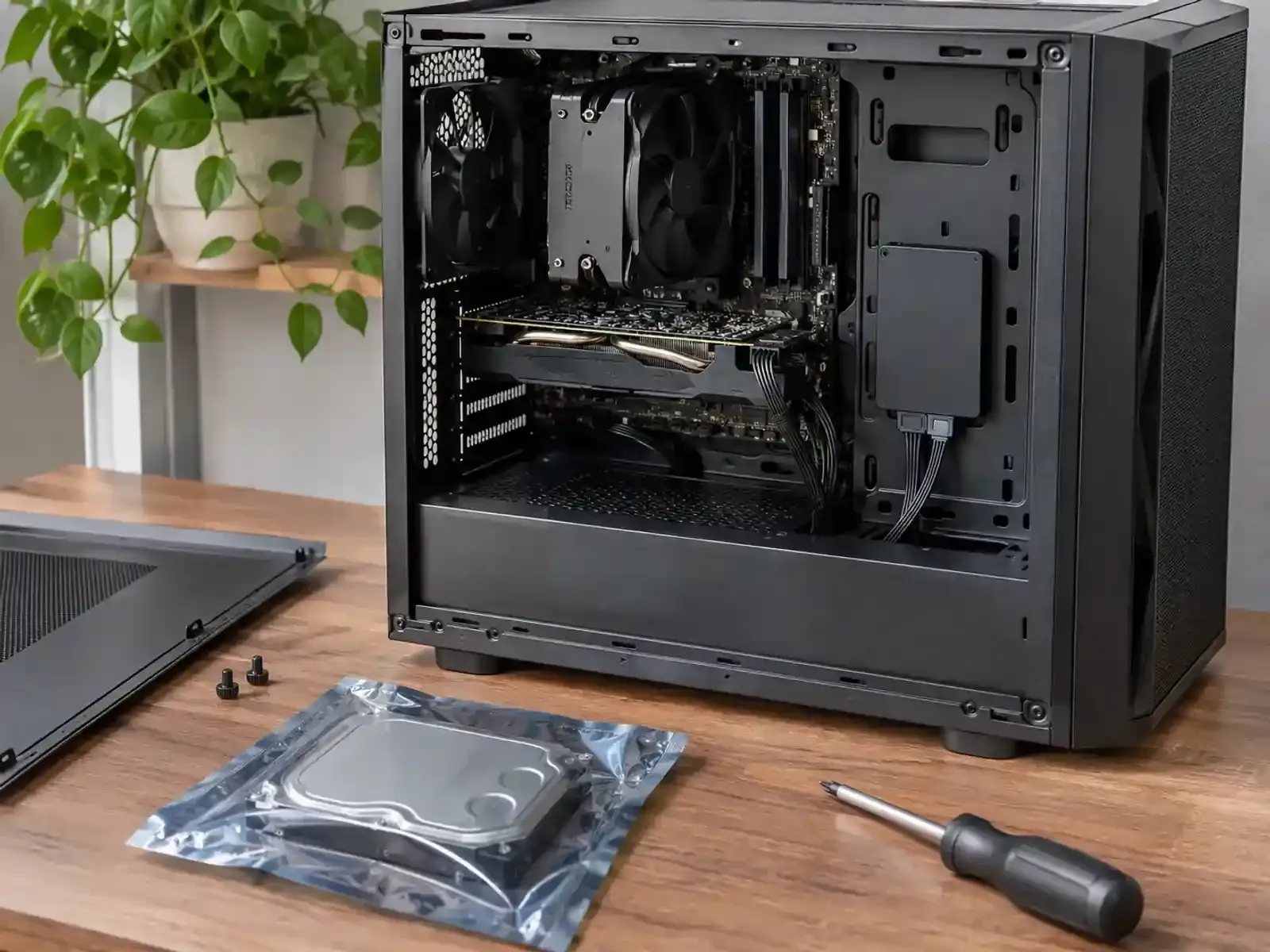
Common reasons a clone is not ready to boot
- The chosen source was a data partition rather than the complete system disk.
- A required boot or recovery partition was left out.
- The target is not detected because of an unsupported slot, adapter, controller, driver, or drive model.
- The clone completed but the firmware still starts from the old drive or uses a different boot entry.
- The source has file-system or hardware problems that were not addressed before migration.
Do not immediately erase the old drive or repeat the clone without checking the exact error. Compare the drive list and partition layout with the software maker’s instructions. If the source drive is making unusual noises, disappearing, or reporting hardware errors, stop using it and prioritize data recovery rather than running repeated cloning attempts.
Which option fits?
- New Samsung SSD: start with Samsung’s official Data Migration documentation and confirm model eligibility.
- Different SSD brand and you want ongoing backups: compare Macrium Reflect X Home and Acronis by restore workflow, backup schedule, device count, support, and total annual cost.
- One-time migration and you are comfortable with bootable tools: review Clonezilla’s destination-size and unmounted-partition limits before preparing a USB drive.
- Source disk is failing or data is irreplaceable: do not treat consumer cloning software as a data-recovery guarantee; obtain a separate backup or specialist advice first.
For the next step, see our SSD health and performance diagnosis, Windows backup comparison, and safe storage recovery guide.
Frequently Asked Questions
How is cloning different from creating a system image?
A clone copies partitions to another drive so it can replace the source. A system image is a recovery copy that must be restored later; copying selected files does not reproduce a bootable Windows setup.
Can I clone to an SSD with less capacity than the source?
It depends on the tool and partition layout. Check the utility’s exact rules and the used space before starting; some tools require the destination partition to be at least as large as the source.
Will the cloned SSD always boot on the first try?
No. Confirm that the required system and recovery partitions were copied, that the SSD is supported and detected, and that firmware starts from the intended drive.
When can I erase or reuse the original drive?
Keep it unchanged until the SSD boots and important files have been checked. Confirm the migration before repurposing the source.
Sources
- Samsung Semiconductor, Samsung Magician and Data Migration FAQ (consulted November 10, 2026).
- Samsung Semiconductor, Internal SSD installation FAQ (consulted November 10, 2026).
- Acronis, True Image plan and pricing page (US price view consulted November 10, 2026).
- Macrium, Product and pricing comparison (consulted November 10, 2026).
- Macrium, Reflect cloning software (consulted November 10, 2026).
- Clonezilla, About and documented limitations (consulted November 10, 2026).
Be the first to leave a comment.