Quick Fix — Try This First
- Confirm that the Windows 11 PC you want to reach runs Pro; Windows Home cannot host Microsoft Remote Desktop.
- Wake the host PC, keep it connected to the network, and confirm both devices use the expected home or work network.
- On the host, open Settings > System > Remote Desktop and verify that Remote Desktop is enabled.
- On the client, search for Remote Desktop Connection and try the host PC name; do not open an internet-facing router port as a shortcut.
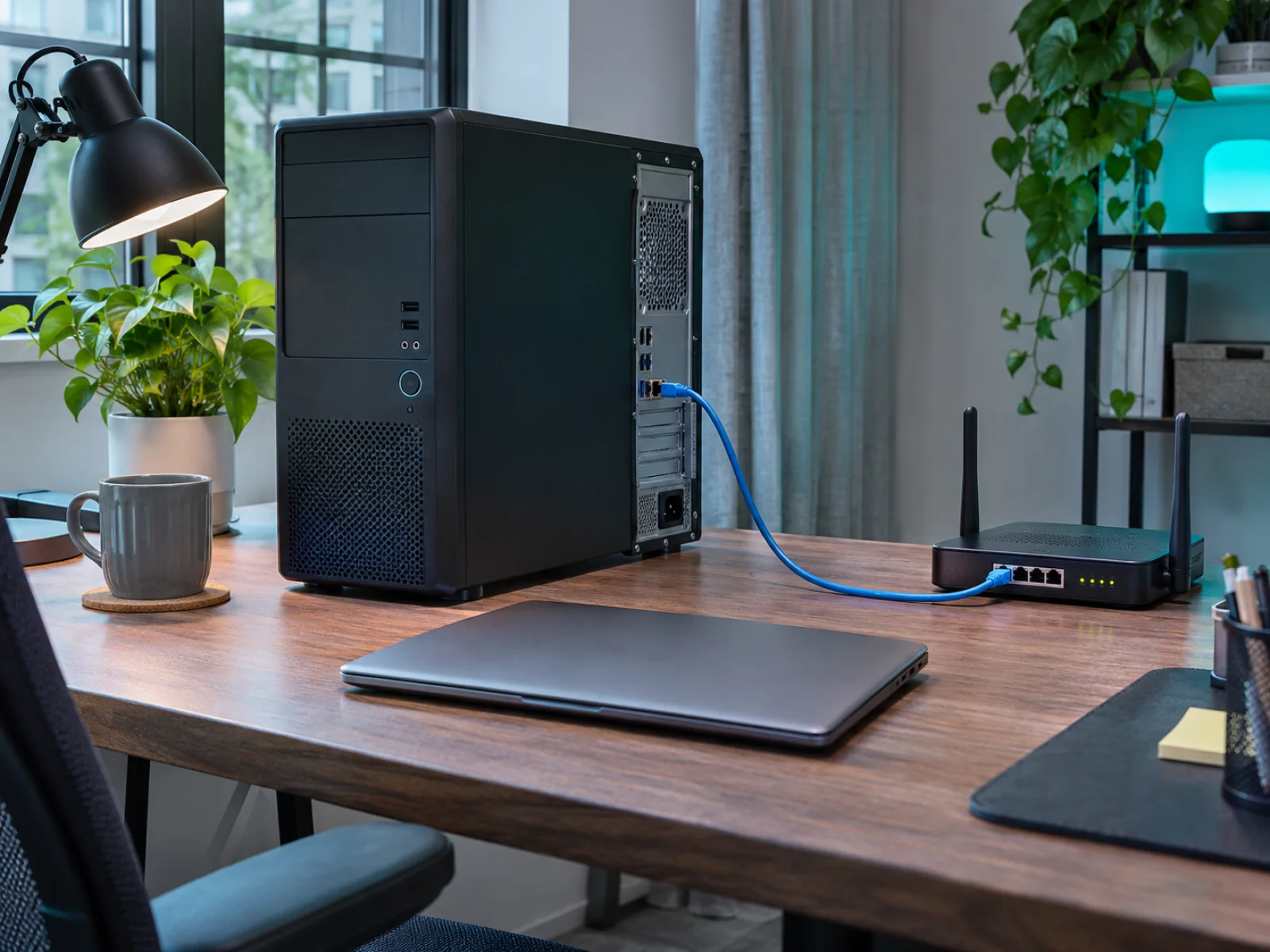
If Remote Desktop is not connecting on Windows 11, first identify the device acting as the host and the device acting as the client. A connection can fail because the host edition does not support incoming Microsoft Remote Desktop, the host is asleep, the setting is off, the name cannot be resolved, or a network policy blocks access. This checklist begins with reversible checks and avoids weakening network security.
Symptoms and likely causes
| Symptom | Likely cause | Next action |
|---|---|---|
| Remote Desktop toggle or host setting is unavailable | The host edition or an organization policy may not allow the feature | Check Windows edition and managed-device guidance. |
| Connection works by IP but not by PC name | Name resolution or saved-name issue | Confirm the host name on the host and reconnect with it on the same network. |
| Host is missing from the network | Sleep, power, Wi-Fi, Ethernet, or wrong network | Wake the host and verify its network connection locally. |
| It fails only from outside the home or office | Remote access path, VPN, gateway, or firewall policy | Use the organization’s approved VPN or Remote Desktop Gateway. |
| Credentials are rejected | Wrong account format, password, or permission | Confirm the authorized Windows account; never share its password. |
Safe troubleshooting steps
1. Identify host, client, and Windows edition
The host is the PC whose desktop you want to control. The client is the device initiating the connection. On the host, open Settings > System > About and read the Windows edition. Microsoft’s setup instructions require Windows Pro on a PC configured to receive Remote Desktop connections; a Windows Home edition may still act as a client to another host.
Check: the host is Windows 11 Pro and is not restricted by work or school policy. If it is Home or managed: do not try registry changes or third-party patches; use an approved alternative or ask the administrator.
2. Confirm Remote Desktop is enabled on the host
Simulated interface illustration: this generic example is not a capture from a real PC and does not show the host’s actual setting. Windows labels can vary by build.
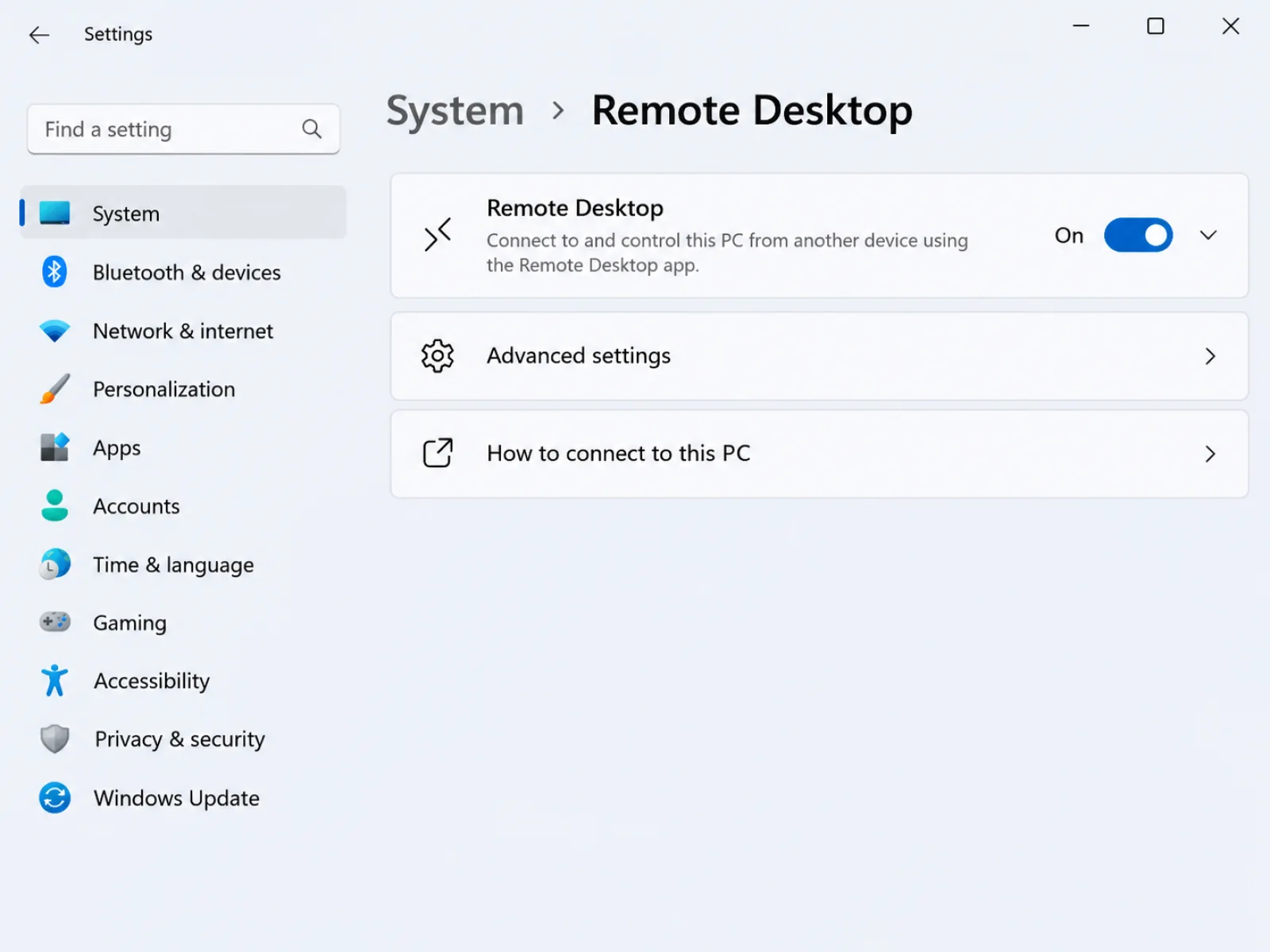
At the host, open Settings > System > Remote Desktop. Read the state before changing it. If the host is shared or managed, check the owner’s or administrator’s policy first. Keep Network Level Authentication enabled unless official support for the exact environment tells the administrator otherwise.
Check: Remote Desktop is shown as enabled and the host name is recorded. If the control is missing or locked: recheck the edition and organization policy; do not bypass the restriction.
3. Check power and the local network
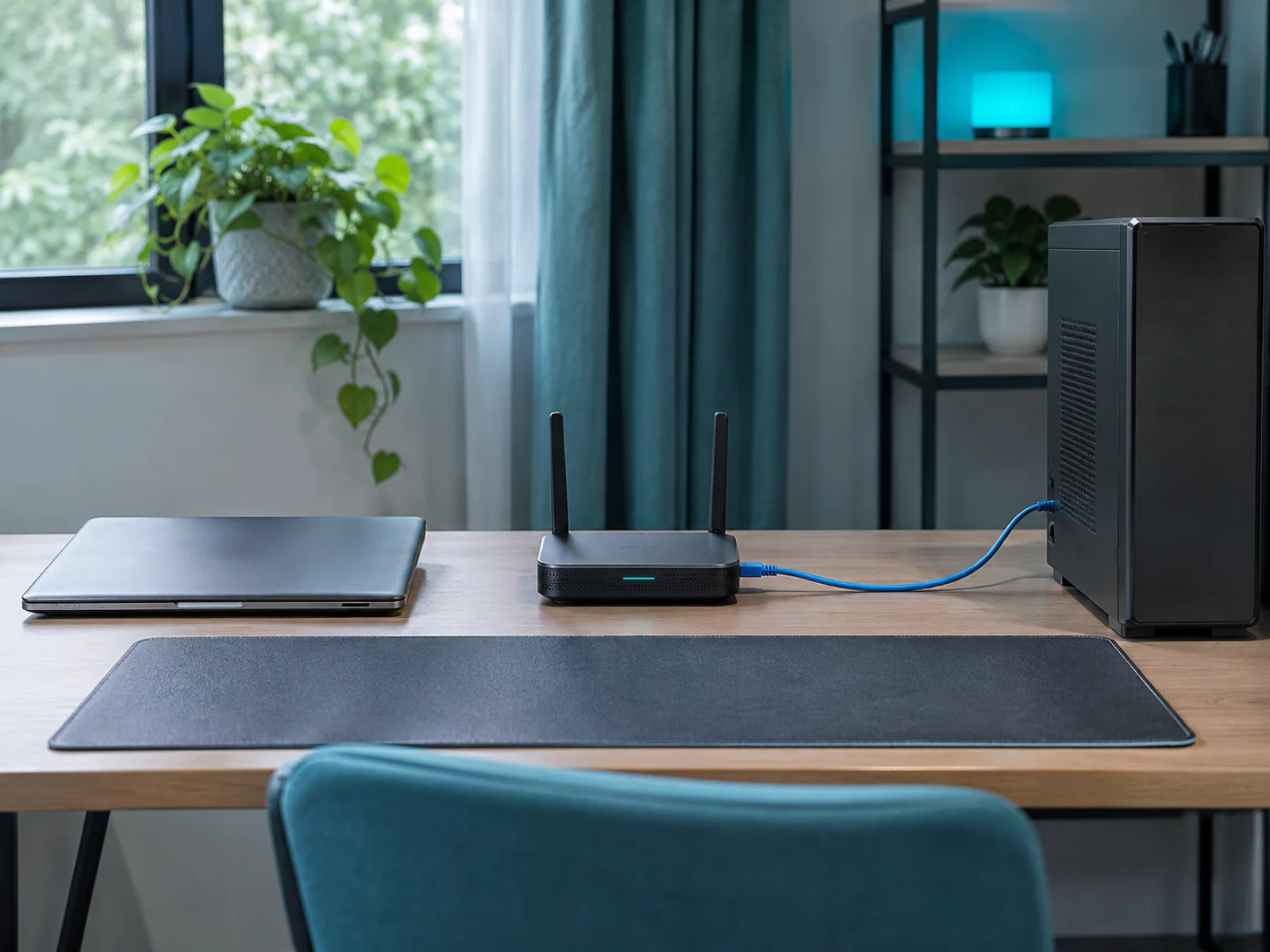
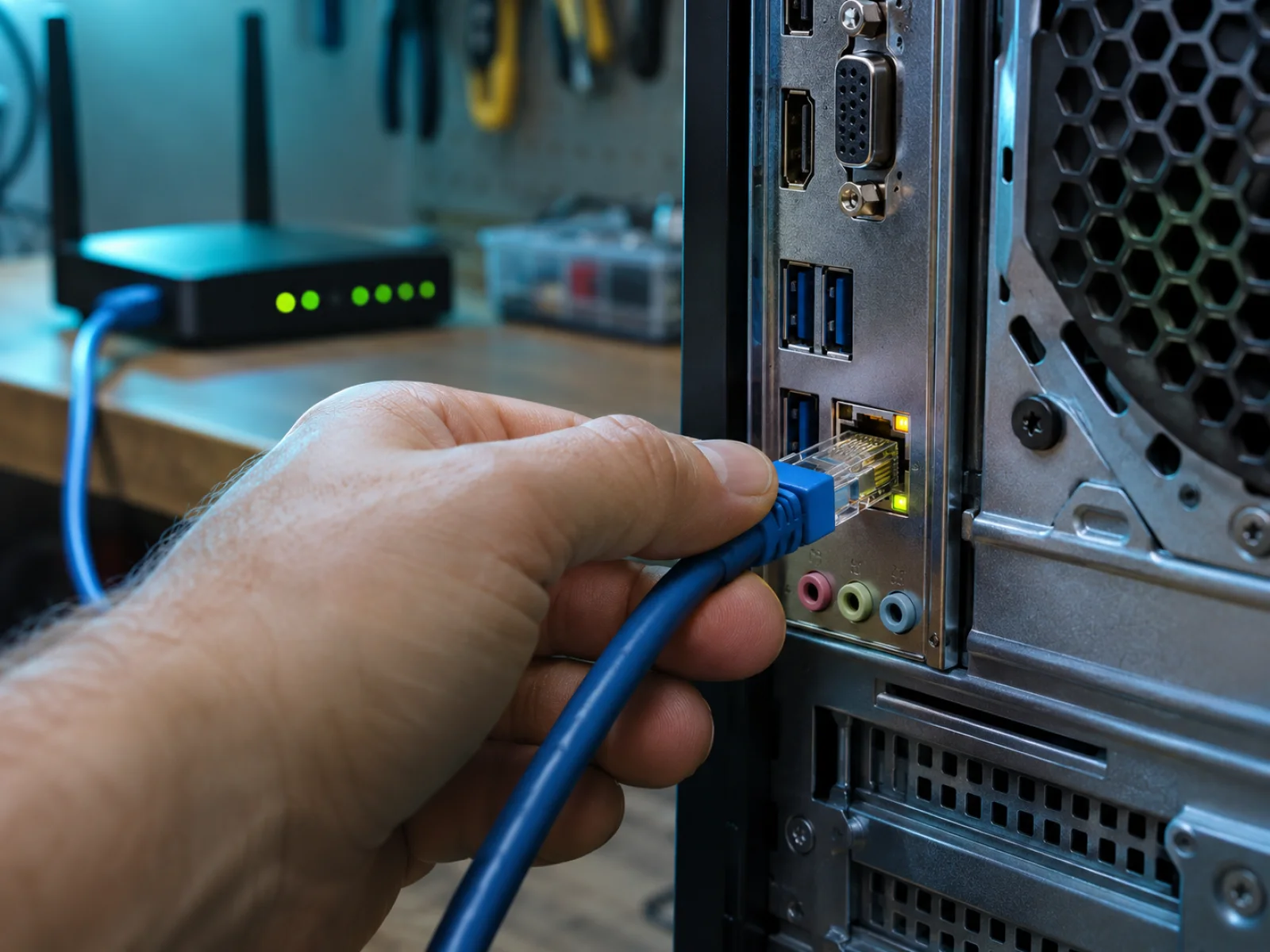
Make sure the host is awake and remains connected. Confirm the client and host are on the intended network; a guest Wi-Fi network may isolate devices. If practical, compare Wi-Fi with a known working wired connection, changing one condition at a time. Do not unplug a shared router or change firewall settings without the network owner’s approval.
Check: both devices have network access and the host is awake. If the client still cannot find the name: verify the exact PC name on the host and reconnect locally before investigating an off-site path.
4. Test the connection with the host name
On the client, search for Remote Desktop Connection, enter the host PC name, and connect with an account authorized on that host. If you already know the host’s local IP address, one same-network comparison can help separate name resolution from reachability. Do not publish a private address or credentials in a public forum.
Check: the expected Windows sign-in screen appears and the approved account is accepted. If the name fails but the address works: investigate name resolution with the network administrator. If both fail: record the exact message and check host edition, power, and policy again.
5. Treat off-site access as a security design question
If the connection fails only away from the local network, use a company-approved VPN or Remote Desktop Gateway. Microsoft security guidance advises against direct internet-facing RDP because it has limited protection against password-spray attacks. Do not forward Remote Desktop directly from the public internet, disable the firewall, or weaken authentication to make a test pass. For a business device, the administrator should review firewall and access rules rather than a user changing them ad hoc.
Common mistakes
- Checking only the client PC: the host must accept Remote Desktop and run a supported Windows edition.
- Testing while the host is asleep or off the expected network can look like a credentials problem.
- Exposing TCP port 3389 directly to the internet exposes the service. Use an approved VPN or remote-access gateway.
Troubleshooting if it still fails
From the client, separate name resolution, port reachability, and sign-in problems. Replace PC-NAME with the host name in PowerShell:
Resolve-DnsName PC-NAME
Test-NetConnection PC-NAME -Port 3389
The first command checks name resolution; the second tests TCP reachability to the RDP port on a network you are authorized to use.
- If name resolution fails but the IP works, check the host name and network DNS.
- If the port test fails on the local network, check host sleep state, Remote Desktop settings, and Windows Firewall.
- If the port responds but sign-in fails, verify the permitted account and credentials; for off-site access, use the approved design instead of a public port forward.
When to stop and contact an administrator or technician
Stop if the PC is managed, you do not own the router, credentials are being requested unexpectedly, or the proposed fix asks you to expose a port or disable a security control. Ask an administrator when access policy, VPN, gateway, domain account, or firewall rules are involved. Record the host edition, PC name, connection location, and exact error without recording a password.
Frequently asked questions
Can Windows 11 Home accept a Microsoft Remote Desktop connection?
Microsoft’s standard Remote Desktop host setup requires a Pro edition. Home can be used as a client to connect to a supported host.
Does the PC need to stay awake?
Yes. A sleeping or powered-off host cannot accept an ordinary connection. Use approved power settings and keep the host connected.
Should I open port 3389 on my router?
No. Avoid exposing Remote Desktop directly to the internet. Use an organization-approved VPN or gateway.
Why does the PC name fail while the IP address works?
That points toward name resolution or a saved-name issue, but does not identify the cause. Confirm the host name and ask the network administrator if it persists.
Related guides and next step
For help choosing a secure support arrangement, compare remote IT support for a small business, Windows 11 remote desktop software options, and help desk software for small teams. Next step: if this is a company PC, send your administrator the host edition, host name, exact error, and whether the failure occurs only off-site.
Sources
- Microsoft Support — How to use Remote Desktop (accessed November 11, 2026).
- Microsoft Learn — privileged access intermediaries and direct RDP security (accessed November 11, 2026).
This guide uses Microsoft support and security documentation and has not been tested on a specific PC.
Last updated: November 11, 2026
Be the first to leave a comment.